Managing Your Schedule
Managing your time and meetings effectively in our engagement hub is crucial for making the most of your networking opportunities. Here are some tips on how to adjust your availability, check the location and time of your meetings and sessions.
Read this guide in
| 中文 | ภาษาไทย | 한국어 | tiếng Việt | 繁體中文 | Bahasa Indonesia | 日本語 | Español | Portuguese |
Web App
How to Edit Your Time Availability
Step 1: Access your planner
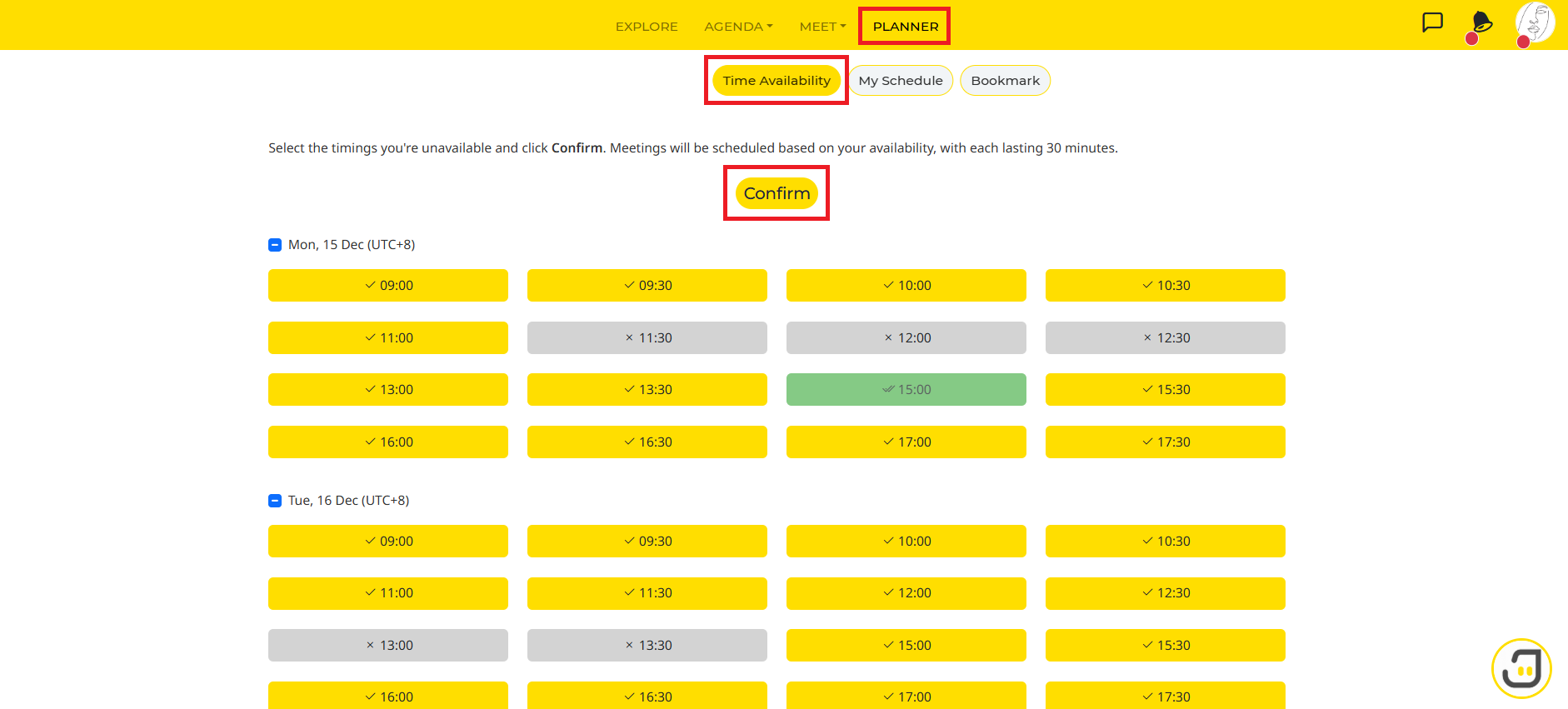
Go to the Planner page and then click on the Time Availability tab.
Select the time slots that you will not be available at by clicking on the particular time slot. The slot will then be greyed out with a cross.
Green indicates that the time slot has been scheduled for a meeting
Yellow indicates that the time slot is available
Grey indicates that the time slot is not available
Be sure to indicate your available meeting slots and confirm your schedule before exploring the platform. This will ensure that all your meetings are scheduled within your available time frame.
Step 2: Confirm Time Availability
Click on CONFIRM to save your time availability.
How to Check the Location and Time of Your Meetings & Sessions
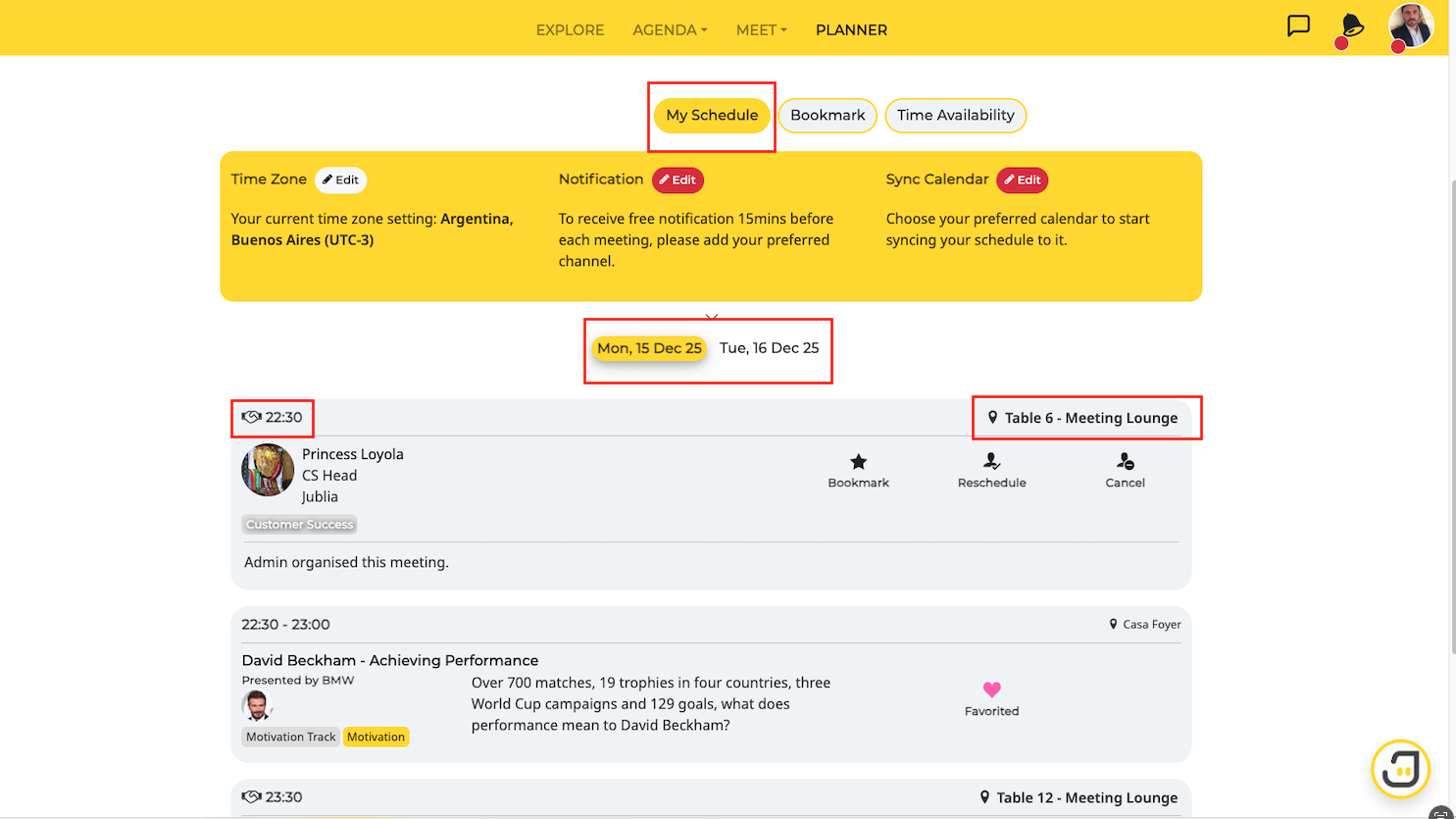
Under the Planner page, click My Schedule to view your confirmed and pending meetings. This will show you all your confirmed meetings, their location, time, and date (pending meetings occur when one or both parties have unconfirmed time availability) as well as the sessions that you have favorited.
We will send you a final schedule of all your confirmed schedule prior to the event date, which you can easily import into your preferred calendar.
How to Sync Your Calendar
Step 1: Access your planner
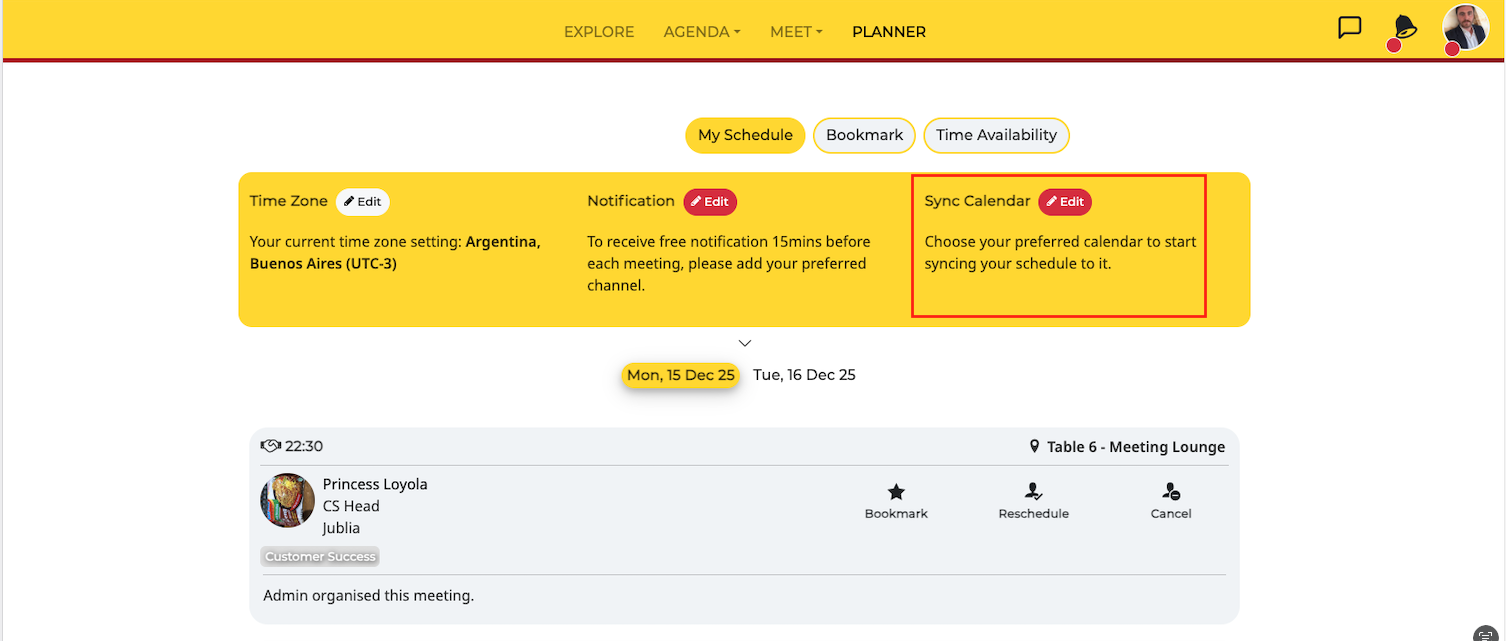
Go to the Planner page and choose the My Schedule tab
Click on the Edit button on the Sync Calendar section
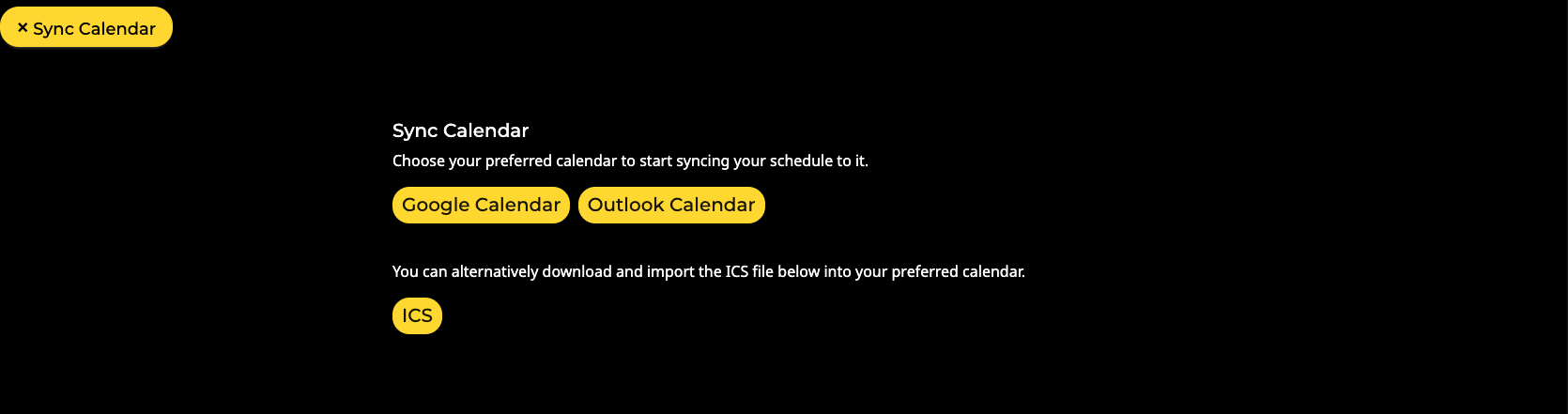
Step 2: Choose your preferred calendar to start syncing your schedule to it
You may choose to sync your schedule with your Google Calendar, Outlook Calendar or you can also download and import the ICS file into your preferred calendar.
How to Change Your TimeZone (applicable only if the event have virtual meetings)
Step 1: Access Planner page
Go to the Planner page and click on the My Schedule tab.
Step 2: Click on the Time Zone option
Choose your country and the time zone provided, and once you make the change, hit the Save button and the platform's timing will follow your time zone.

Native App
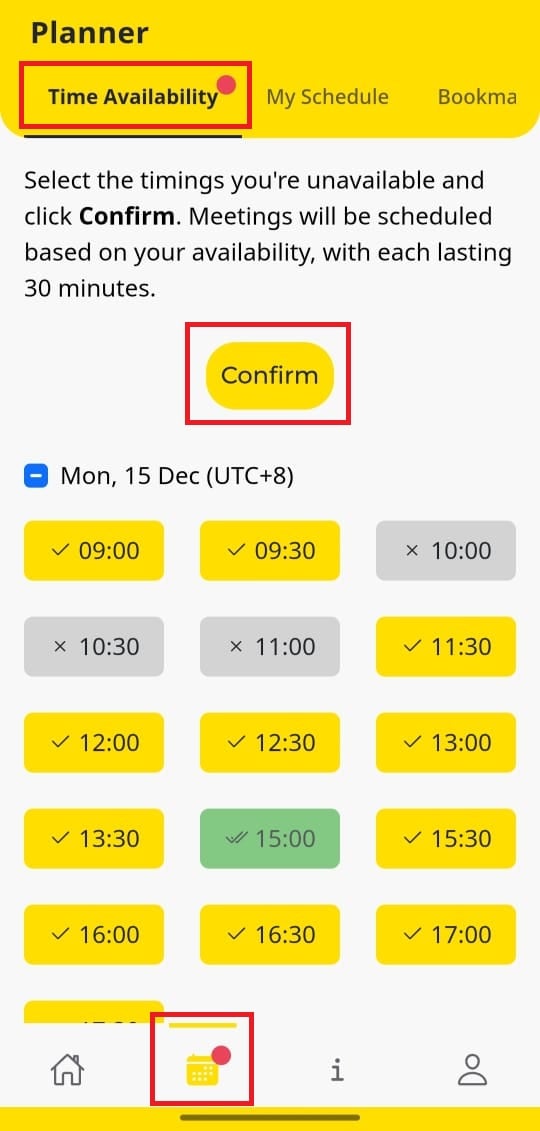
How to confirm Time Availability in the app?
Step 1: Navigate to the Planner menu
From the Home menu, tap the Planner menu located on the bottom navigation bar.
Step 2: In the Planner menu, choose the Time Availability tab
Select the time slots that you will not be available at by clicking on the particular time slot. The slot will then be greyed out with a cross.
Green indicates that the time slot has been scheduled for a meeting
Yellow indicates that the time slot is available
Grey indicates that the time slot is not available
Step 3: Click on CONFIRM to save your time availability.
How to see my schedule in the app?
Sessions
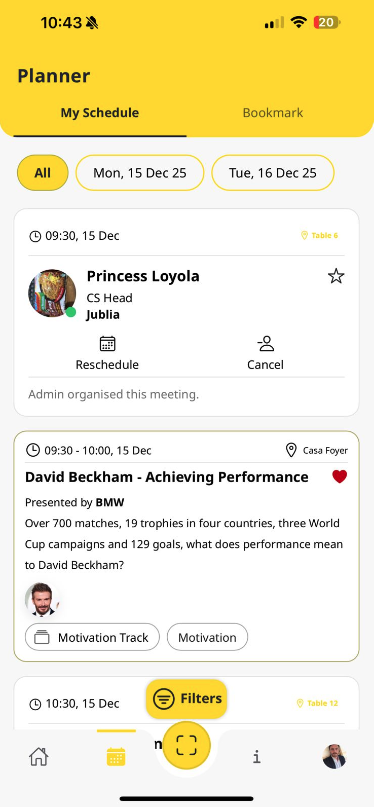
Step 1: Navigate to the Planner menu
From the Home menu, open the Planner menu located on the bottom navigation bar.
Step 2: Select the My Schedule tab
In the Planner menu, choose the My Schedule tab
Step 3: Apply filters to your schedule
Select Session and update the filter accordingly
Step 4: Obtain directions to the session location
Click the location pointer in the top right corner, it will direct you to the Session location.
Meetings
Step 1: Navigate to the Planner menu
On the Home Menu, open the Planner menu on the bottom navigation bar
Step 2: Select the My Schedule tab
Select My Schedule on the Planner menu
Step 3: Apply filters to your schedule
Select Meeting and update the filter accordingly
Step 4: Obtain directions to the meeting location
Click the location pointer in the top right corner, or access the meeting details and select Locate Meeting