Accept/Decline Meeting Requests
Ready to expand your network? The Engagement Hub is the perfect place to connect with others and schedule one-on-one meetings! Boost your networking efforts by accepting meeting requests sent to you, to connect with potential partners. Additionally, this guide will also walk you through on declining meeting requests, and rating your meetings.
Read this guide in
| 中文 | ภาษาไทย | 한국어 | tiếng Việt | 繁體中文 | Bahasa Indonesia | 日本語 | Español | Portuguese |
Web App
Accepting Your Requests
Step 1: Review your requests
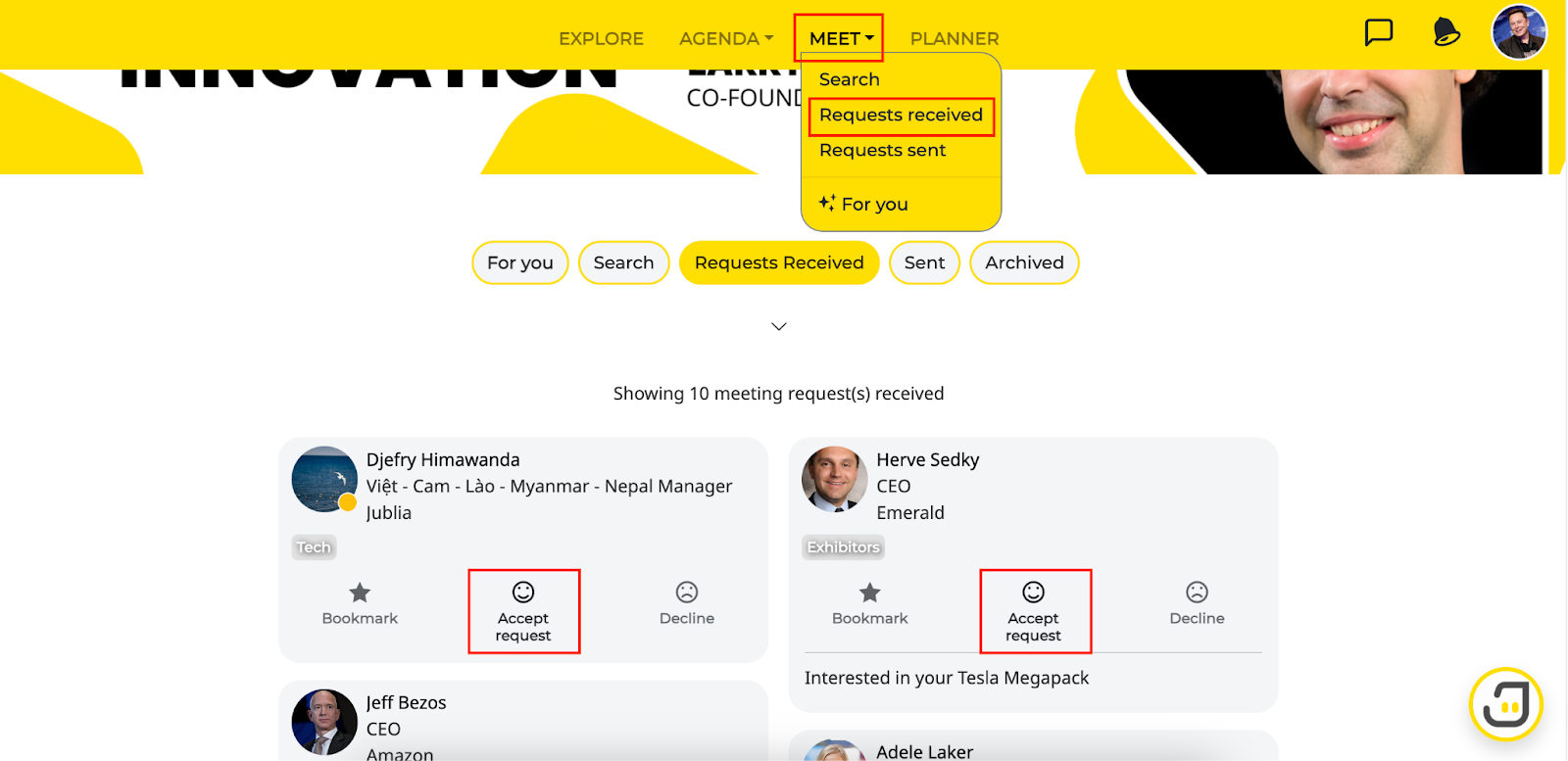
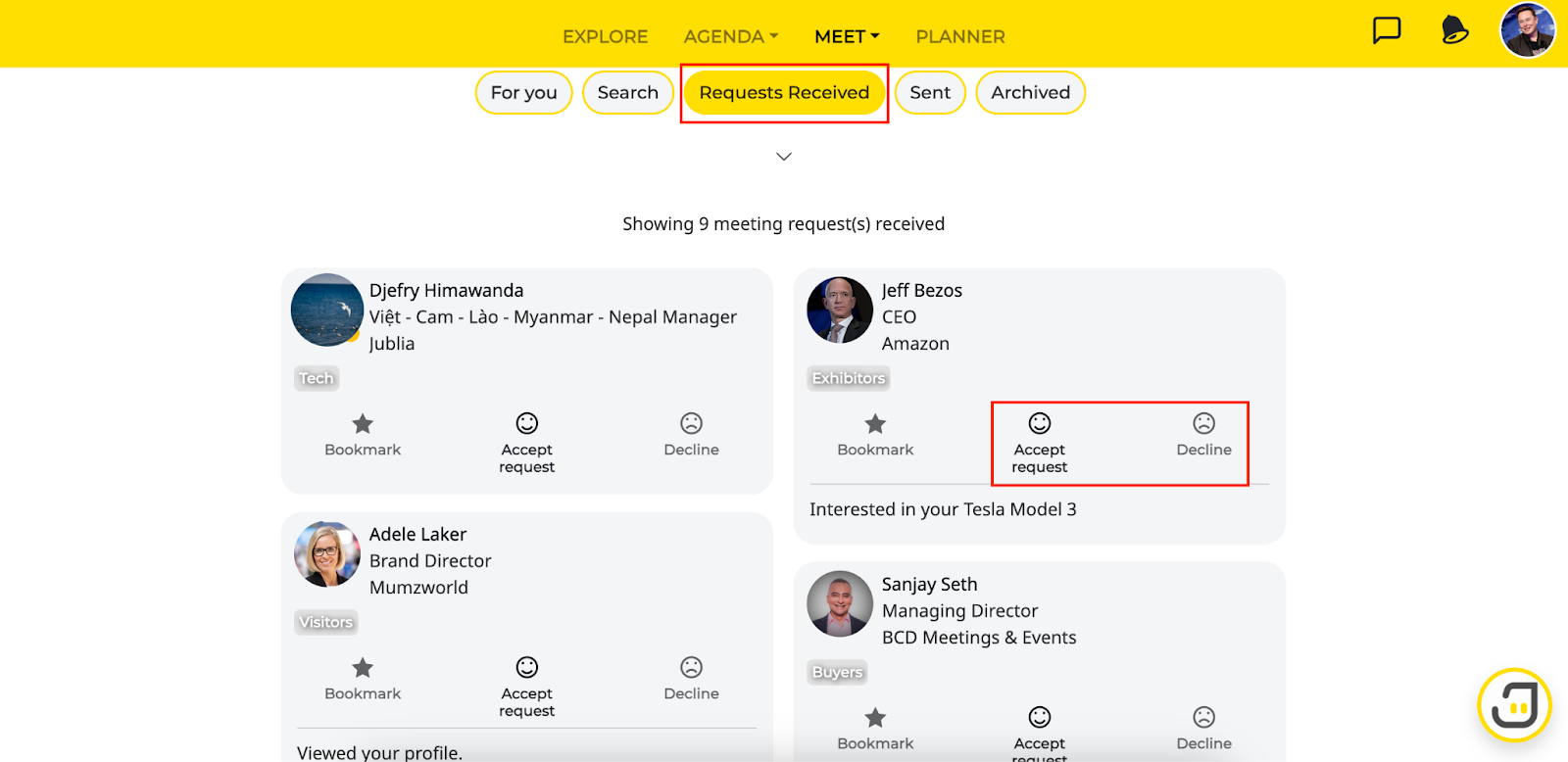
Go to Meet and click on Requests received
Select the attendee that you would like to confirm the meeting with
Click on Accept request
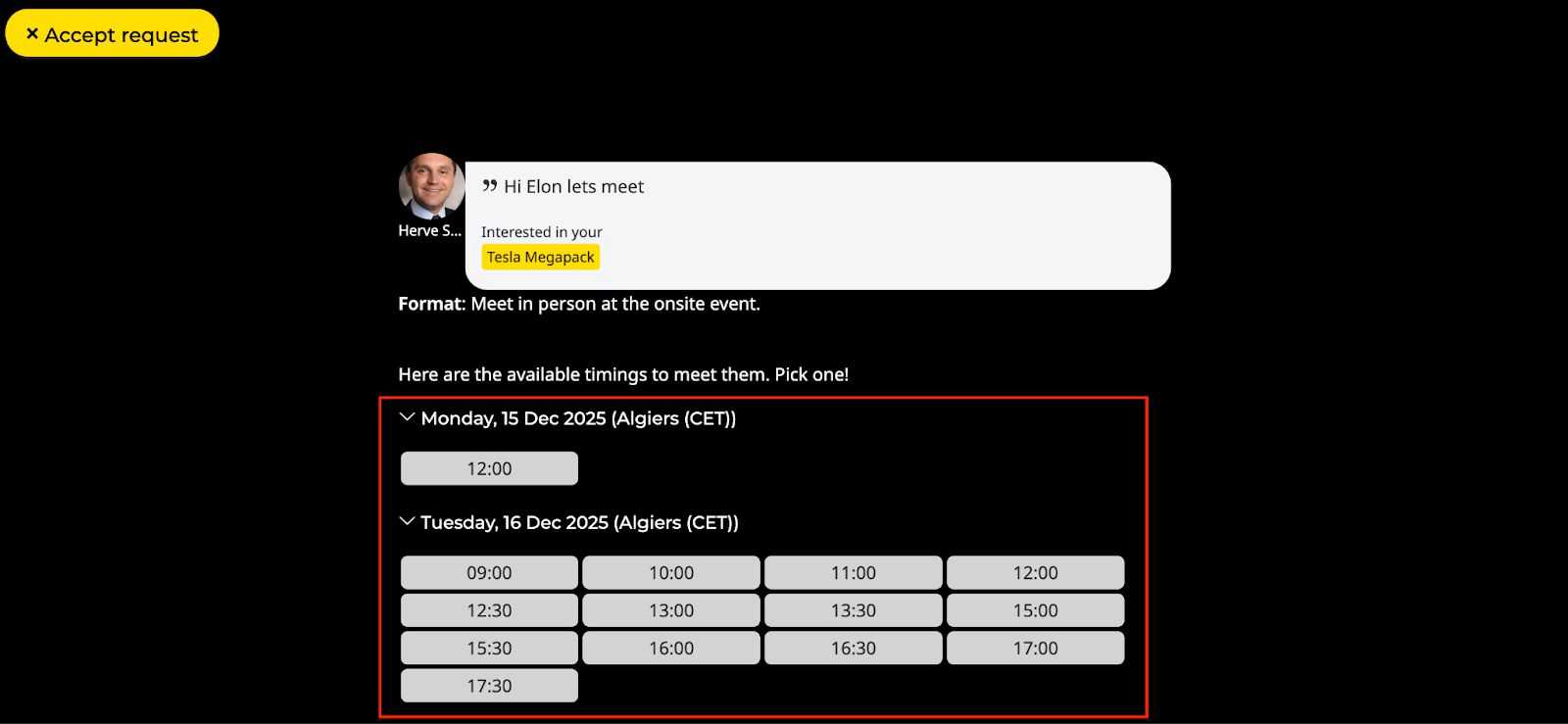
Step 2: Select meeting time slot
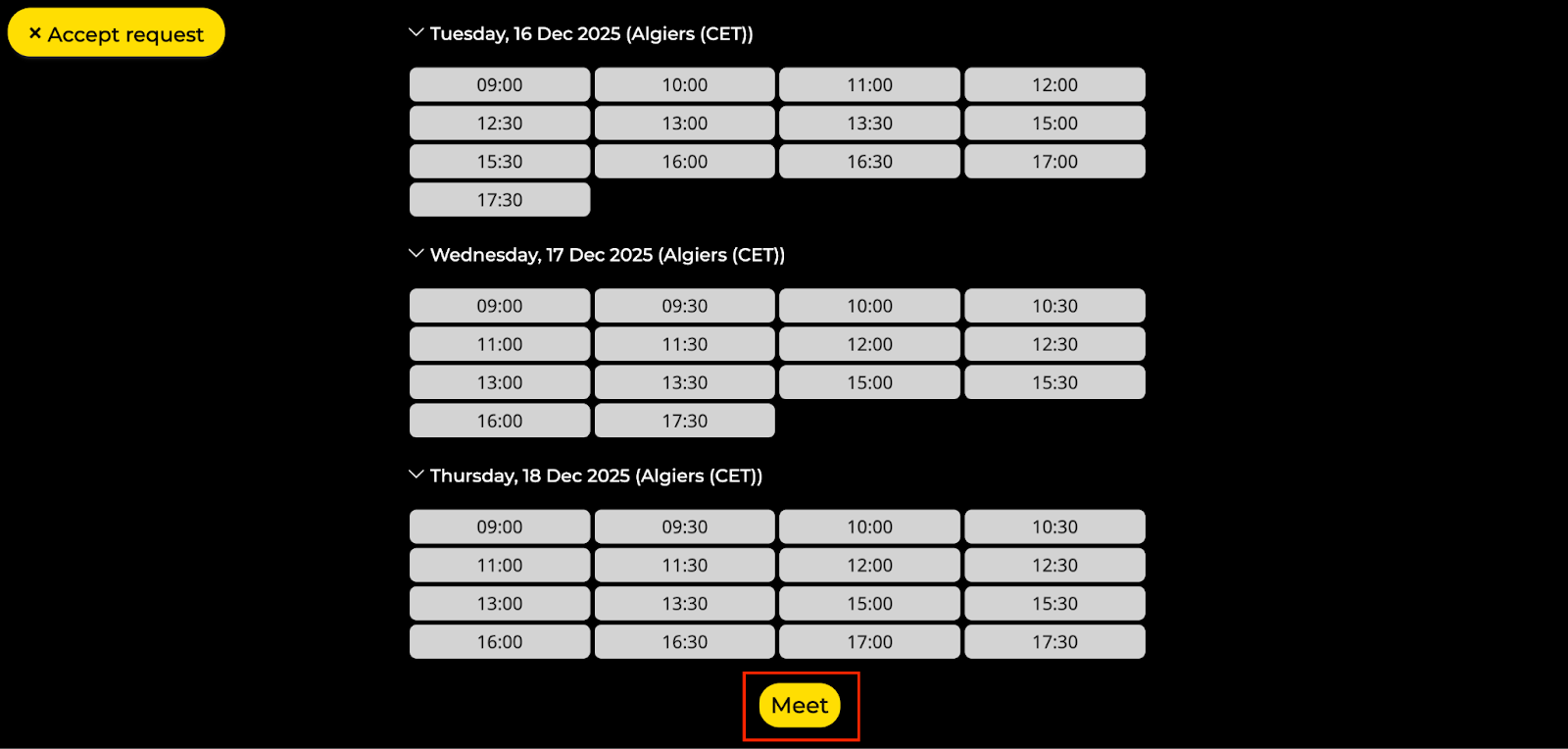
Select the available timings to meet the other party at, and click on Meet
The following will be shown when the meeting area is fully booked and chat is enabled. In this case, you don't miss the chance to connect due to slots availability, and you can still connect through chat!

Step 3: View your Planner
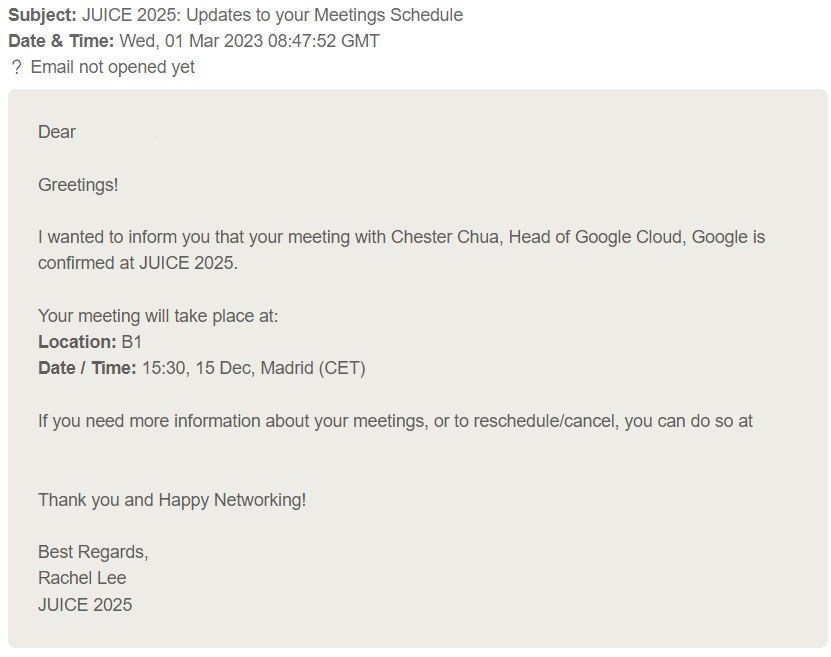
Once you have accepted the meeting request, you will receive an email confirmation of the meeting as well as the message below:

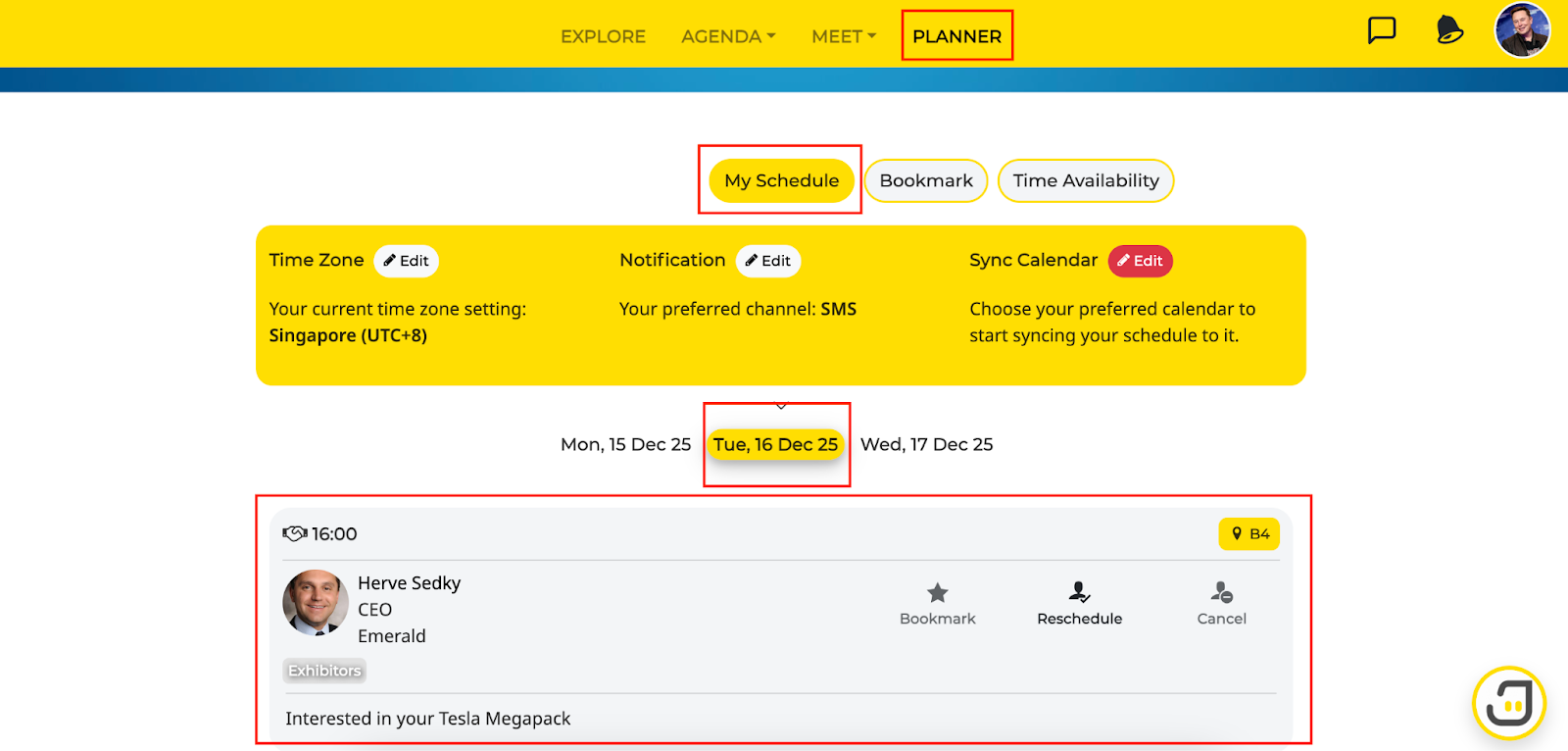
Go to Planner, and you will see your confirmed meetings in My Schedule
Declining Your Requests
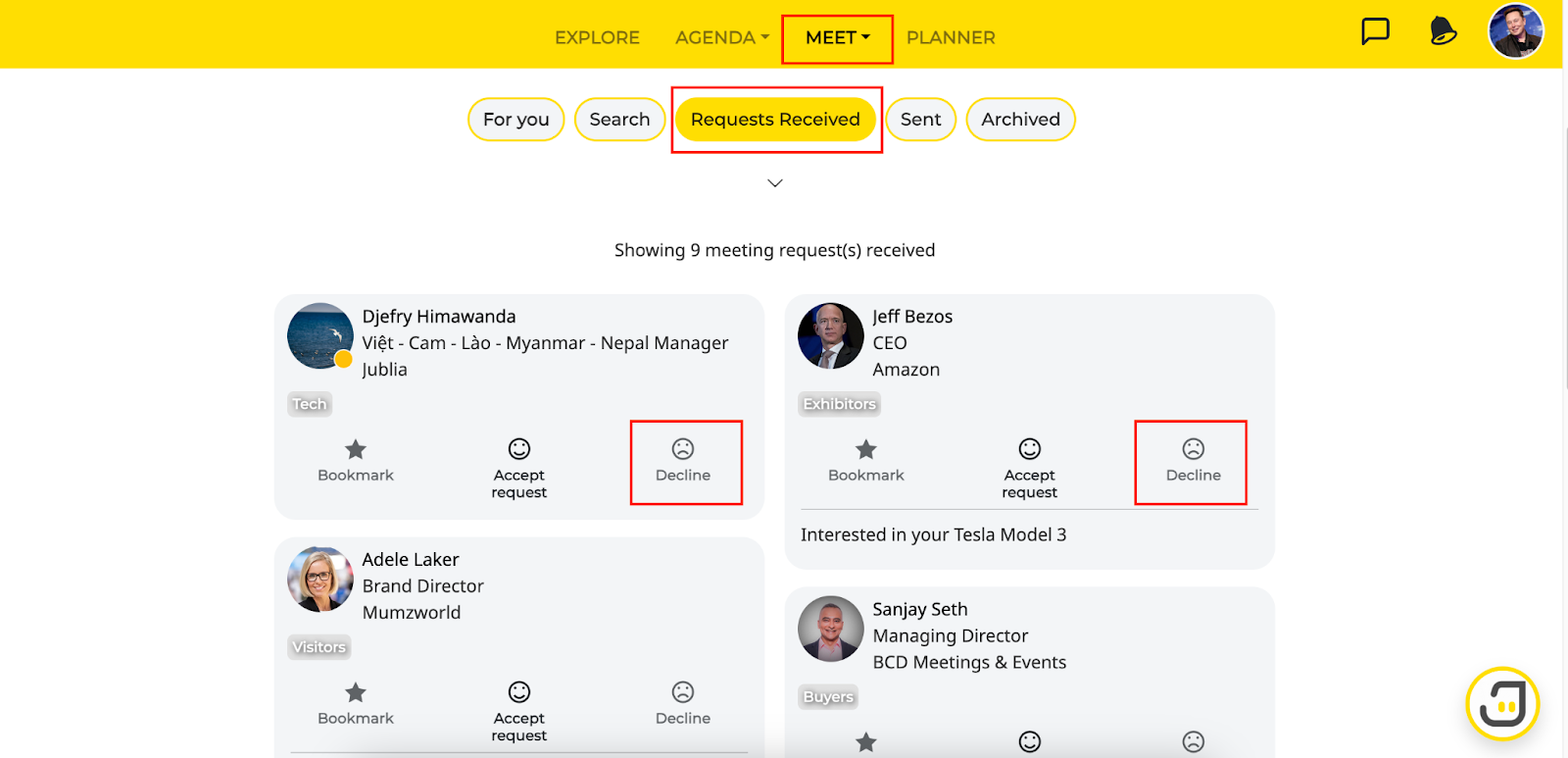
Step 1: Review your requests
Go to Meet and click on Requests received
Select the attendee that you would like to decline the meeting with
Click on Decline
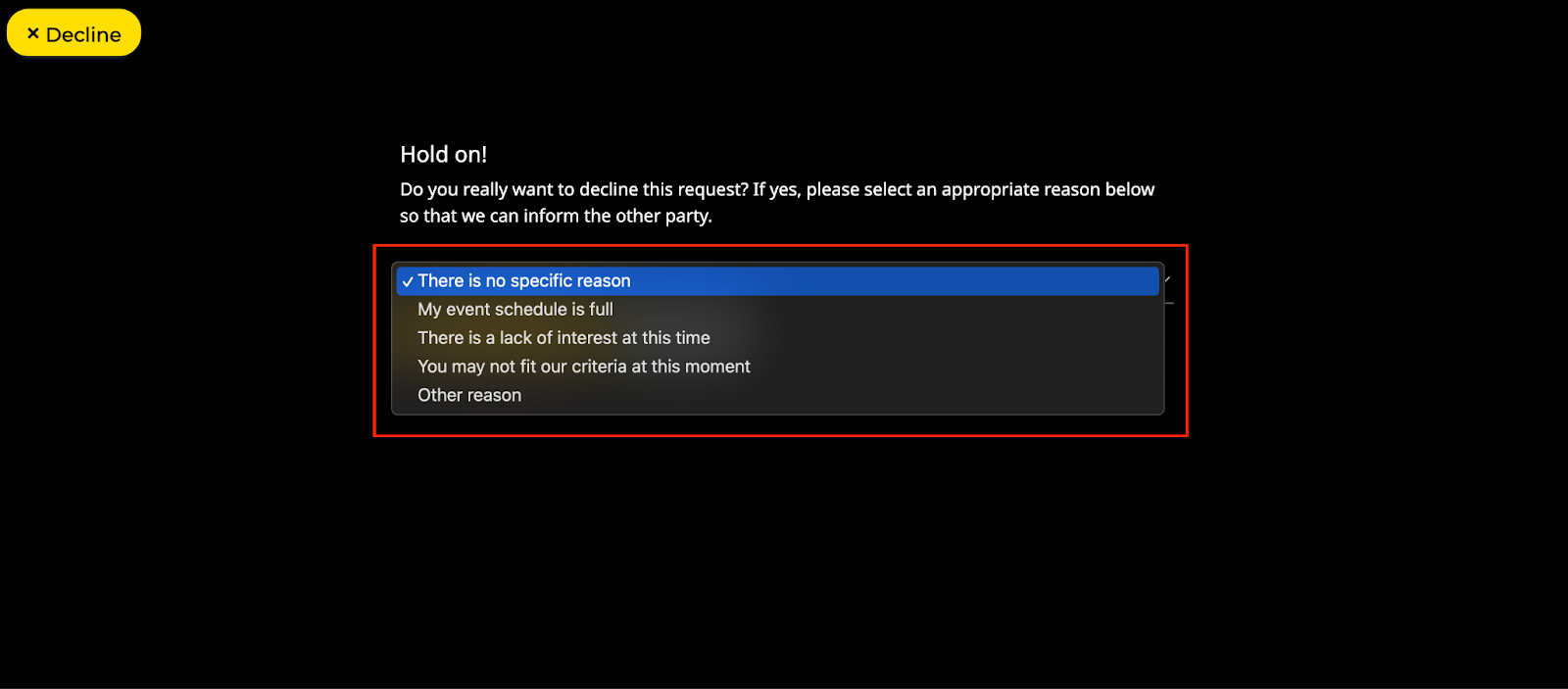
Step 2: Select the reason for declining
Choose from the dropdown list the most suitable reason for declining the meeting request
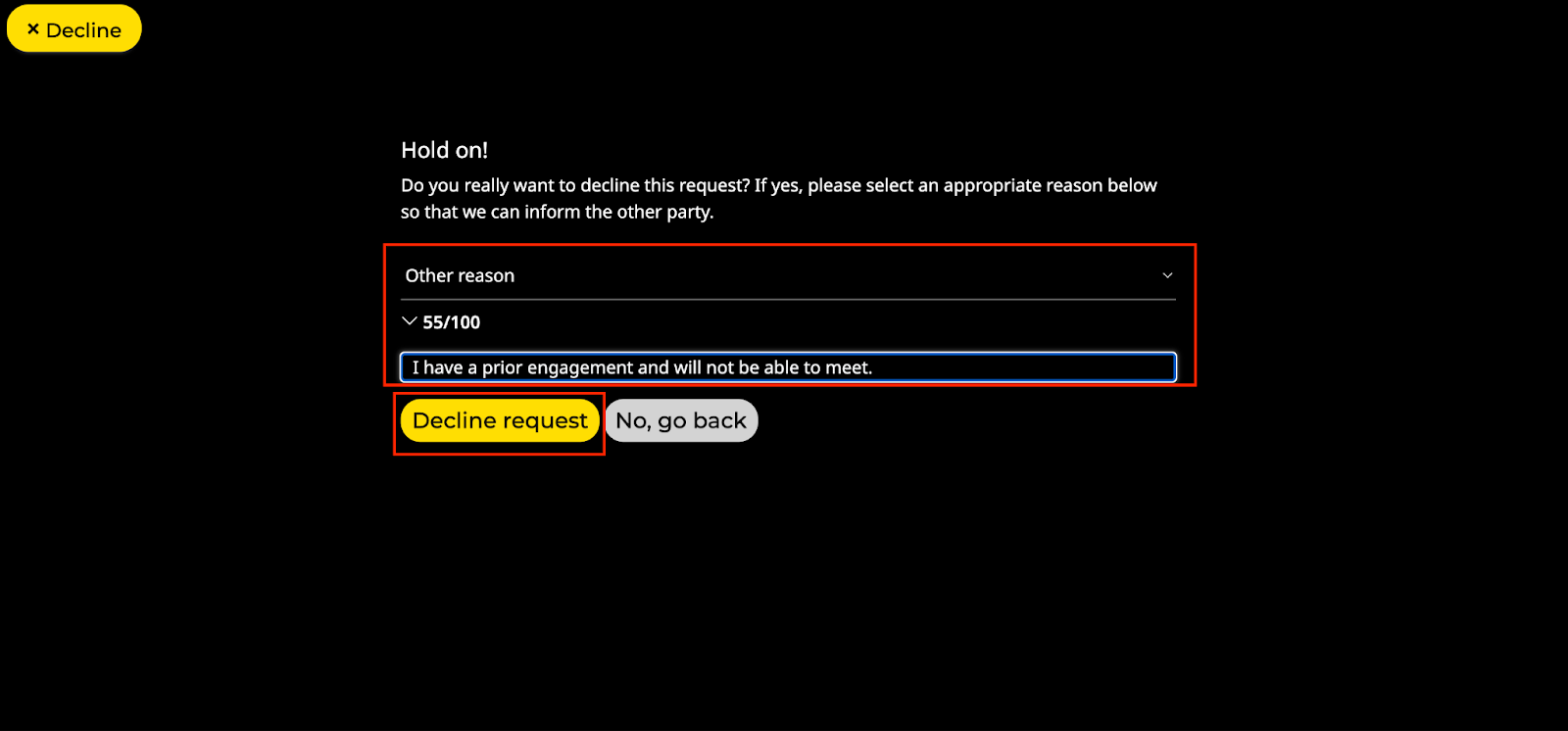
If none of the reasons are suitable, select “Other reason” to include a message for declining the request
Type your message in the text box and click on Decline request
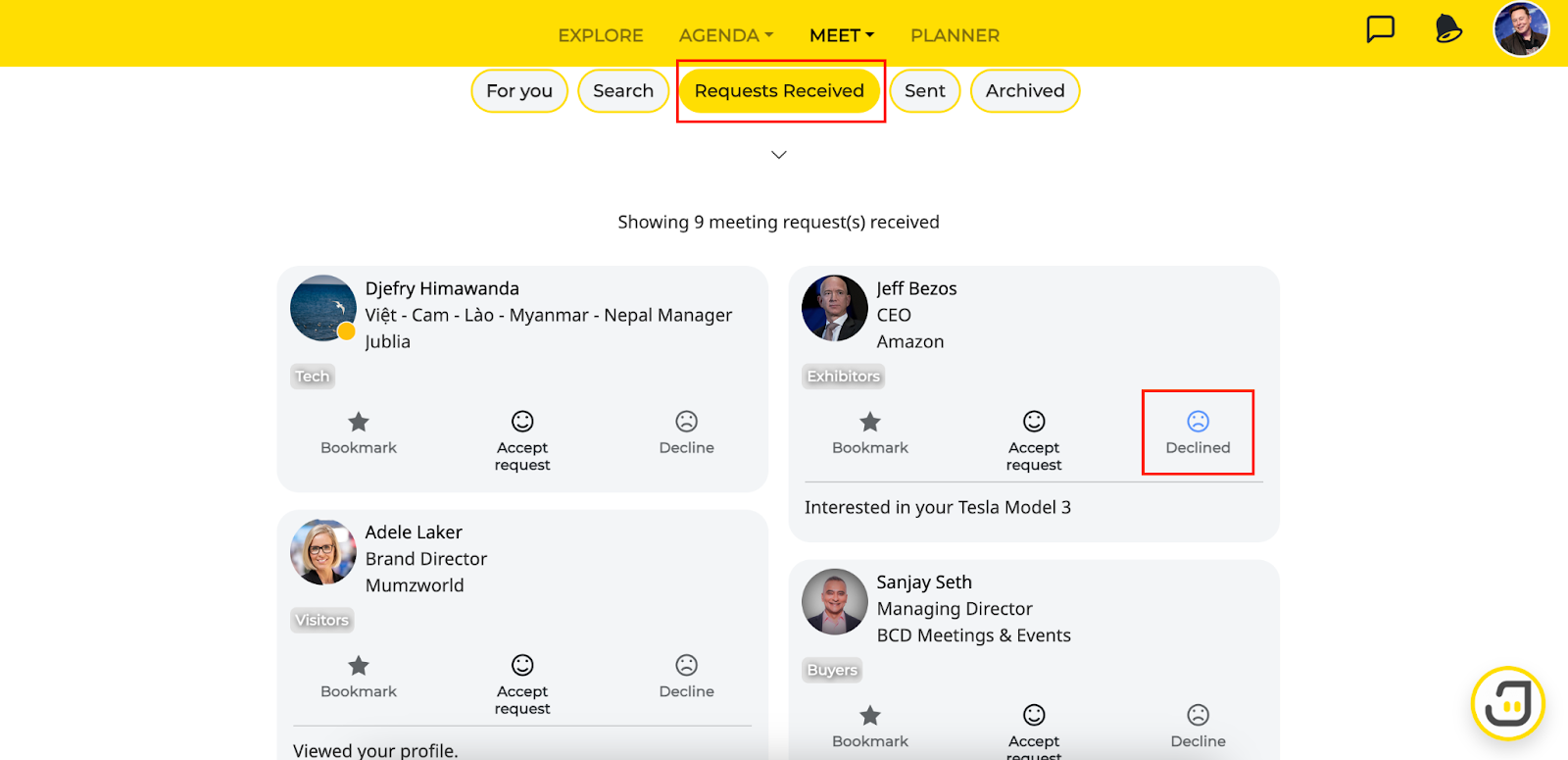
The meeting will be declined as indicated in blue and the request will still remain in your Received Requests tab.
*Do note that the other party will not be notified through their notifications if their request is being declined. However, they will be able to see the reason for decline when they click on your profile card in their Sent requests tab and will not be able to send you another request.
Should you change your mind about the declined request, you can undo it by clicking on the Declined button. You will then see this message:
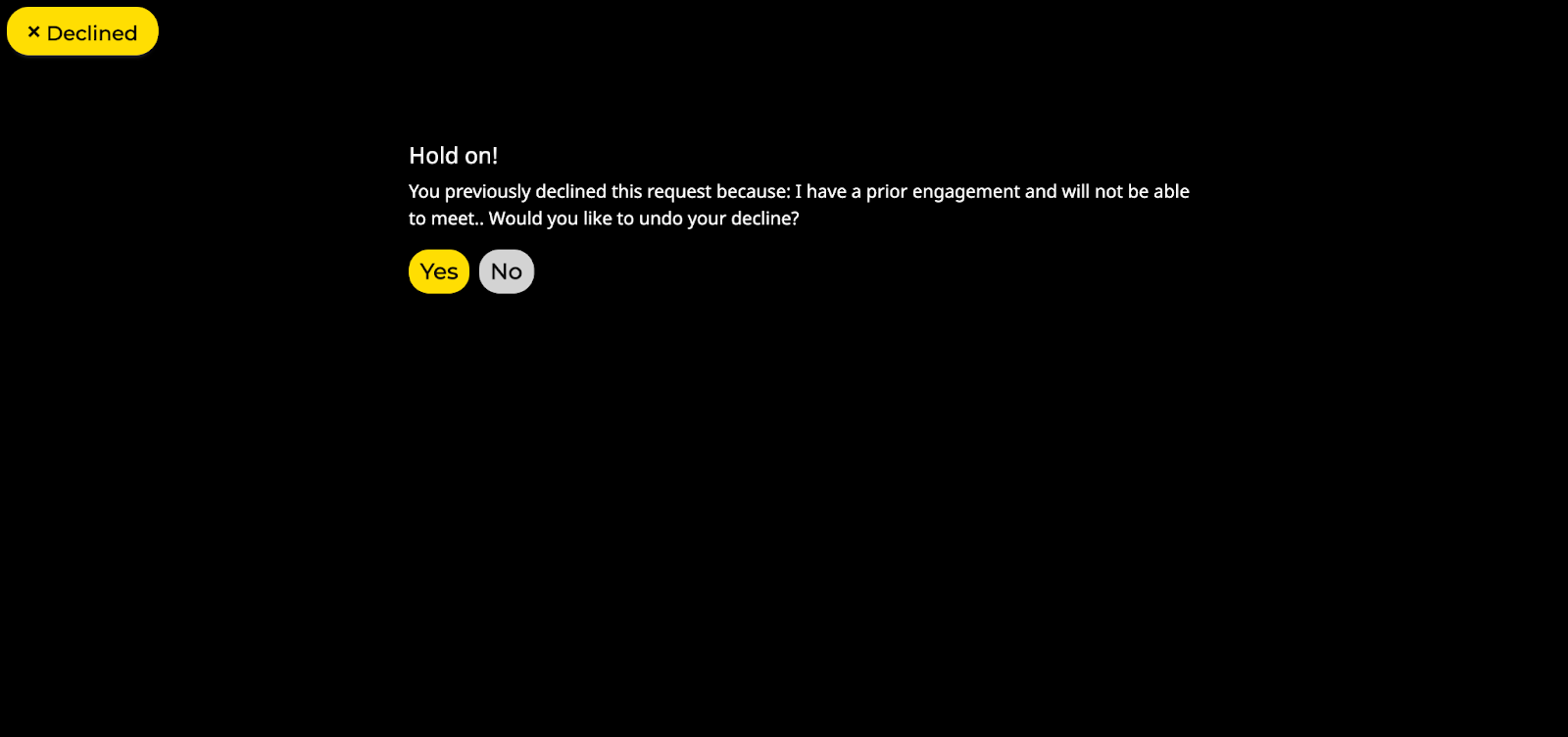
Once you undo the Decline, the request will be available for you to accept or decline again, in your Requests received tab.
Native App
Accepting Your Requests
Step 1: Review your requests
Go to Meeting Programme menu (every app might have different Menu Name) and click on Requests received
Select the attendee that you would like to confirm the meeting with
Click on Accept request
Step 2: Select meeting time slot
Select the available timings to meet the other party at, and click on Meet
Step 3: View your Planner
Once you have accepted the meeting request, you will receive an email confirmation of the meeting as well as the message below:
Go to Planner, and you will see your confirmed meetings in My Schedule

Declining Your Requests
Step 1: Review your requests
Go to Meeting Programme menu (every app might have different Menu Name) and click on Requests received
Select the attendee that you would like to decline the meeting with
Click on Decline
Step 2: Select the reason for declining
Choose from the dropdown list the most suitable reason for declining the meeting request
If none of the reasons are suitable, select “Other reason” to include a message for declining the request
Type your message in the text box and click on Decline request
The meeting will be declined as indicated in blue and the request will still remain in your Received Requests tab.
*Do note that the other party will not be notified through their notifications if their request is being declined. However, they will be able to see the reason for decline when they click on your profile card in their Sent requests tab and will not be able to send you another request.