Read this guide in
| 中文 | ภาษาไทย | 한국어 | tiếng Việt | 繁體中文 | Bahasa Indonesia | 日本語 | Español | Portuguese |
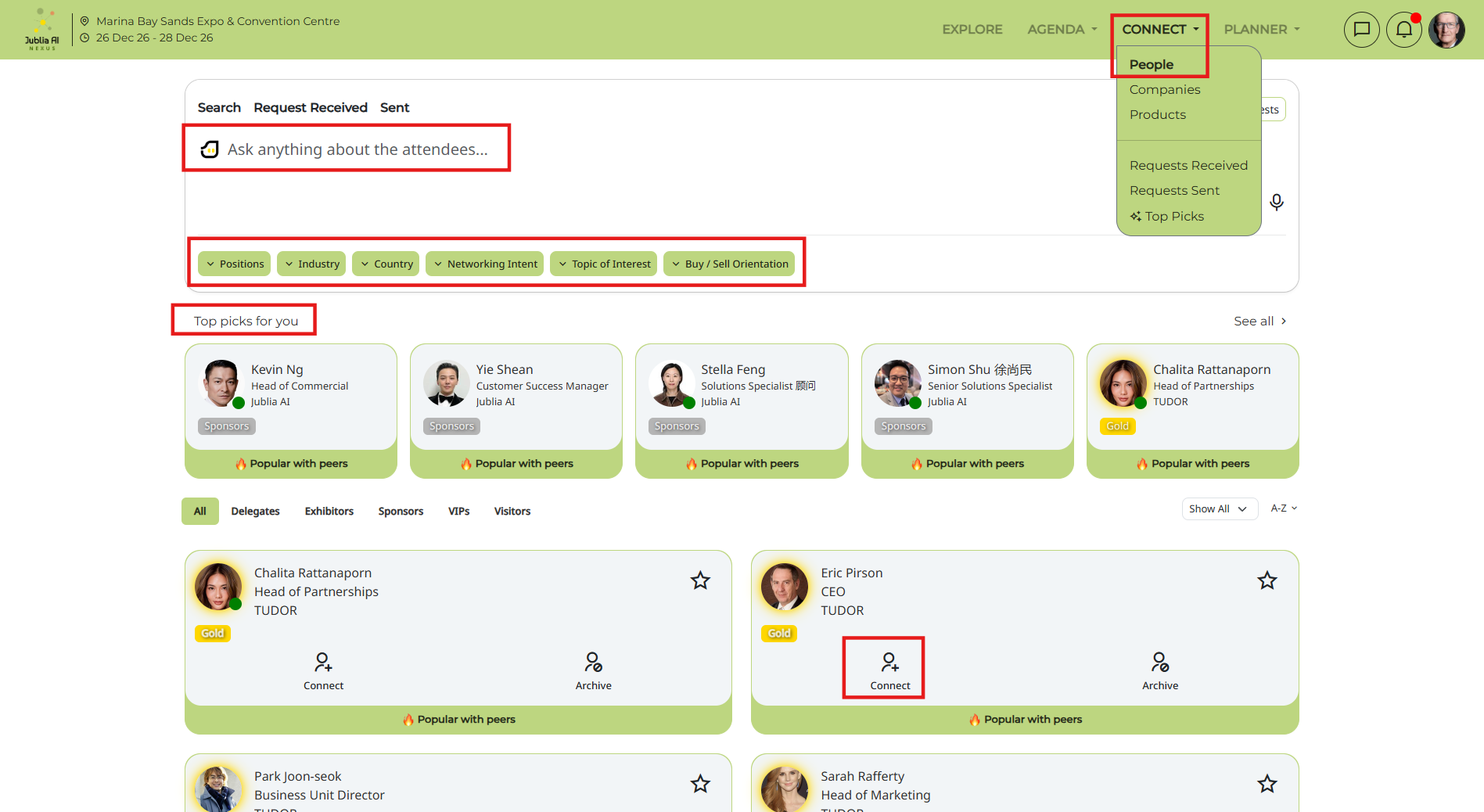
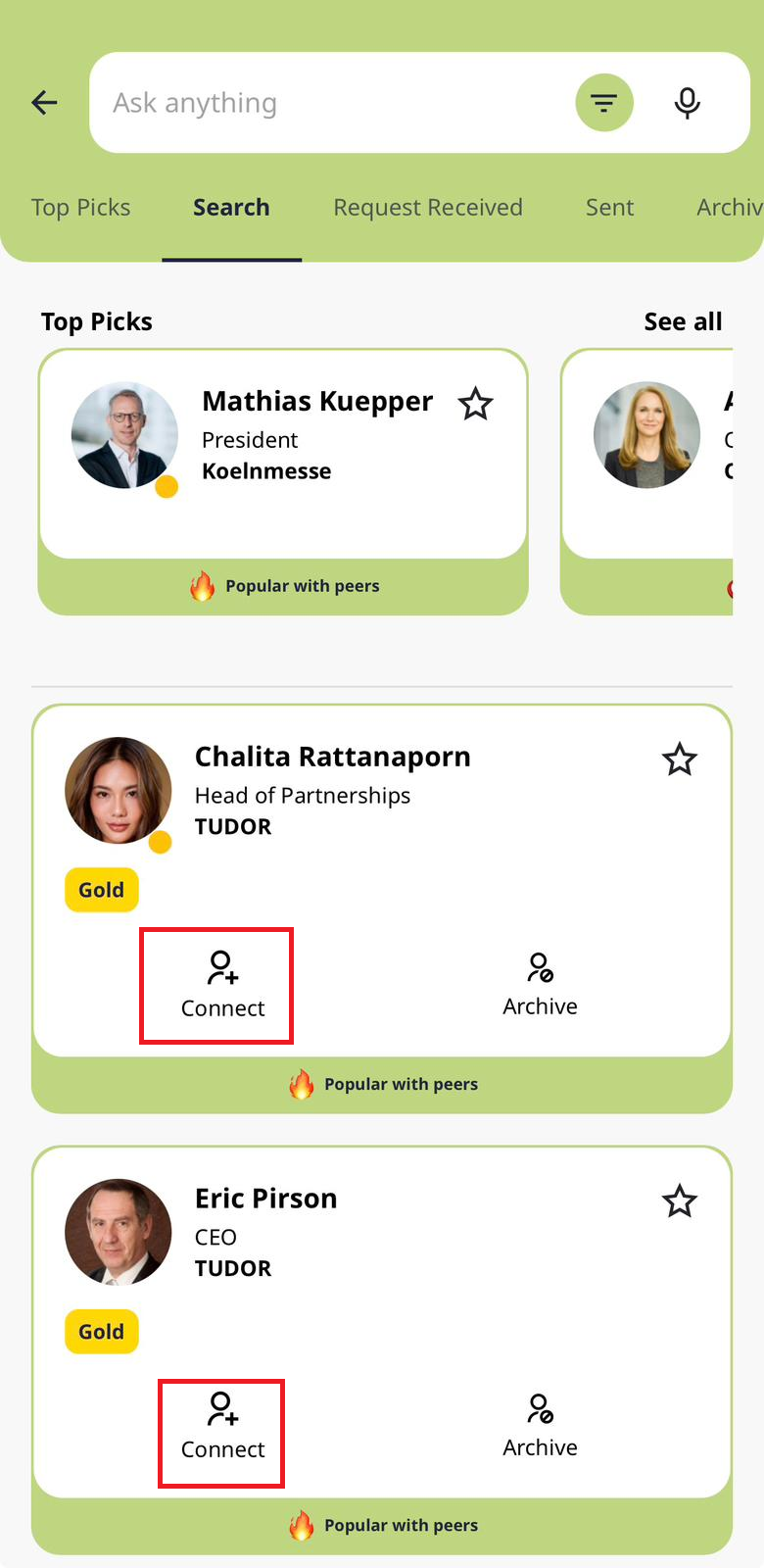
Navigate to the Connect menu on the top navigation bar. You can find attendees of interest by exploring your Top Picks, using the Ask anything search bar, or applying dropdown filters.
Depending on the event settings, there may be options to meet onsite or via chat.
Click the Connect button on an attendee's profile card to open the request interface.
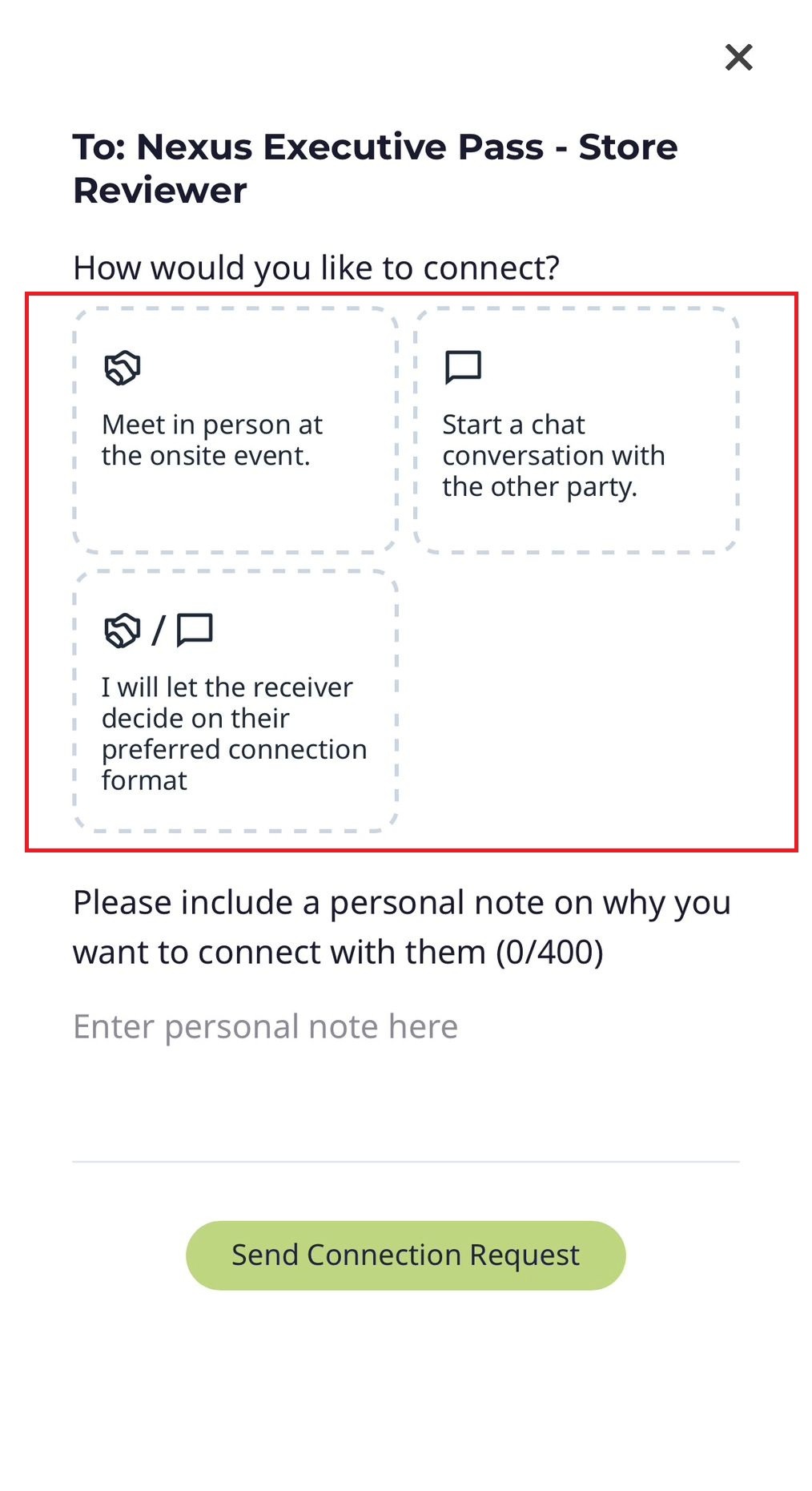
Select your preferred meeting format (meet in person at the onsite event, chat conversation, or let the recipient choose), enter an optional message, and click Send Connection Request to finalize the arrangement.
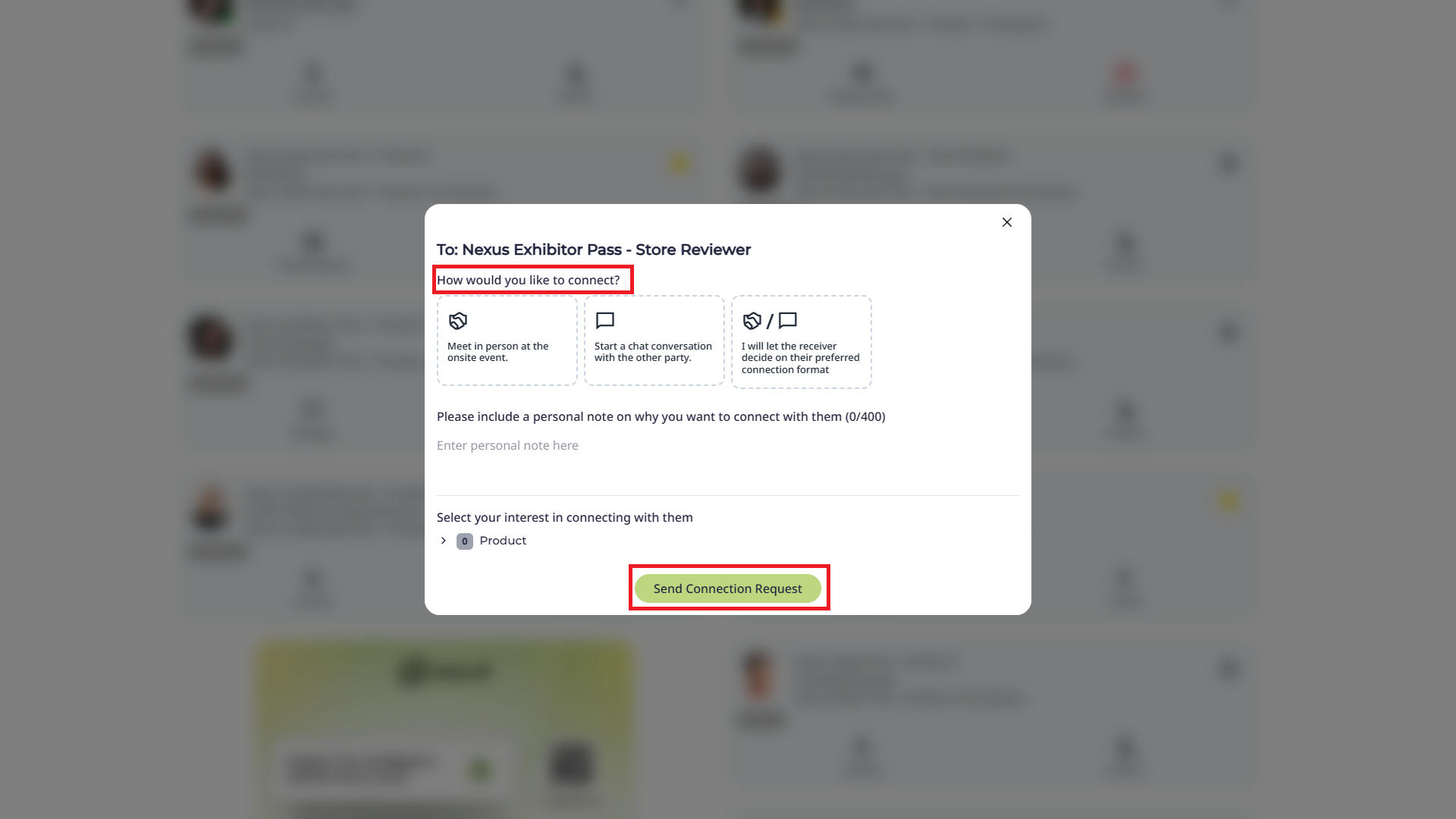
Note: If your colleague(s) has scheduled a meeting with the same person, you will be prompted with the message at the top: x colleague(s) engaged with the person.
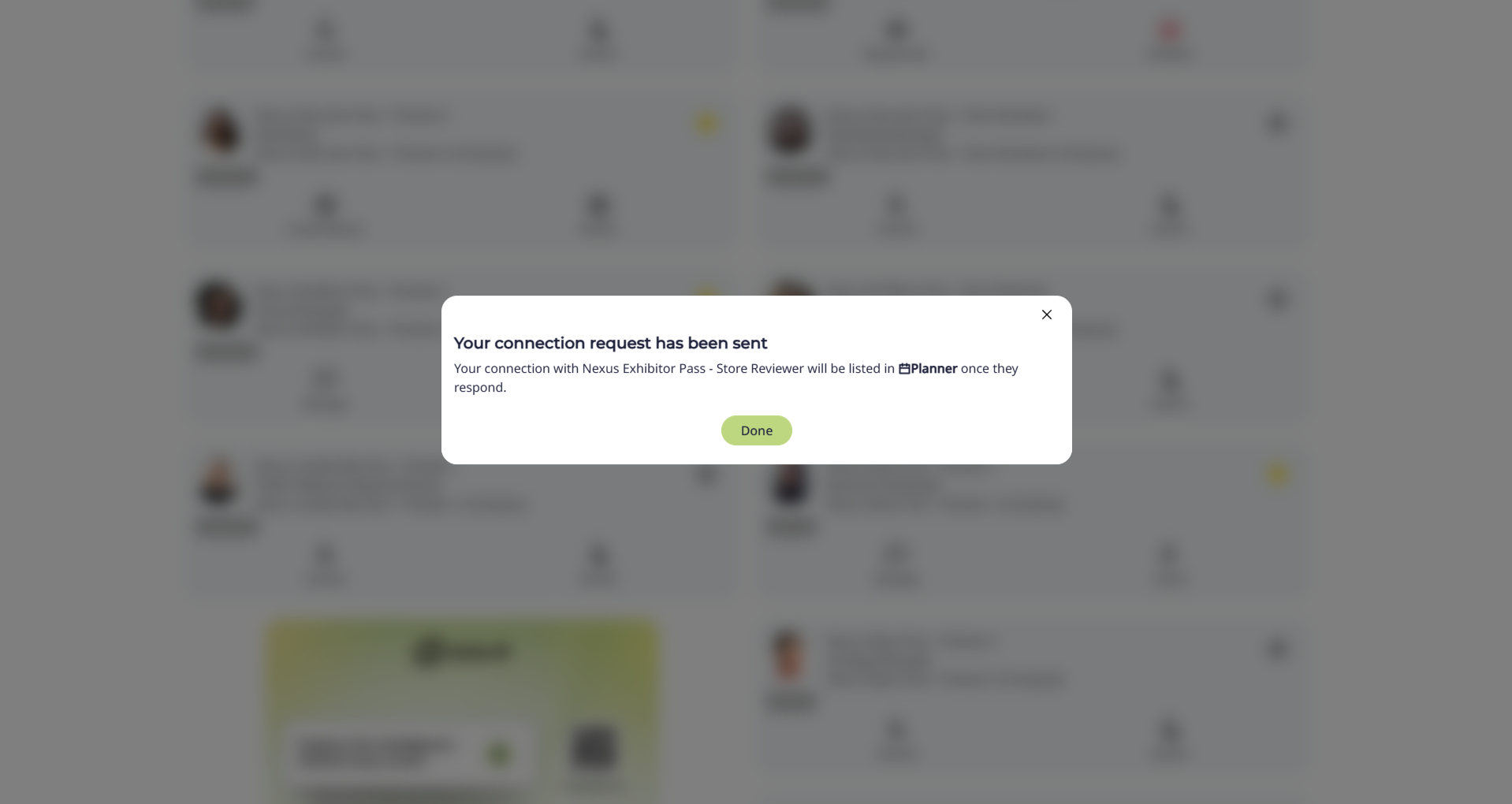
Once you send the request, you will receive a confirmation message as seen below:
All your sent meeting requests will be reflected under the Request Sent tab:
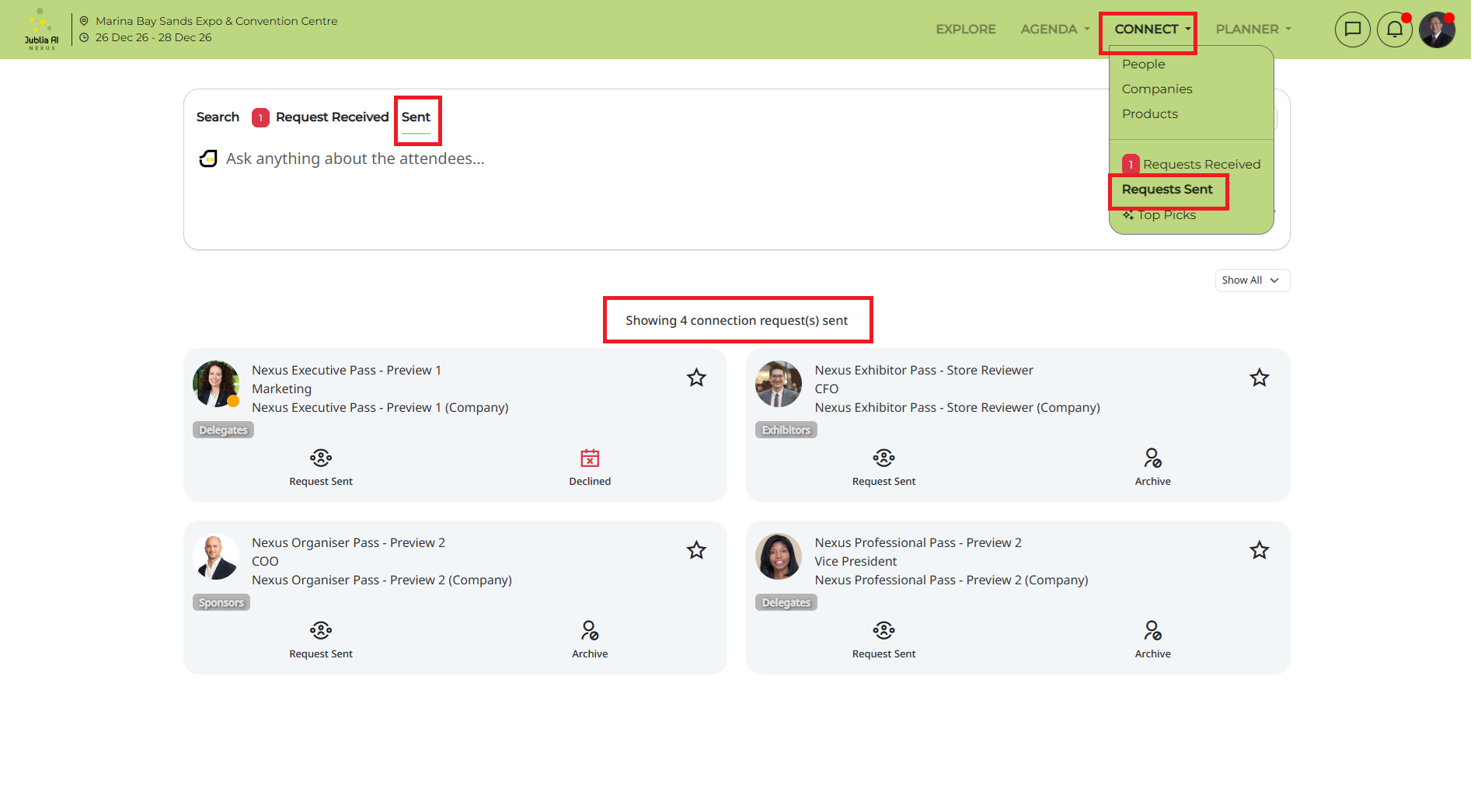
Note: All meeting requests require a mutual confirmation from the other party (unless otherwise stated by the organizer) and they will be reminded on a timely basis (depending on their email frequency), about your requests to them. This means that you should send out your requests early so that the event concierge will have a longer period of time to follow up on your requests to them.
Click on Request sent under the Connect menu.
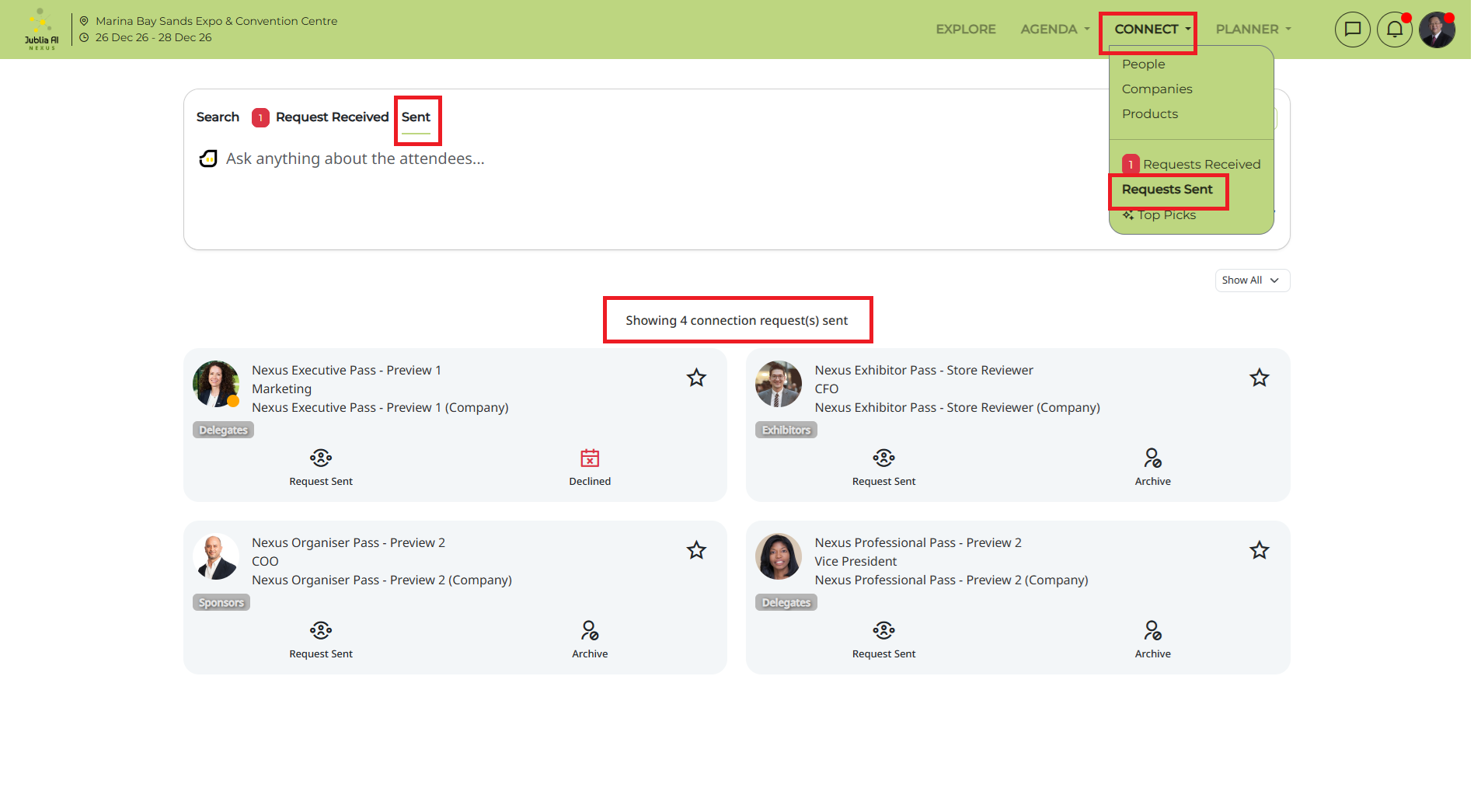
Click Request sent on an attendee's profile. Click Edit request to modify the details, or select Remove request to cancel the invitation entirely.
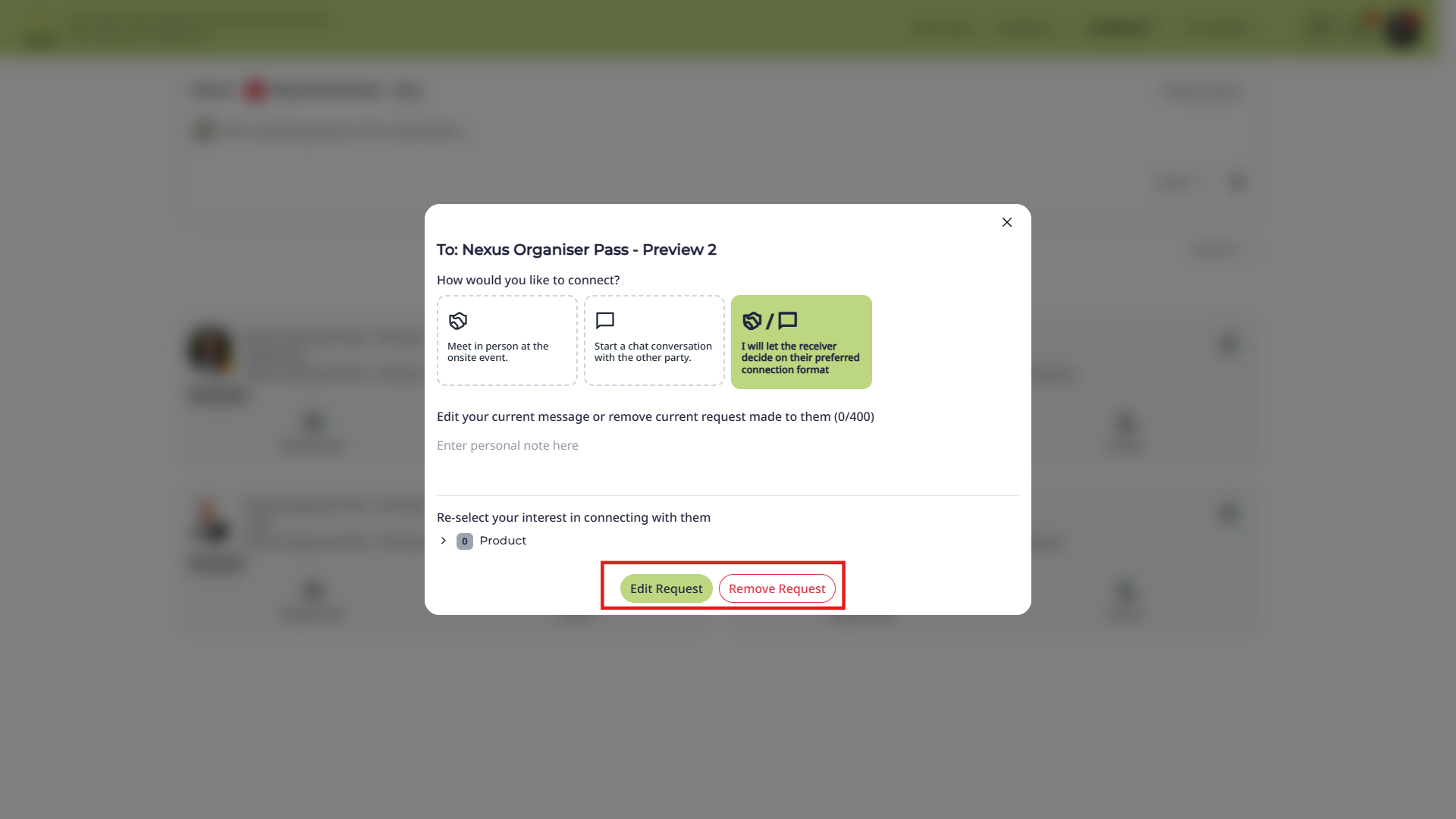
Open the Business Matching menu (or similarly named directory) to view the list of attendees.
Use the search bar, apply specific filters, or explore your Top Picks to identify individuals that align with your event goals.
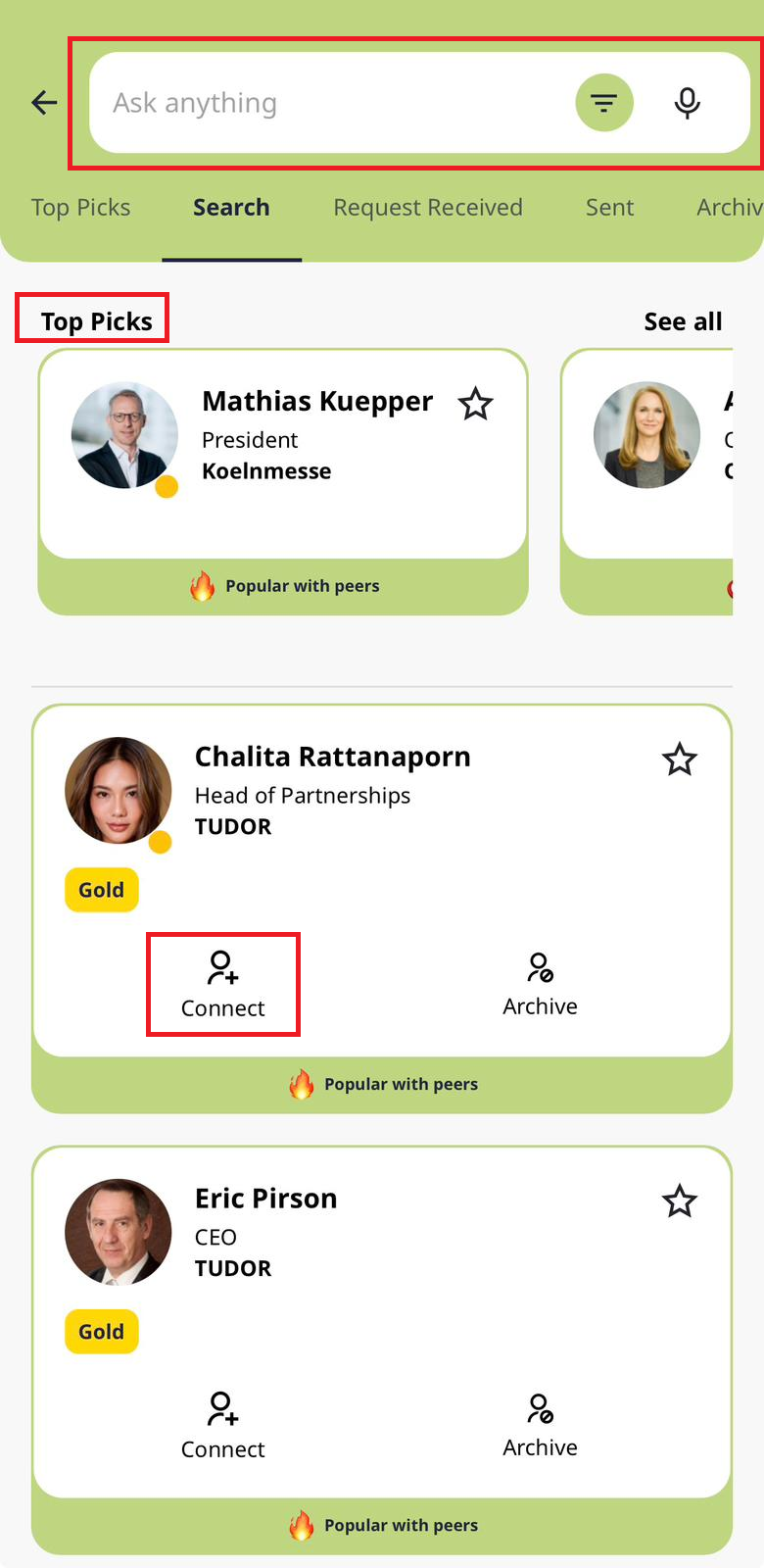
Step 3: Request a Meeting
Tap the Connect button on your selected party’s profile to initiate the scheduling process.
Step 4: Choose Meeting Format
Choose between 3 options: meet in person at the onsite event, chat conversation, or let the recipient choose (if applicable) and send your request.