Send Meeting Requests
Ready to expand your network? The Engagement Hub is the perfect place to connect with others and schedule one-on-one meetings! Boost your networking efforts by sending meeting requests to connect with potential partners.
Read this guide in
| 中文 | ภาษาไทย | 한국어 | tiếng Việt | 繁體中文 | Bahasa Indonesia | 日本語 | Español | Portuguese |
Web App
How do I send a meeting request?
Step 1: Search for relevant or interested attendees
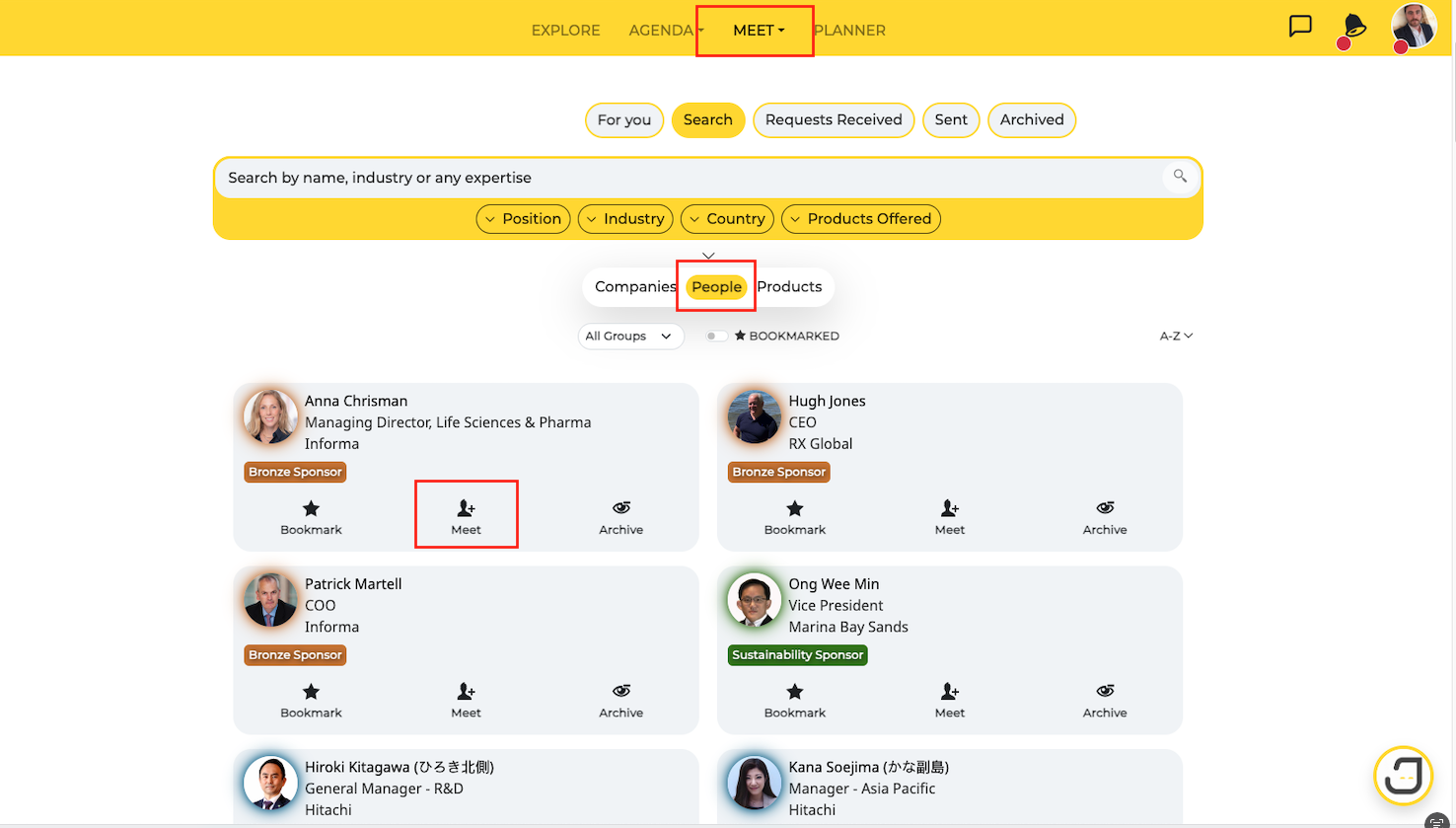
Go to the Meet menu at the top of the navigation bar and click on Search.
Under the People listing, search for other attendees that you would like to connect with, either directly via the search bar or using the search filters.
Once you find someone of interest, click on Meet on their profile card.
Step 2: Select meeting format and send your request
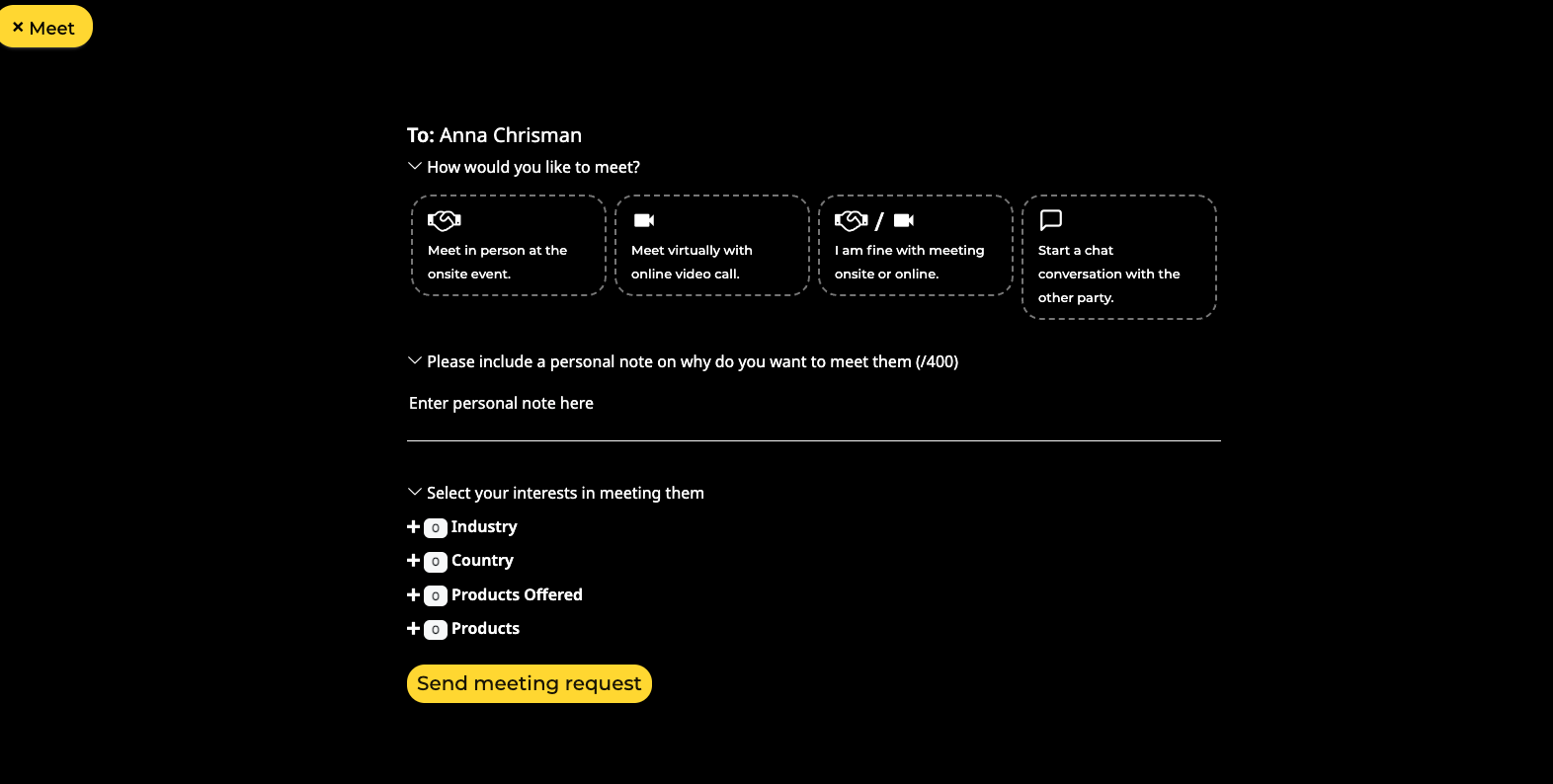
Depending on the event settings, there may be options to meet onsite, virtually, both onsite and virtually, or only via chat.
Select the format of your meeting, if any.
Enter an optional message to the other party.
You can also indicate your interests to improve the focus of your meetings.
Click on Send meeting request to confirm your arrangement.
Note: If your colleague(s) has scheduled a meeting with the same person, you will be prompted with the message at the top: 1 colleague(s) engaged with person.
How do I know if my meeting request was sent?
Once you send the request, you will receive a confirmation message as seen below:

All your sent meeting requests will be reflected under the Sent tab:
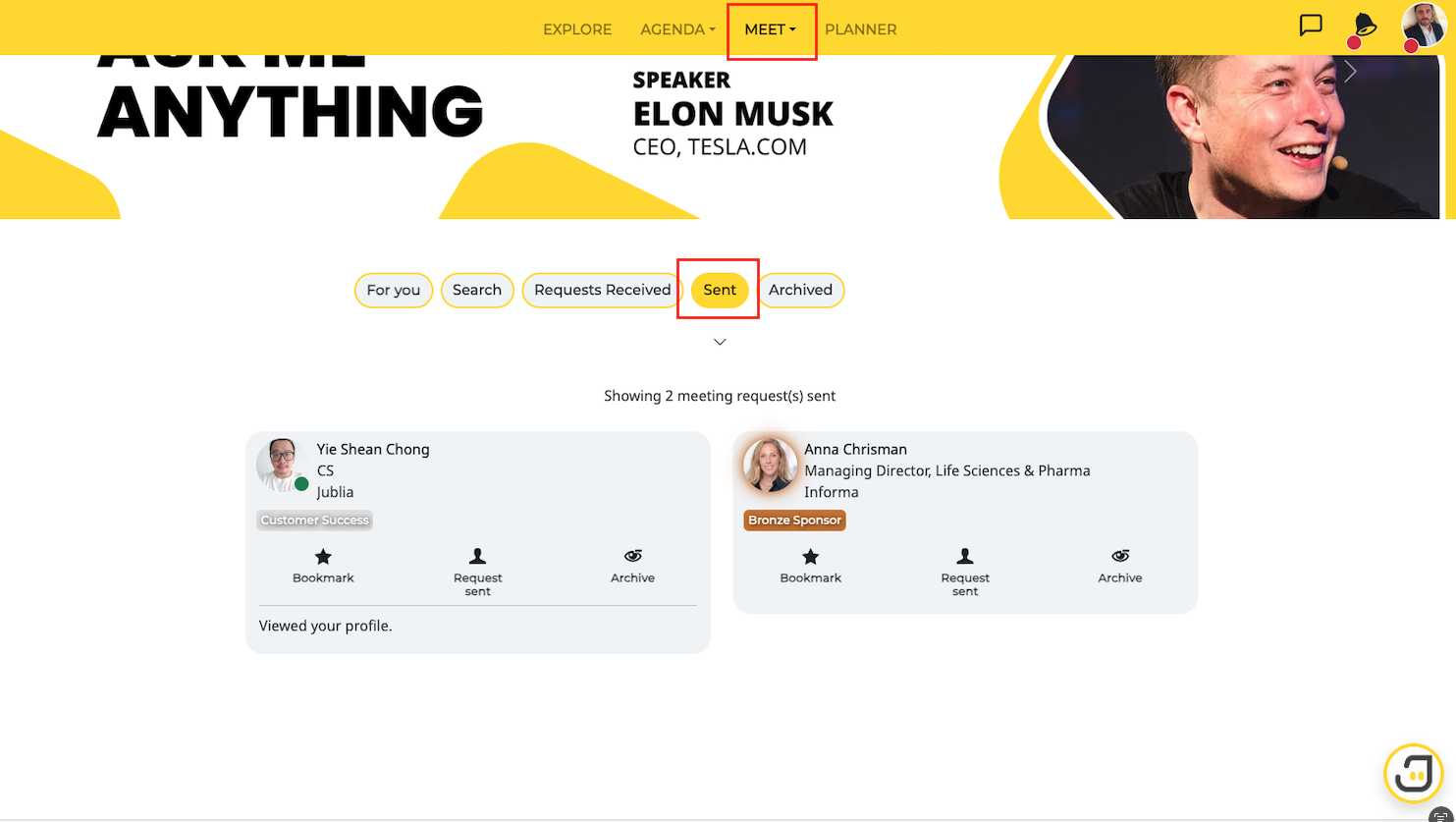
Note: All meeting requests require a mutual confirmation from the other party (unless otherwise stated by the organizer) and they will be reminded on a timely basis (depending on their email frequency), about your requests to them. This means that you should send out your requests early so that the event concierge will have a longer period of time to follow up on your requests to them.
How do I edit/remove a meeting request?
Step 1: Select the attendee
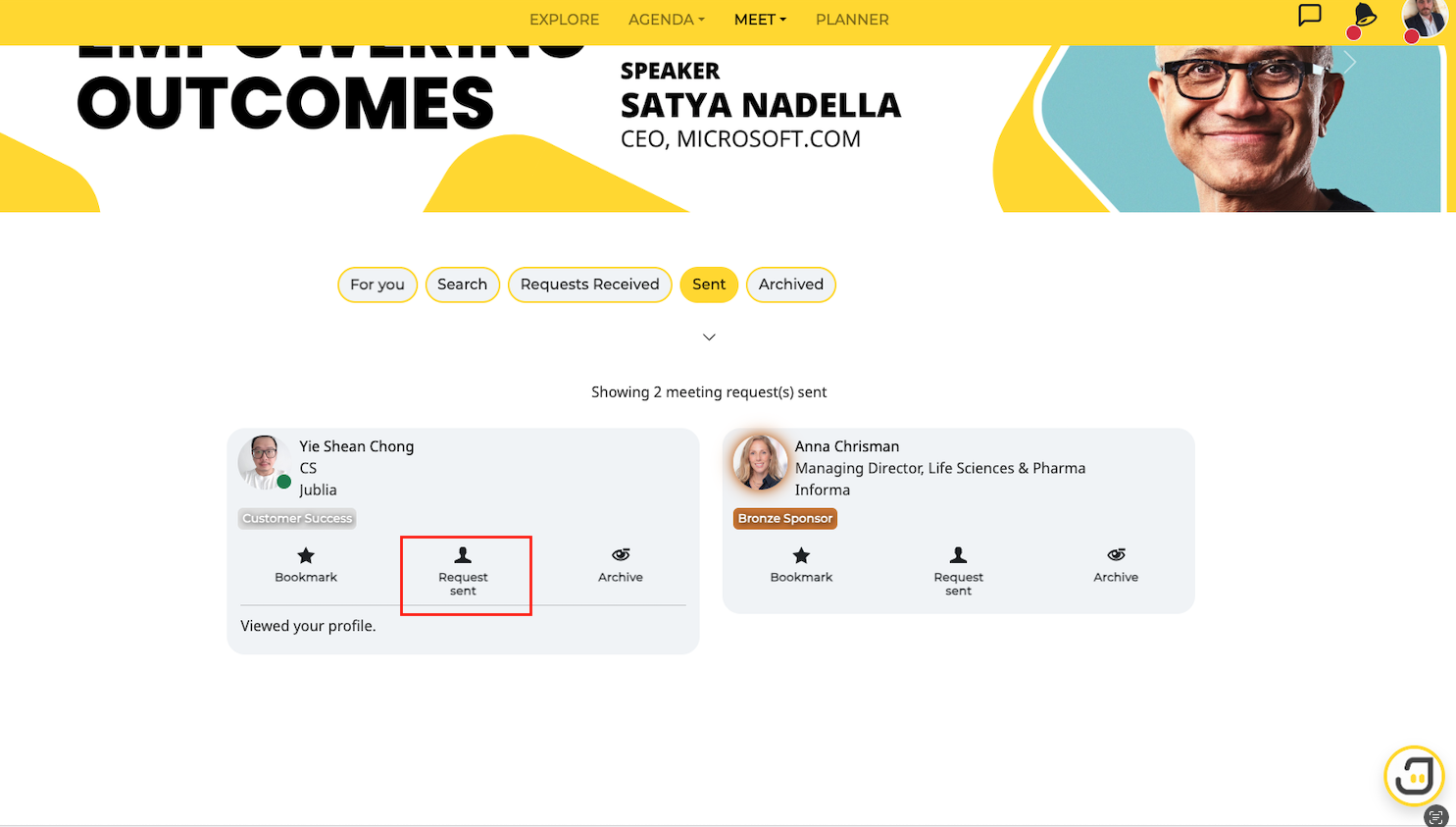
Click on Request sent on the attendee’s profile card
Step 2: Edit/remove request
You may edit or remove your request that was previously sent to the attendee. For example, if you initially sent an onsite meeting request but changed your mind to meet virtually instead:
Select your preferred meeting format
Click on Edit request
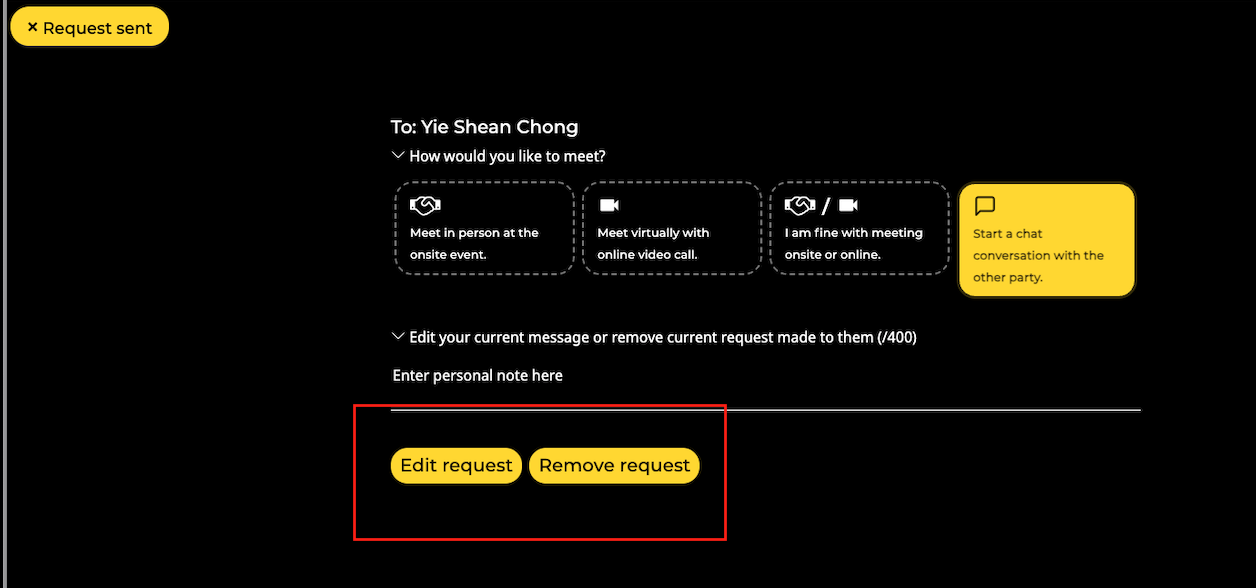
Once your request has been edited, you will receive another confirmation message as shown below:
If you would like to remove the request sent, simply click on Remove request. The profile cards will no longer show that a meeting request was sent to them. You have the option to send them a request again should you wish to.
Native App
Step 1: Open the Business Matching Menu
Access the Business Matching menu to view a list of people you can connect with on the event platform.
Step 2: Search for Specific Parties
Use the search bar or apply filters to find individuals that match your preferences.
Step 3: Request a Meeting
Tap the Meet button to request a meeting with selected parties.
Step 4: Choose Meeting Format
Select the meeting format that suits your needs, such as chat, in-person at the event, or virtual.
Step 5: Select Time Availability
After choosing the meeting format, select a suitable time for the meeting.