Read this guide in
| 中文 | ภาษาไทย | 한국어 | tiếng Việt | 繁體中文 | Bahasa Indonesia | 日本語 | Español | Portuguese |
By default, the Namecard will only display your registered email address. To include your mobile number, please follow the steps below. (might not be applicable to all events)
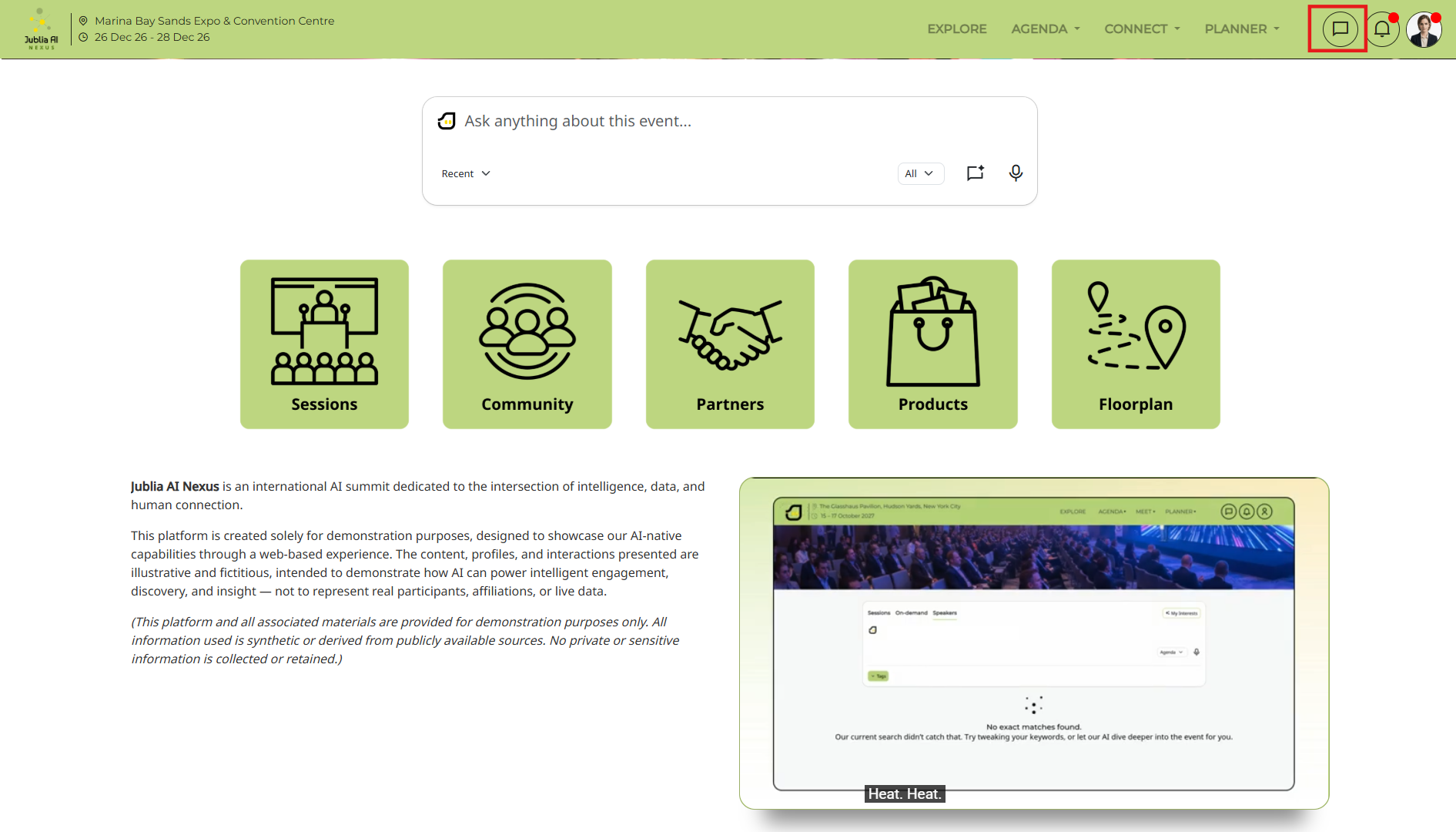
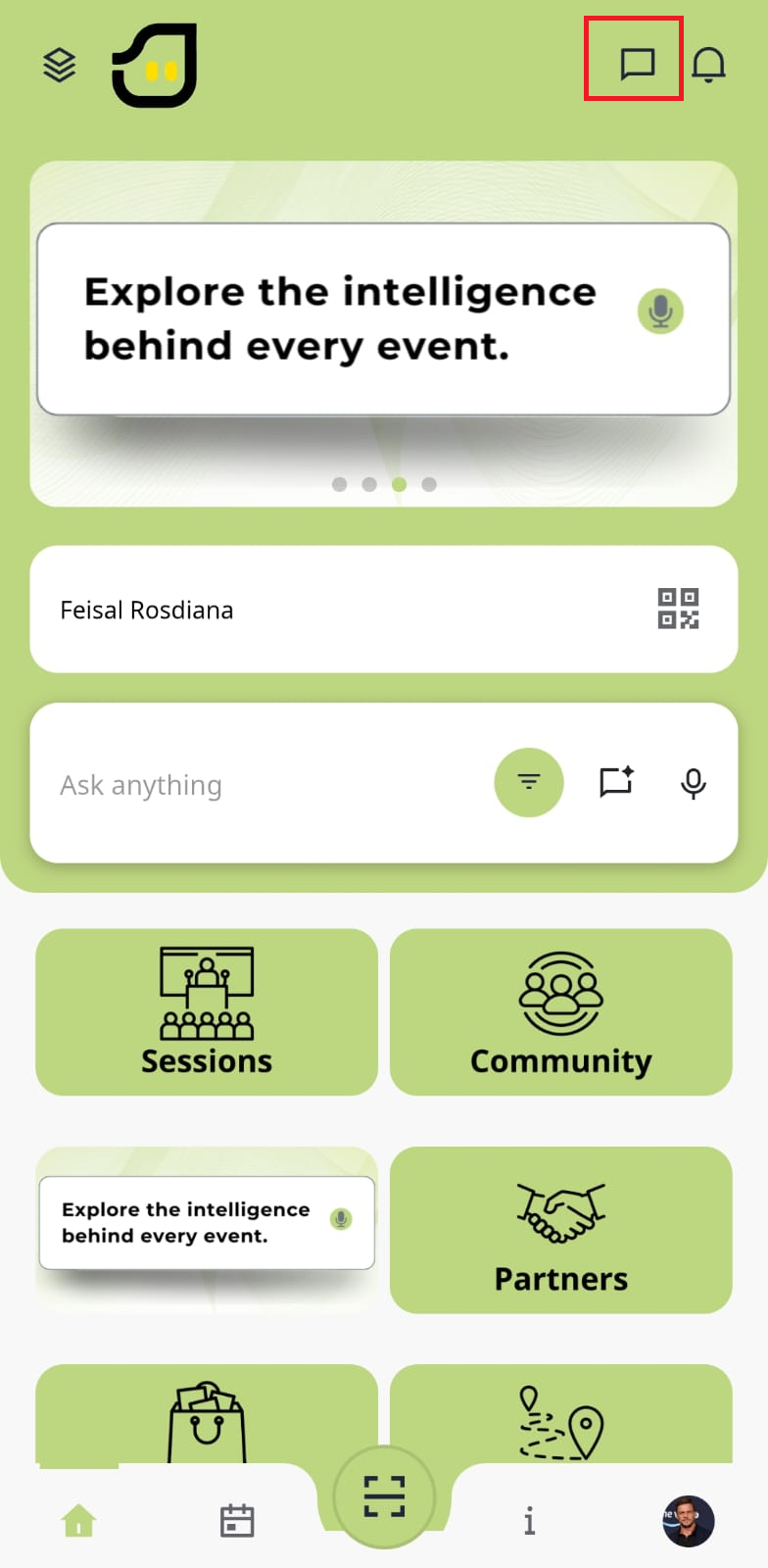
Click the Message icon at the top right corner of the page to open your inbox.
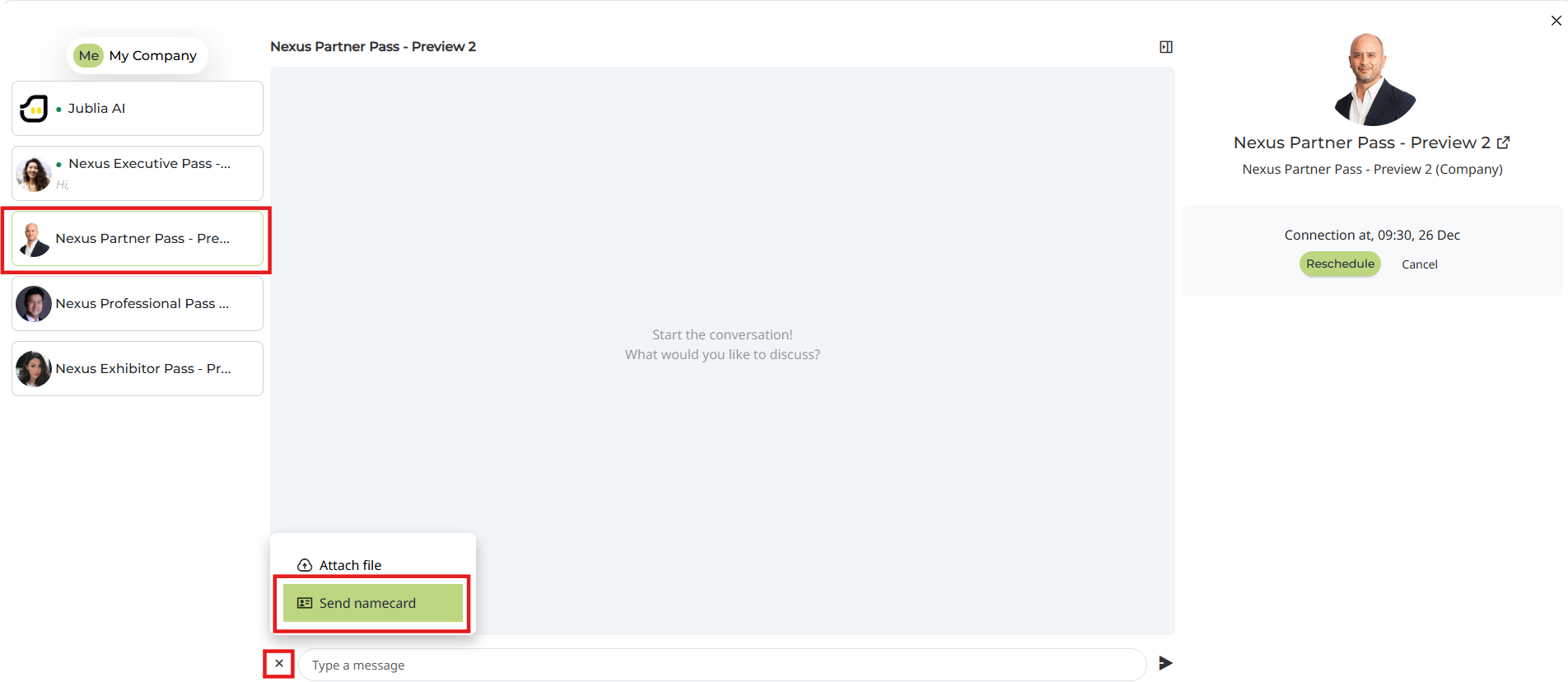
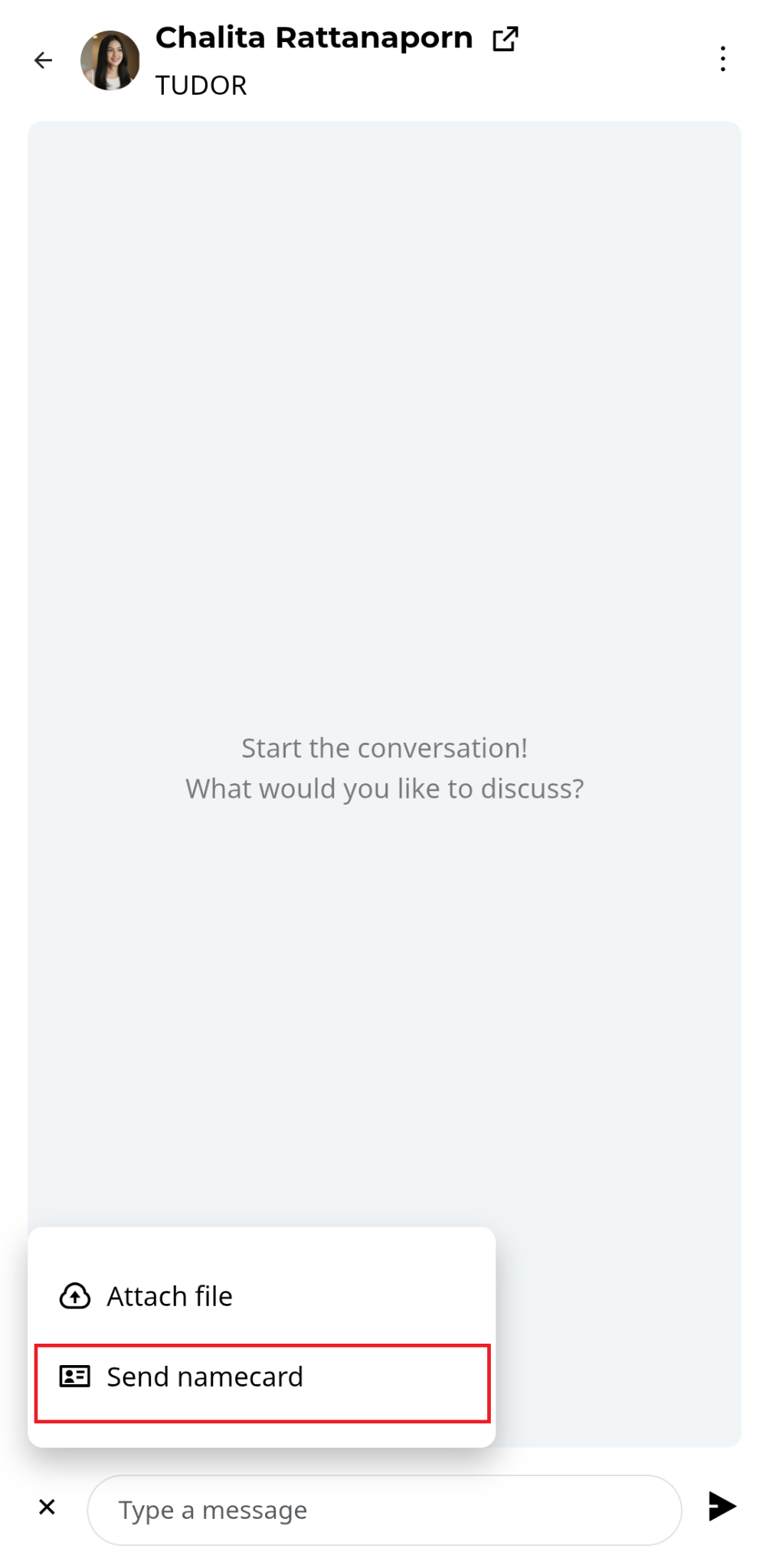
Select the chatroom, click the + icon beside the text box, and select Send namecard to share your contact info.
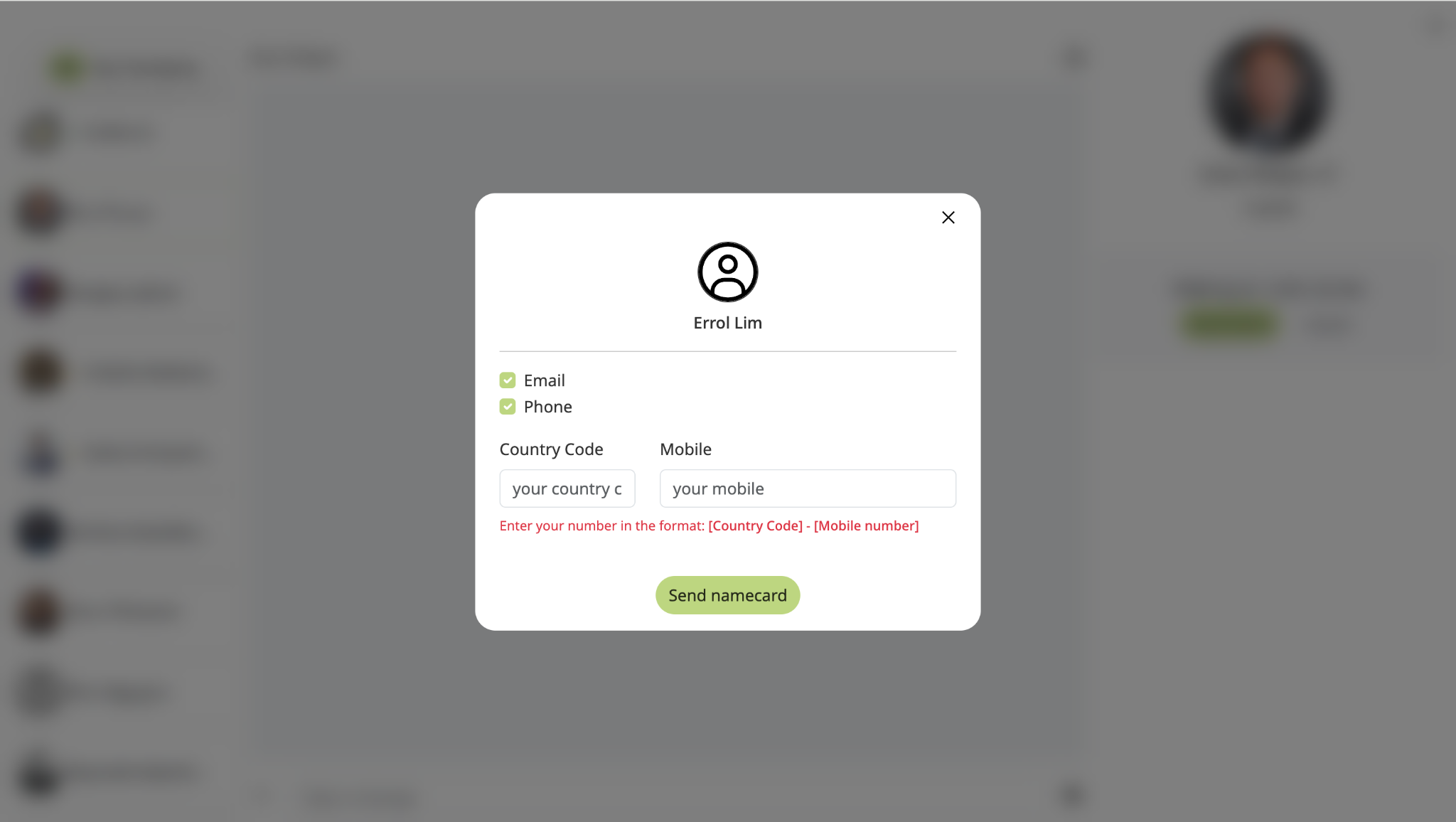
Click the Edit button to add your phone number. Enter your Country Code and Mobile number, then click Save to include these details on your card.
Messaging is only available for connections/meetings that have been confirmed. You may then communicate with the other party via the messaging function within the app.
Sending images/documents
Namecard
Manage Meeting Details
If you want to delete the message, click the delete icon beside your message. Please note that the message deletion is irreversible
Tap the Message icon located at the top right corner of the app screen to view your active chats.
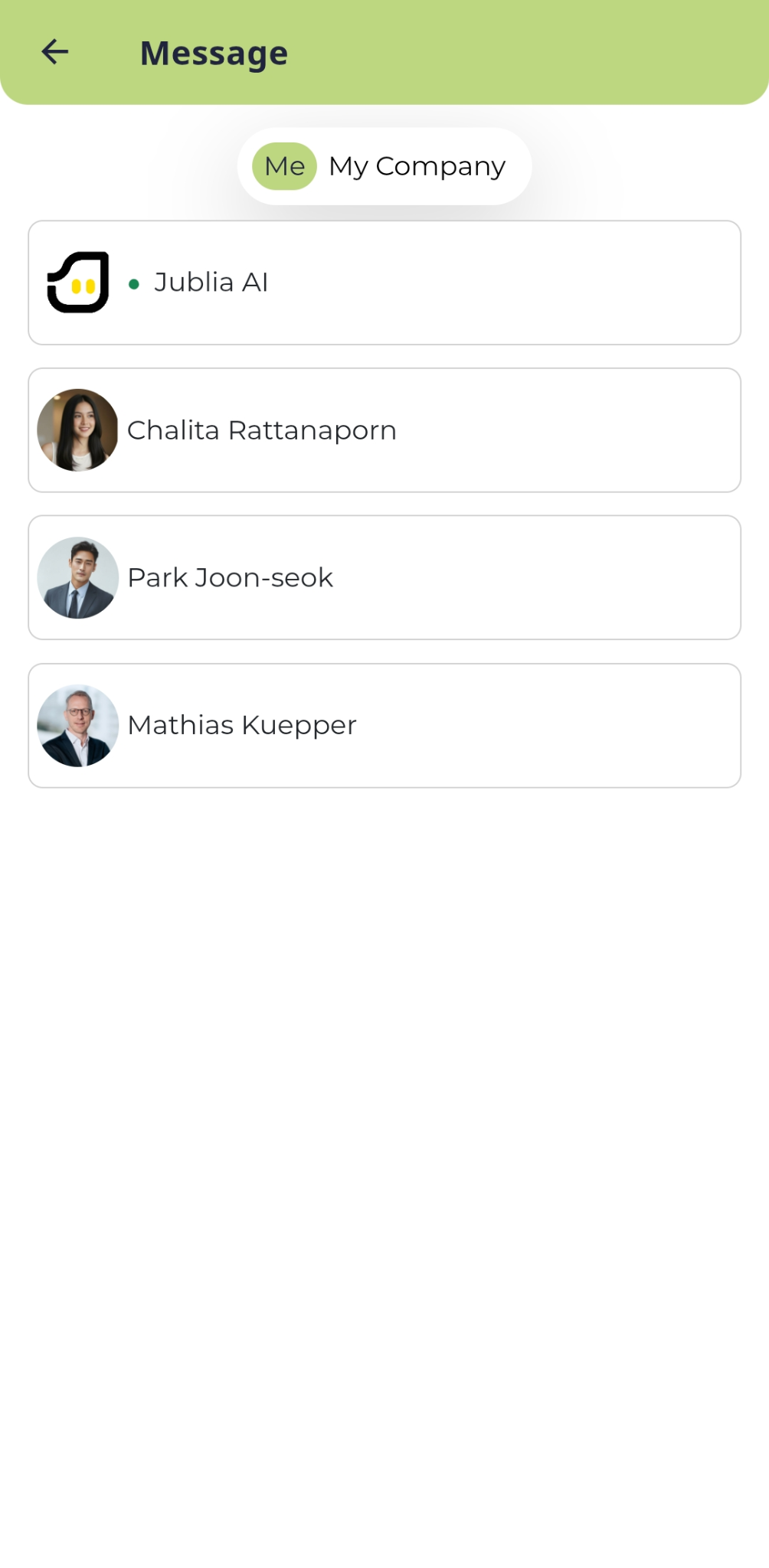
Choose the attendee you wish to contact from your list of confirmed meetings or connections.
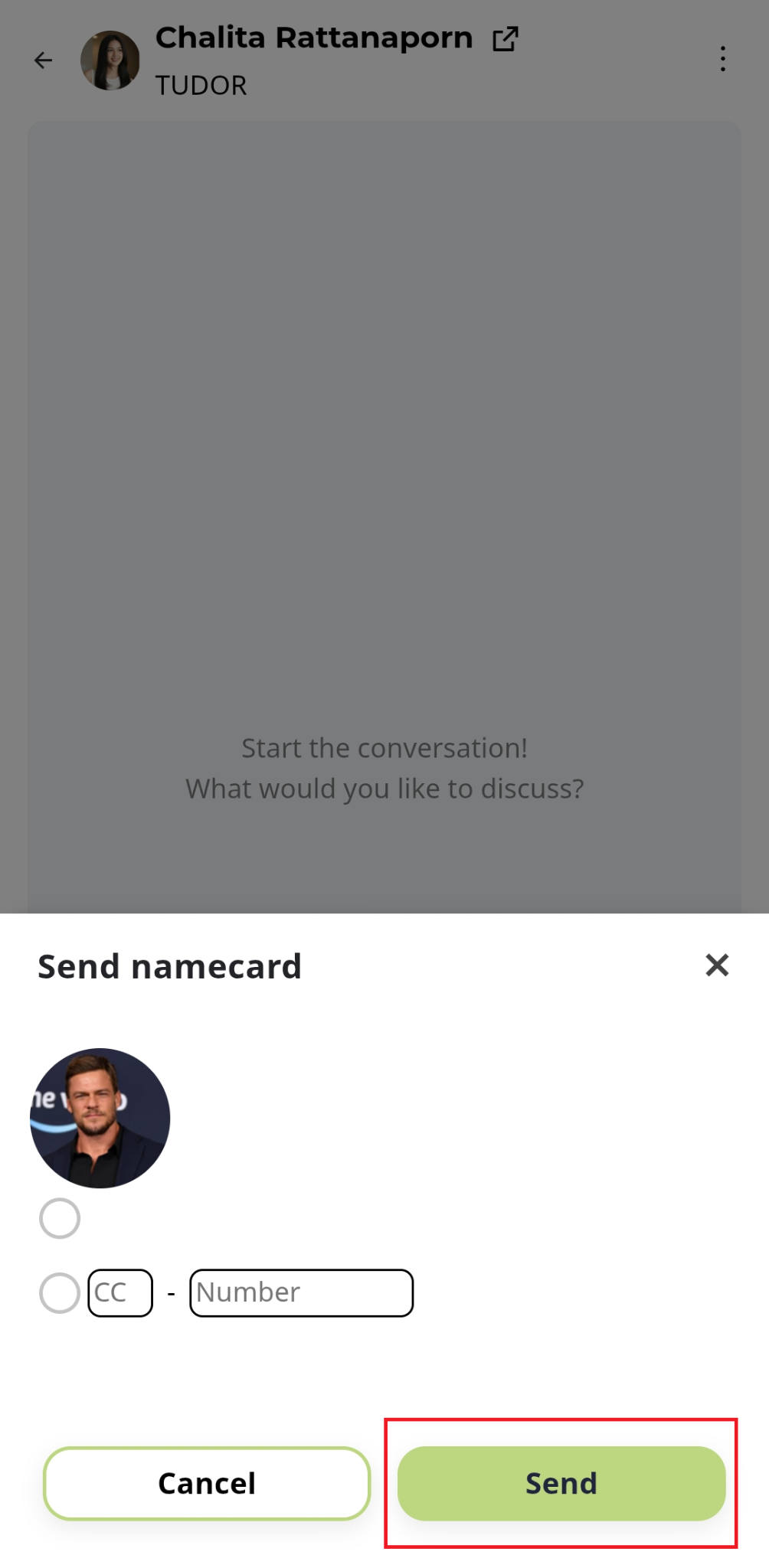
Tap the + icon next to the message input field and select Send namecard to instantly share your digital card.
Confirm or edit your displayed phone number before tapping Send to finalize the exchange.