Virtual Card and Instant Call on Chat
You will be able to send a virtual name card to other party where your meeting or connection is confirmed. You also can arrange or pre-schedule a virtual meeting with them.
Read this guide in
| 中文 | ภาษาไทย | 한국어 | tiếng Việt | 繁體中文 | Bahasa Indonesia | 日本語 | Español | Portuguese |
Web App
By pre-scheduling virtual meetings before events, these tools offer a more efficient, convenient, and professional way to connect and collaborate. Eliminating the need for physical exchange and simplifying appointment settings, you can start your business discussions ahead of time. The seamless integration of these features into existing platforms further streamlines the process and enhances the overall user experience.
Sending Virtual Contact Card
Adding Mobile Number to Virtual Card
By default, the Virtual Card will only display your registered email address. To include your mobile number, please follow the steps below. (might not be applicable to all events)
Step 1: Access Planner Page
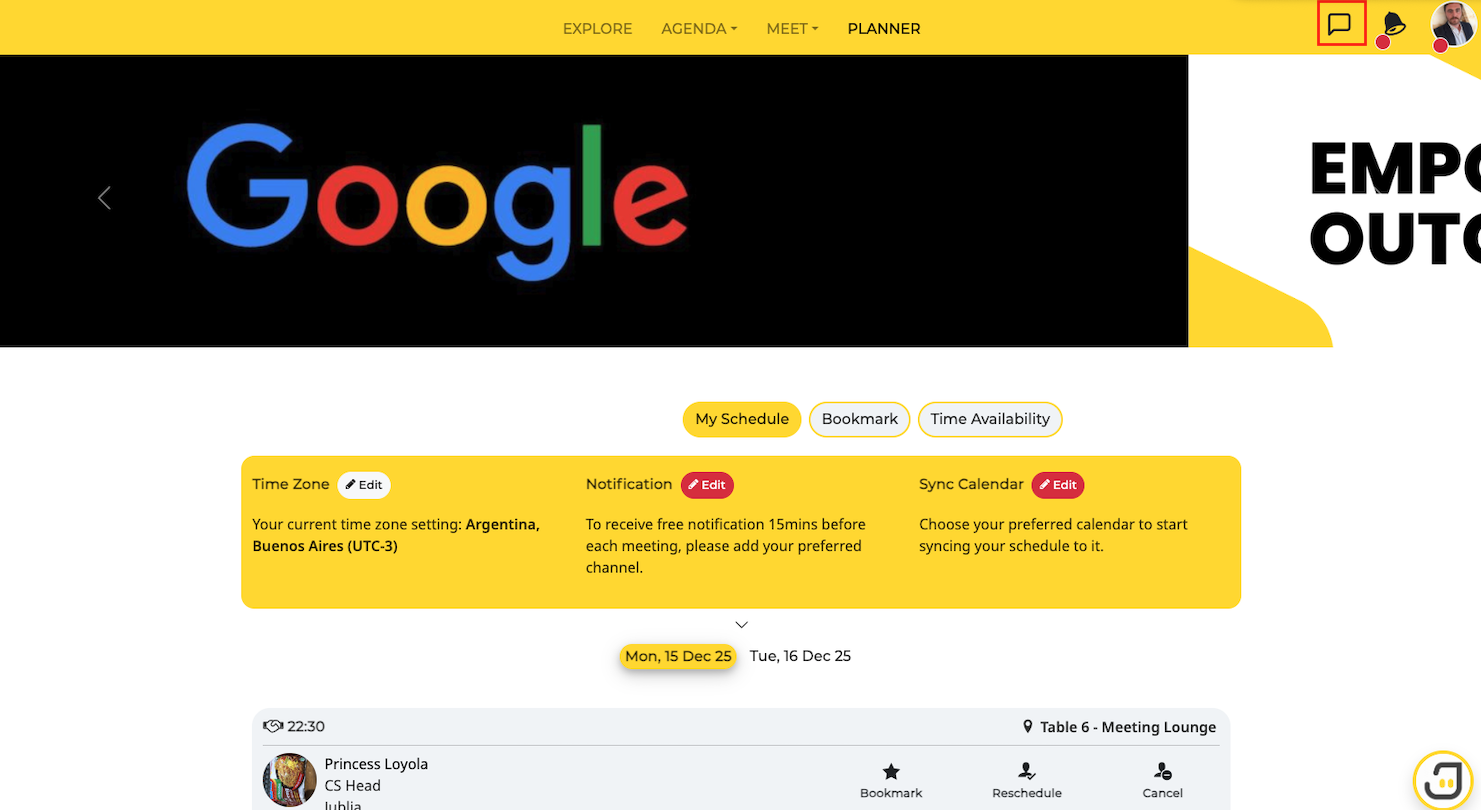
Click on Planner on the navigation bar and select My Schedule
Step 2: Select Notification Type
Click the "Edit" button on the Notifications
Click on SMS - Enter Country Code and Mobile number
Click Save


Sending Virtual Contact Card
Step 1: Access your Messages
Click on the message icon at the top right corner of the page
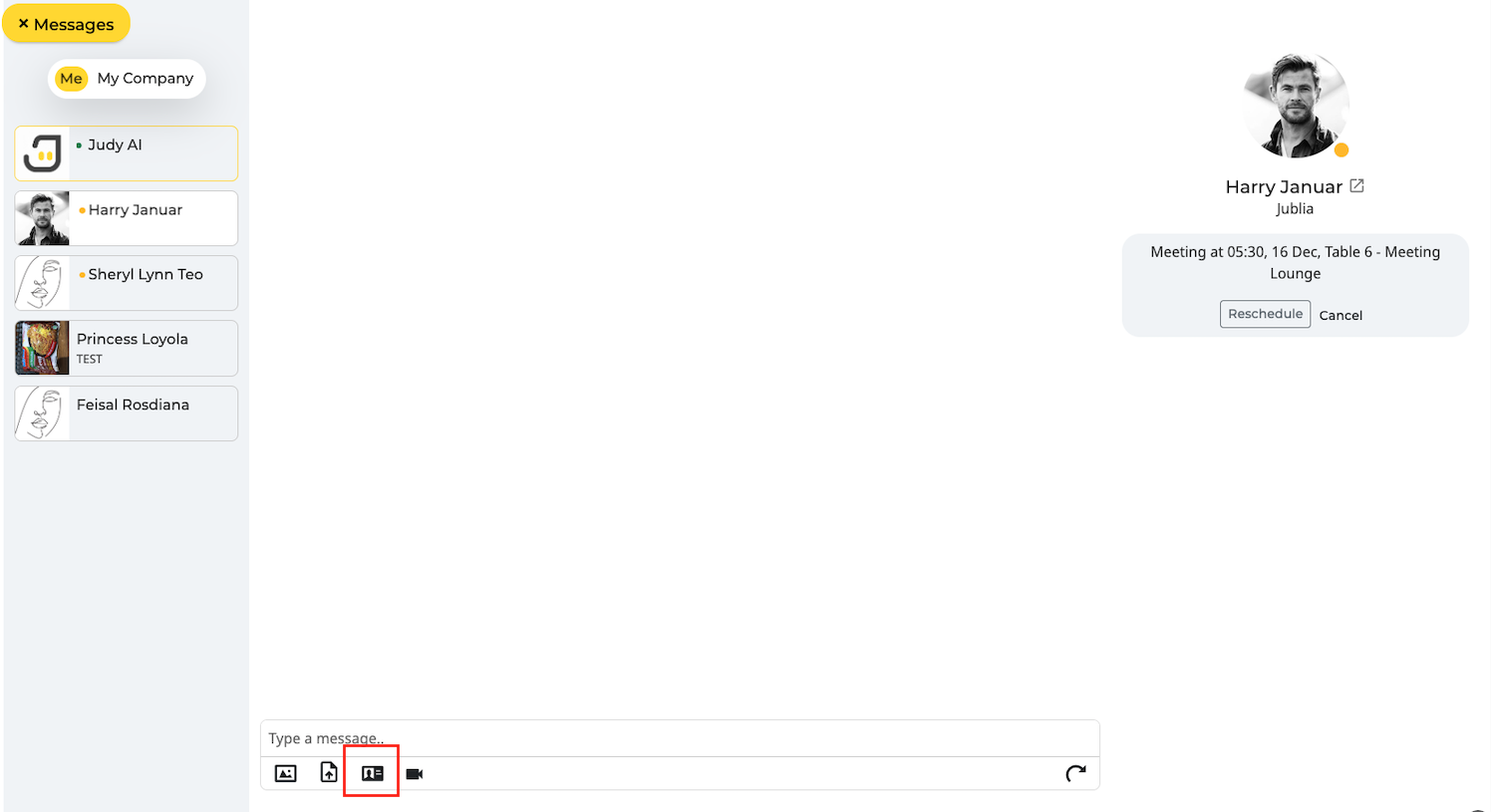
Step 2: Select the person you want to connect with
Click on the connection you would like to communicate with
Click on the 'ID Icon' below the text box
You can input/edit your contact number before sending your virtual card
Send virtual contact card to the other party for them to save your contact

Accessing Instant Call (If Applicable)
Instant call function works best for web desktop view. For more details on supported browsers, please click here. (Please note that instant calls are an add-on feature)
How to access the instant call function on chat
Step 1: Access Your Messages
Click on the message icon at the top right of the navigation bar
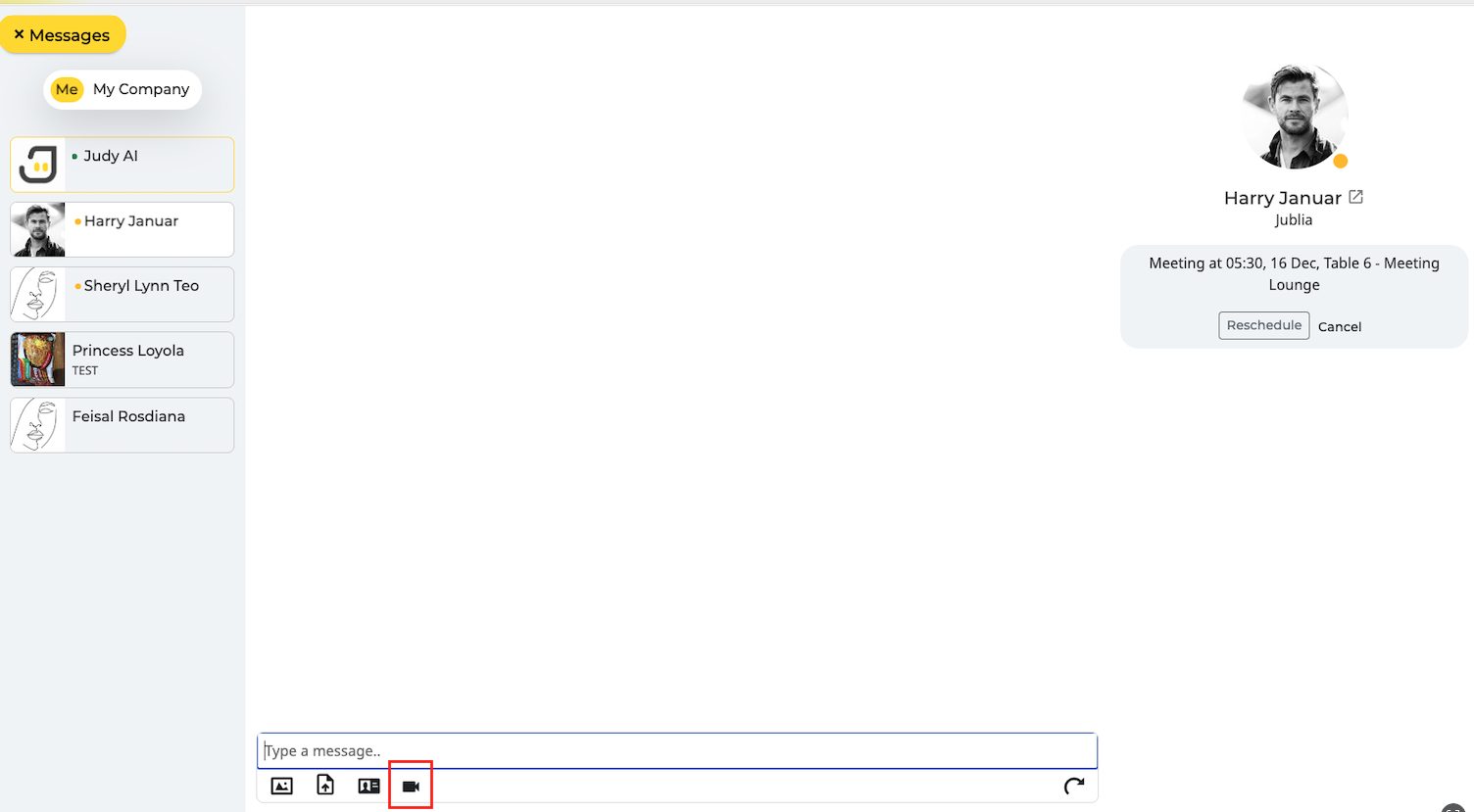
Step 2: Select the person you want to connect with
Click the video icon to send an instant video call meeting with the other party. You can decide whether to have an immediate instant video call or schedule it.

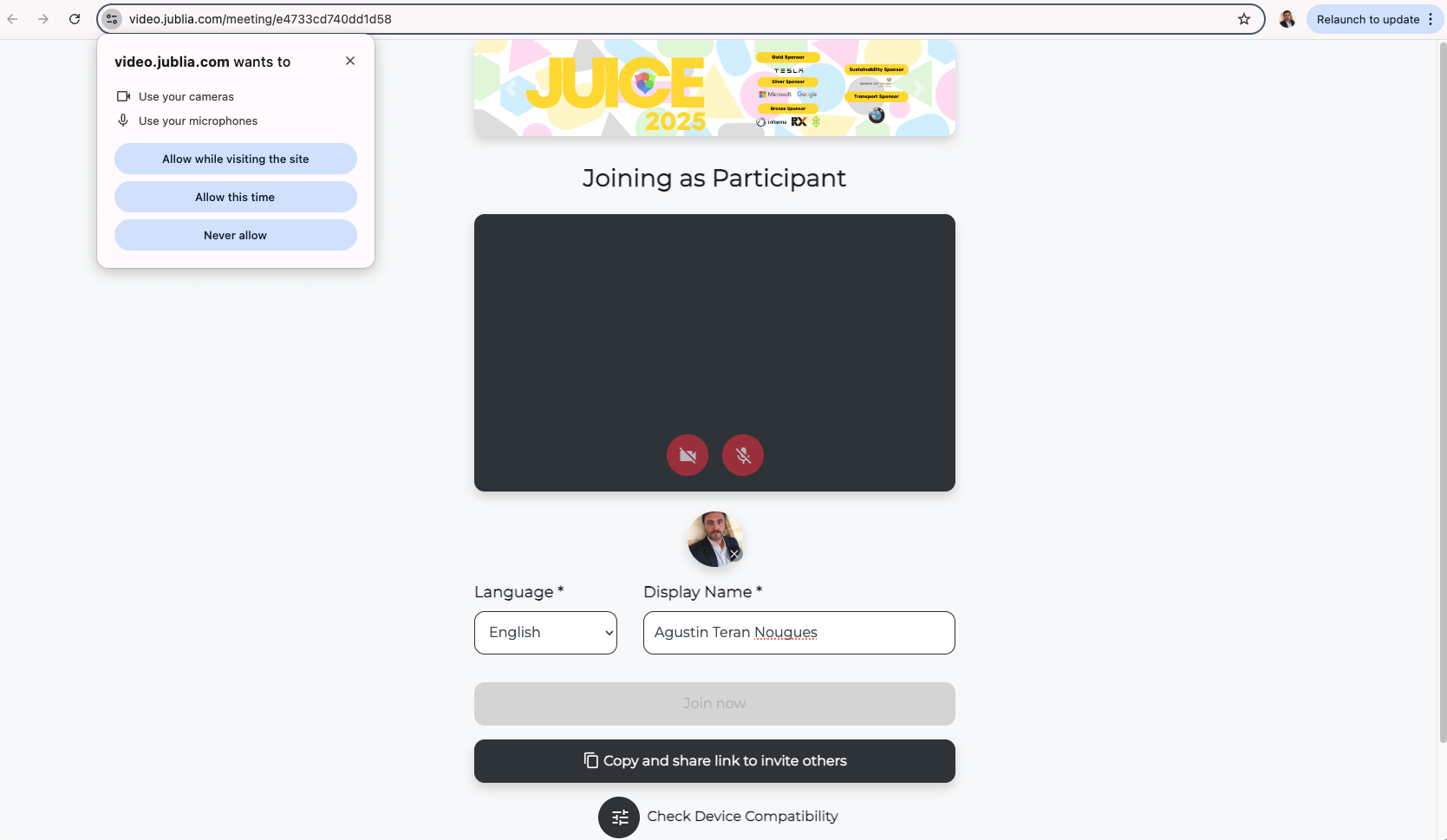
Step 3: Allow Audio and Video Access
Select "Allow" before entering the meeting room
Please note the following:
Can only be accessed within a 1-hour time range from the creation
Invalidated 1 hour after creation time
Maximum 2 call requests for each connection
Can be scheduled immediately or later
Later

Messaging Your Connections
Messaging is only available for connections/meetings that have been confirmed. You may then communicate with the other party via the messaging function within the app.
Chat Functions
Sending images/documents
Virtual Contact Card
Instant call if it is available
Manage Meeting Details
If you want to delete the message, click the "x" button. Please note that the message deletion is irreversible
Native App
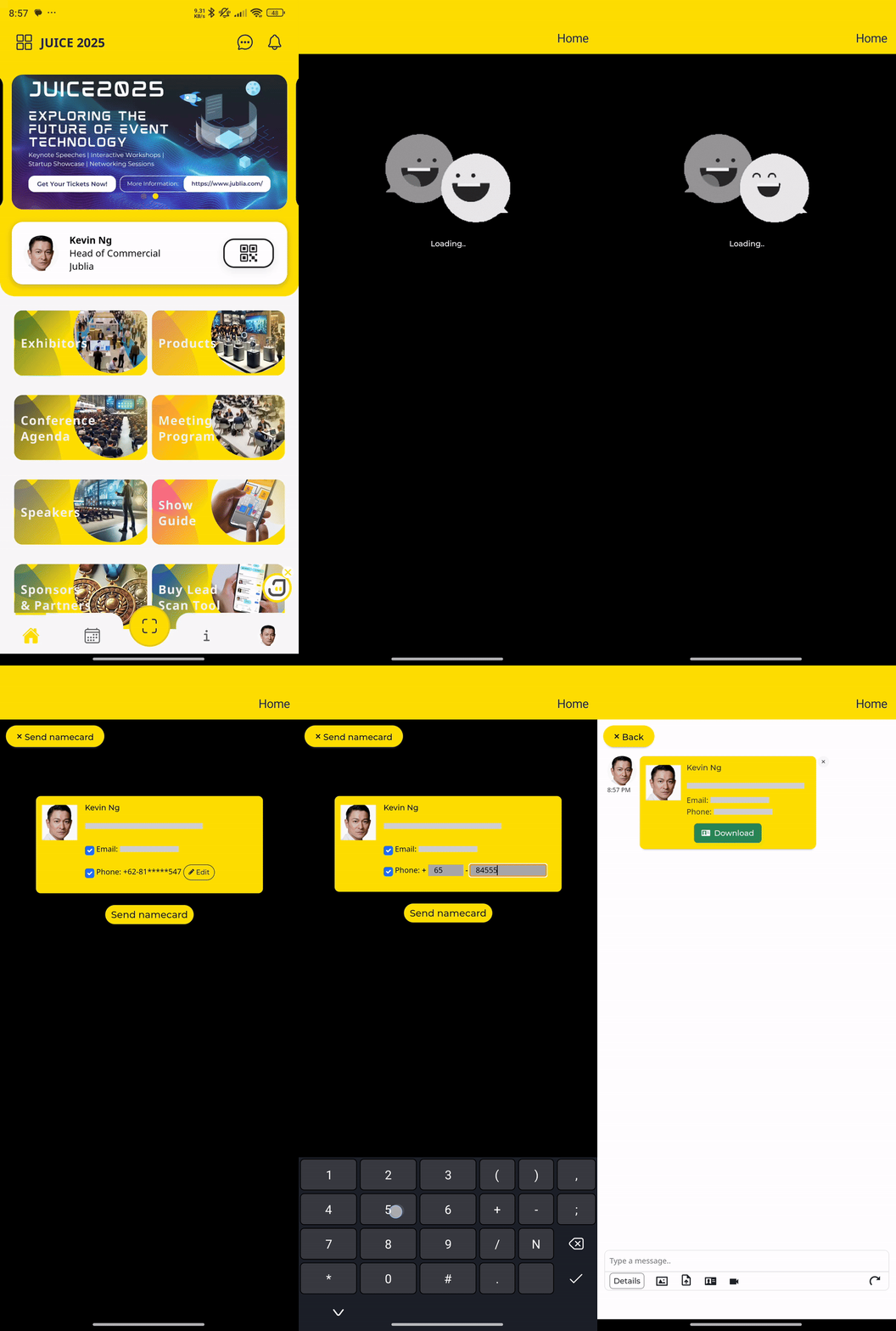
Sending Virtual Contact Card
Step 1: Access your Messages
Click on the message icon at the top right corner of the page
Step 2: Select the person you want to connect with
Click on the connection you would like to communicate with
Click on the 'ID Icon' below the text box
You can input/edit your contact number before sending your virtual card
Send virtual contact card to the other party for them to save your contact
Accessing Instant Call (If Applicable)
Instant call function works best for web desktop view. For more details on supported browsers, please click here. (Please note that instant calls are an add-on feature)
How to access the instant call function on chat
Step 1: Access Your Messages
Click on the message icon at the top right of the navigation bar
Step 2: Select the person you want to connect with
Click the video icon to send an instant video call meeting with the other party. You can decide whether to have an immediate instant video call or schedule it.
Please note the following:
Can only be accessed within a 1-hour time range from the creation
Invalidated 1 hour after creation time
Maximum 2 call requests for each connection
Can be scheduled immediately or later
Immediate

Later