Read this guide in
| 中文 | ภาษาไทย | 한국어 | tiếng Việt | 繁體中文 | Bahasa Indonesia | 日本語 | Español | Portuguese |
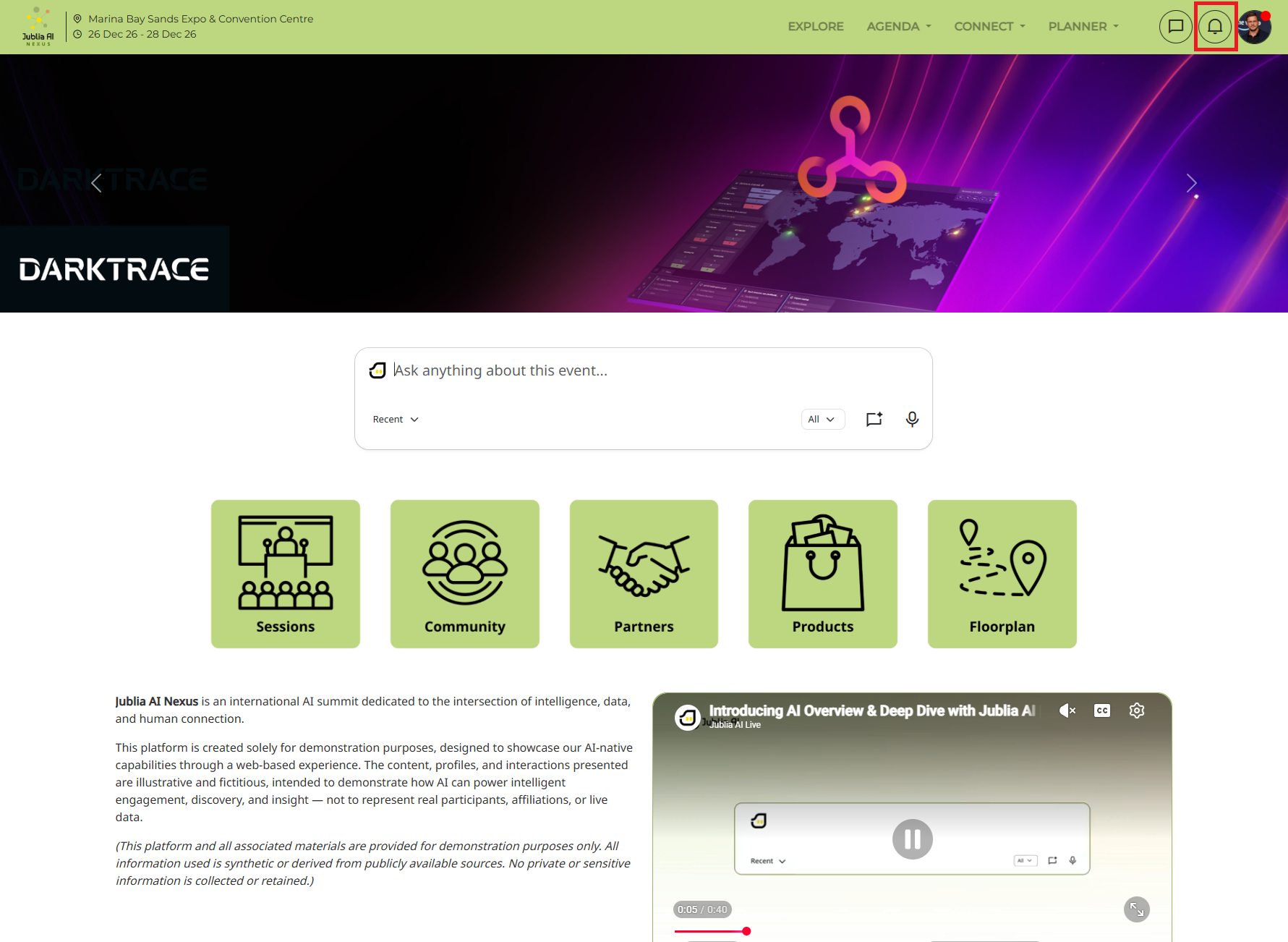
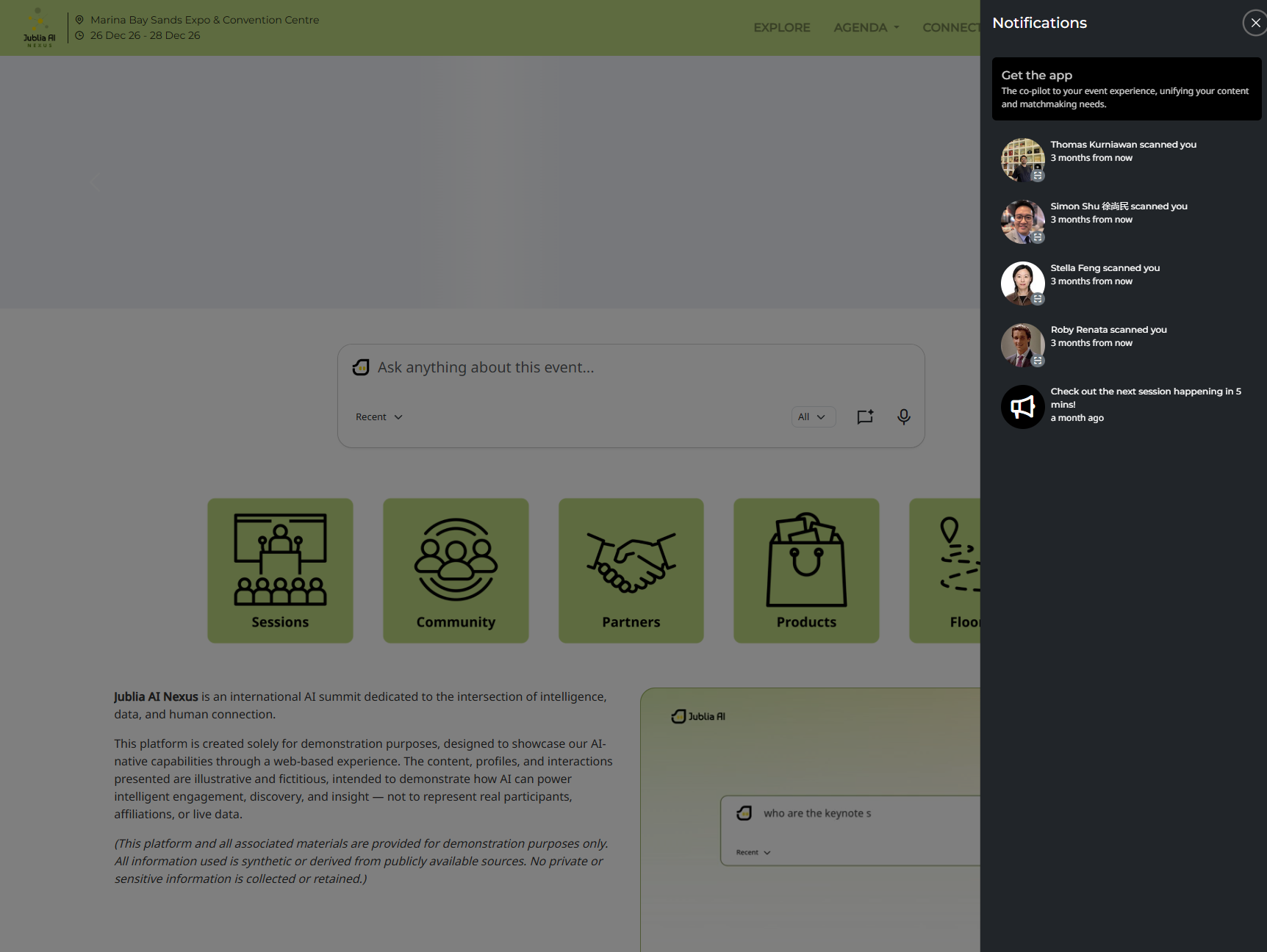
Receive Meetings & Agenda reminders, and Scan Feature updates on web:
Before you explore networking opportunities, please make sure to personalize your notifications.
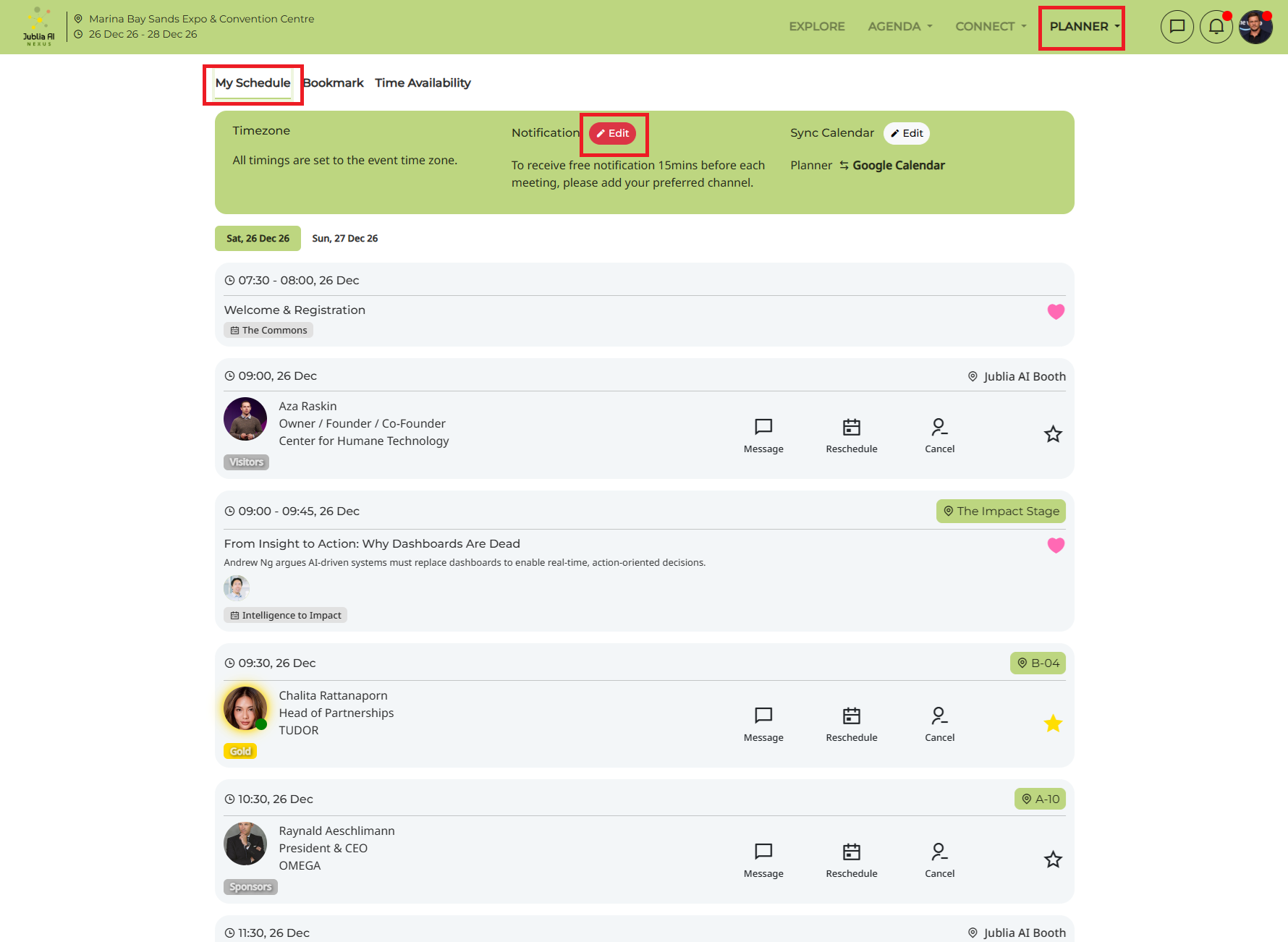
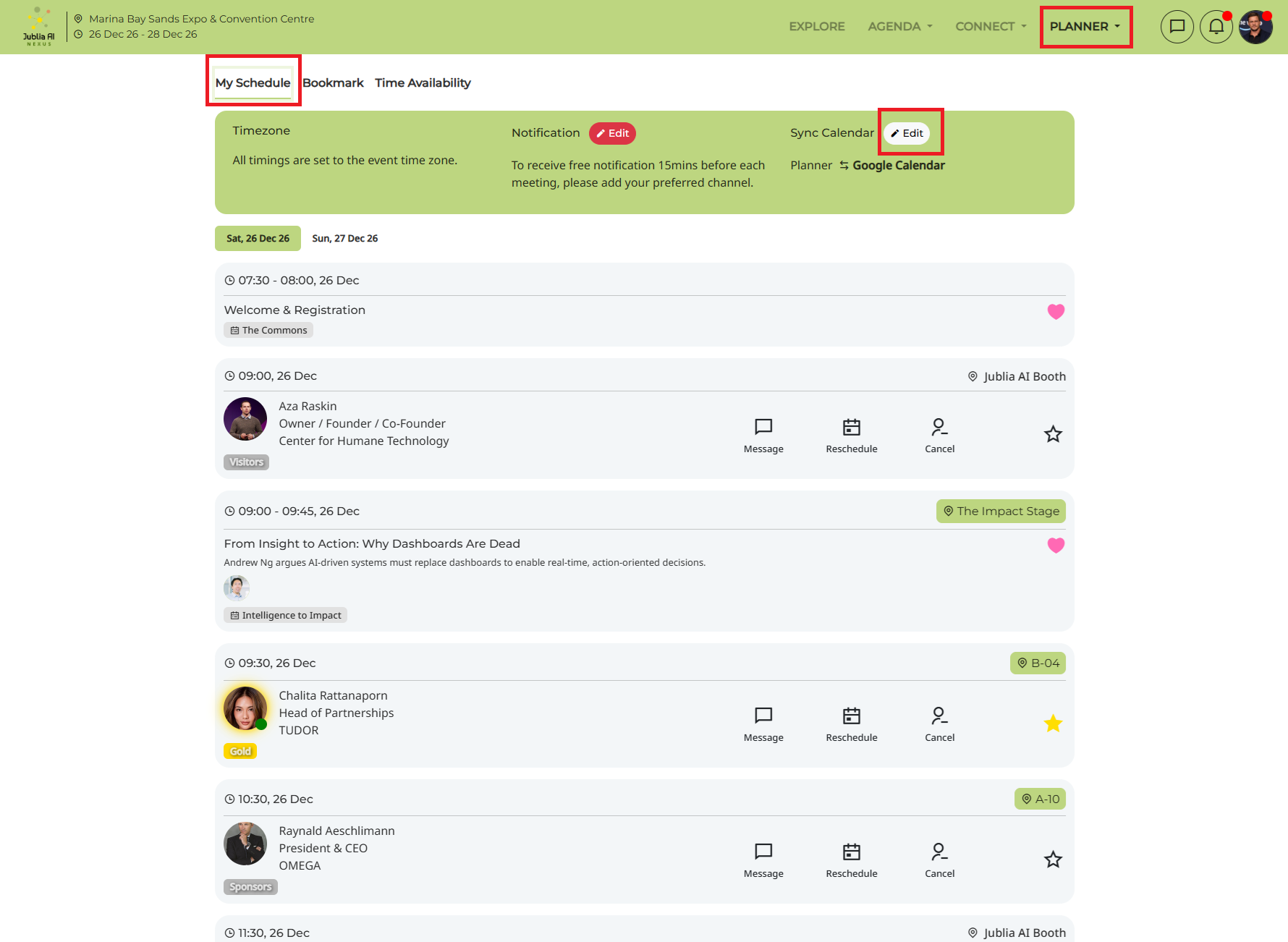
Click on "Planner" and navigate to My Schedule to view your options
Notification (only available for structured meetings)
Sync Calendar (only available for structured meetings)
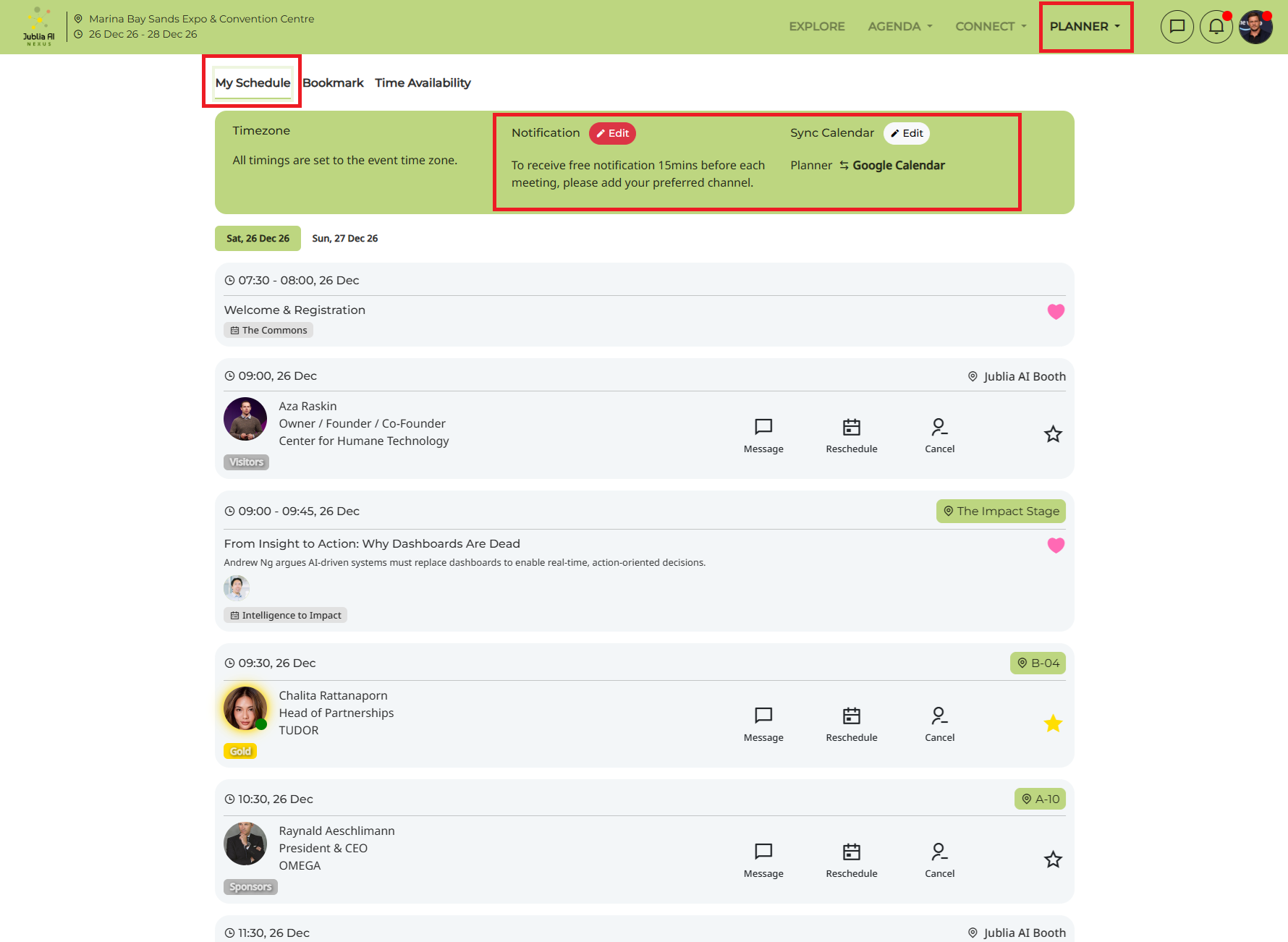
Click the "Edit" button on Notification to select your preferred method.
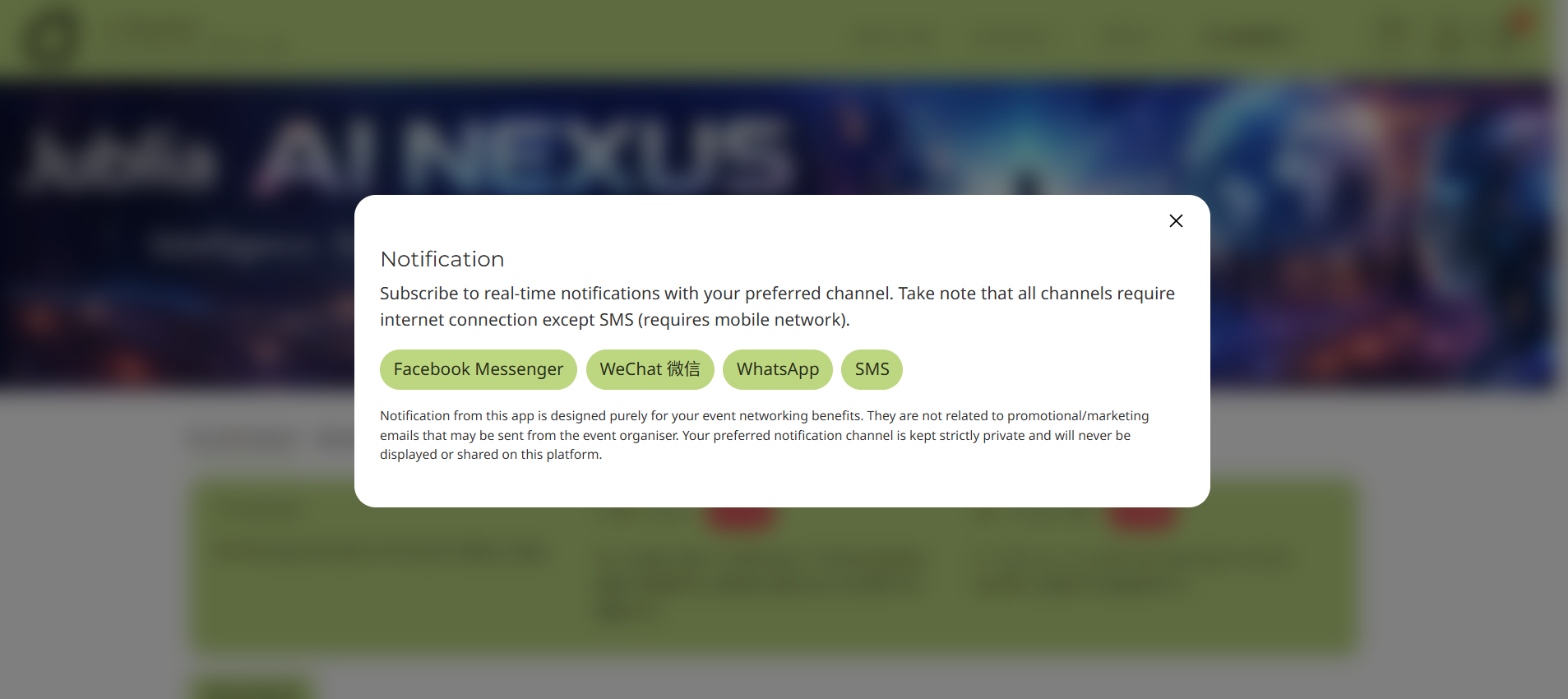
To receive notifications via Facebook Messenger:
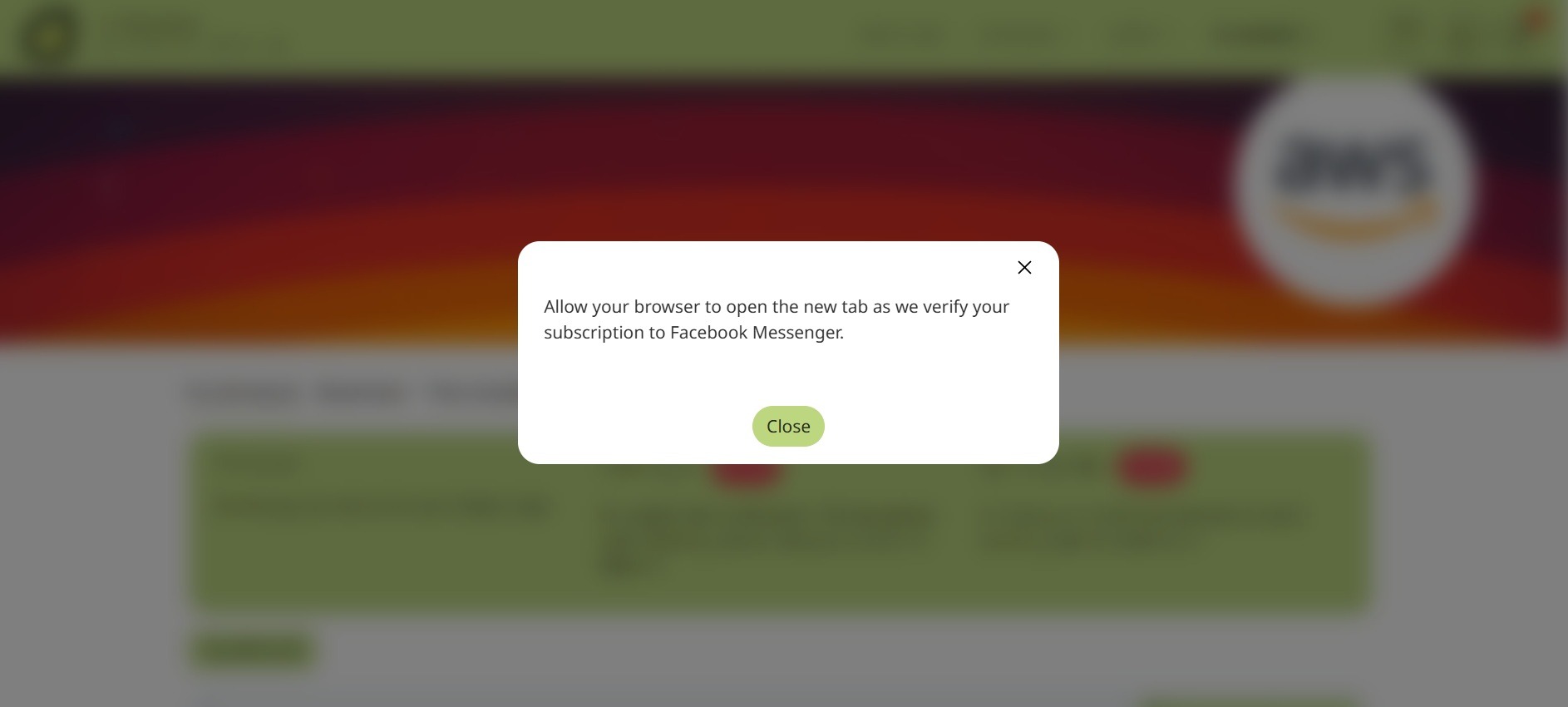
Connect your Facebook account to our Engagement Hub.
Once connected, you'll receive notifications about your meeting opportunities directly on Facebook Messenger.
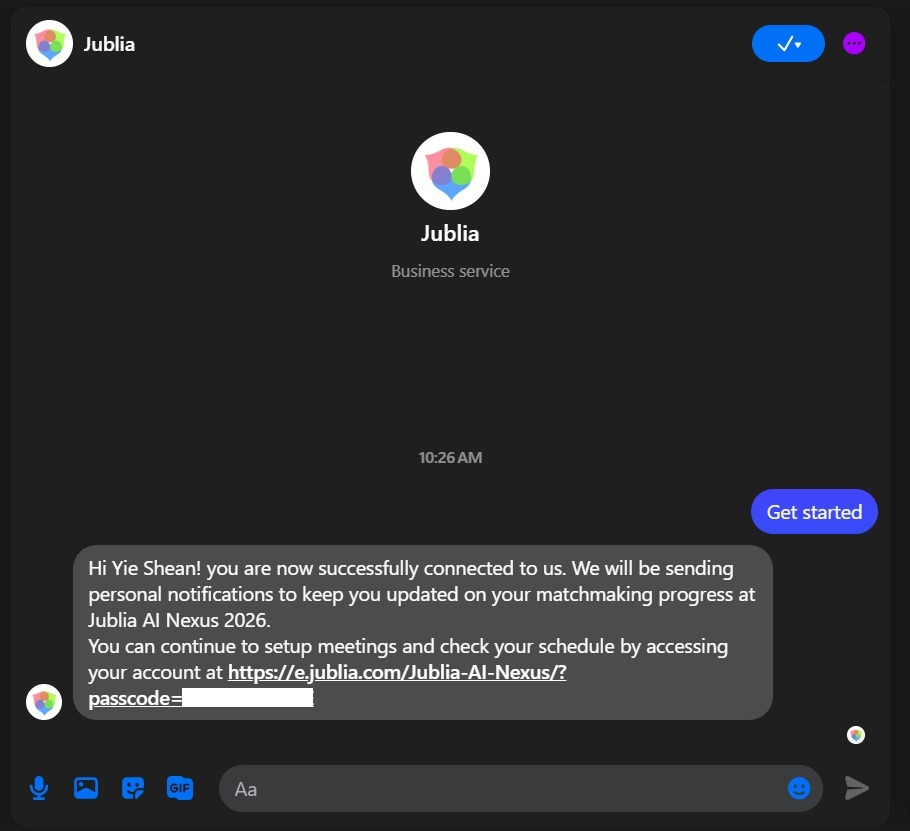
You will receive an automatic message when you are successfully connected
To receive notifications via WeChat:
Scan the provided QR code to connect your account.
Once connected, you'll receive notifications about your meeting opportunities directly on WeChat.
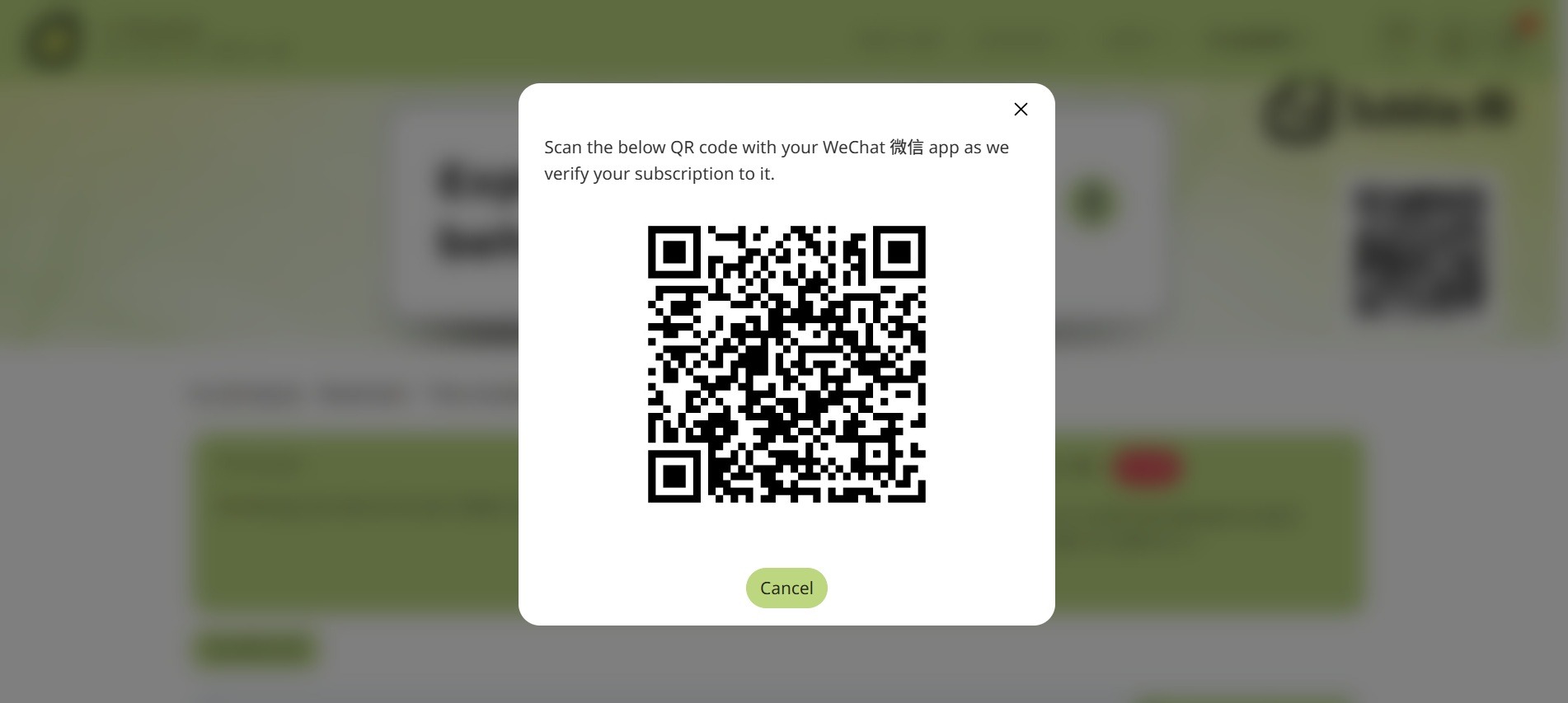
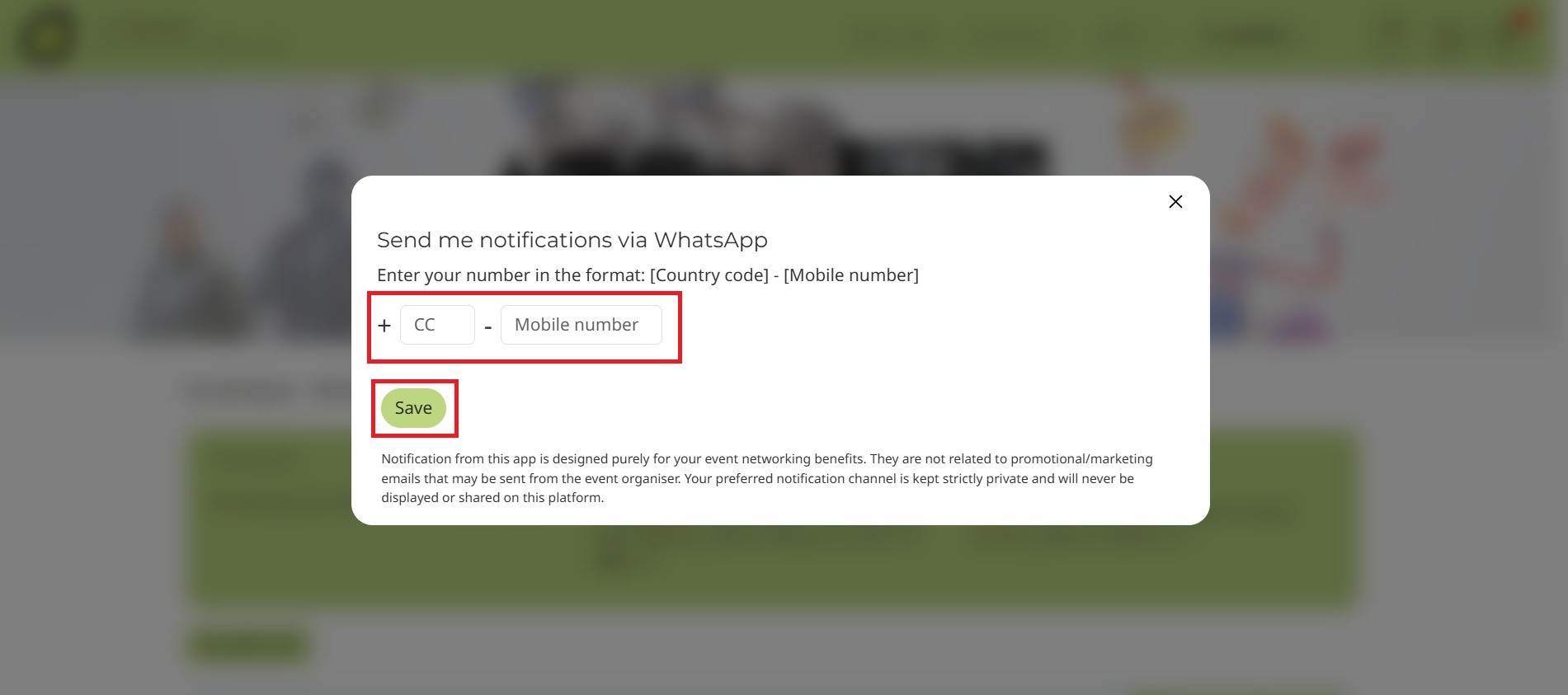
To receive notifications via WhatsApp:
Enter your mobile phone number in the required format: (country code)-(mobile phone number).
Once connected, you'll receive notifications about your meeting opportunities directly on WhatsApp.
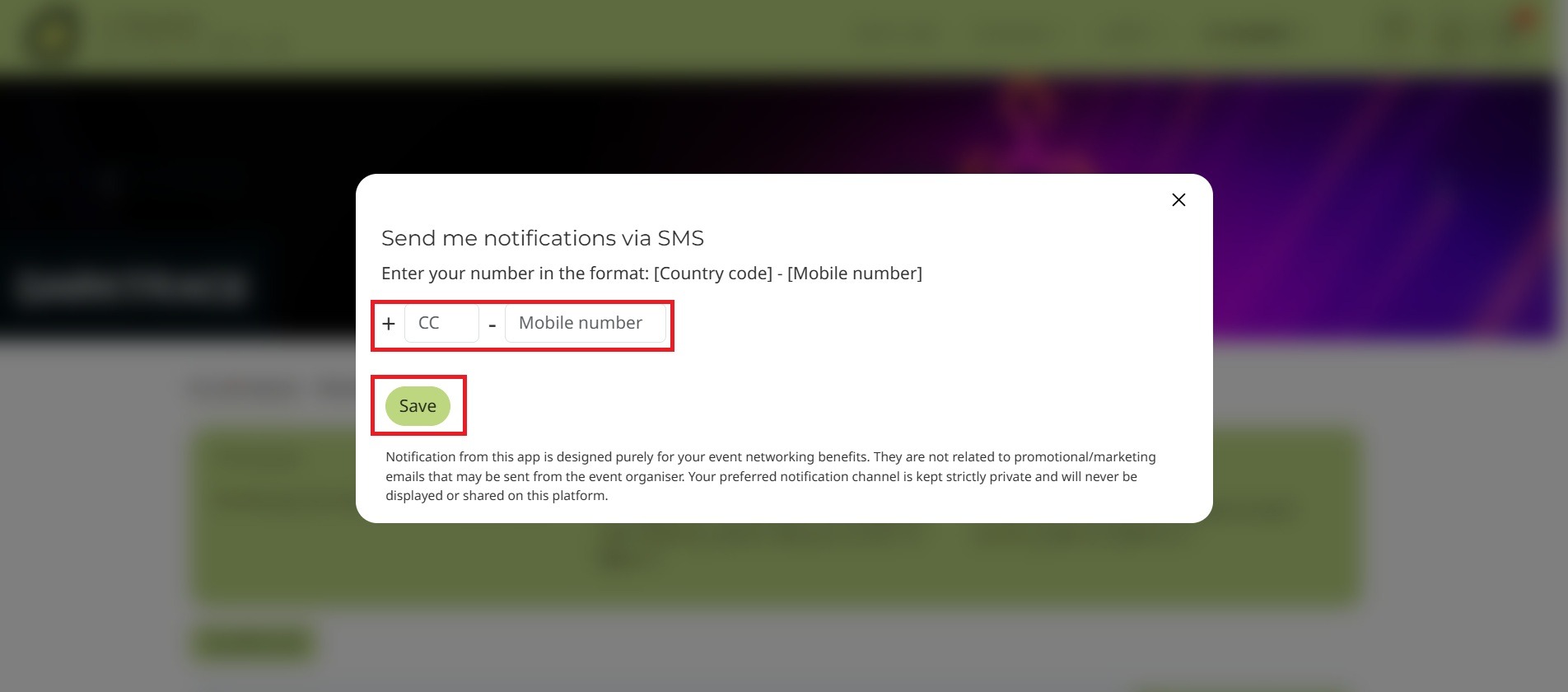
To receive notifications via SMS:
Enter your mobile phone number in the required format: (country code)-(mobile phone number).
Once connected, you'll receive notifications about your meeting opportunities via SMS.
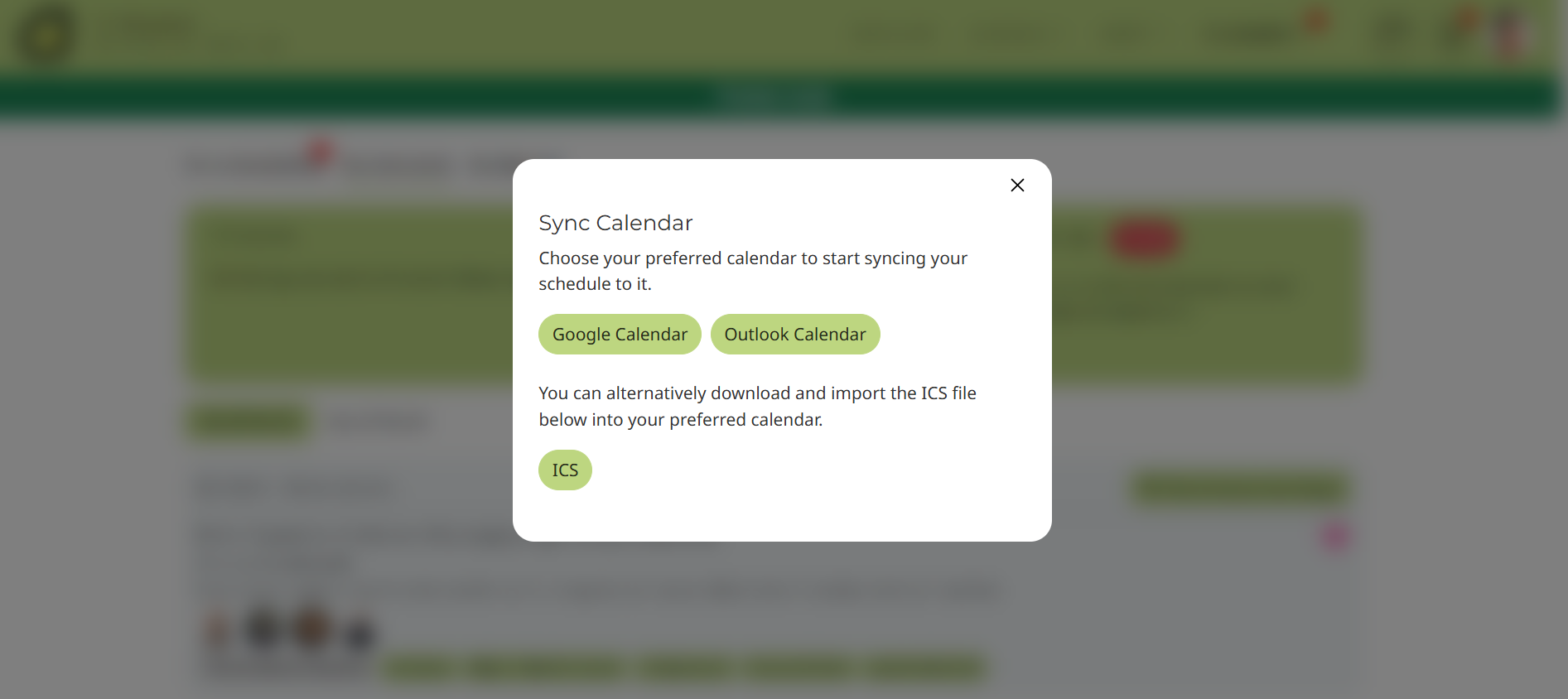
Click the Edit button on Sync Calendar
Select Your Preferred Calendar
Choose between Google, Outlook, or directly download to your mobile device.
Click Save to save your preferred calendar
Note: Once synced, any changes to your schedule will be automatically updated.
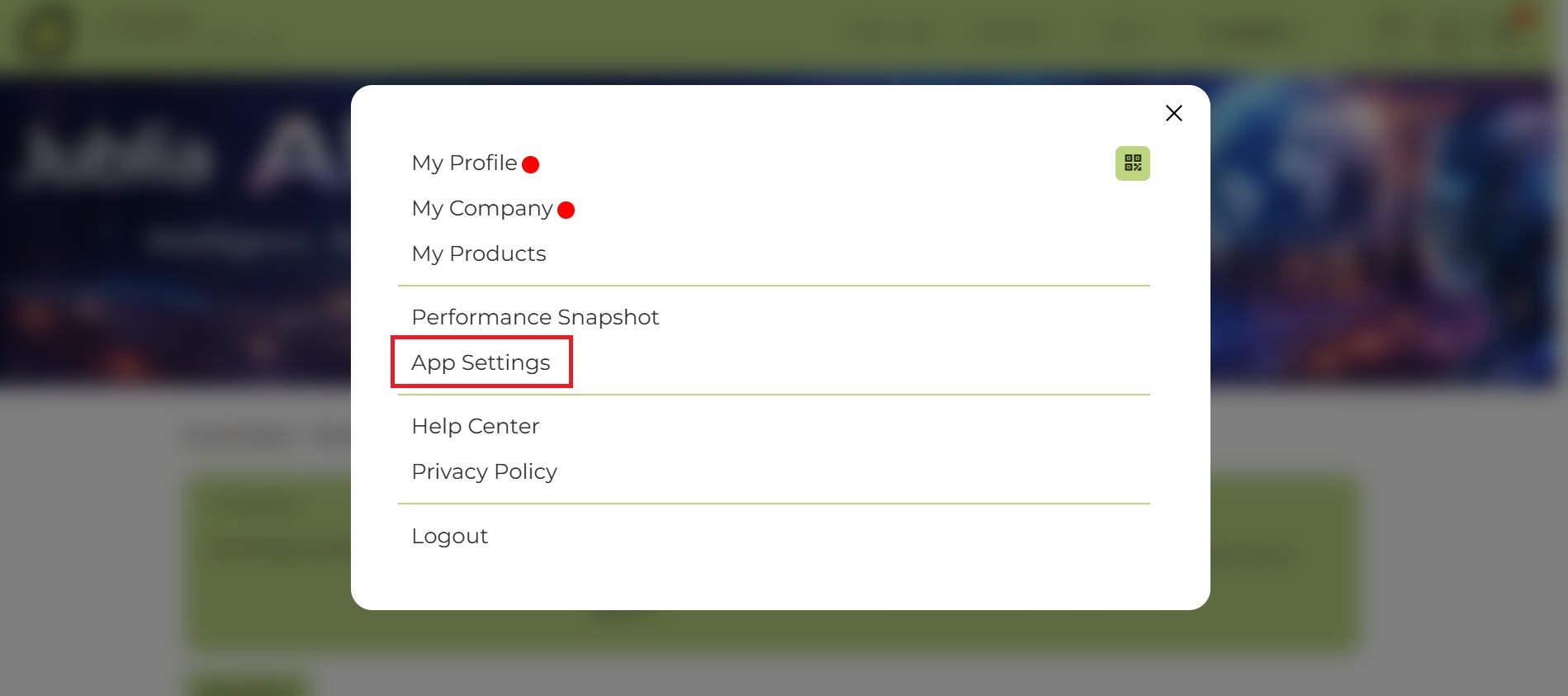
To begin customizing your notifications, click on your profile button located in the top right-hand corner of the screen. From the dropdown menu, select App settings to access your notification settings.
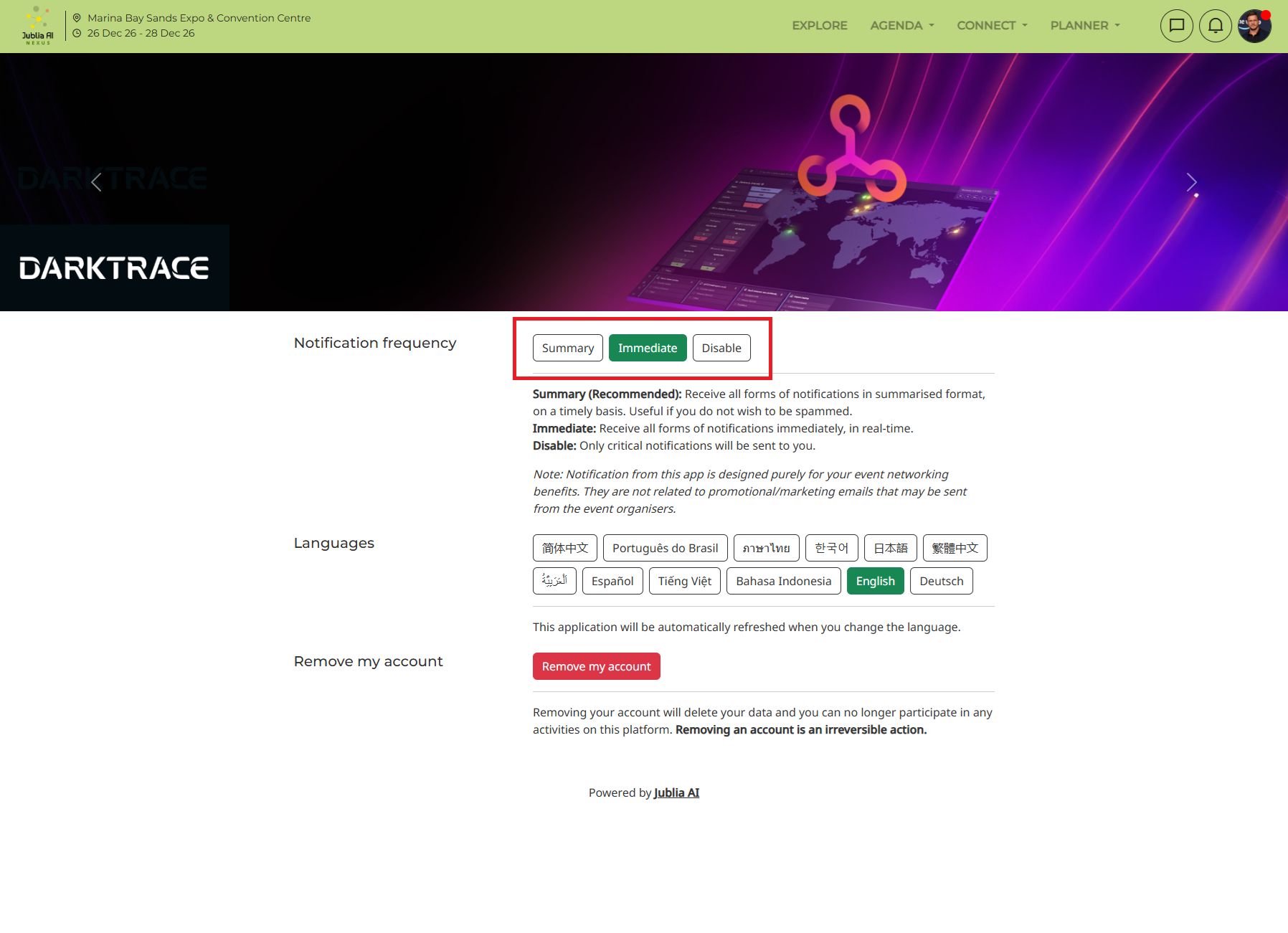
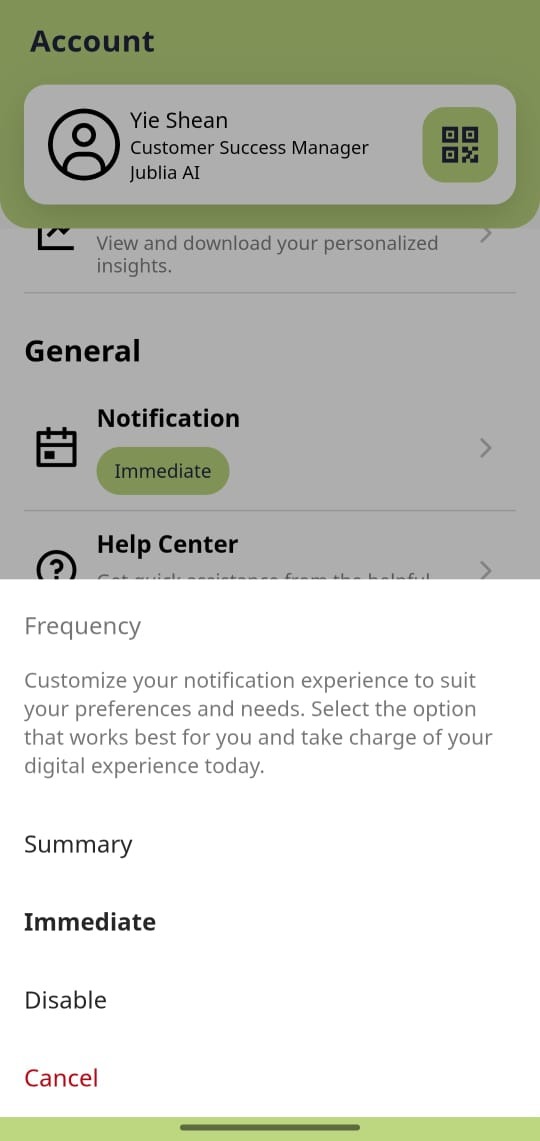
Choose your preferred frequency for receiving email notification:
Summary: Receive daily or weekly email summaries of your meeting opportunities.
Immediate: Receive an email for each new meeting opportunity as soon as it becomes available.
Disable: Opt out of email notifications altogether.
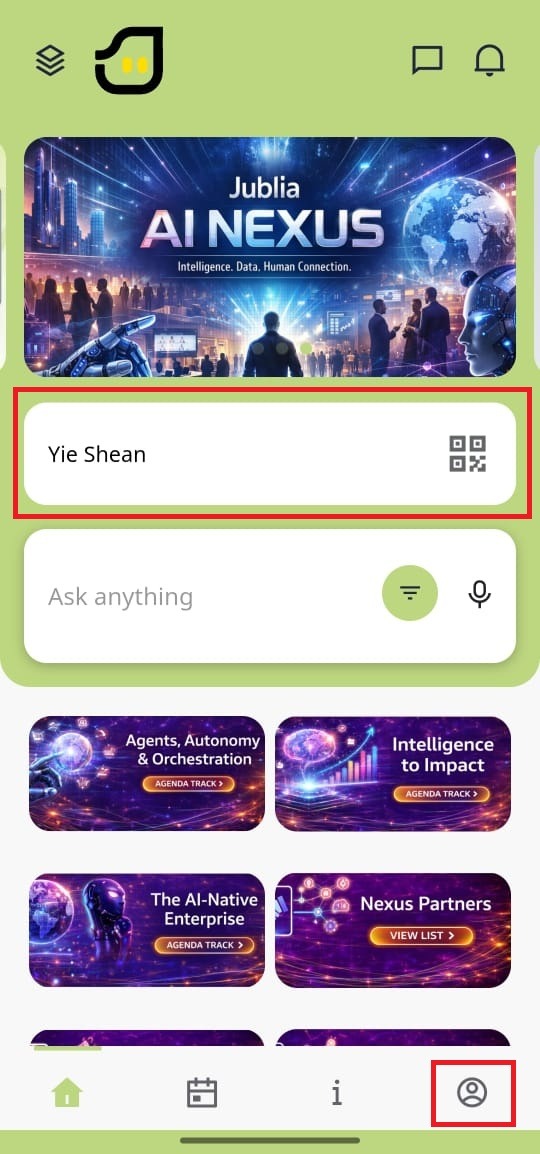
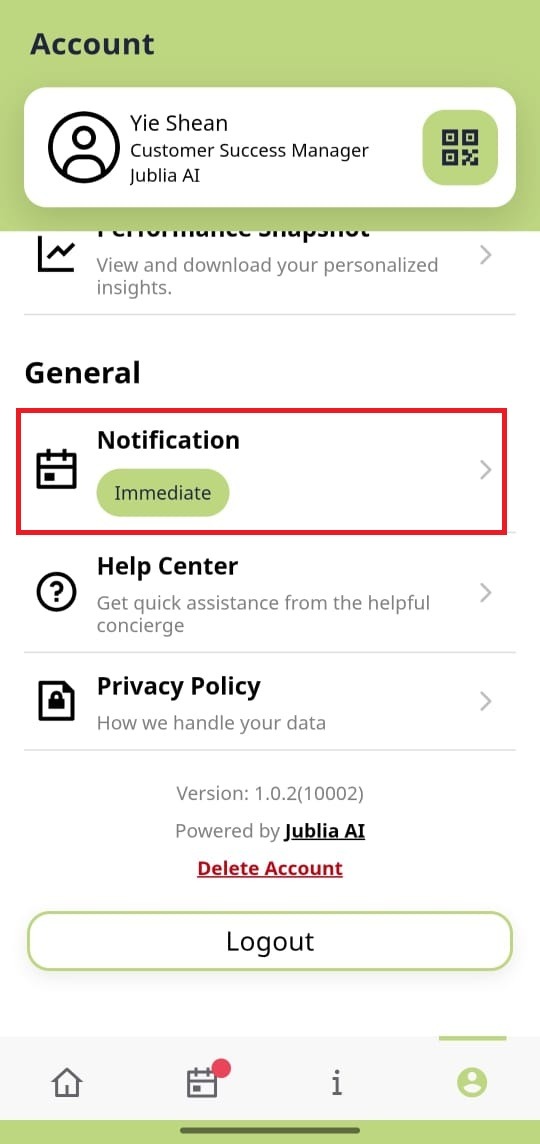
You can open the Account menu either from the profile banner on the Home menu or through the account option on the bottom navigation bar.
Scroll down to the General section, click "Notification" menu, then click to update your notification frequency preferences as needed.
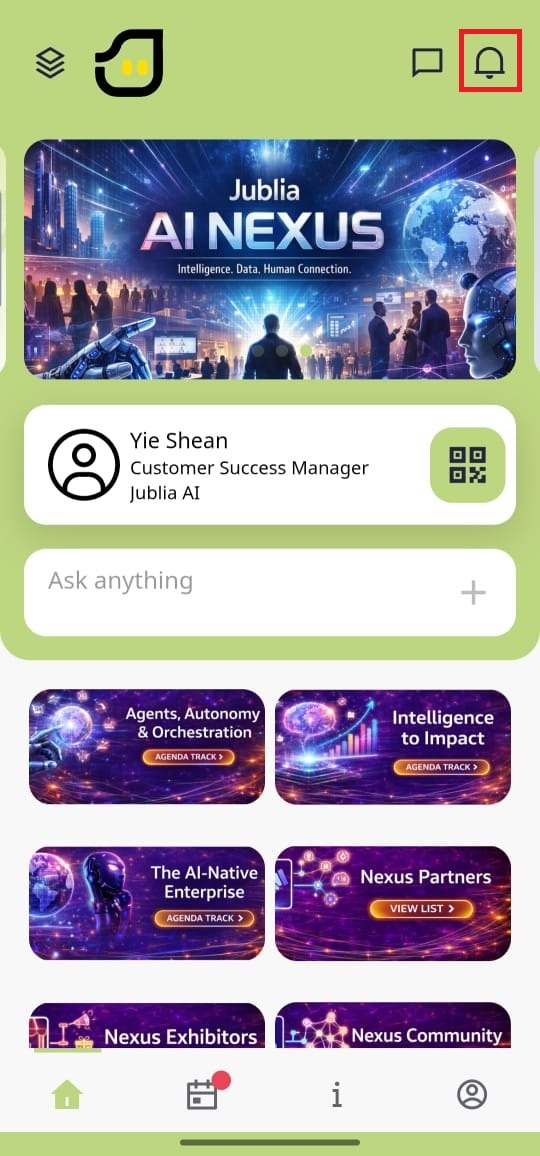
Access all received notifications in the bell icon on the top right corner of the Home page.
Click on a specific notification to view more detailed information.