Setting Audio and Video Permissions for Video Calls
When joining a video call, ensuring that your audio and video permissions are correctly set is crucial for a smooth communication experience. This article will guide you through the steps to check and allow these permissions across various platforms.
Read this guide in
| 中文 | ภาษาไทย | 한국어 | tiếng Việt | 繁體中文 | Bahasa Indonesia | 日本語 | Español | Portuguese |
Common Causes
Permissions Not Granted: Your browser or device may not have the necessary permissions to access the microphone or camera.
Firewall or Network Restrictions: Network or firewall settings might block video call features.
Troubleshooting Solutions
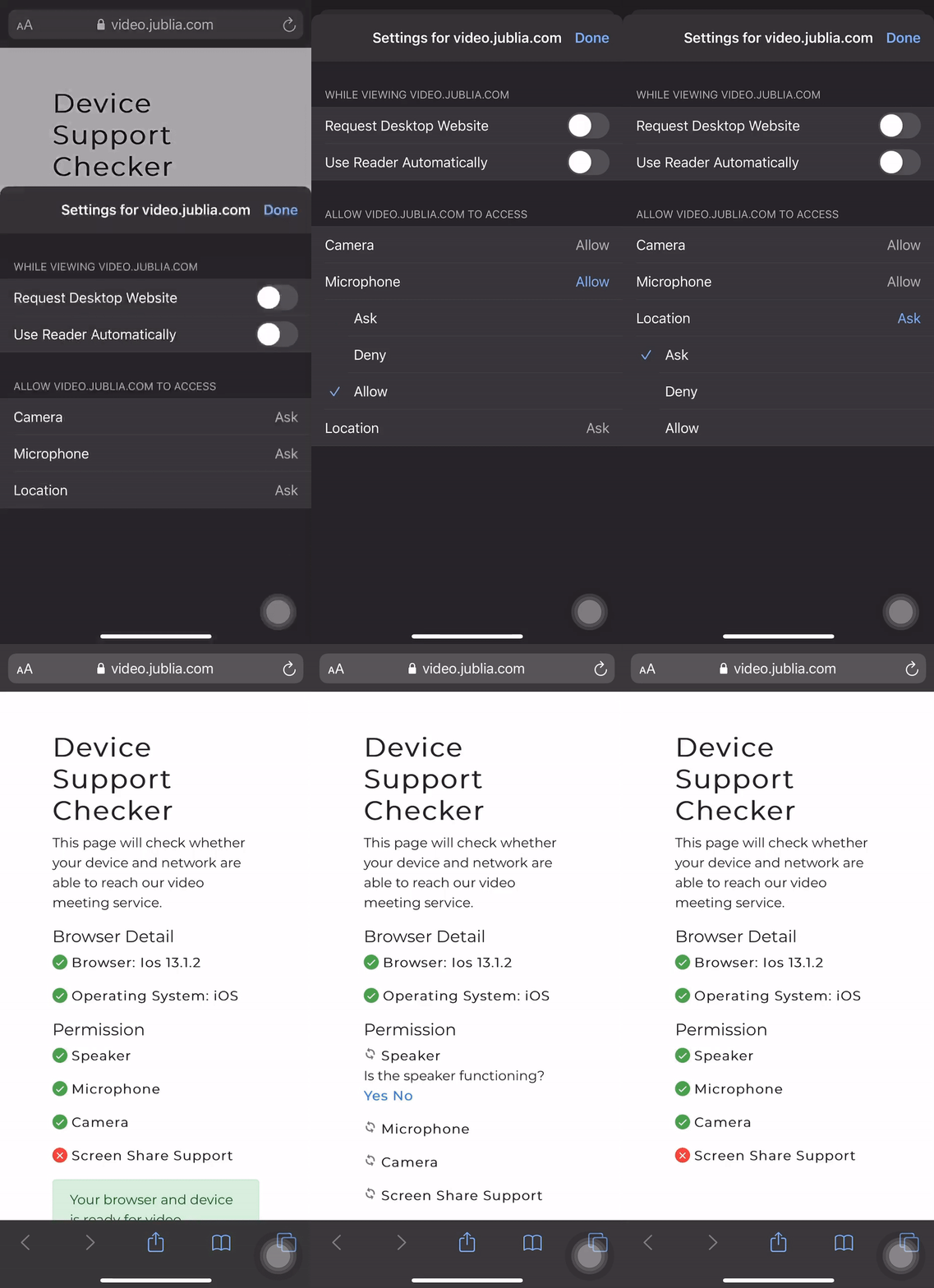
It is highly recommended that you run our Device Support Checker to see if your browser and network passes our app requirements. Access the checker here: https://video.jublia.com/check/en
1. Check and Allow Audio/Video Permissions on Desktop
Google Chrome: Follow this guide to manage your camera and microphone permissions.
Mozilla Firefox: Refer to this article to enable audio and video permissions.
Microsoft Edge: For instructions on managing your audio and video permissions, visit this link.
Safari: Detailed steps can be found here.
2. Check and Allow Audio/Video Permissions on Mobile
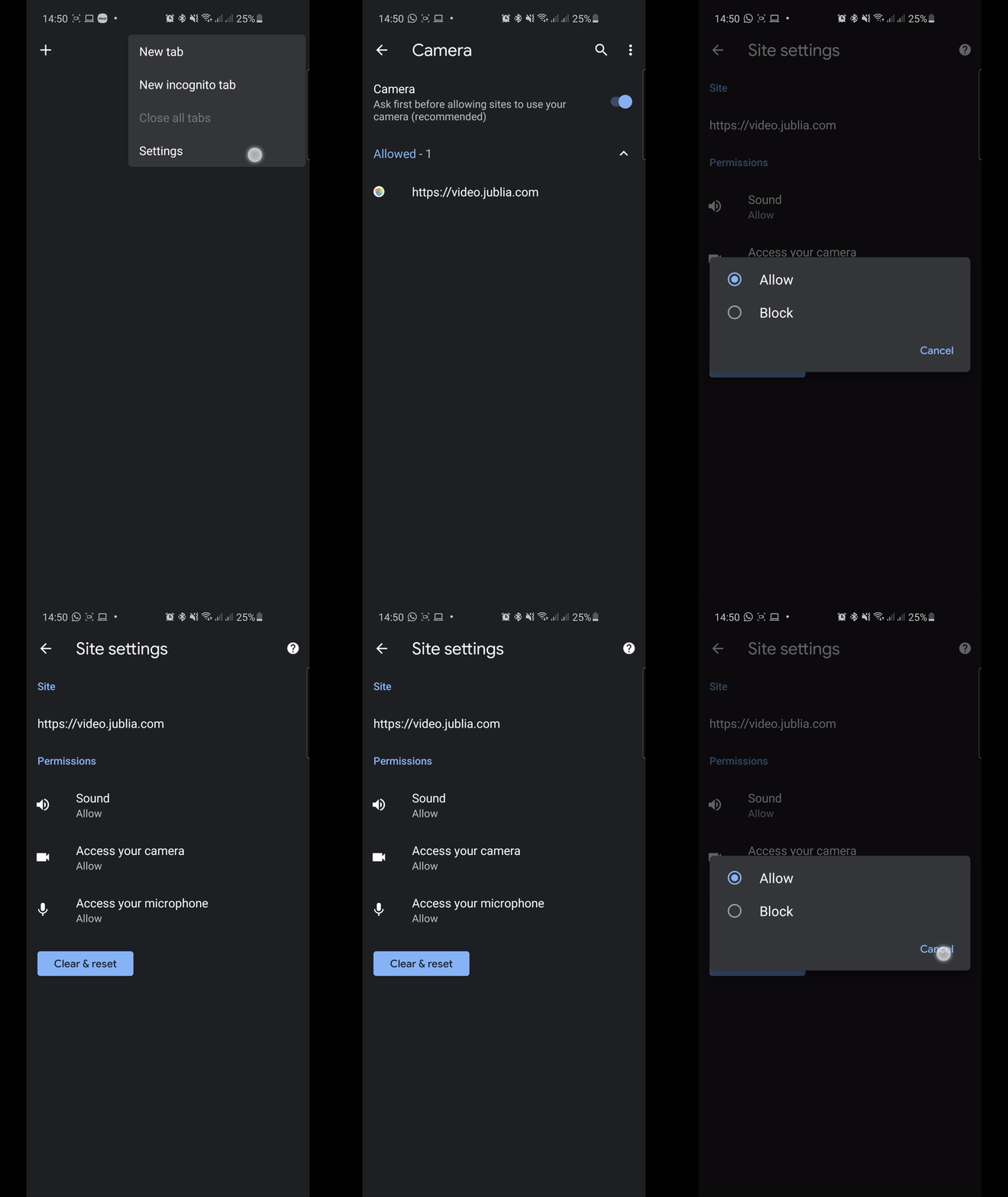
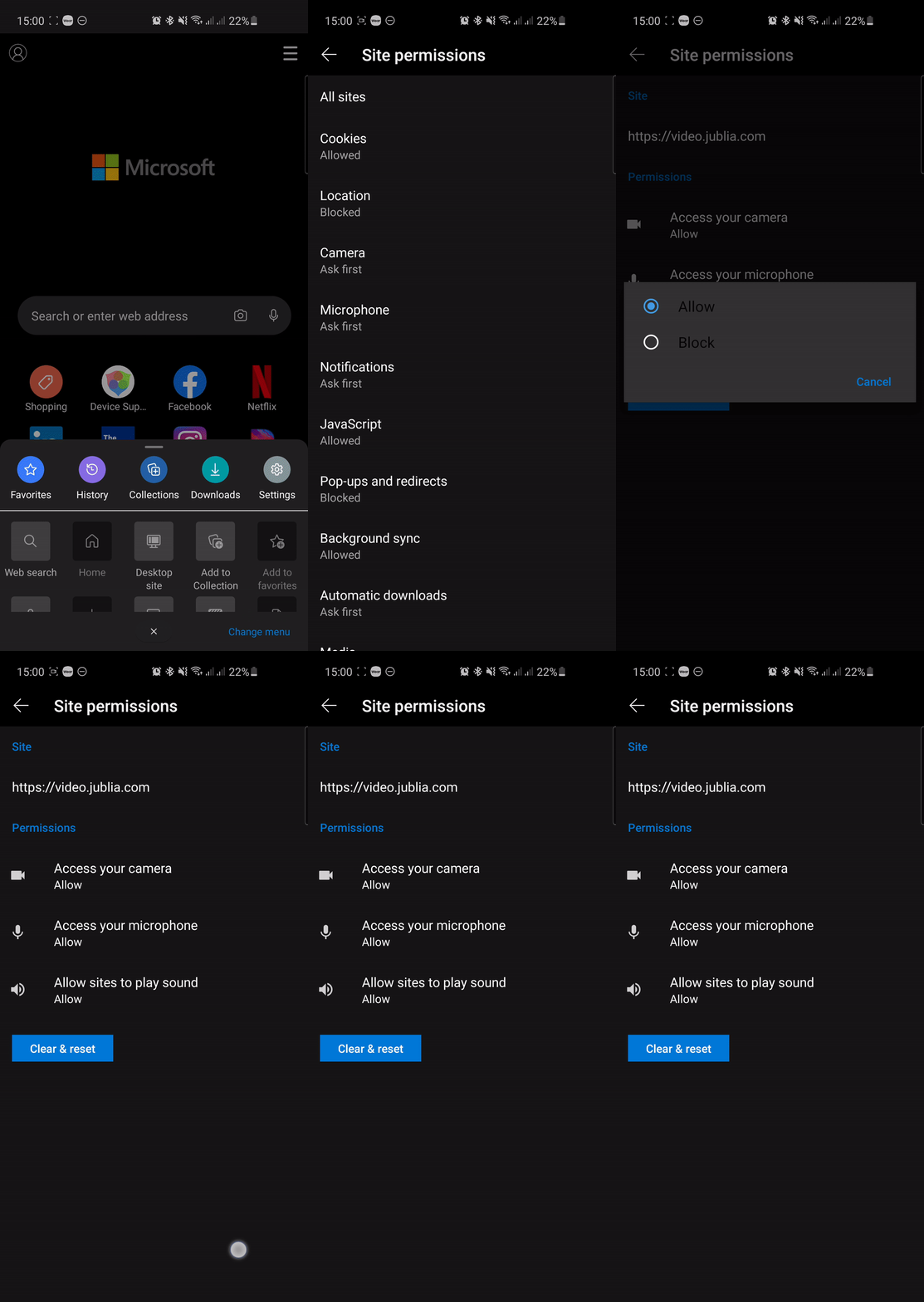
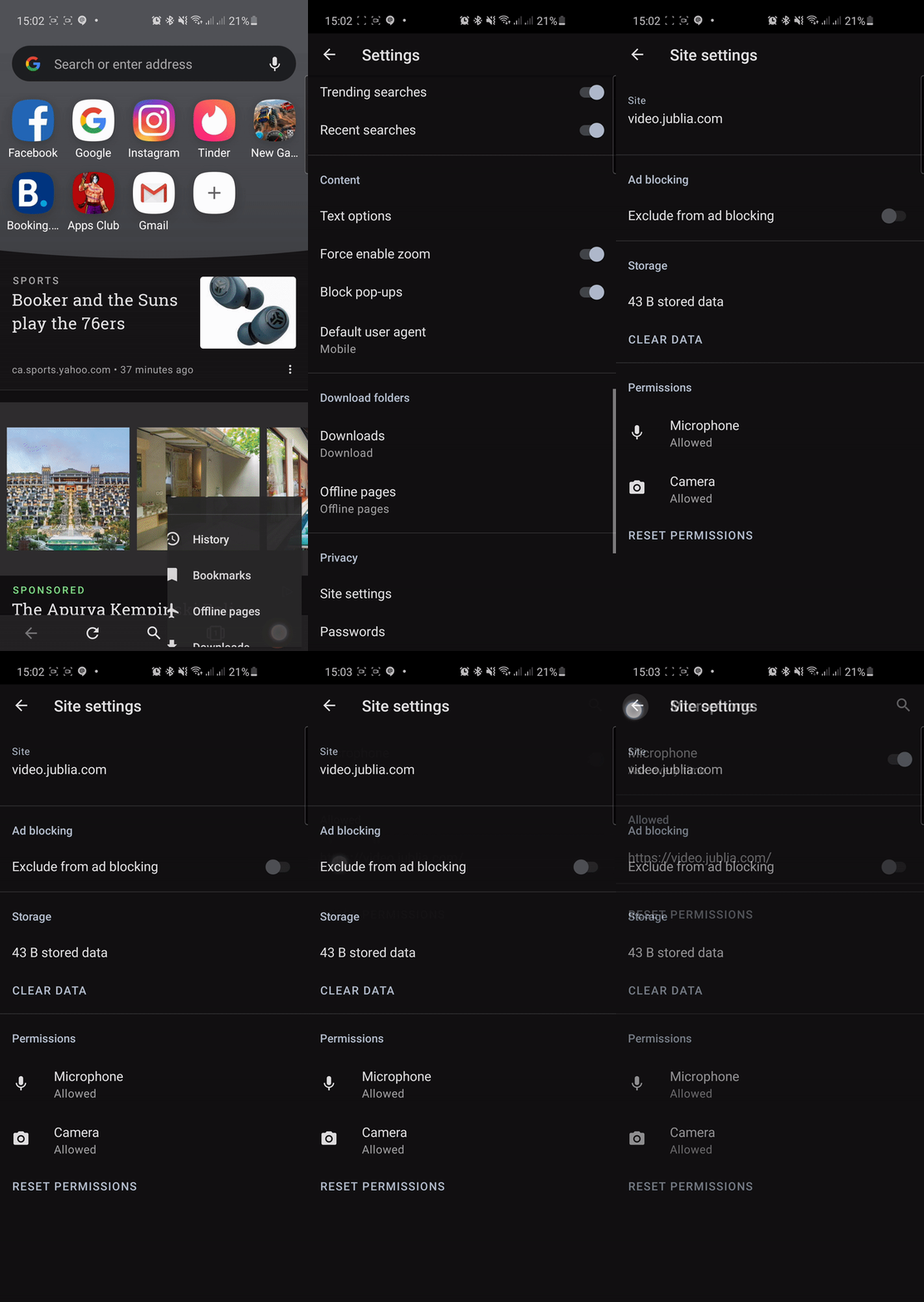
Android: Ensure your Chrome or Firefox mobile browser has permission to access the camera and microphone through the browser settings.
iOS: For Safari, go to your device settings and ensure the browser has permission to access your camera and microphone.
Advanced Troubleshooting
1. Microphone/Camera Not Detected or Blank Screen
Validate microphone and video permissions.
During the call, click on the gear icon at the top right of the video call screen.
Select the available audio and video options on your device.
Click Test to ensure it is working.
Close and proceed with your meeting.
2. Can’t Access Video Call at All
2.1. Firewall Issue
The firewall might block the port for 1-1 video streams. Deactivate personal antivirus or firewall software temporarily or contact your IT team to allow access if using a corporate firewall.
Jublia’s Video App runs on port TCP/443. Ensure your network configuration or firewall does not block that port.
Whitelist the following network addresses:
99.77.128.0:3478
99.77.191.255:3478
2.2. Browser Issue
Ensure your browser supports Web Real-Time Communications (RTC) technology. Upgrade your browser if necessary.
For mobile devices, use Safari on iOS and Chrome/Firefox on Android.
3. User Can’t Share the Screen During a Call
Screen sharing is not supported on mobile phones. Use a laptop or desktop instead.
4. User Disconnected from the Video Call
Click the Rejoin button to reconnect seamlessly. If the issue persists, try connecting to a different network.
5. Stuck in the Joining Process
Check popup permissions on the browser. If the problem continues, try another supported browser or a different connection.
6. System on Heavy Load
Wait for a moment and retry accessing the meeting. If the issue persists, switch to another supported browser or network.
Chrome Support
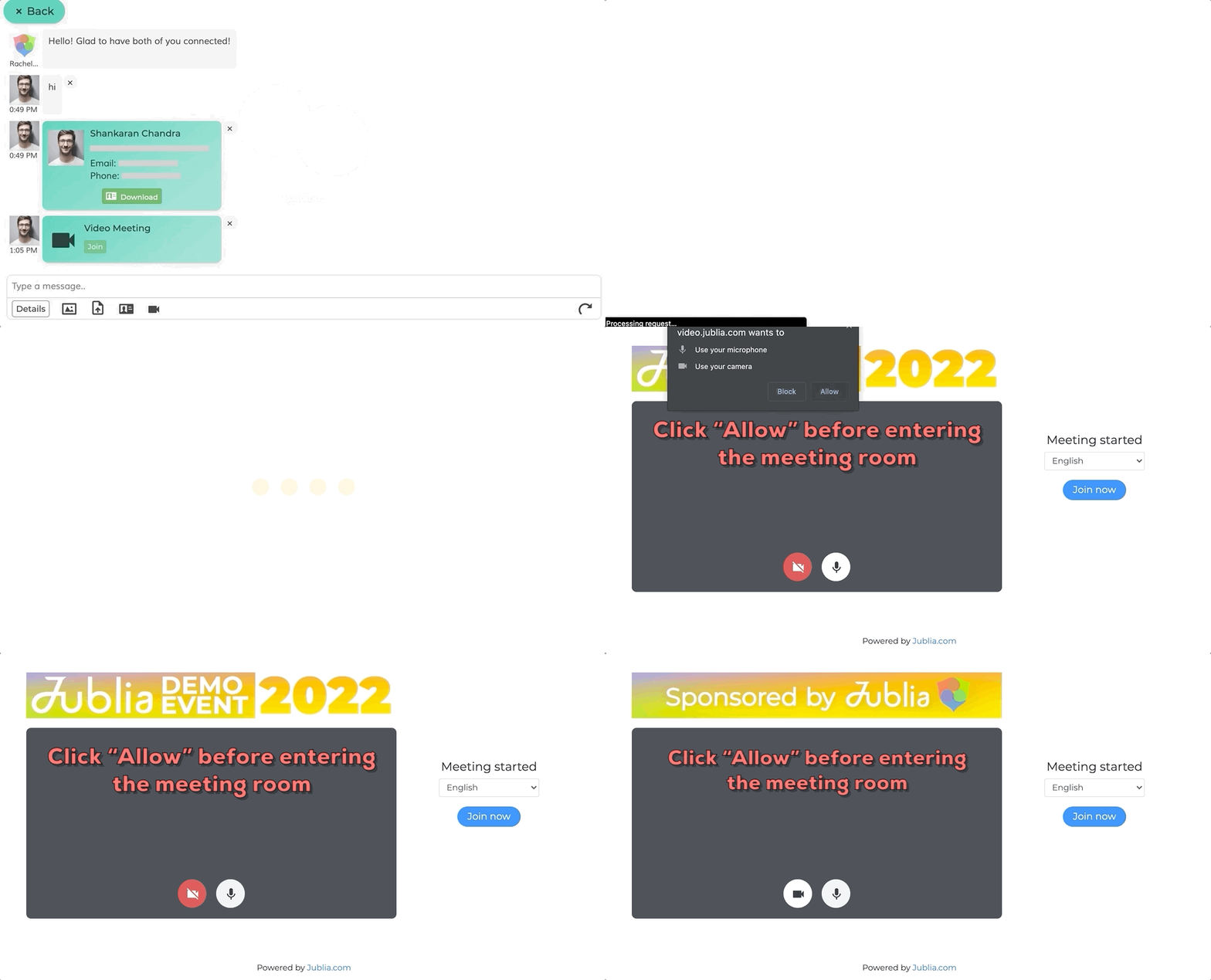
Link: https://support.google.com/chrome/answer/2693767?co=GENIE.Platform%3DAndroid&hl=en
Firefox Support
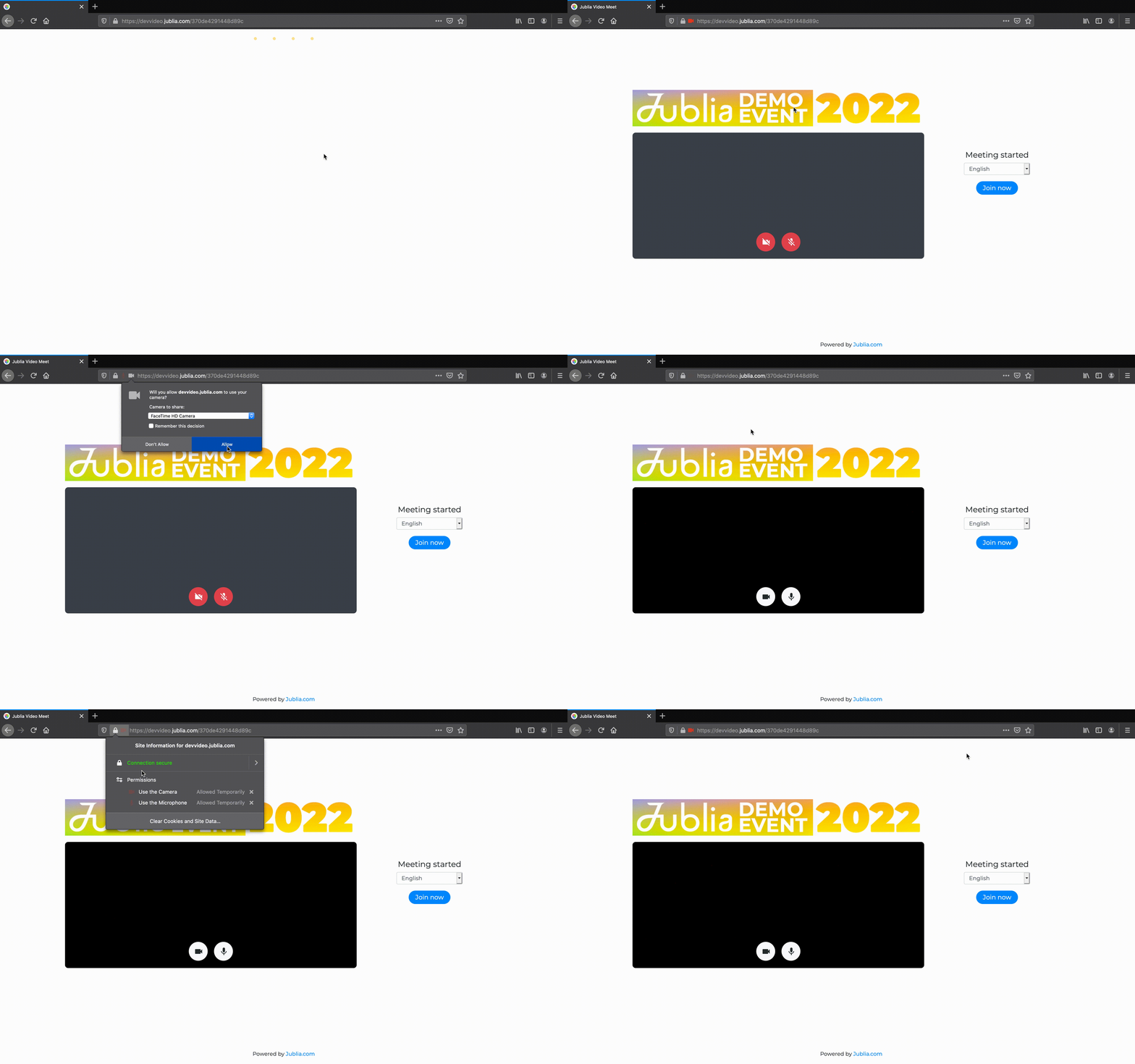
Link: https://support.mozilla.org/en-US/kb/how-manage-your-camera-and-microphone-permissions
Microsoft Edge Support
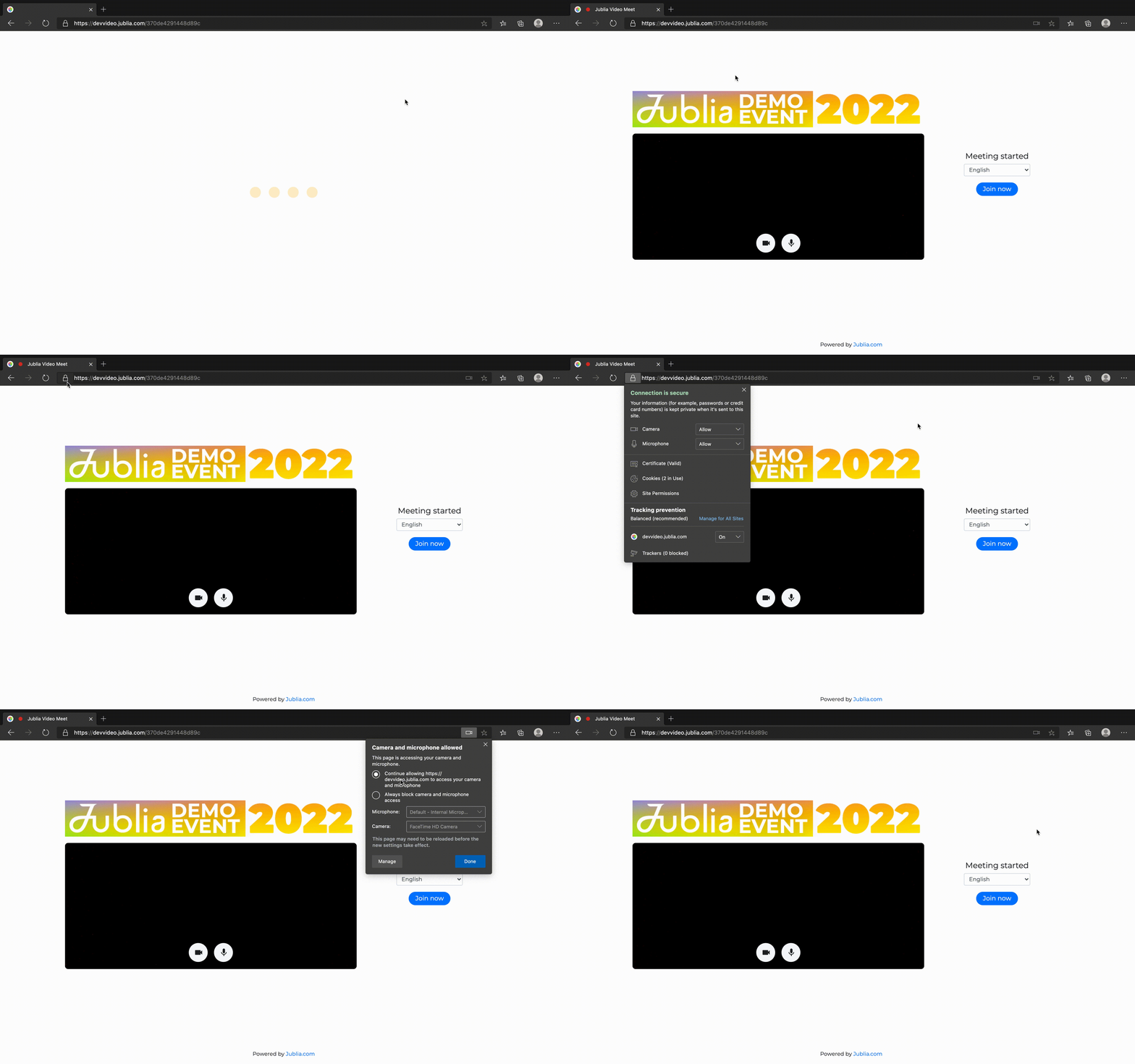
Link: https://support.microsoft.com/en-us/help/4468232/windows-10-camera-microphone-and-privacy
Safari Support
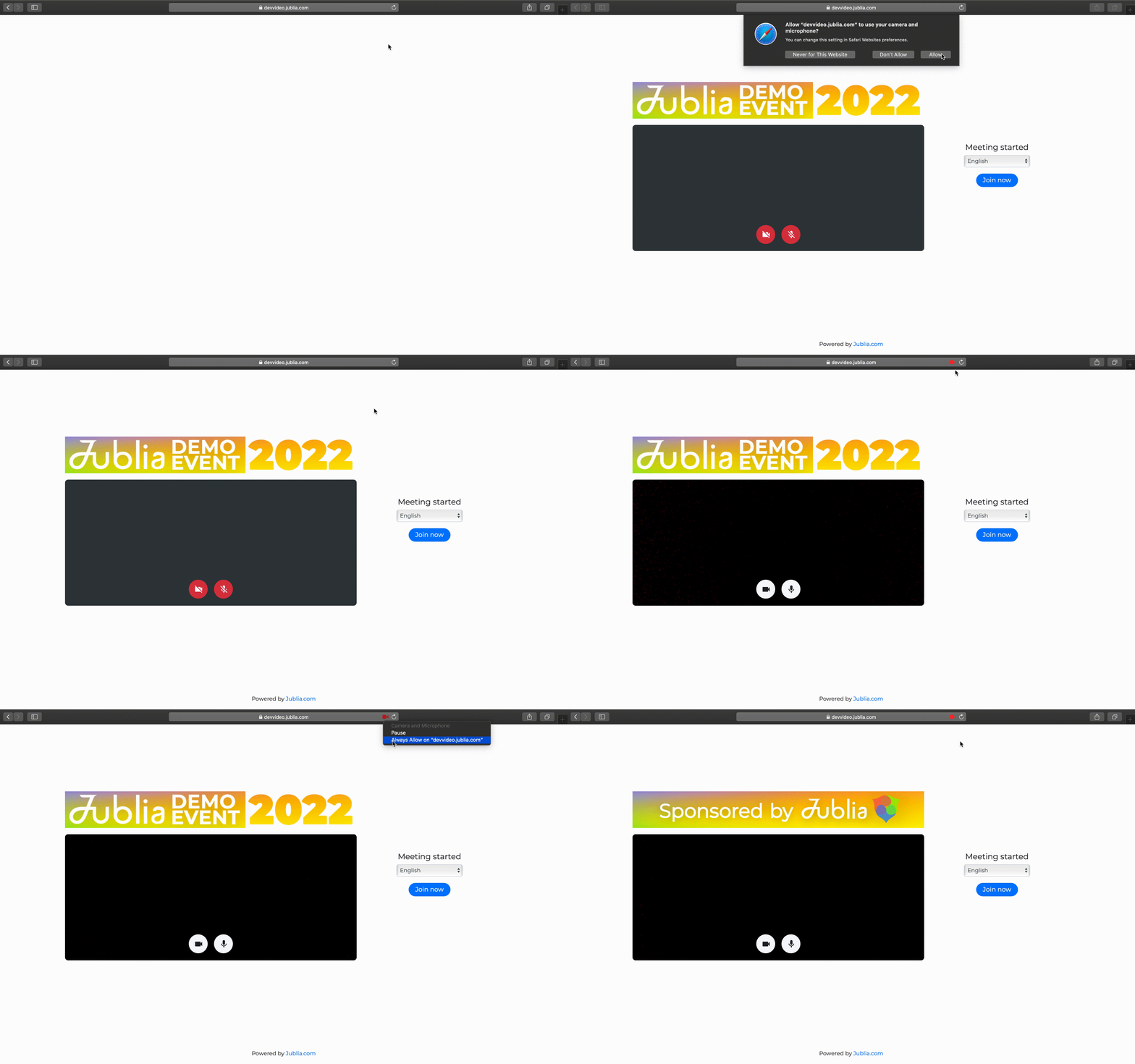
Link: https://support.apple.com/en-gb/guide/safari/ibrwe2159f50/mac
Android Mobile Support
1. Chrome - Mobile
2. Edge - Mobile
3. Opera - Mobile
iOS Mobile Support
1. Safari - Mobile