Read this guide in
| 中文 | ภาษาไทย | 한국어 | tiếng Việt | 繁體中文 | Bahasa Indonesia | 日本語 | Español | Portuguese |
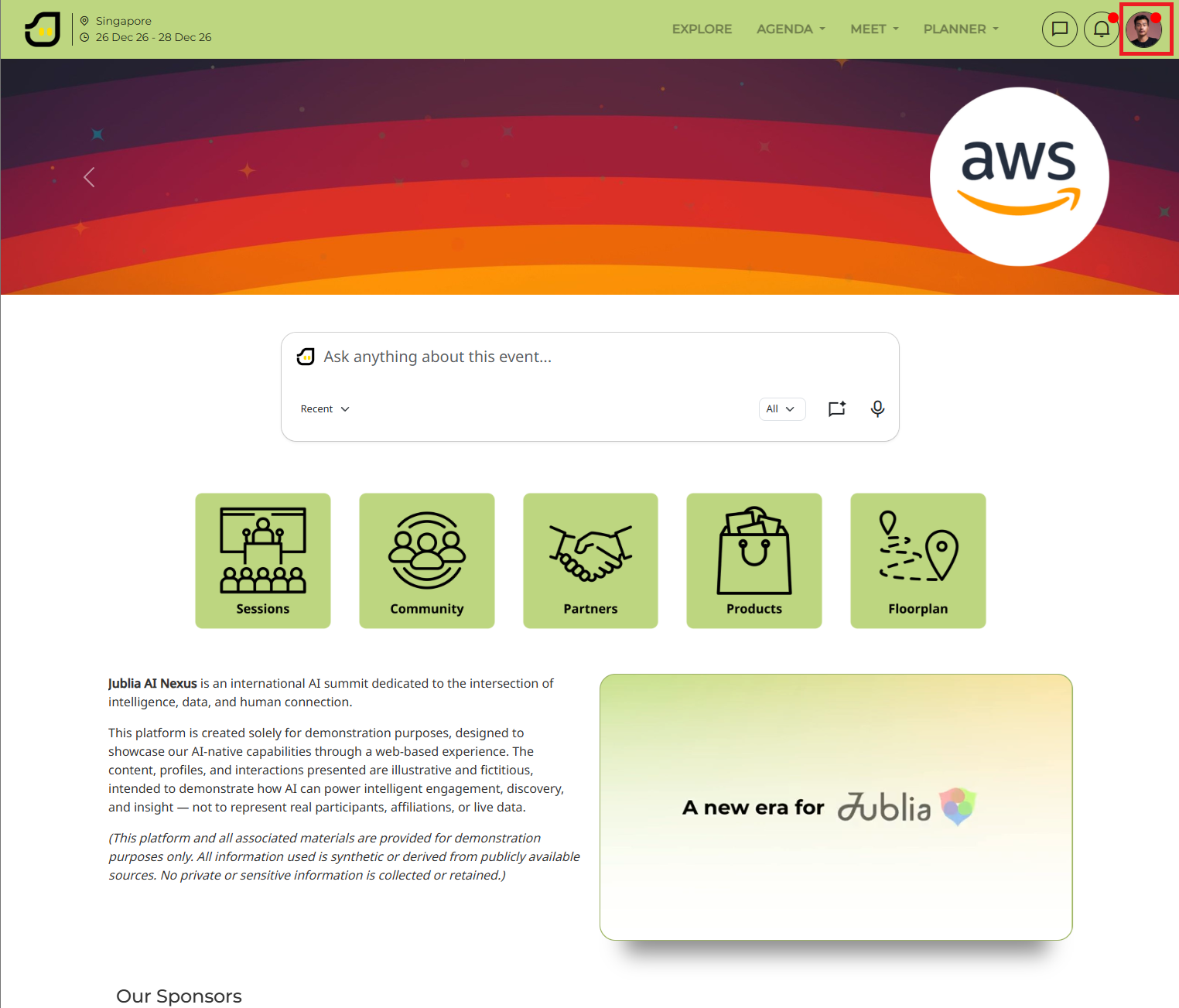
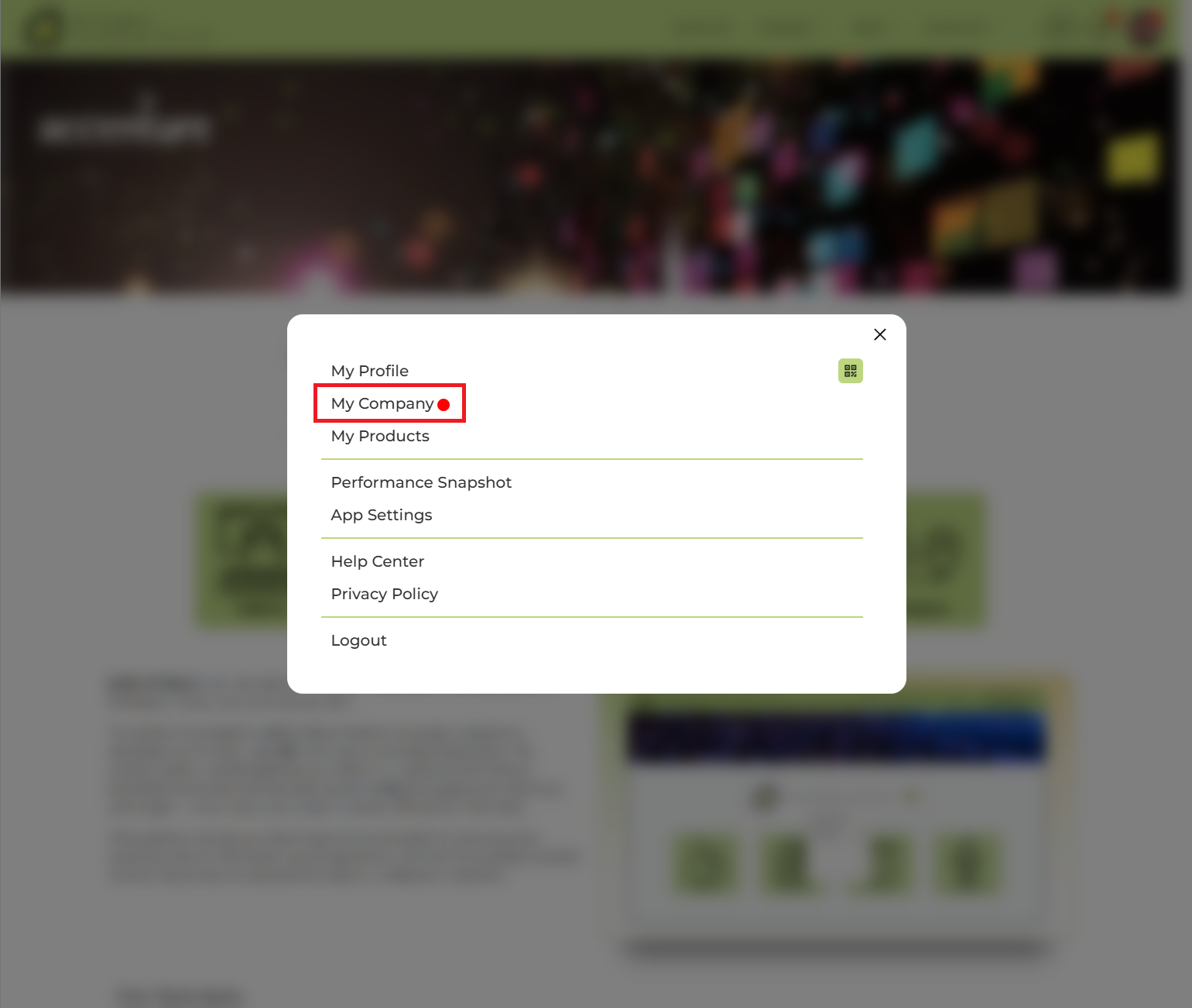
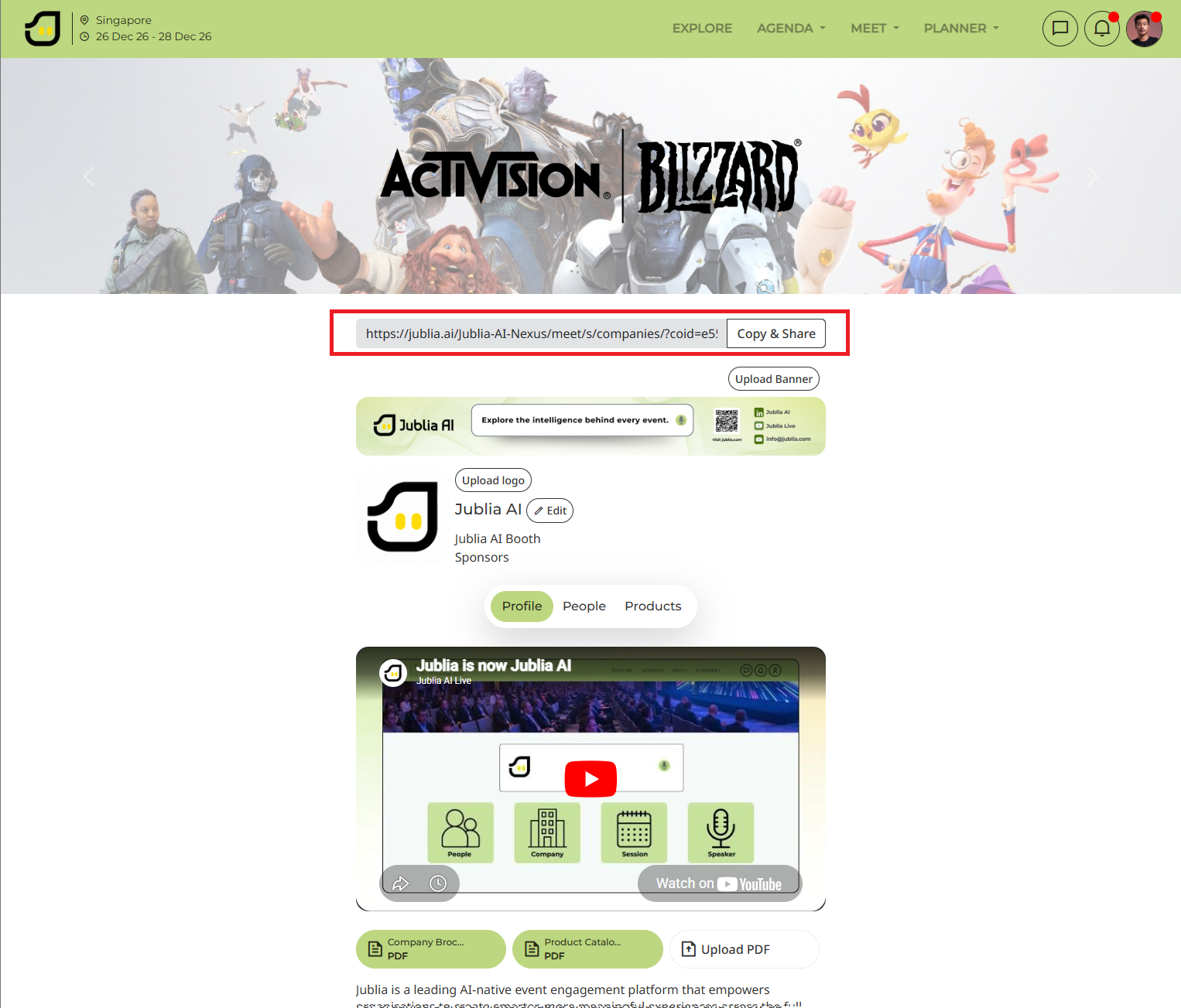
Click your profile icon in the top right-hand corner of the page and select My Company. As a result, the company profile editor will open.
Update the fields with your company information. Ensure your files meet the exact specifications to avoid upload errors:
Company Banner: Recommended size is 1200x150 pixels, maximum 1 MB, in PNG or JPEG format.
Company Logo: Optimal size is 250x250 pixels, maximum 1 MB, in PNG or JPEG format.
Company Name and Description: Provide a compelling description within the 3000-character limit.
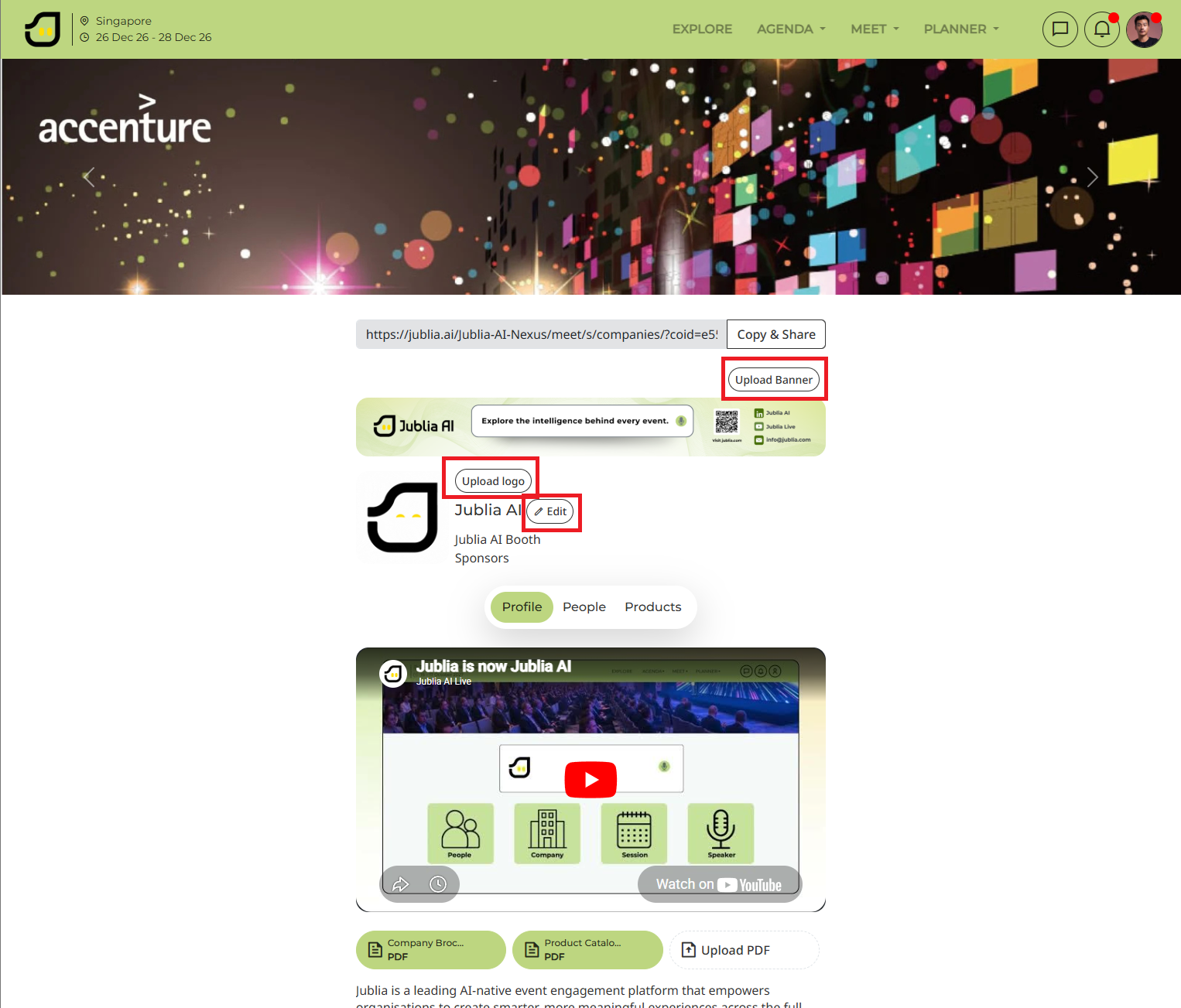
As a result, your basic branding will be updated on your profile.
Insert HTML IFrame embed codes to include videos or presentations directly on your profile.
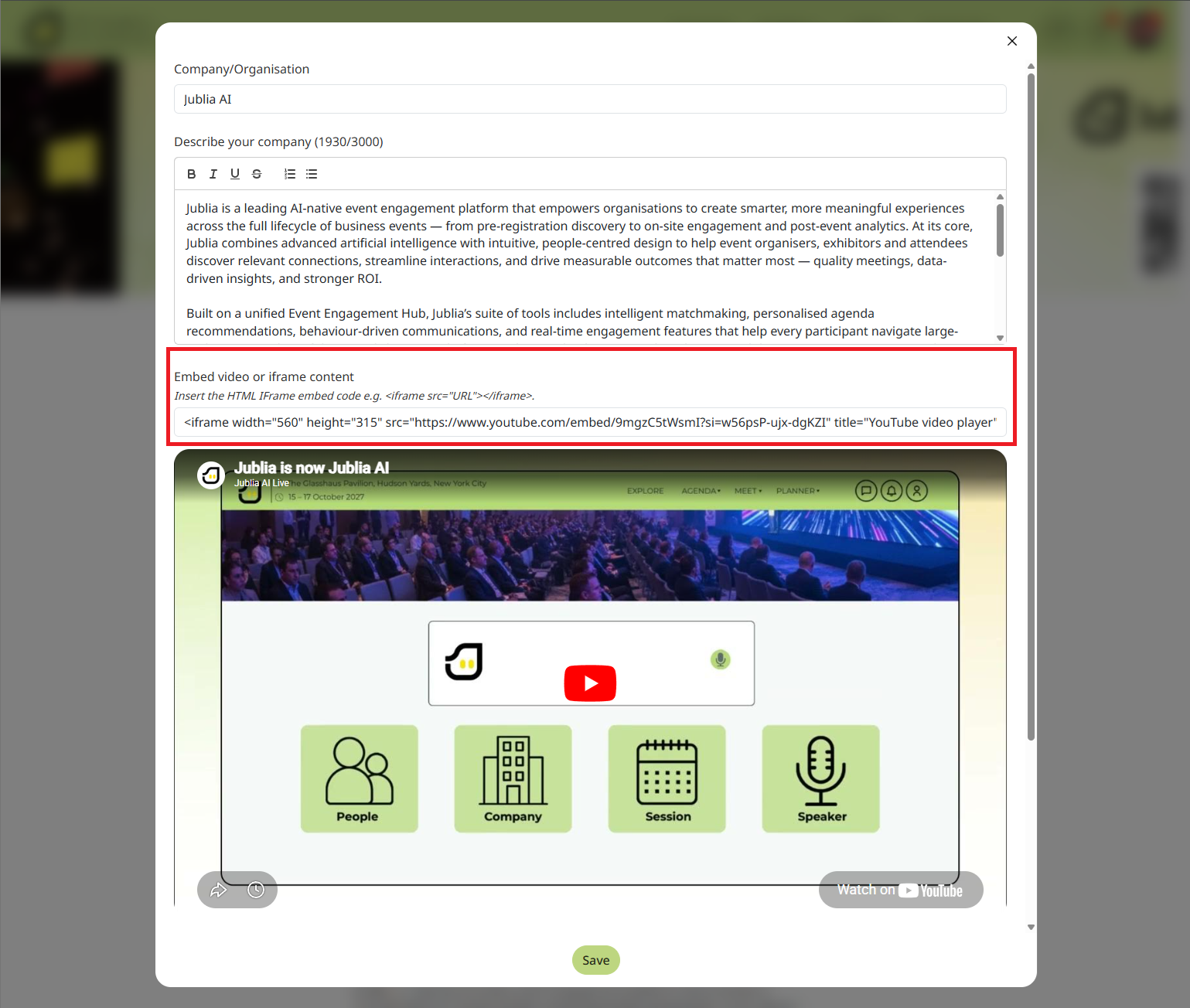
Below, we provide detailed instructions on how to embed videos from popular hosting sites such as YouTube and Youku.
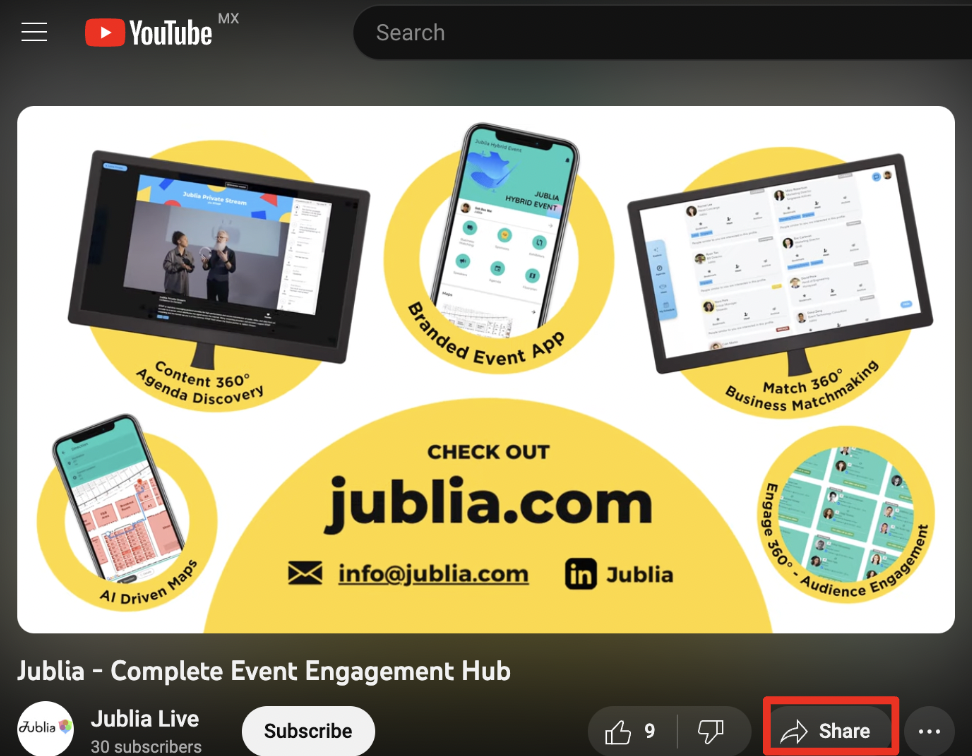
Embedding a YouTube video: Go to the video
Click the Share button below the player
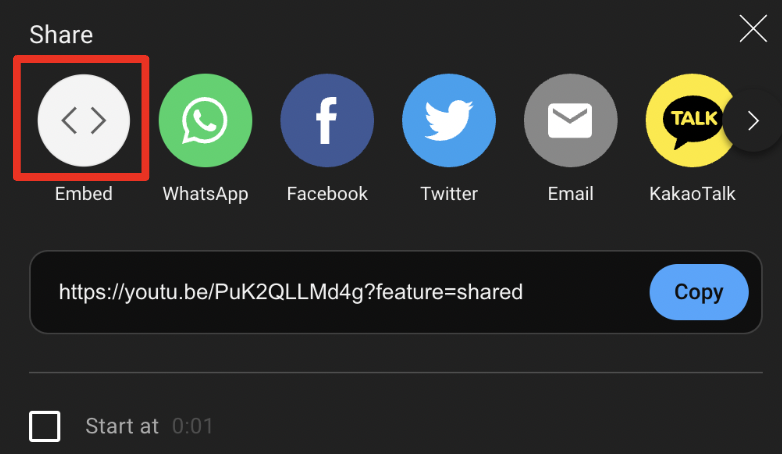
Select Embed
Copy the HTML IFrame code
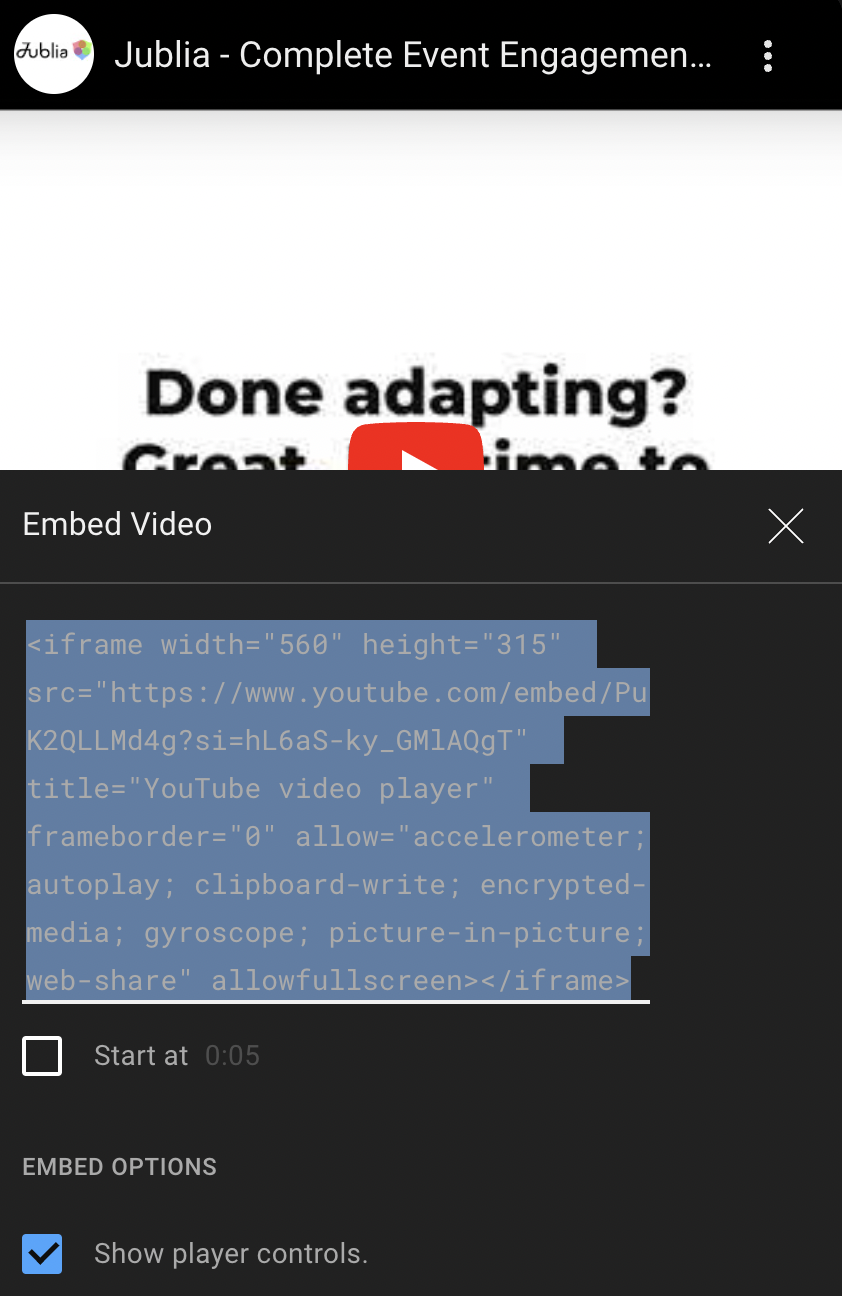
Paste it into the designated area on Jublia.
Embedding a Youku video:
Go to the video
Click the Share button
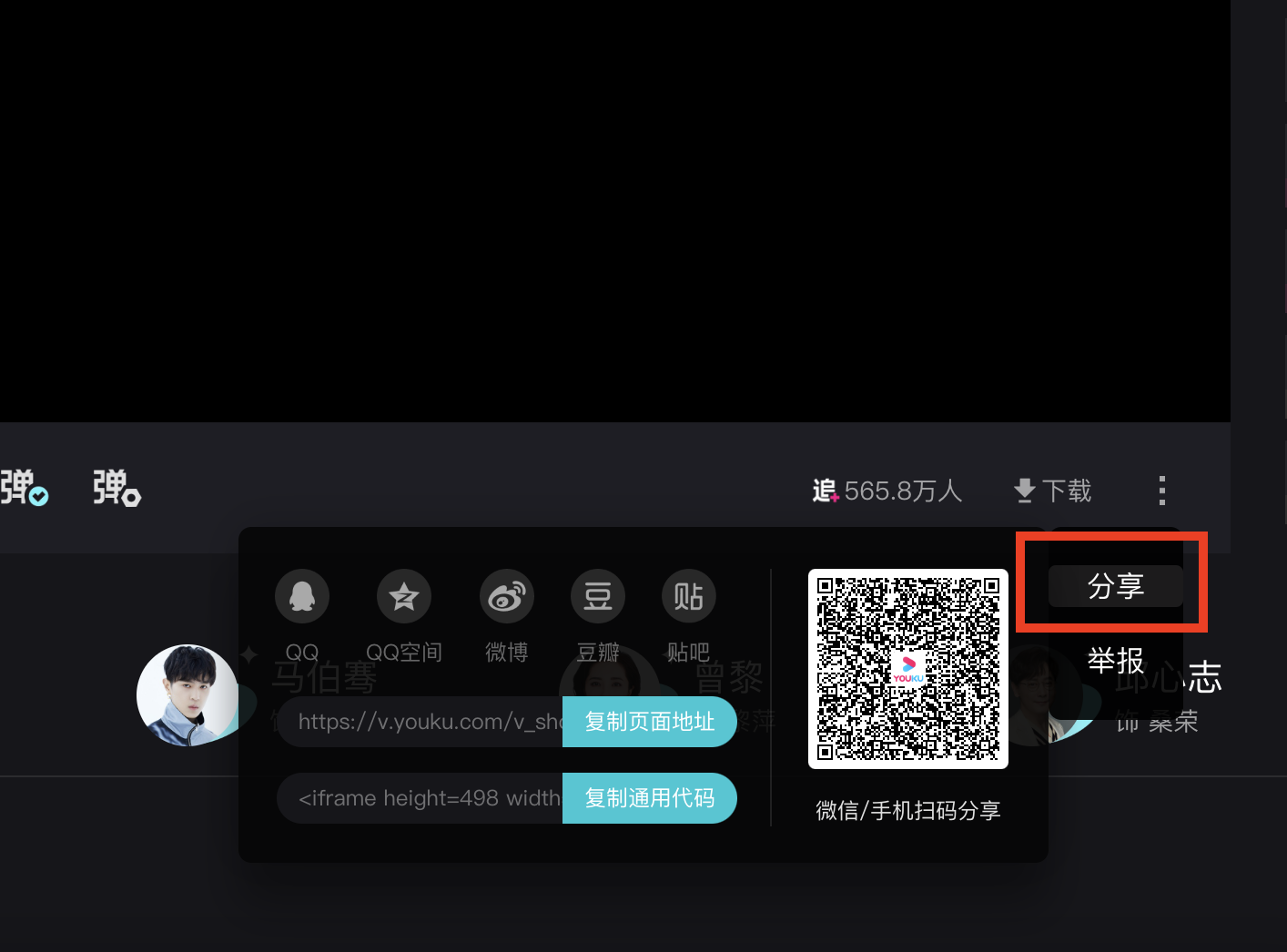
Select Embed
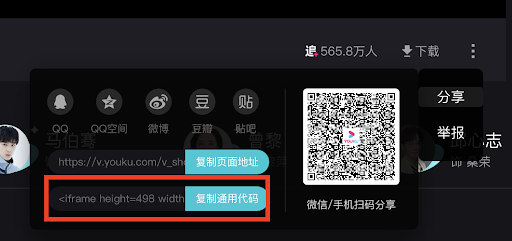
Copy the generated HTML code
Paste it into the specified section on Jublia.
As a result, attendees can view your multimedia content directly from your profile.
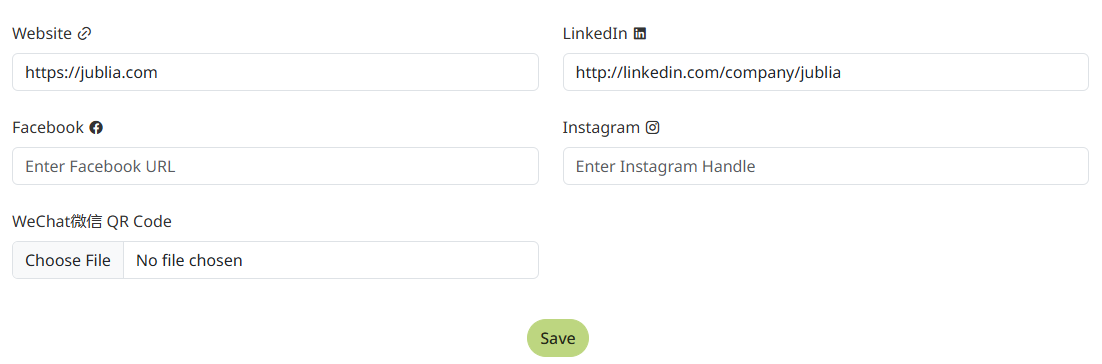
Provide the corresponding URLs for your Website, LinkedIn, Facebook, WeChat QR Code, and Instagram.
Click Save.
As a result, attendees can view your social media from your company profile.
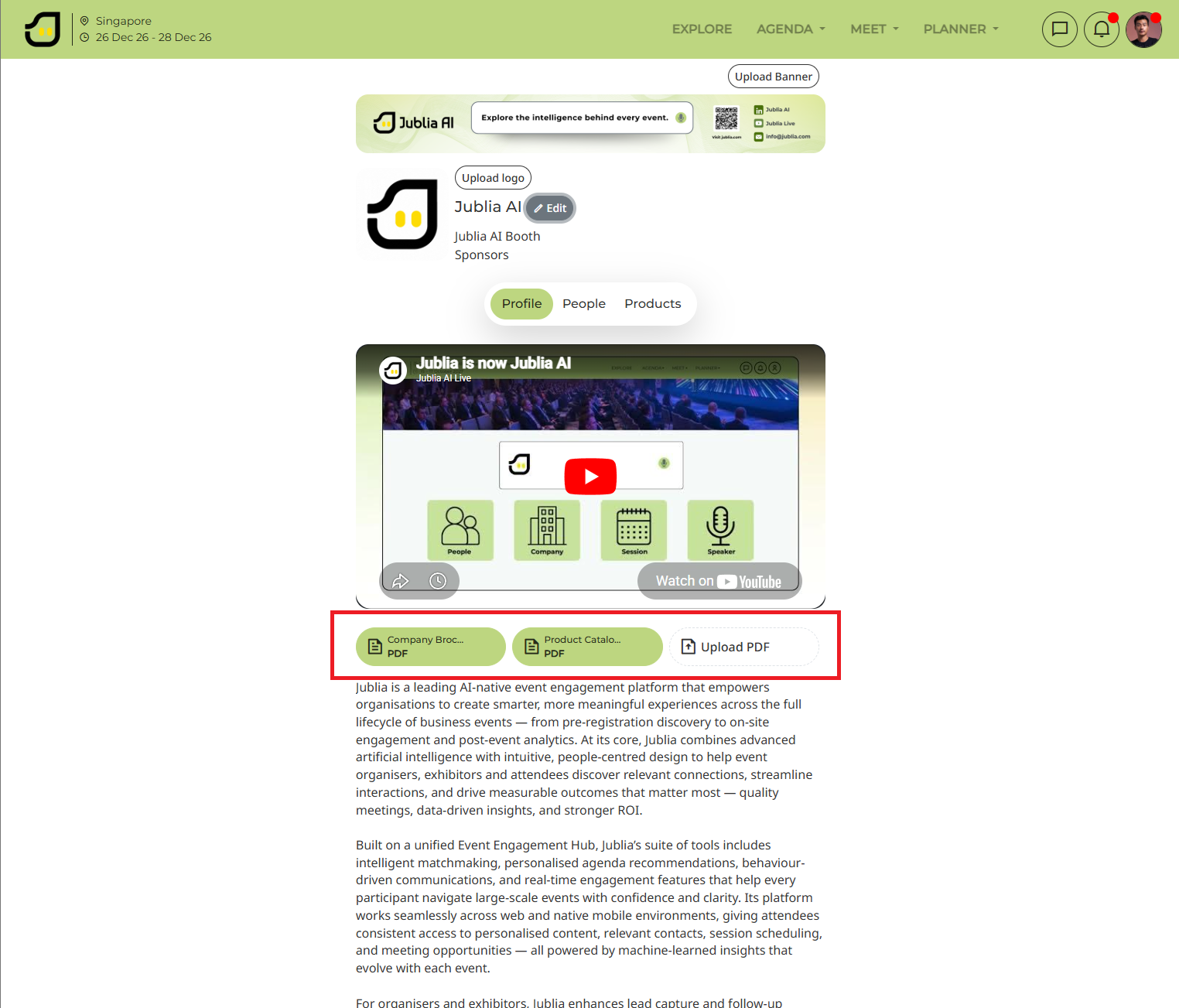
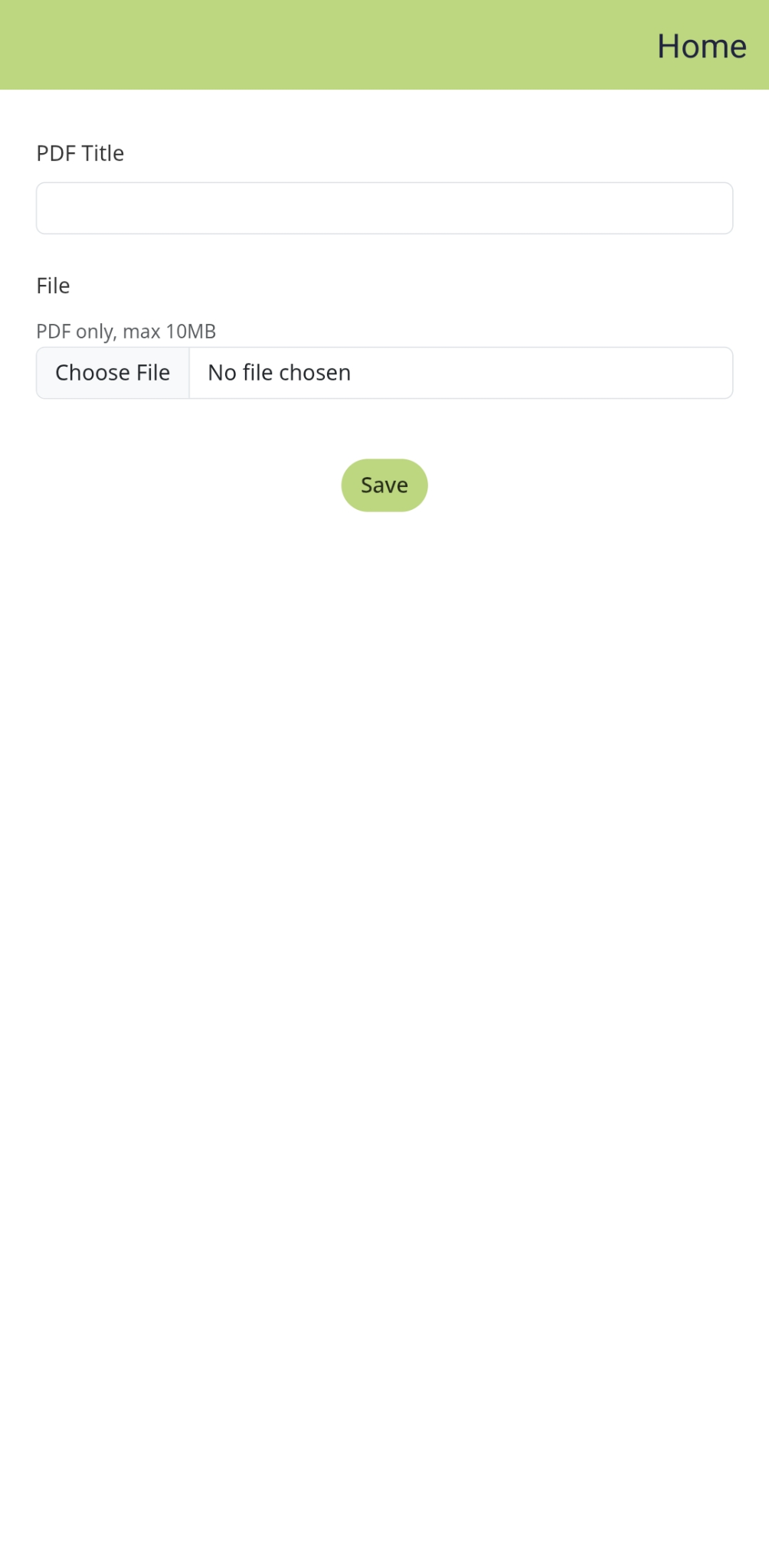
Click the Upload PDF button
enter the title of your PDF and select the file (max size: 10MB)
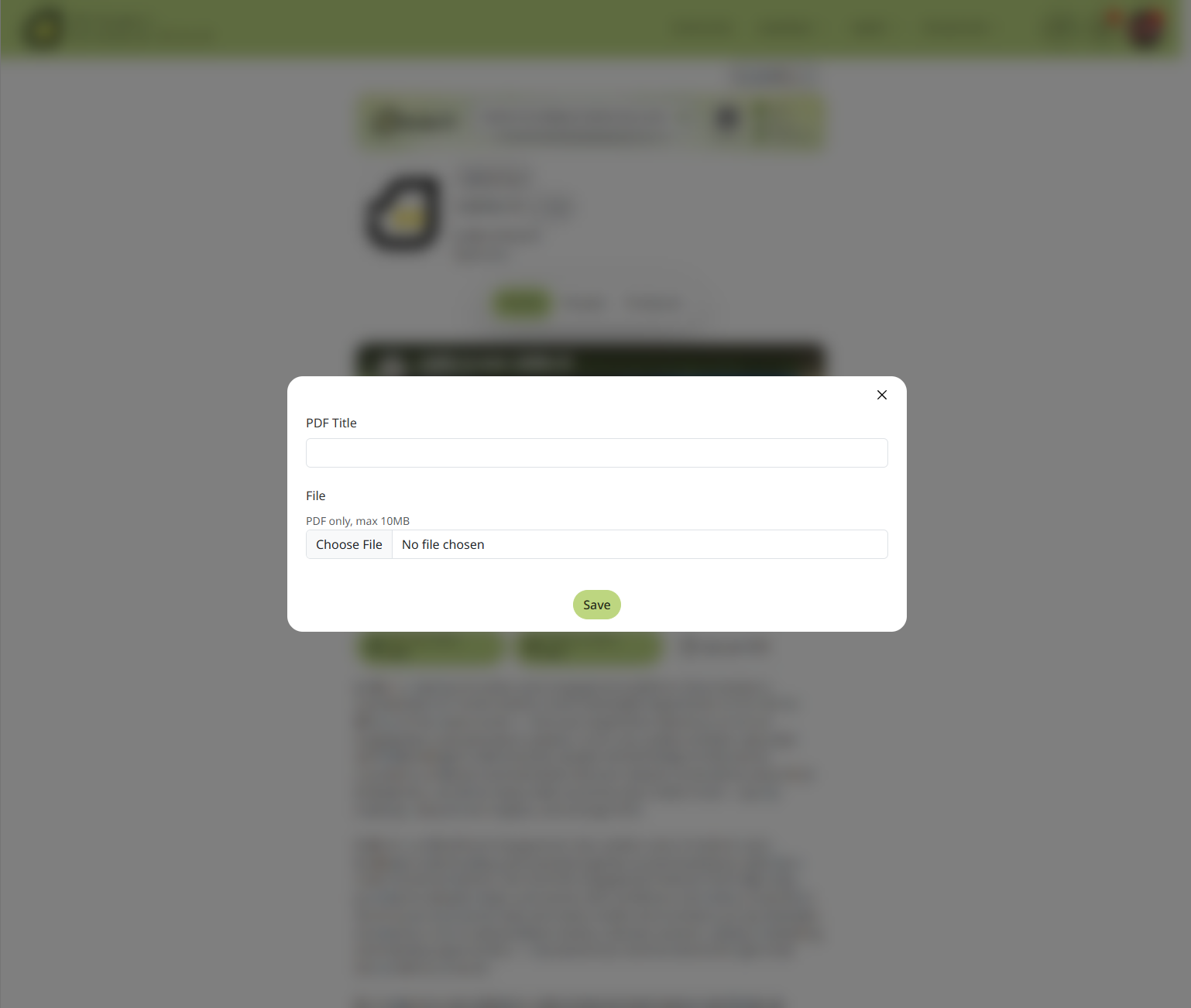
click Save.
As a result, your file will be displayed on the page. You can preview it by clicking the PDF button and selecting View.
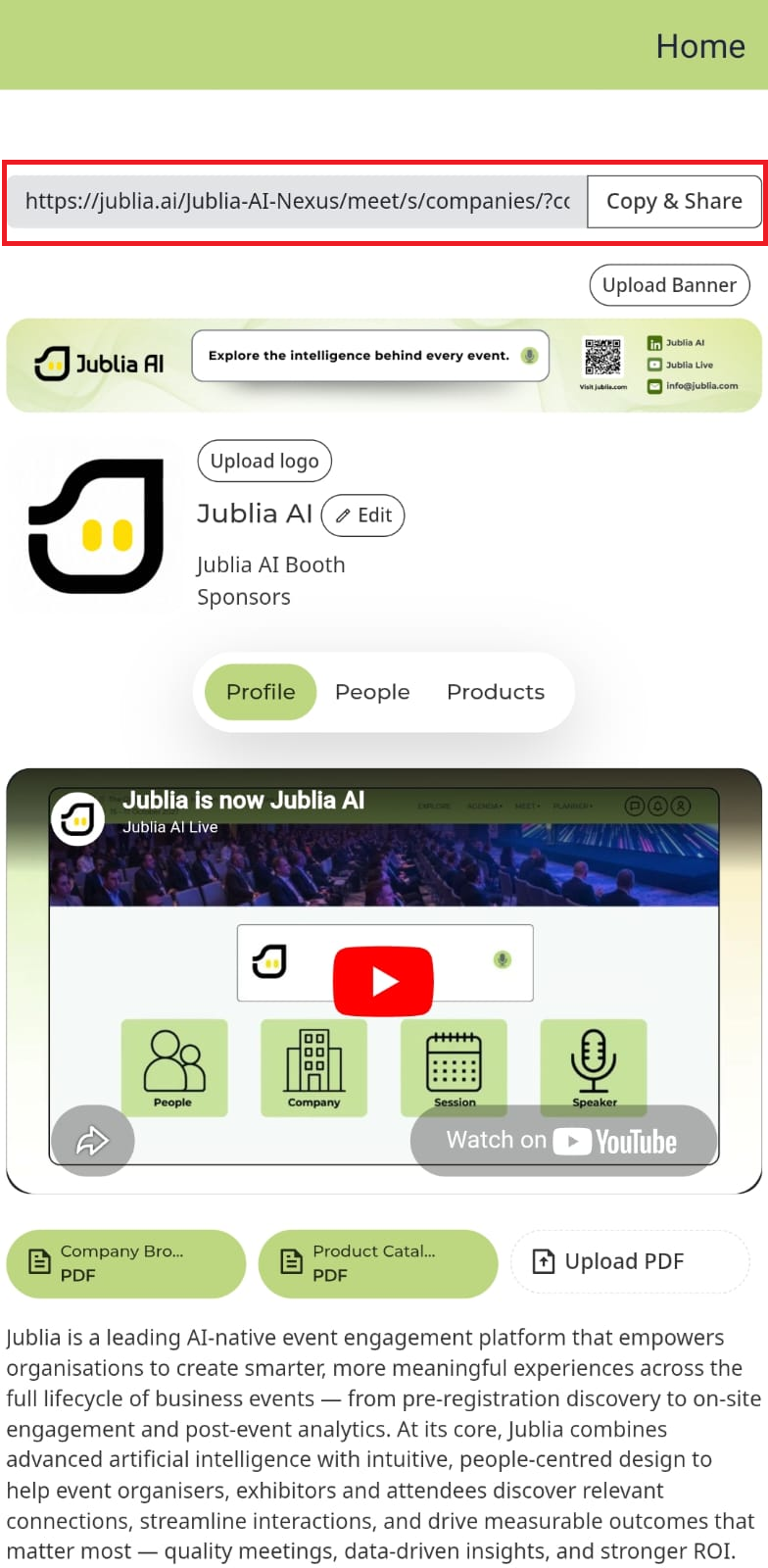
Once your profile is updated, you can navigate to the respective pages to share your direct URLs.
Company Profile: Click your profile picture > My Company and copy the URL.
Sessions: Click Agenda > Sessions and copy the URL.
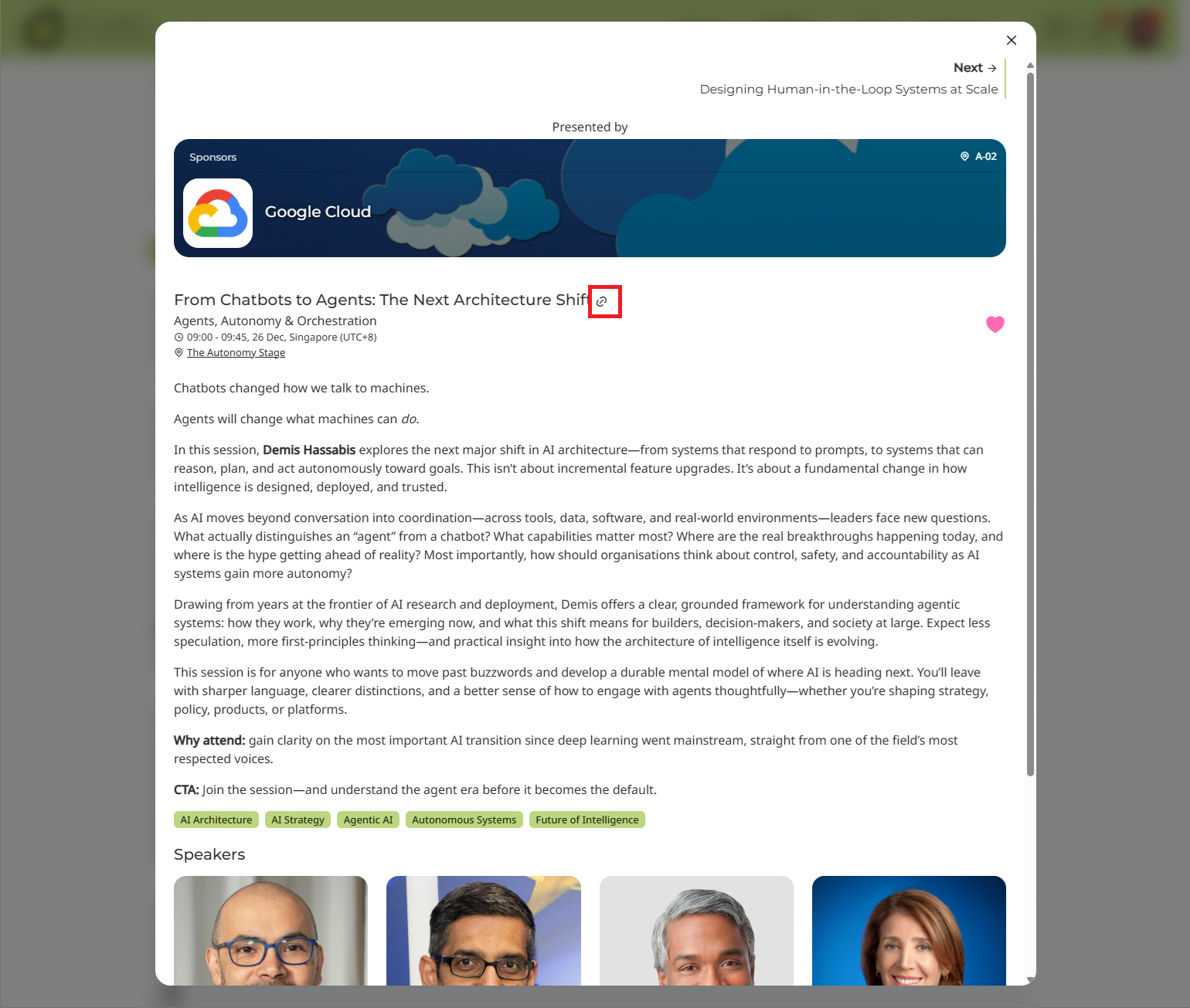
As a result, you can easily distribute your profile links to external partners.
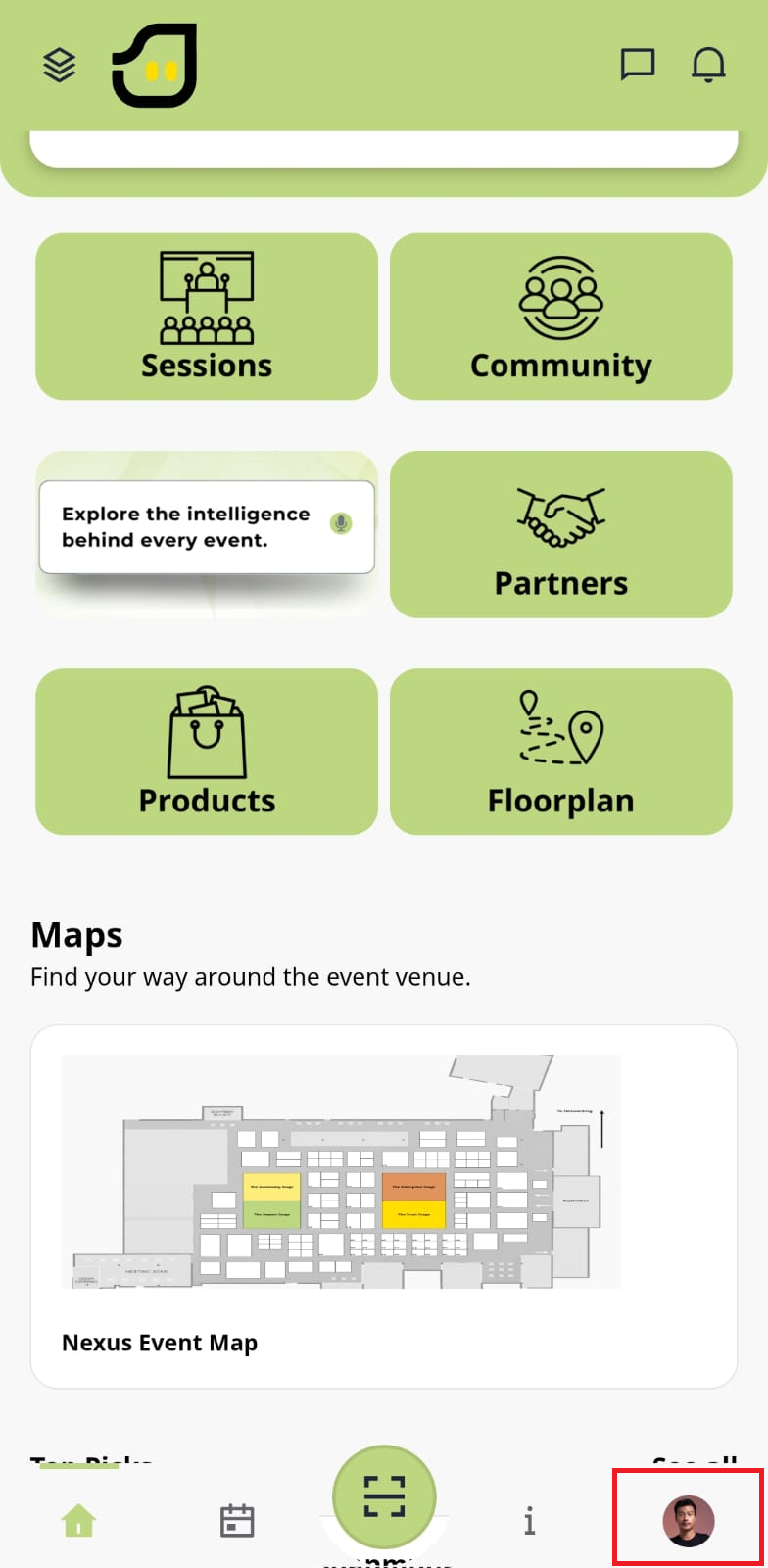
Click on your profile icon in the bottom right-hand corner of the app and select My Company.
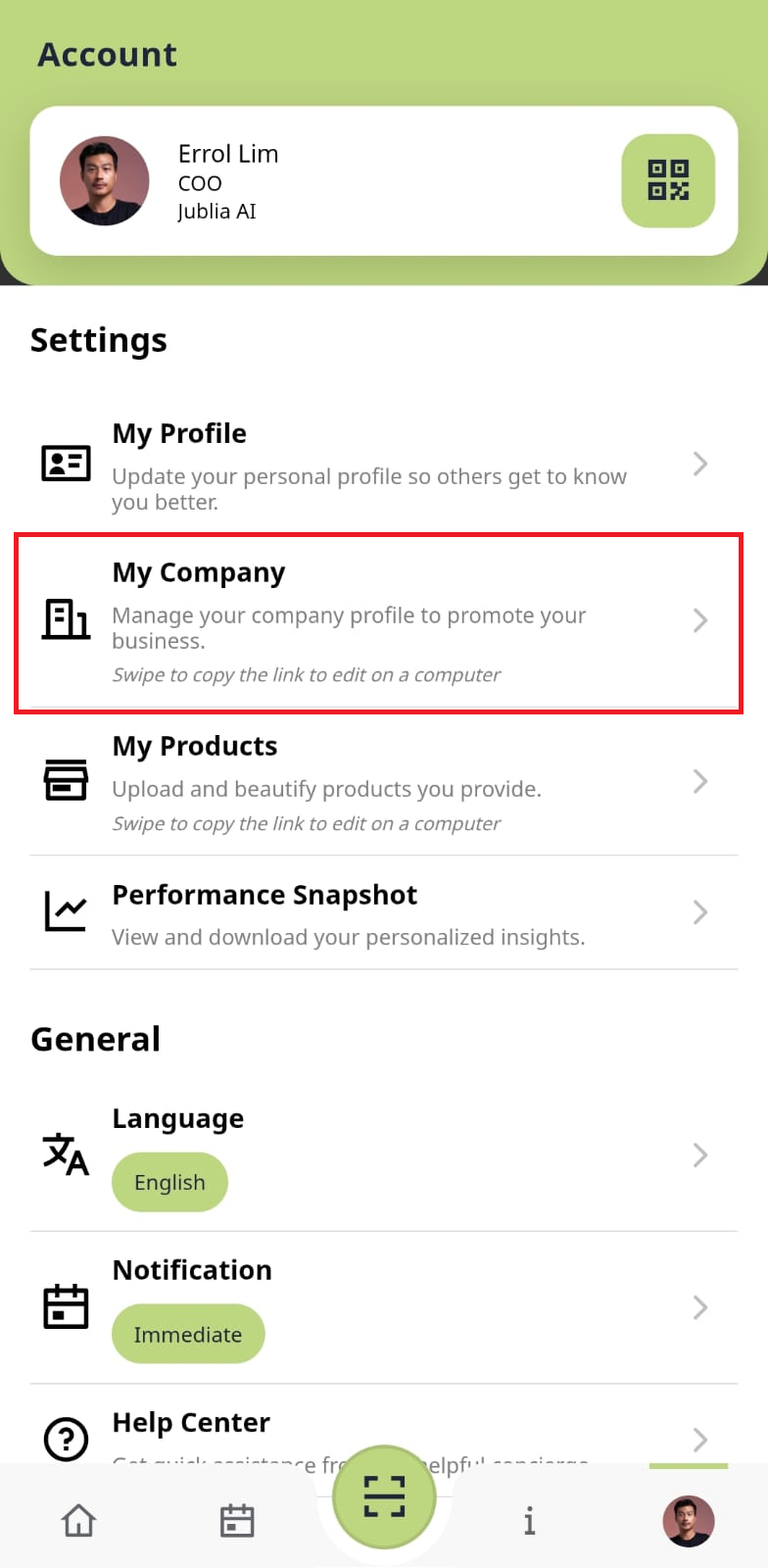
As a result, the profile editor will appear.
Company Banner: It is recommended to use an image with dimensions of 1200 px x 150px and a maximum file size of 1 MB. Accepted image formats are PNG or JPEG.
Company Logo: Optimal logo size is 250px x 250px, with a maximum file size of 1 MB. Please use PNG or JPEG format.
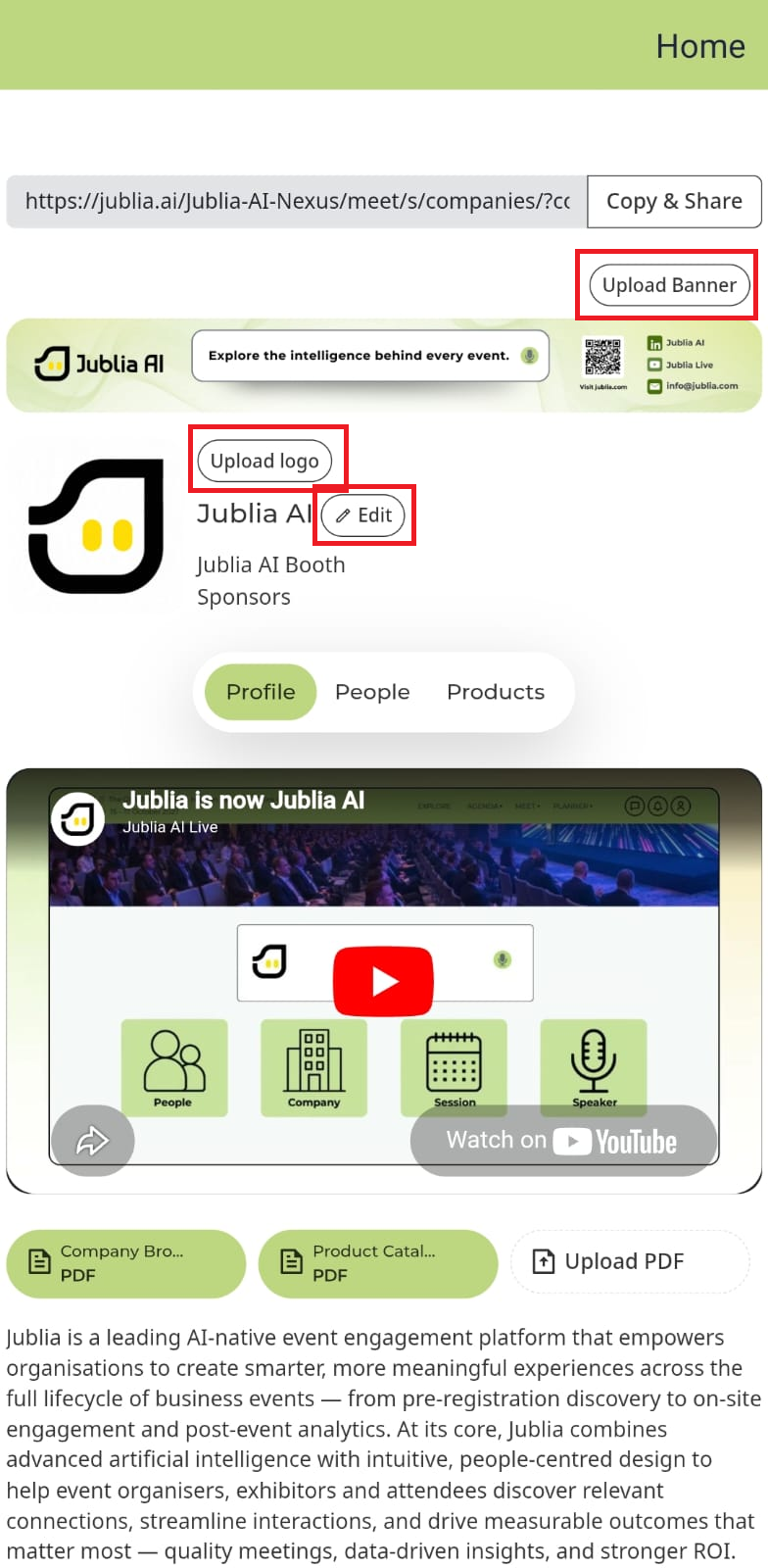
Company Name and Description: Provide a compelling company description within the 3000-character limit.
HTML IFrame Embed Content: You can enhance your company profile on Jublia by inserting HTML IFrame embed codes, allowing you to include videos, presentations, and other multimedia content.
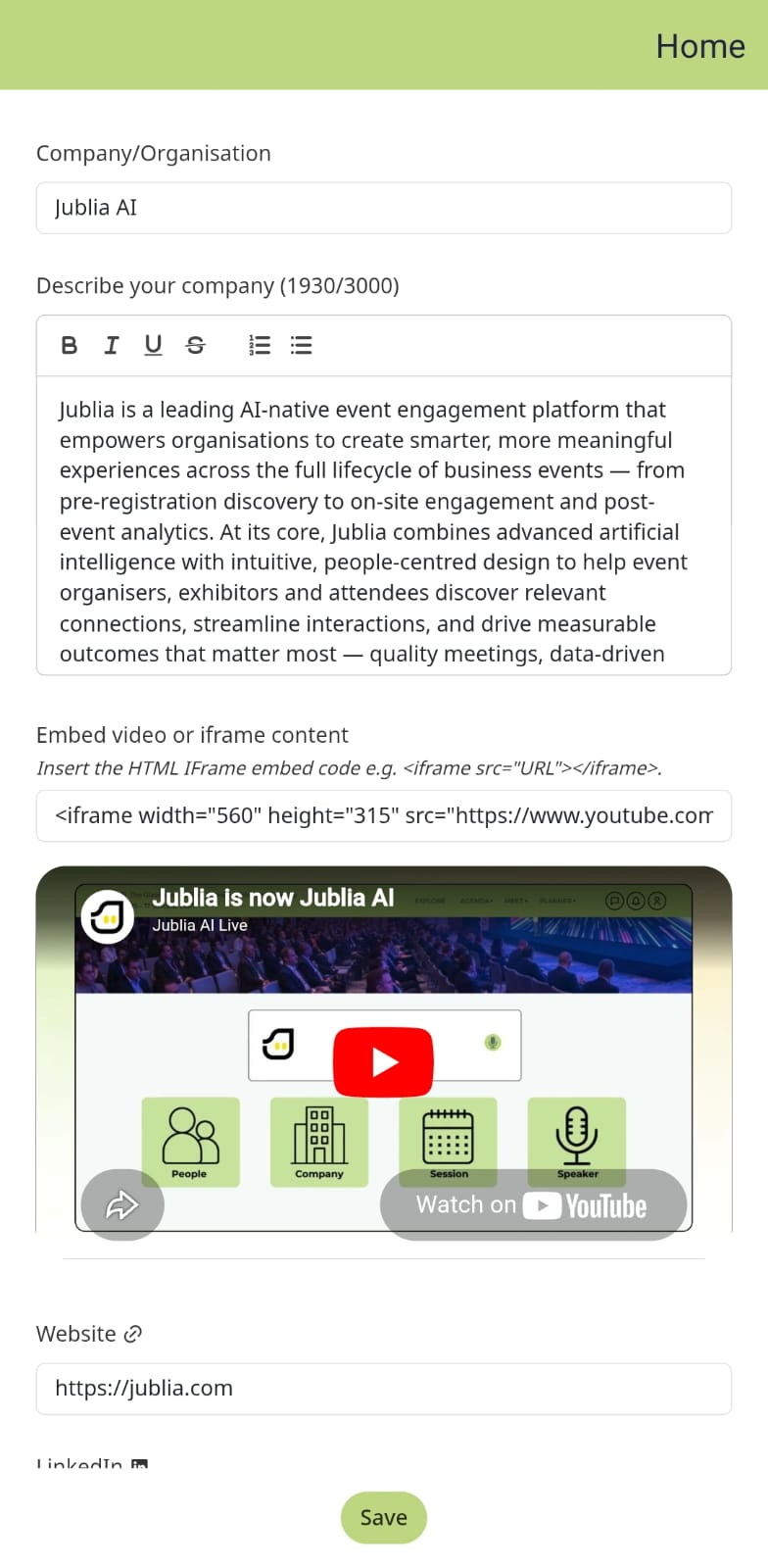
Social Media Accounts: You can link your company's social media accounts to your profile by providing the corresponding URLs for Website, LinkedIn, Facebook, WeChat (微信) QR Code and Instagram.
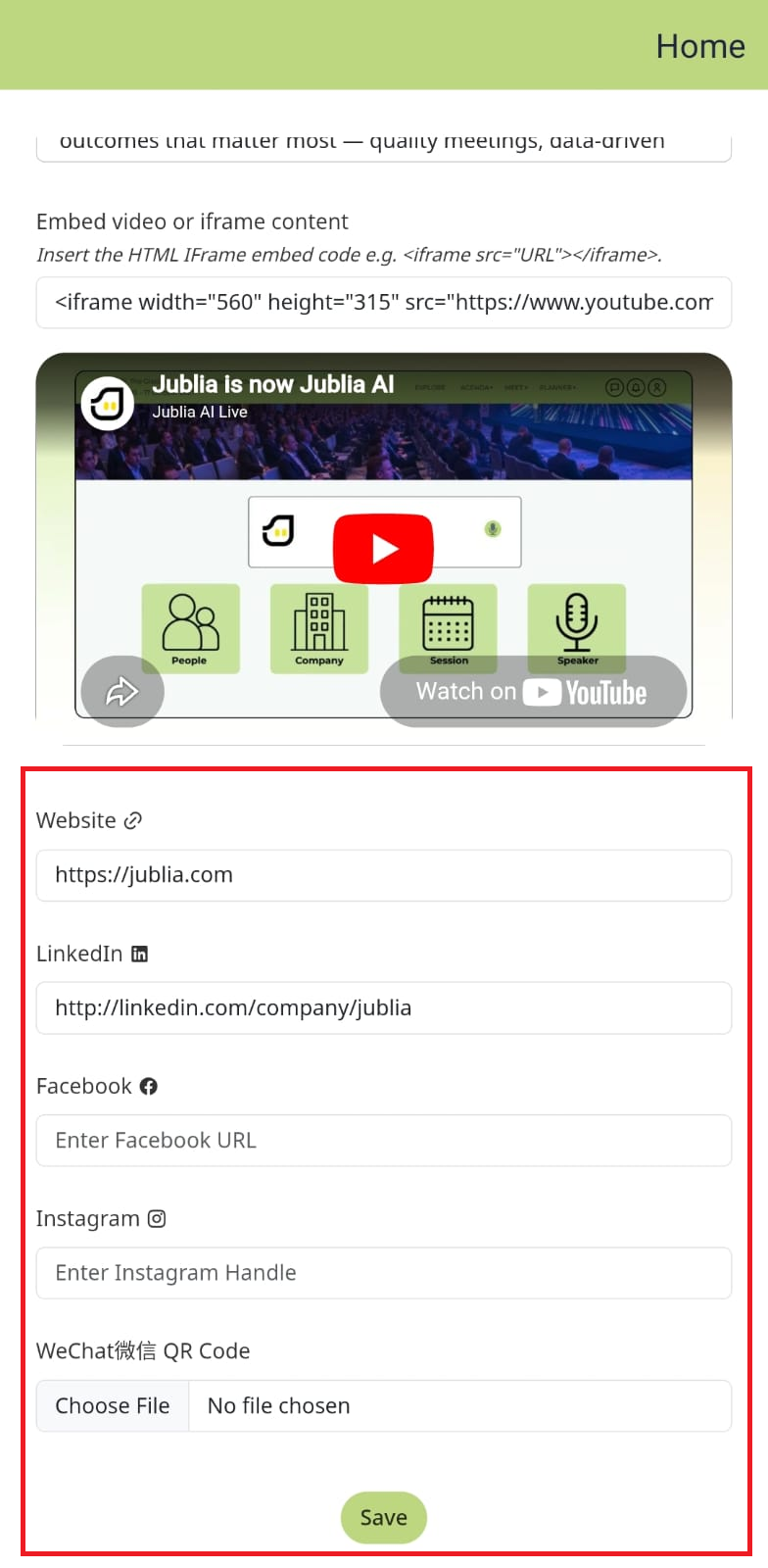
Click on the Upload PDF button.
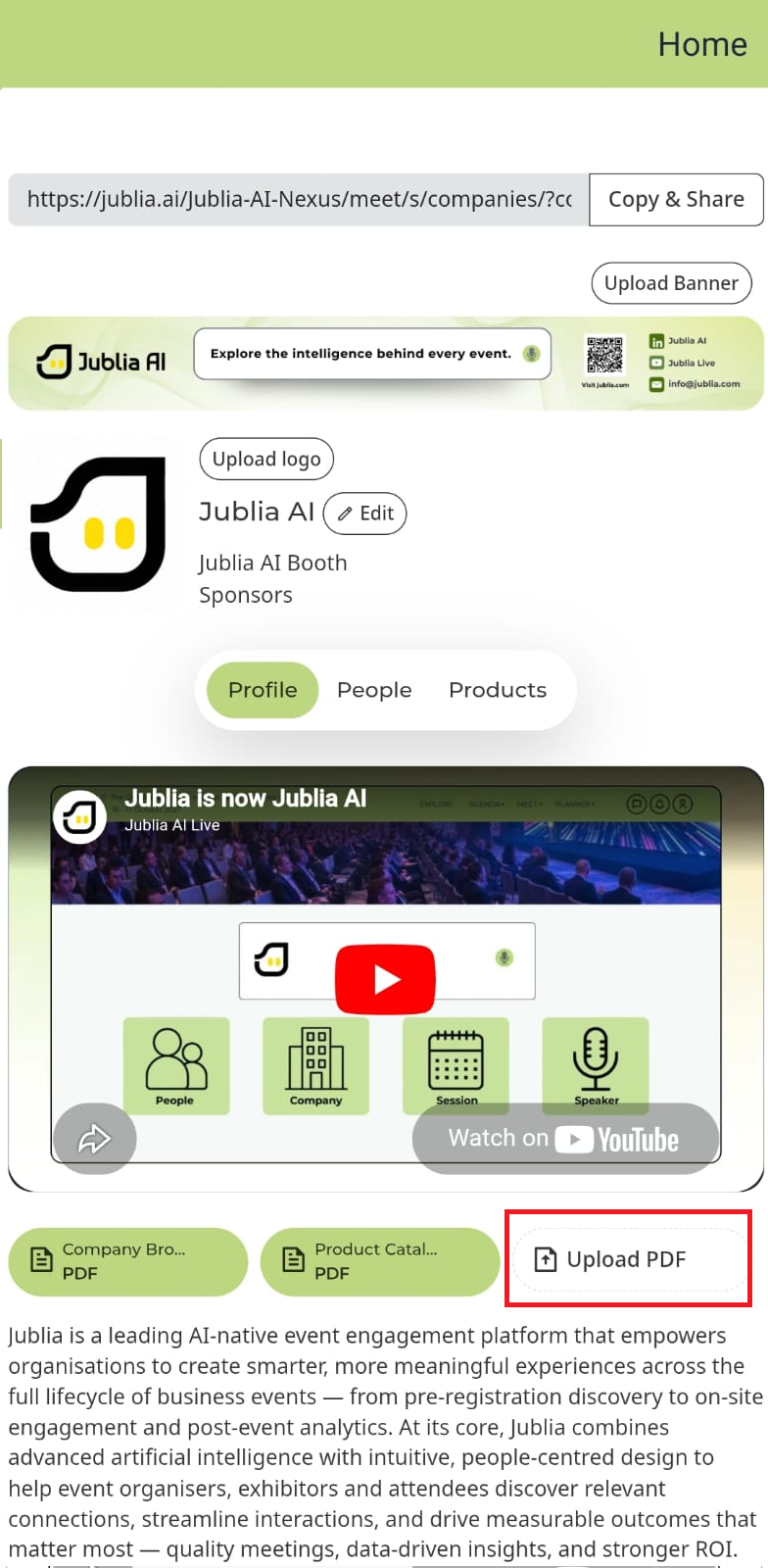
Enter the title of your PDF and upload the file (max size: 10MB), then click Save.
Step 4: Share your profile URLs
Once your profile is updated, you are able to share the URL for your Company profile and Products and Sessions.
Company Profile (Click on your profile picture > My Company)
Sessions (Click on Agenda > Sessions)

When embedding multimedia content, ensure that the video is set to be "embeddable" or open for public by the content owner on the hosting platform.
Double-check the dimensions (width and height) of the embedded video to ensure it fits your profile layout appropriately, and always test the embedded video to confirm that it plays smoothly within your profile.