Read this guide in
| 中文 | ภาษาไทย | 한국어 | tiếng Việt | 繁體中文 | Bahasa Indonesia | 日本語 | Español | Portuguese |
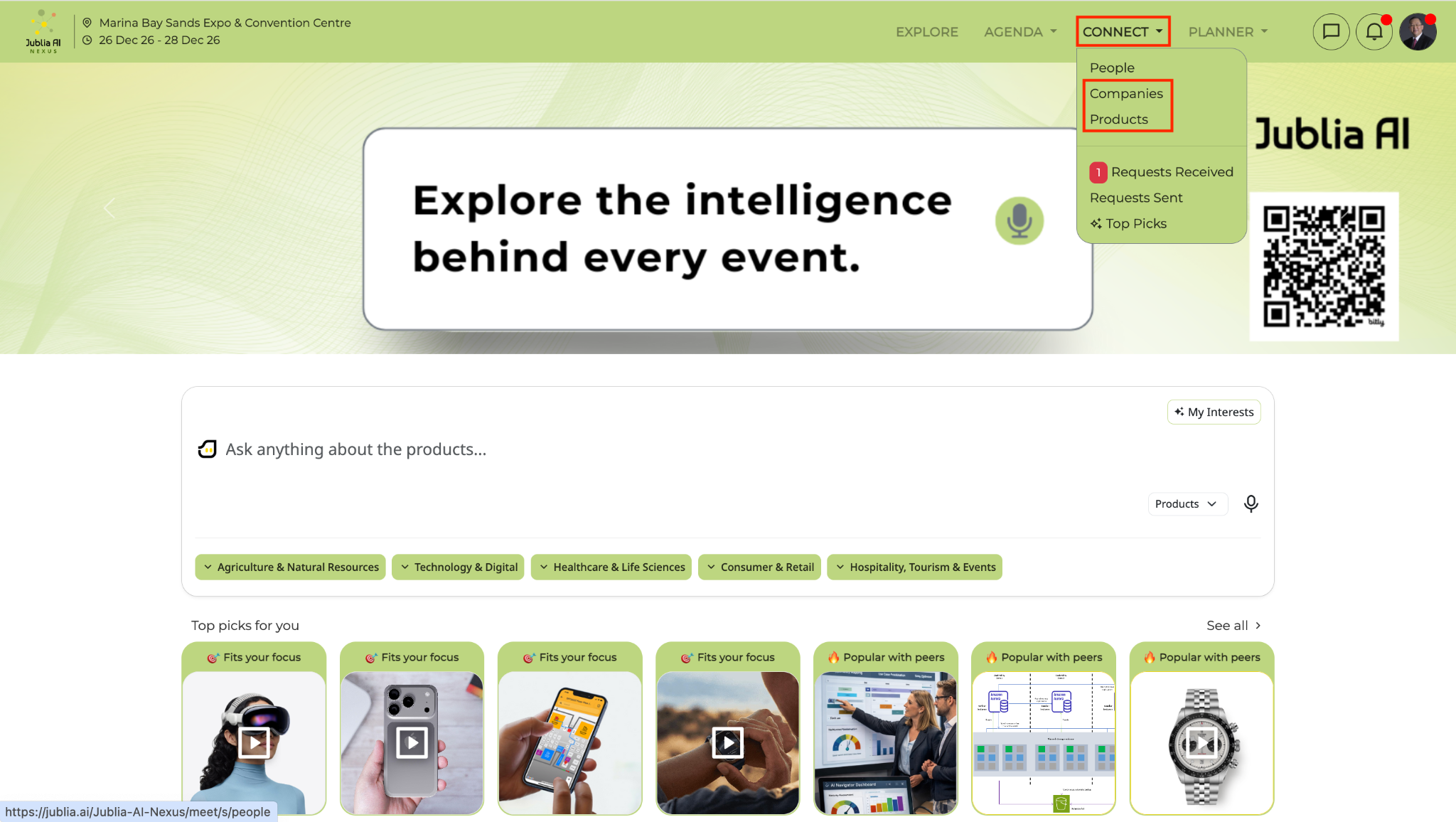
Navigate to Connect on the top navigation bar, click Search, and select either the Companies or Products tab to view the directories.
*note that it might not apply to all events
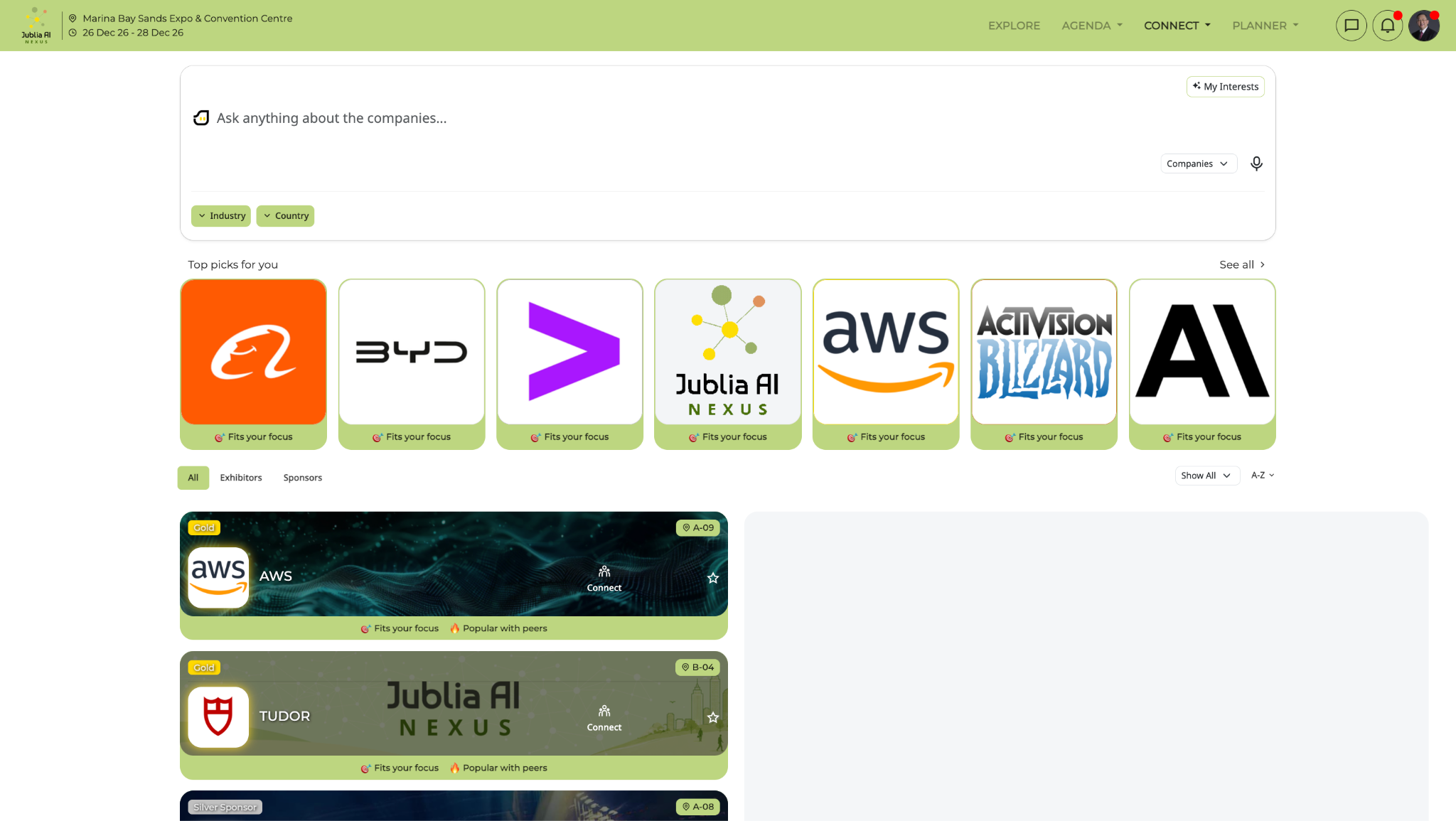
Enter keywords or company names in the Ask anything prompt bar, then click on a specific company banner to open their full profile.
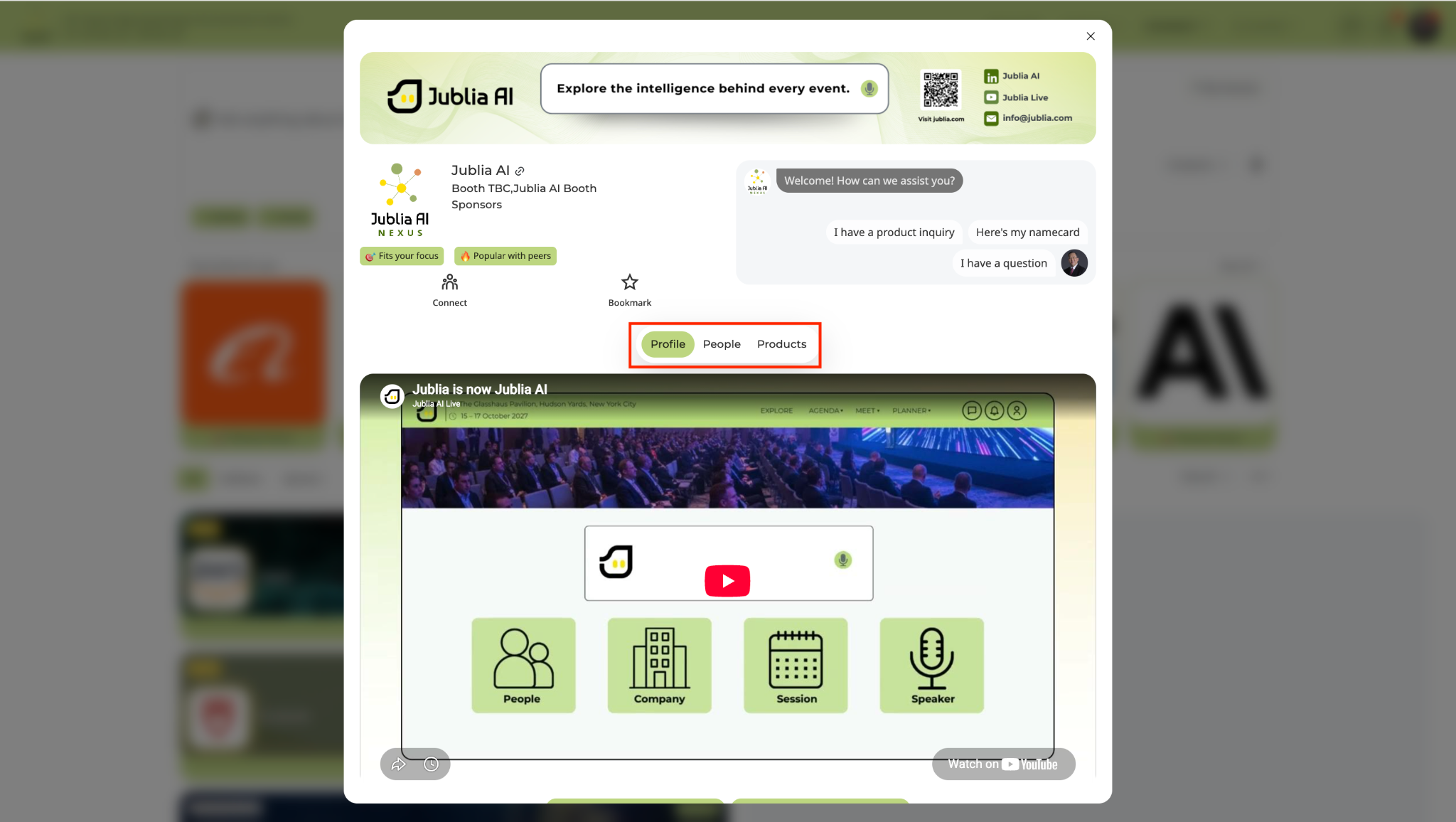
the company profile
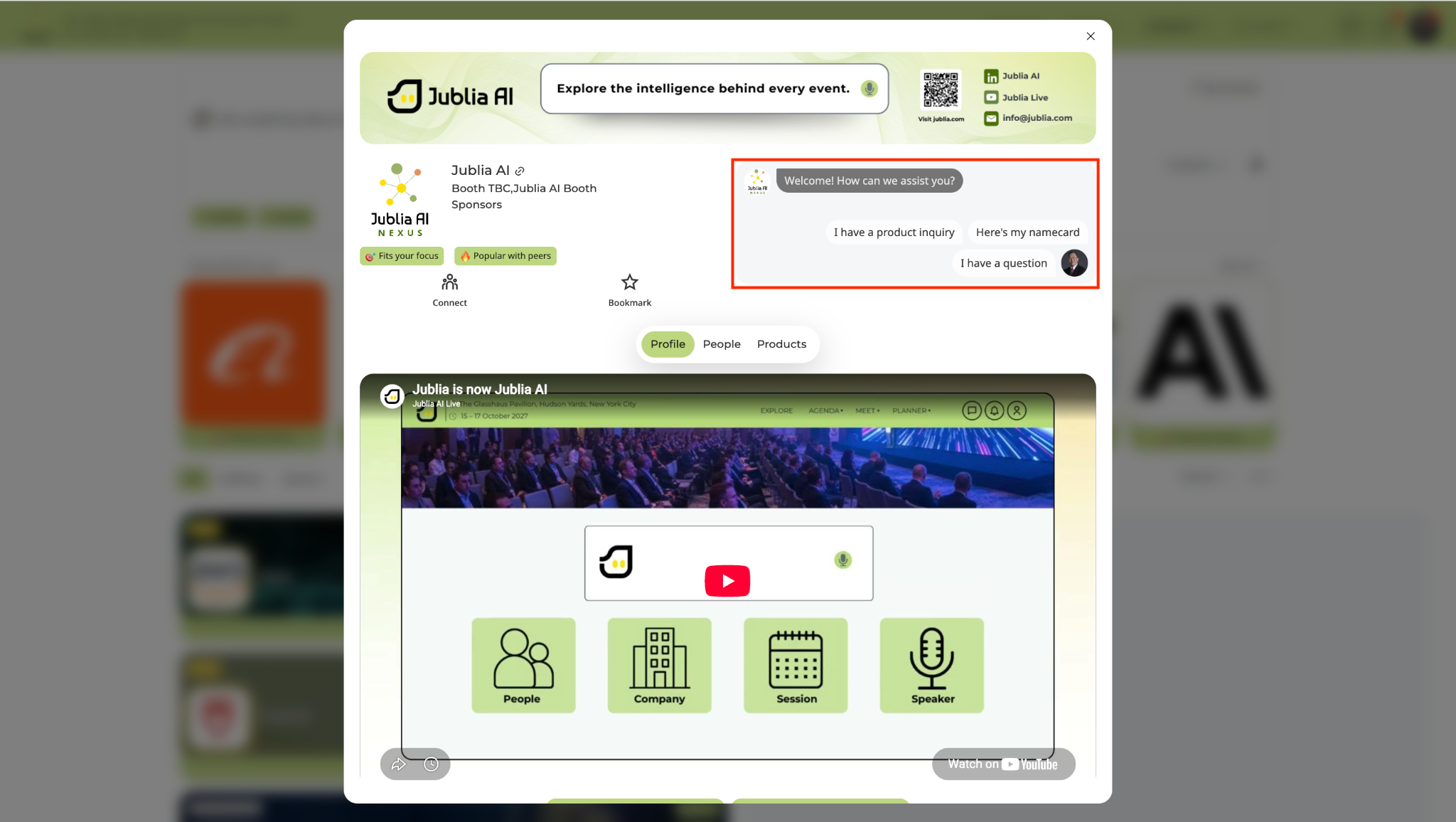
Once in the company profile, you will find several menus including the company chat feature.
Click on People to view the attendees who are tagged to that company
Click on Session to see Agenda sessions presented by that company
Click on Products to see the company products
Click on one of the three chat opener options to start connecting
Go to the Companies or Products tab
Click on the specific company or product you are interested in
You will find the company chat with three options when you want to inquire about a product:
I have a product inquiry
Here's my name card
I have a question
Select an inquiry type such as I have a product inquiry, choose your specific product, and click the Send button to initiate a chat.
After the inquiry is sent, you can select Continue chat to further the conversation about the product you are inquiring about or you can click the Browse button if you want to explore more products.
Click on Here’s my name card within the company chat, select the information you wish to share, and click Send namecard.
Select "I have a question" to chat with the company representatives.
Go to the Connect menu at the top of the navigation bar and click on Search.
Click on the Companies or Products tab under the search bar to view the full list of companies and products.
*note that it might not apply to all events
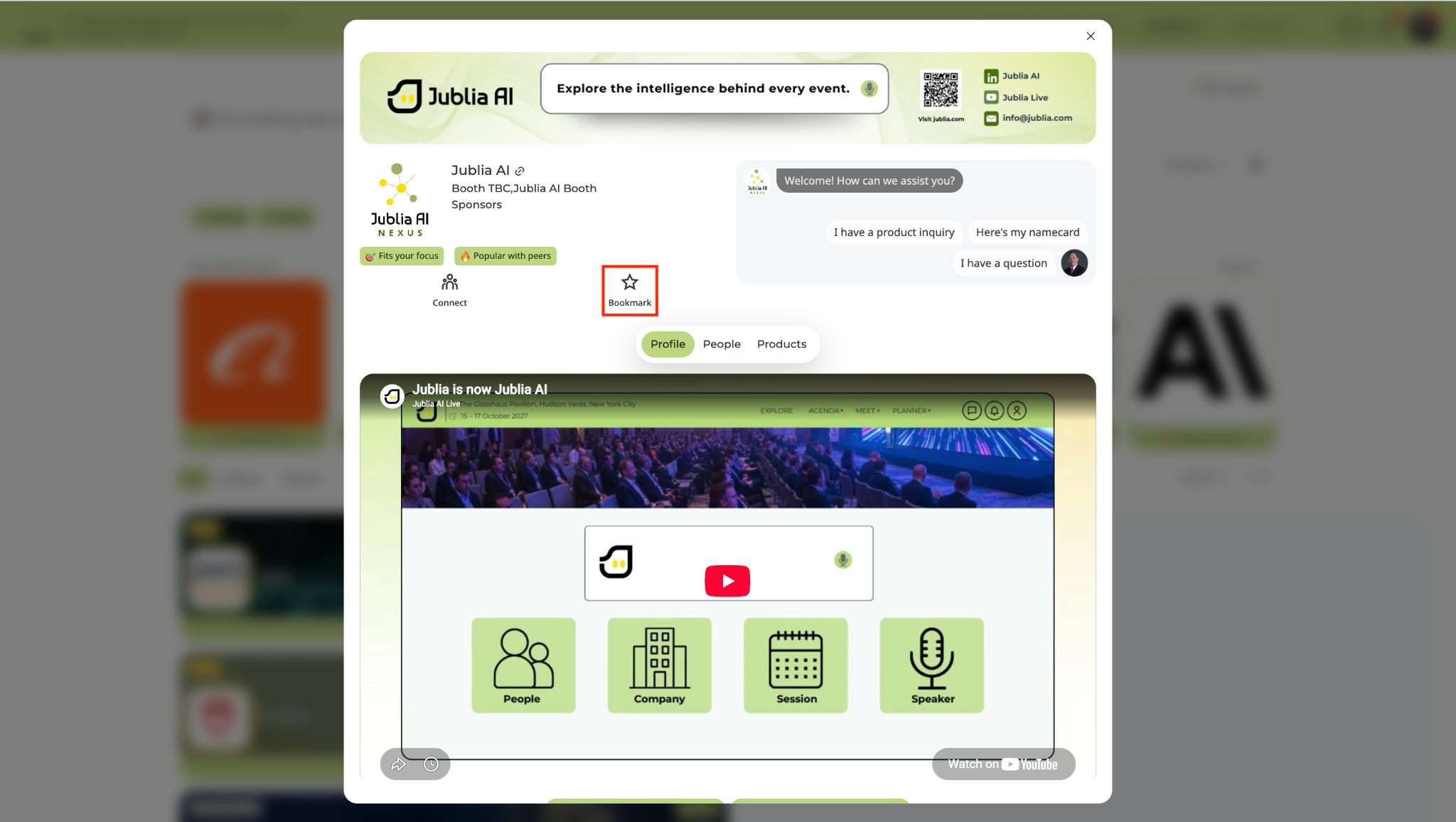
Click the Bookmark icon (star) on any company profile or product listing to save it to your records.
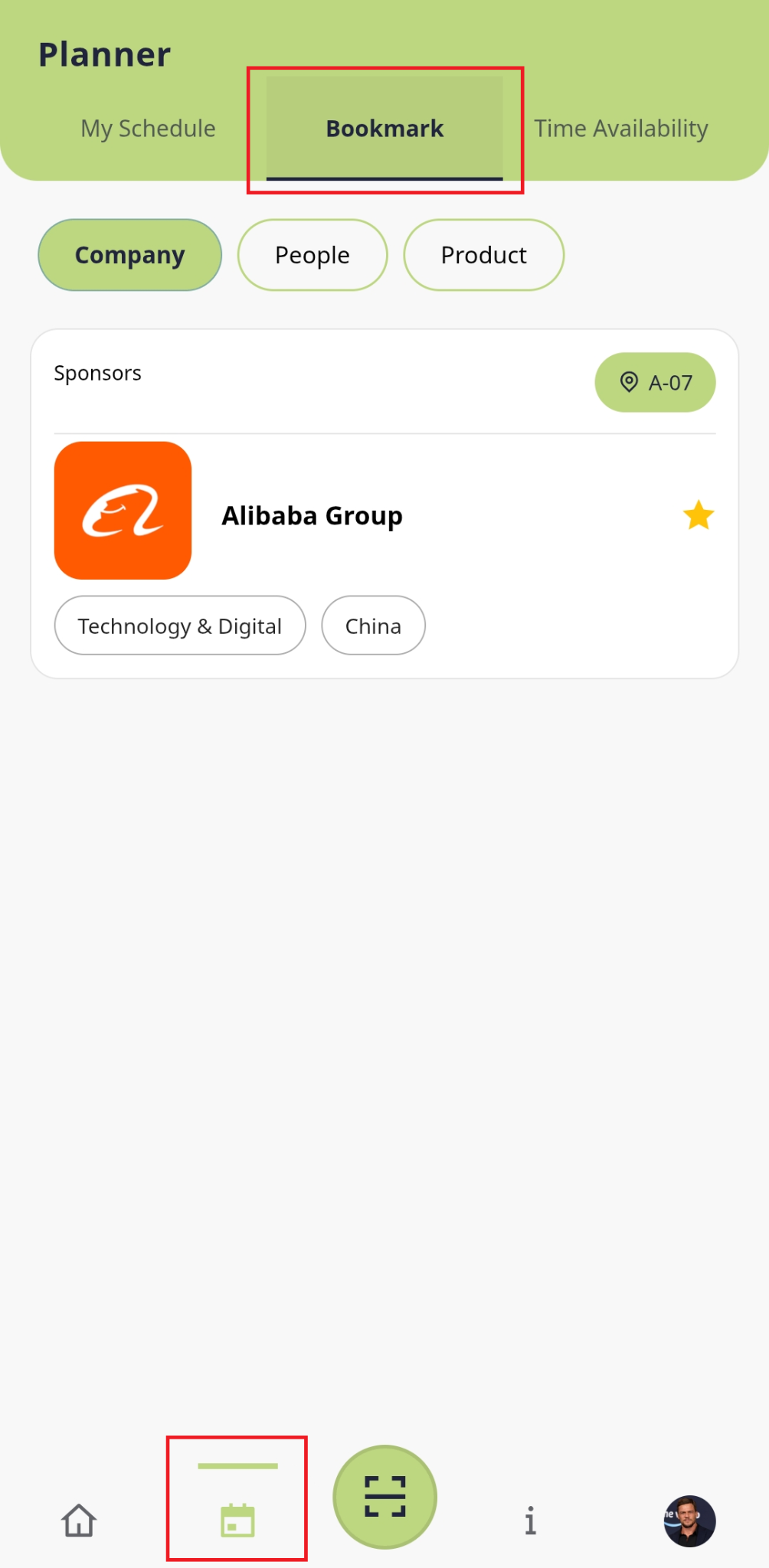
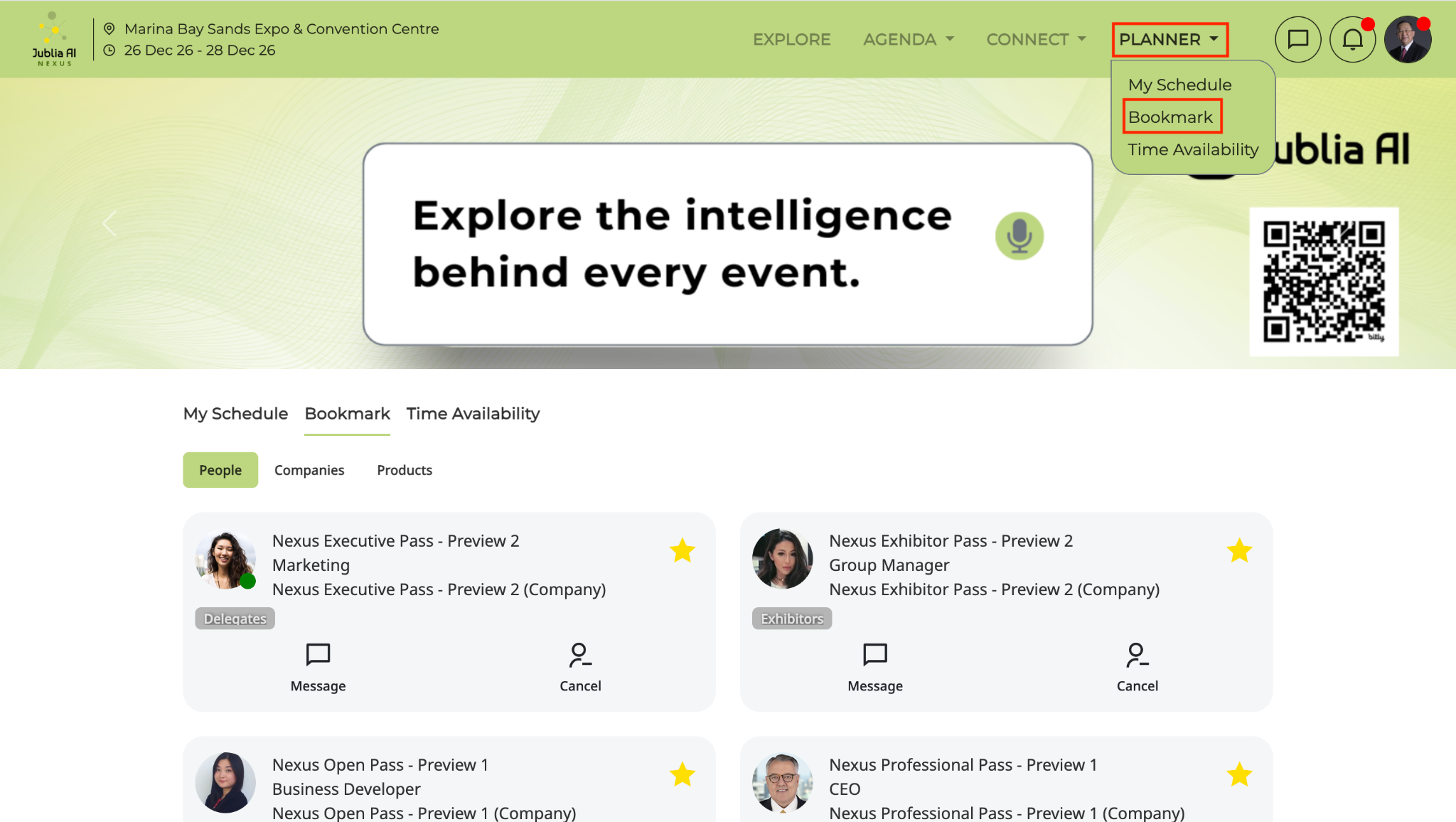
Go to the Planner on the navigation bar and select the Bookmark tab to find all your saved people, products, and companies.
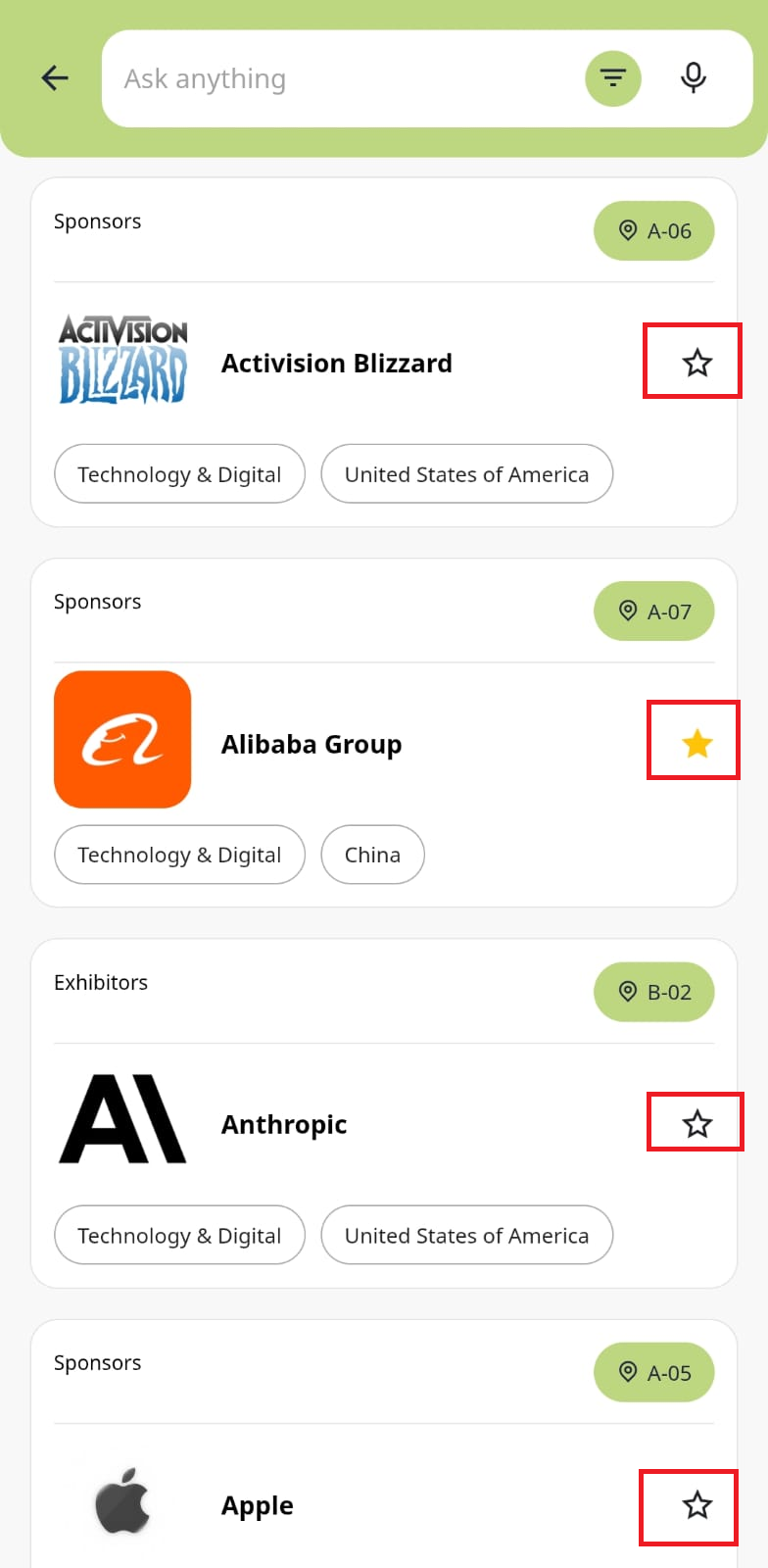
Access the Exhibitors menu from the main screen to view the list of participating companies and their offerings.
Tap the Star icon next to a company in the list, or navigate to a company's Products tab and tap the Star icon next to a specific item to save it.
Navigate to the Planner (calendar icon) via the bottom navigation bar and select the Bookmark tab to see your curated list of profiles and products.