How to Get Directions to Your Destinations at the Event
Navigating a sprawling event can be a challenge without proper guidance, but with our interactive floor plans, you can find your way around effortlessly. In this article, we'll show you how to locate specific booths, meeting and session locations using the platform's navigation tools to enhance your event attendee experience.
This guide covers the following:
Read this guide in
| 中文 | ภาษาไทย | 한국어 | tiếng Việt | 繁體中文 | Bahasa Indonesia | 日本語 | Español | Portuguese |
Web App
Getting to an Exhibitor’s Booth
(Please note that the interactive floor plan only works for events with ‘Companies’ listing. For all other events, you may still view the floor plan as a static map.)
Step 1: Go to Exhibitor’s Company Profile
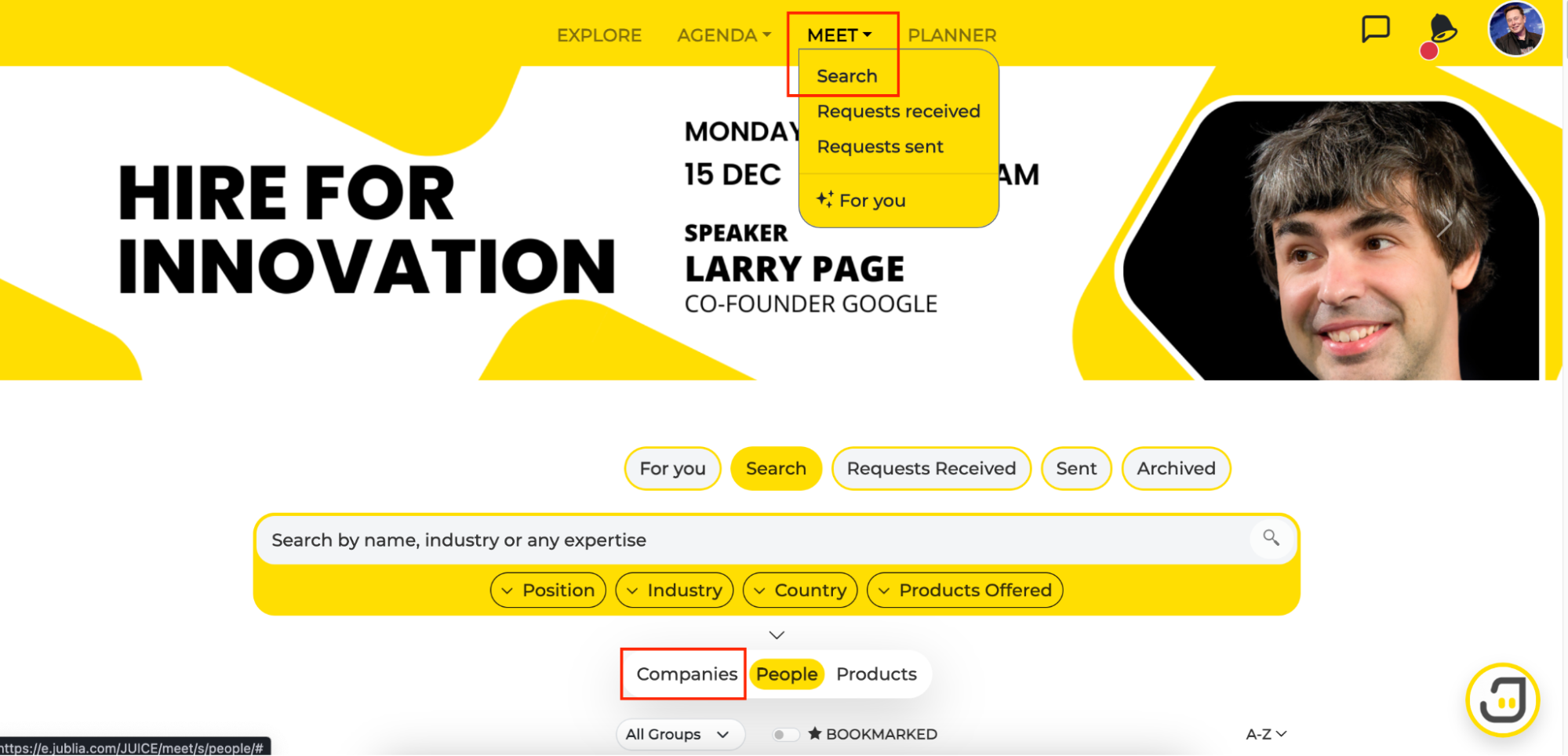
On the platform, click on Meet at the top of the navigation bar.
Click on Search, then select the Companies tab.
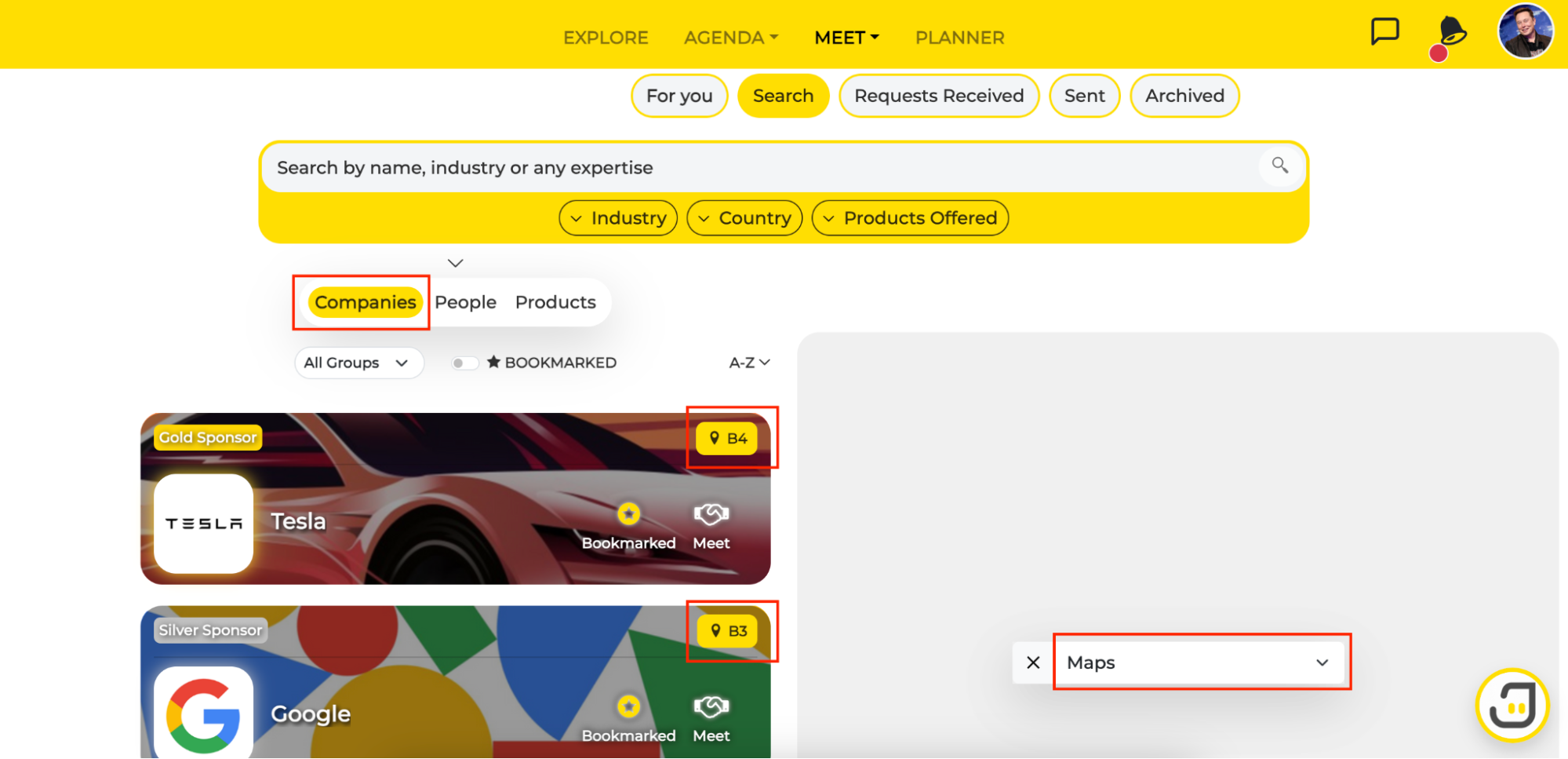
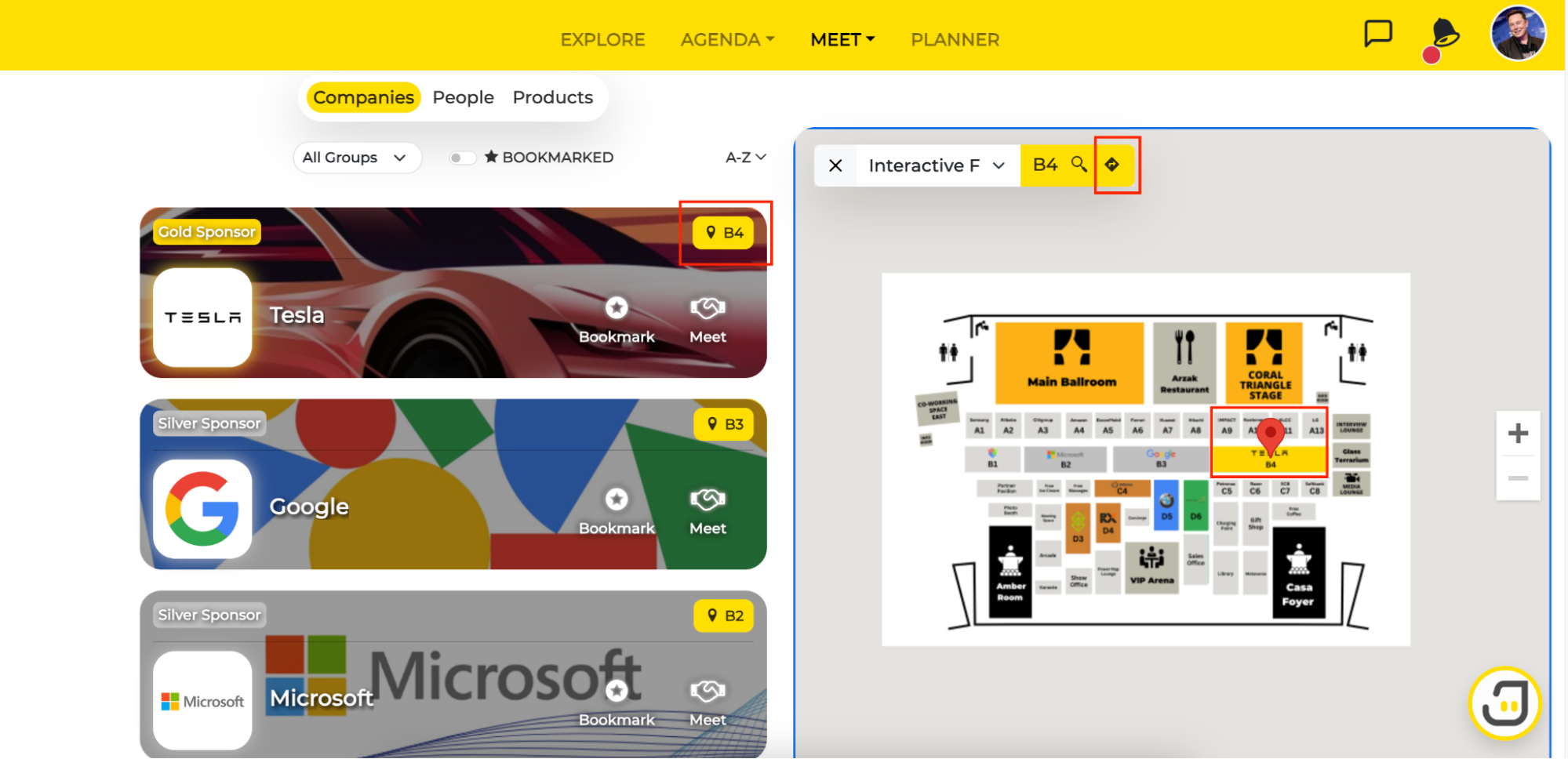
Click on your desired exhibitor’s booth location pointer at the top right corner of the company profile card, and the location of the booth will show up on the interactive floor plan next to it.
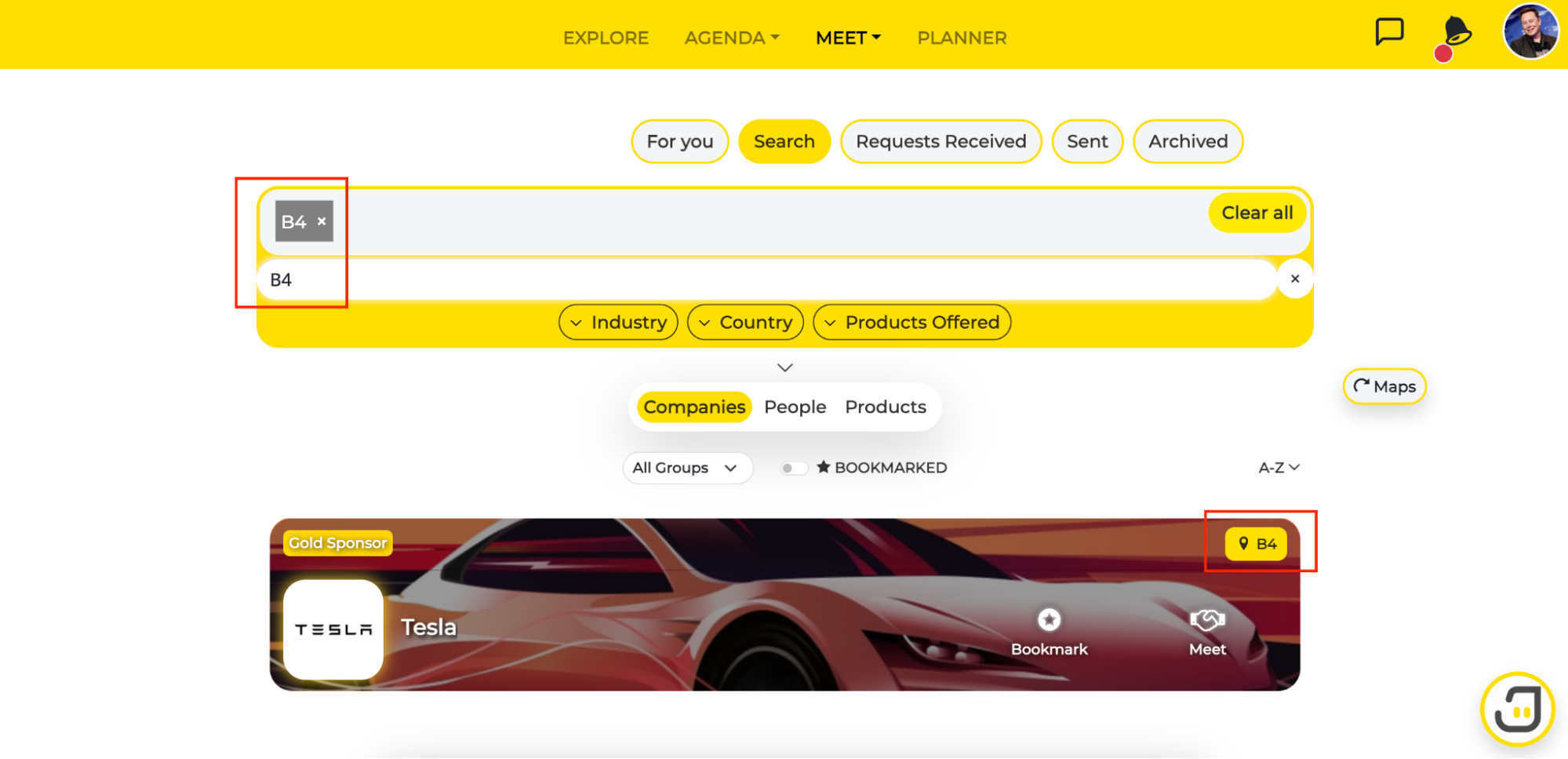
Alternatively, search for the company’s booth in the search bar by keying in the booth name or number.
Step 2: Get Directions to the Booth
Click on the direction pointer above the interactive floor plan.
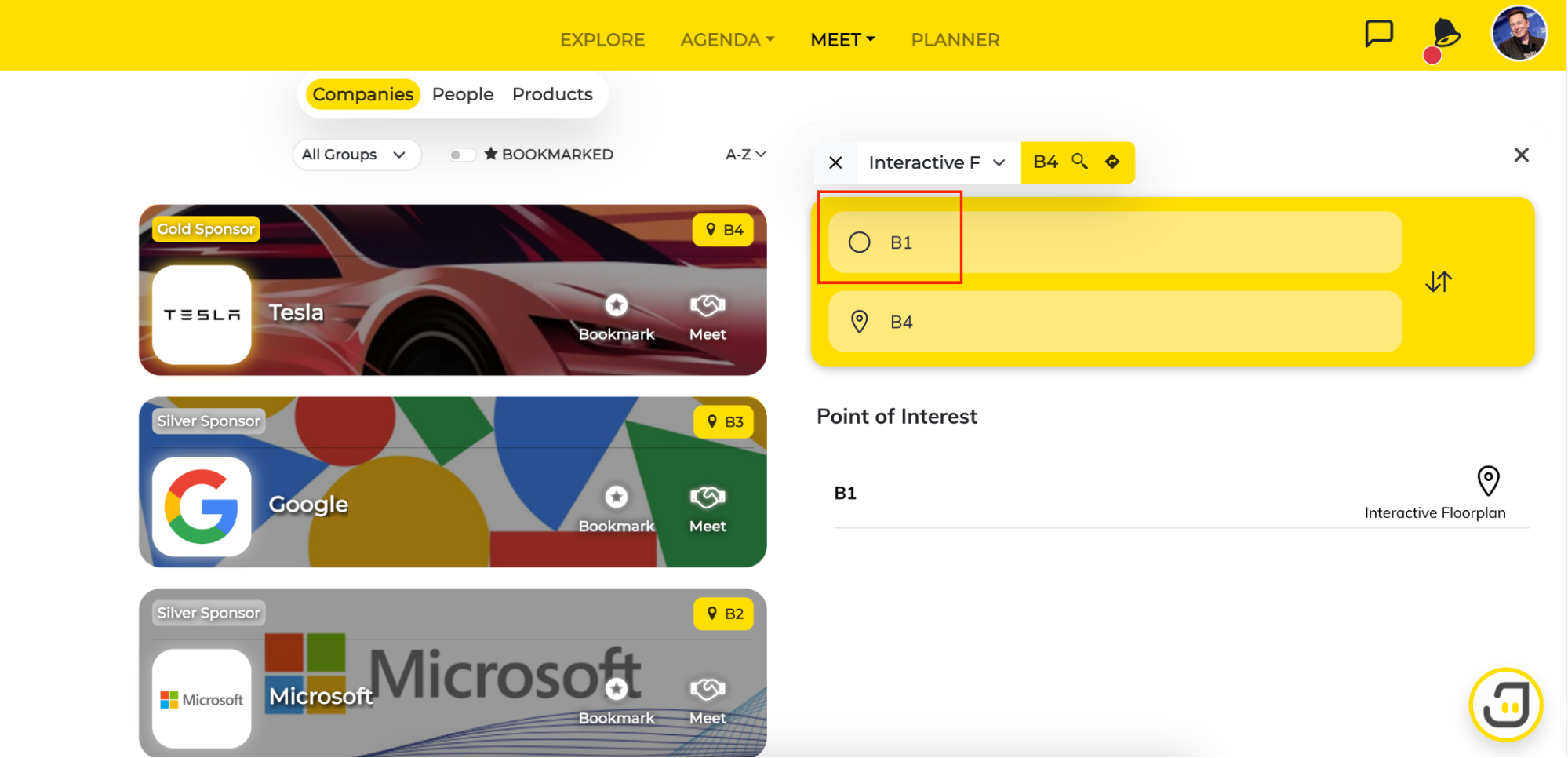
Enter your point of interest or starting point for the map to generate walking directions to your destination.
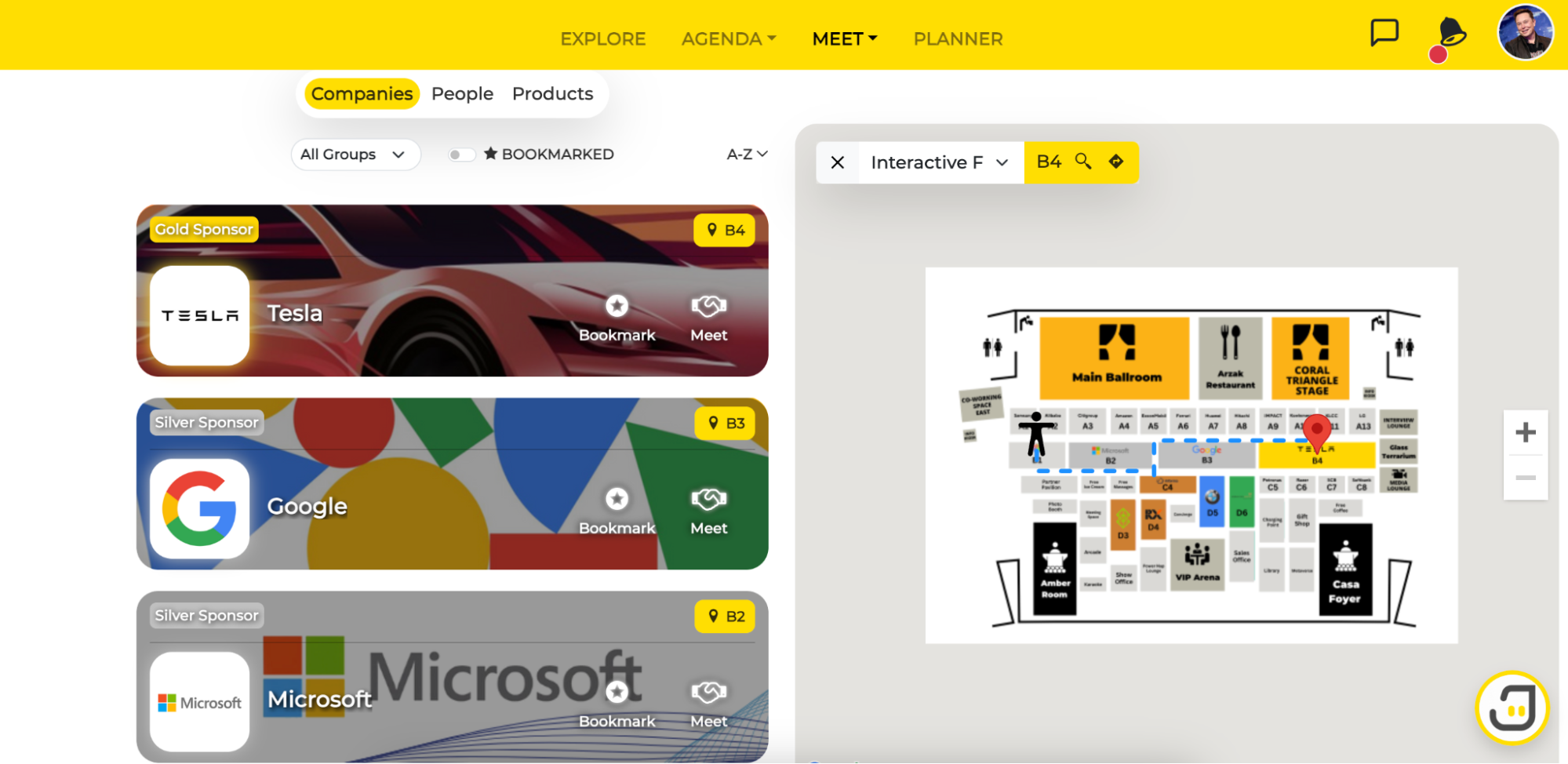
Follow the route that has been plotted for you on the map.
Locating your Session/Meeting Venue
Step 1: View your schedule on Planner
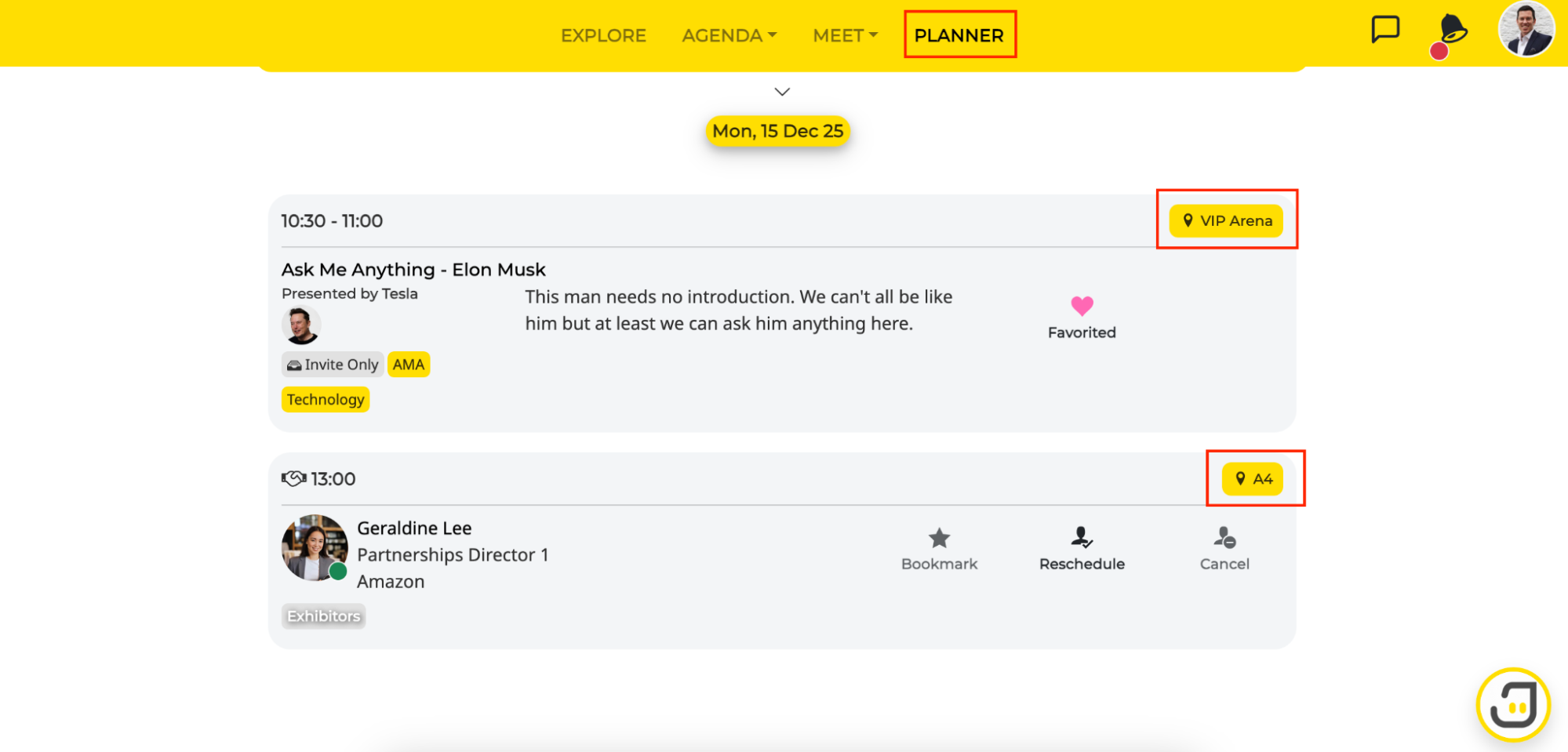
Click on Planner at the top of the navigation bar and you will find the list of confirmed meetings as well as favorited sessions.
The venue of each meeting or session will be displayed at the top right corner of the meeting or session card.
Step 2: Get Directions to your Destination
Click on the location pointer of the meeting or session card.
Click on the direction pointer above the interactive floor plan, and select/enter your starting point.
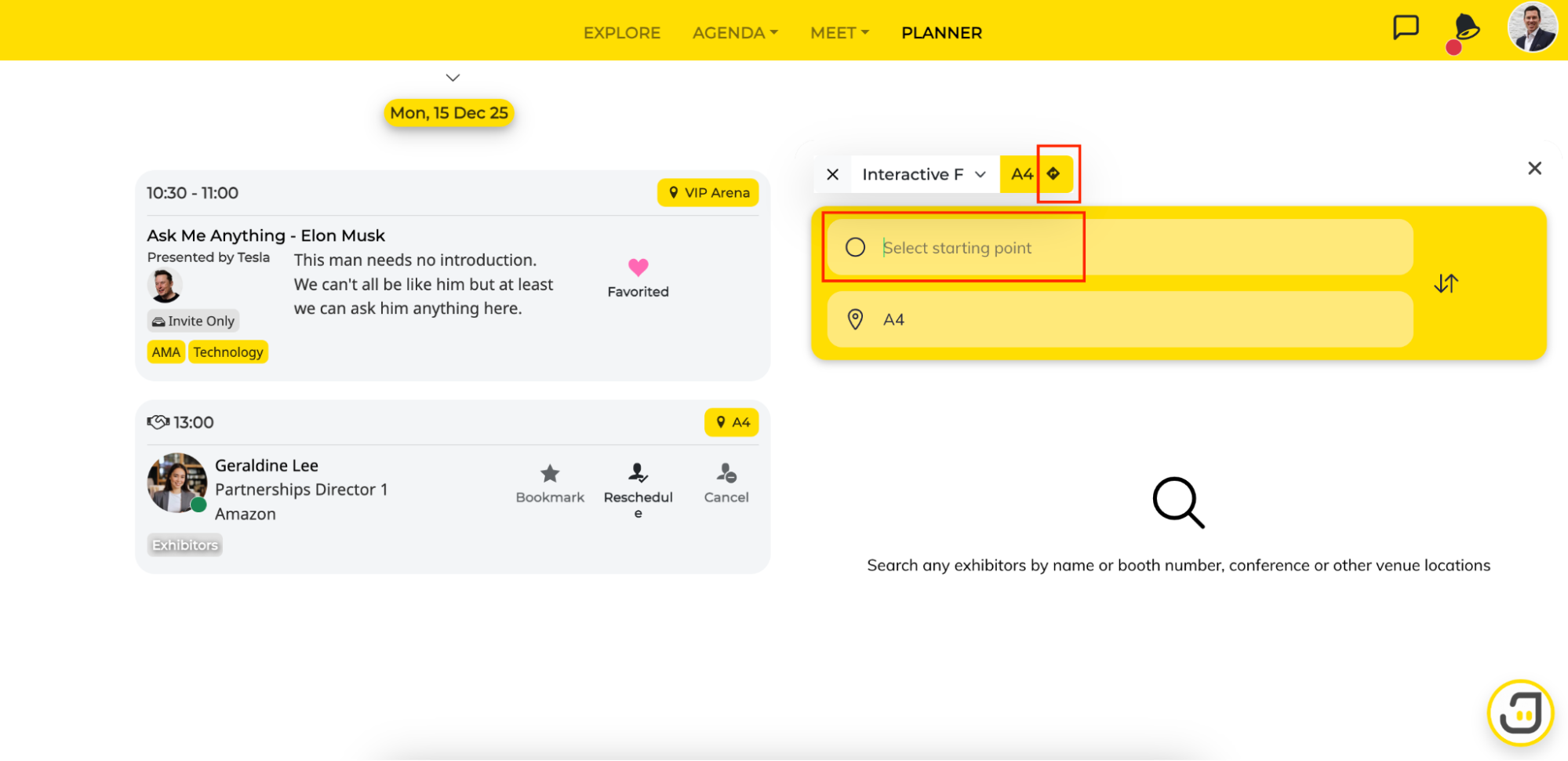
The interactive map will generate walking directions to your destination.
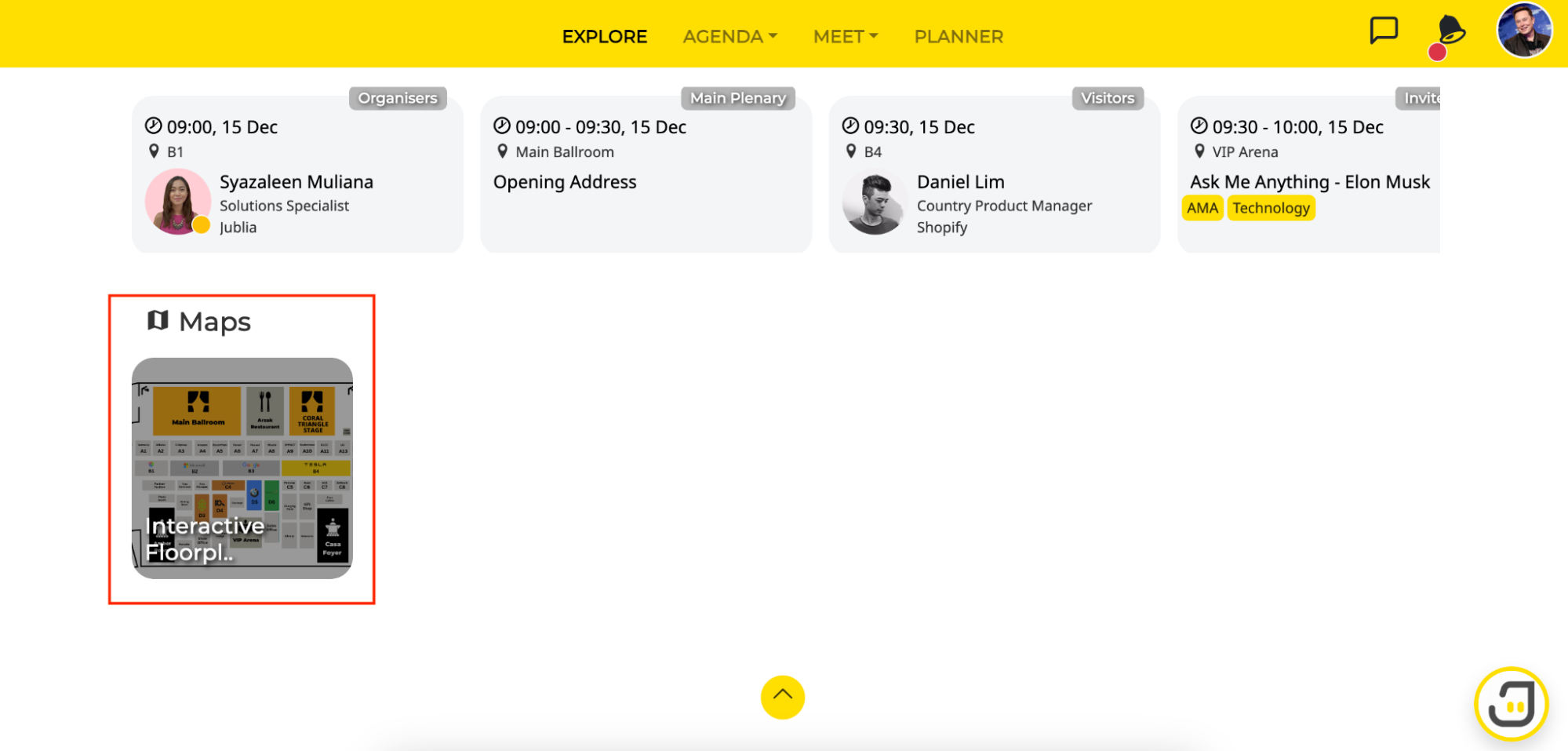
Alternatively, you may browse the floor plan directly on the Explore page of the platform to help you with your wayfinding.
Bookmark Feature on Interactive Map
Step 1: Bookmark Companies
Under the Companies listing, select the companies you’d like to bookmark by clicking on the star icon.
Step 2: Access the Event Map
Click on the interactive map located at the bottom of the main Explore page.
Step 3: View your Bookmarks at a Glance
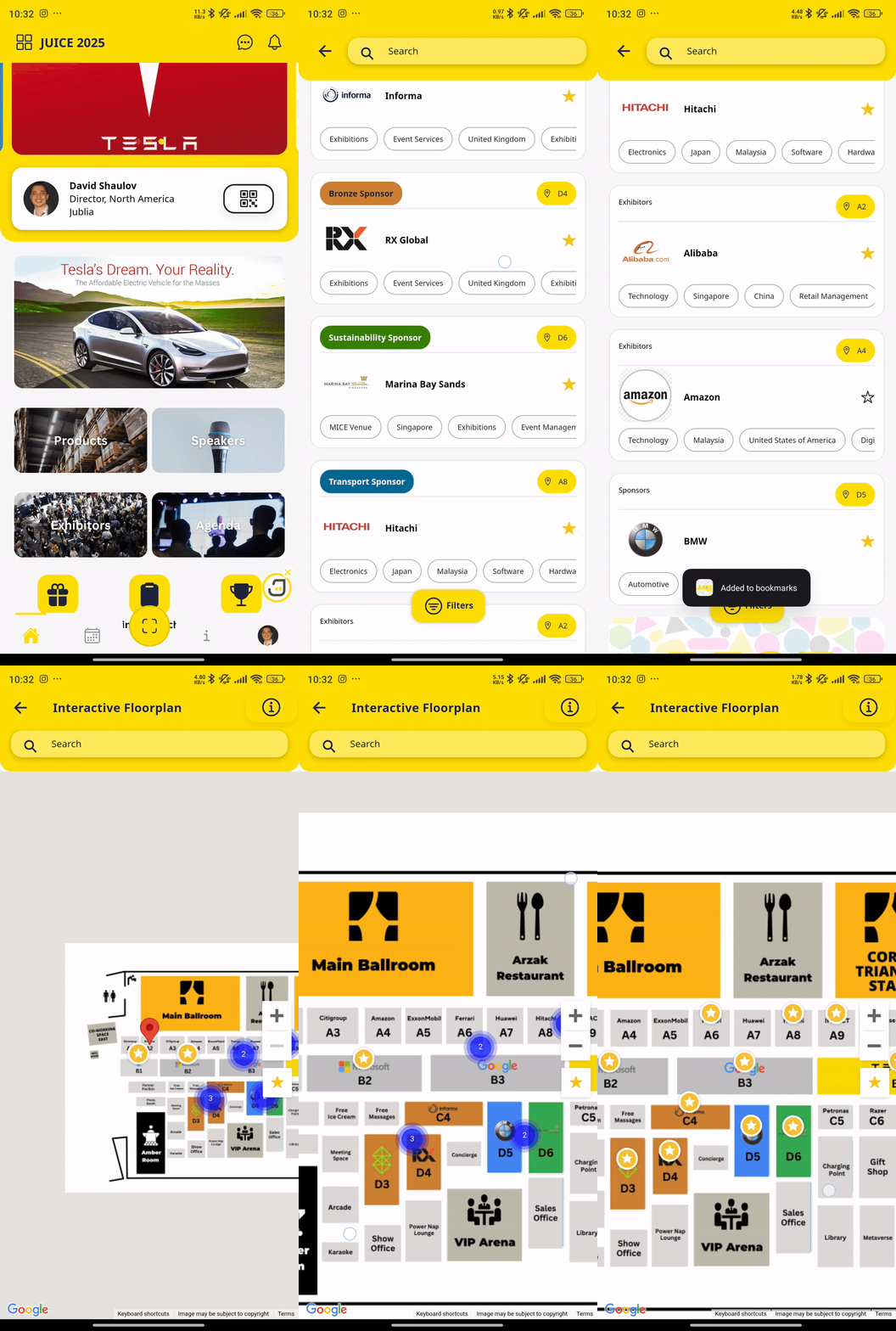
AI Maps Clustering intelligently groups your bookmarks into clusters based on their proximity and relevance. This dynamic clustering adjusts in real-time as you zoom in and out on the map, offering a clear and concise view of your bookmarks.
Native App
Getting to an Exhibitor’s Booth
(Please note that the interactive floor plan only works for events with ‘Companies’ listing. For all other events, you may still view the floor plan as a static map.)
Step 1: Open the Exhibitors Menu
Access the Exhibitors menu to view the list of all companies in the app.
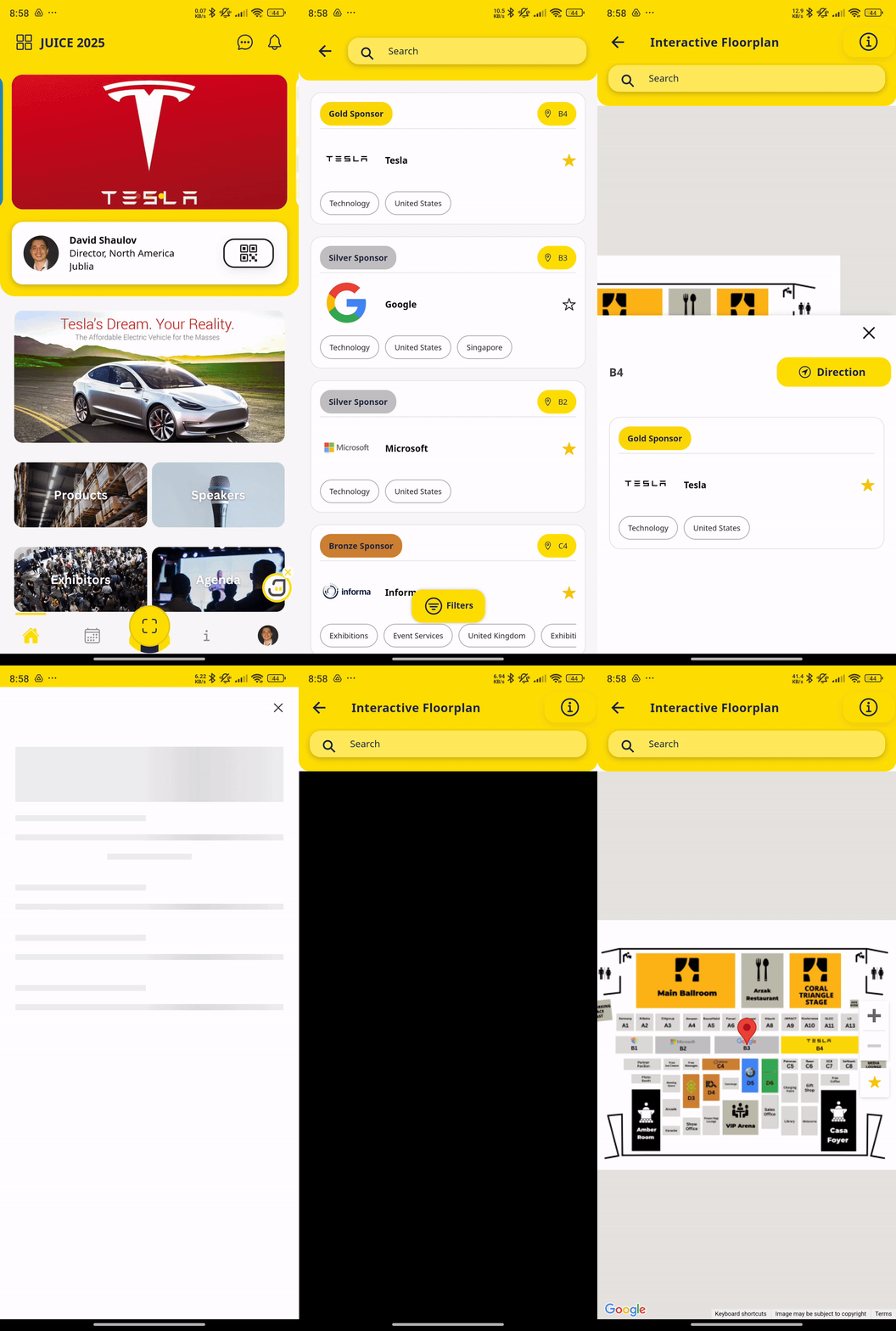
Step 2: Get Directions from the Company List
On the Company list page, tap the location pointer in the top right corner for each company to get directions.
Step 3: Get Directions from Company Profile Details
Tap on a company to view its profile details. In the profile, tap the location pointer to get directions to the booth location.
Locating your Session/Meeting Venue
Step 1: Access Your Confirmed Meeting Schedule
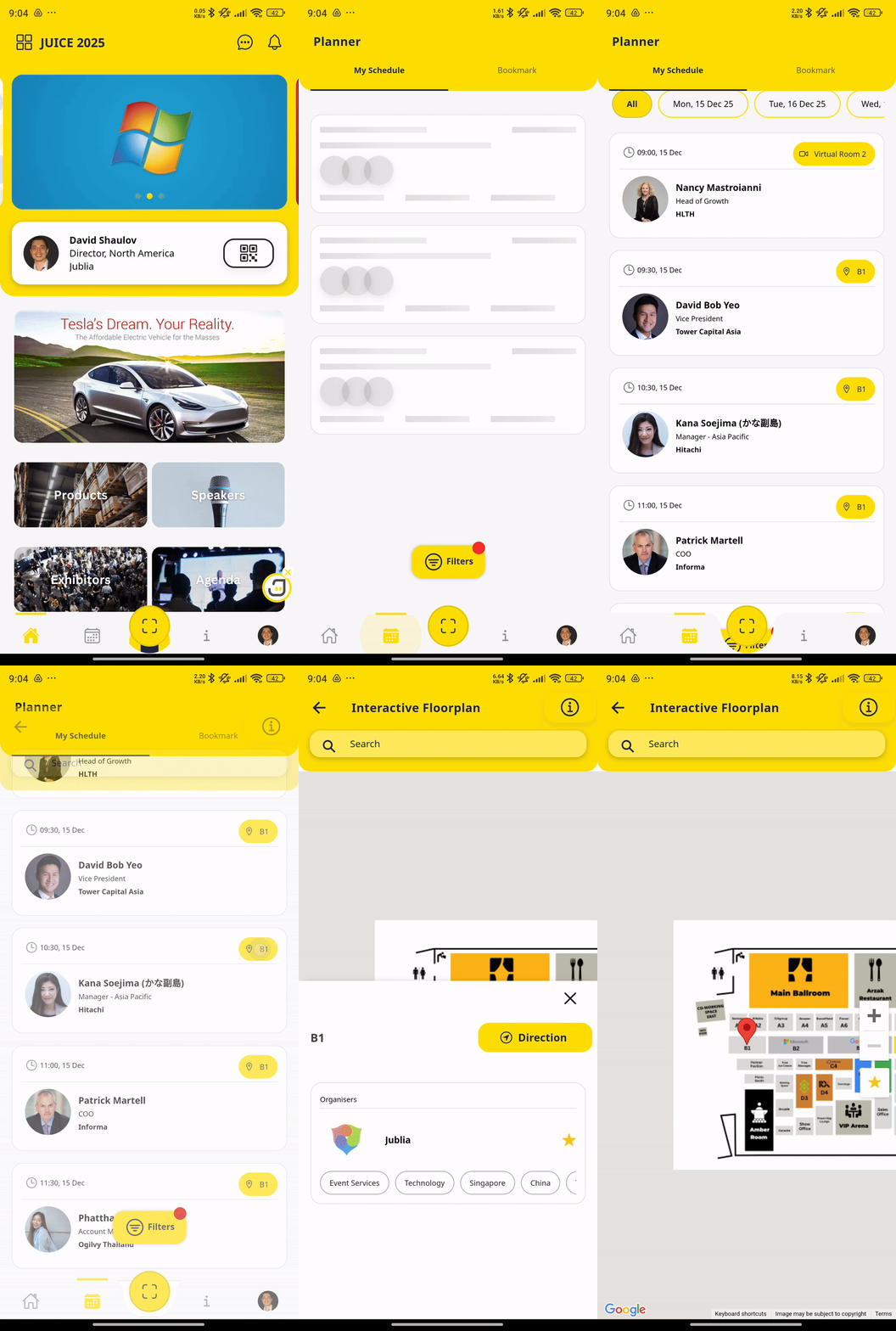
Navigate to the Planner menu using the bottom navigation bar, go to the My Schedule tab, and filter by Meeting.
Step 2: Get the Onsite Meeting Location
Onsite meetings are indicated by the map icon in the top right corner. Tap the location pointer, and it will guide you to the meeting location.
*You may use the same steps above for your favorited sessions in your Planner.
Step 3: Get the Session’s Location
In the Home menu, access the Agenda menu to view the list of sessions.
Step 4: Get Directions
Tap the location pointer next to the session, and it will take you to the floor plan page, showing where the session is being held.
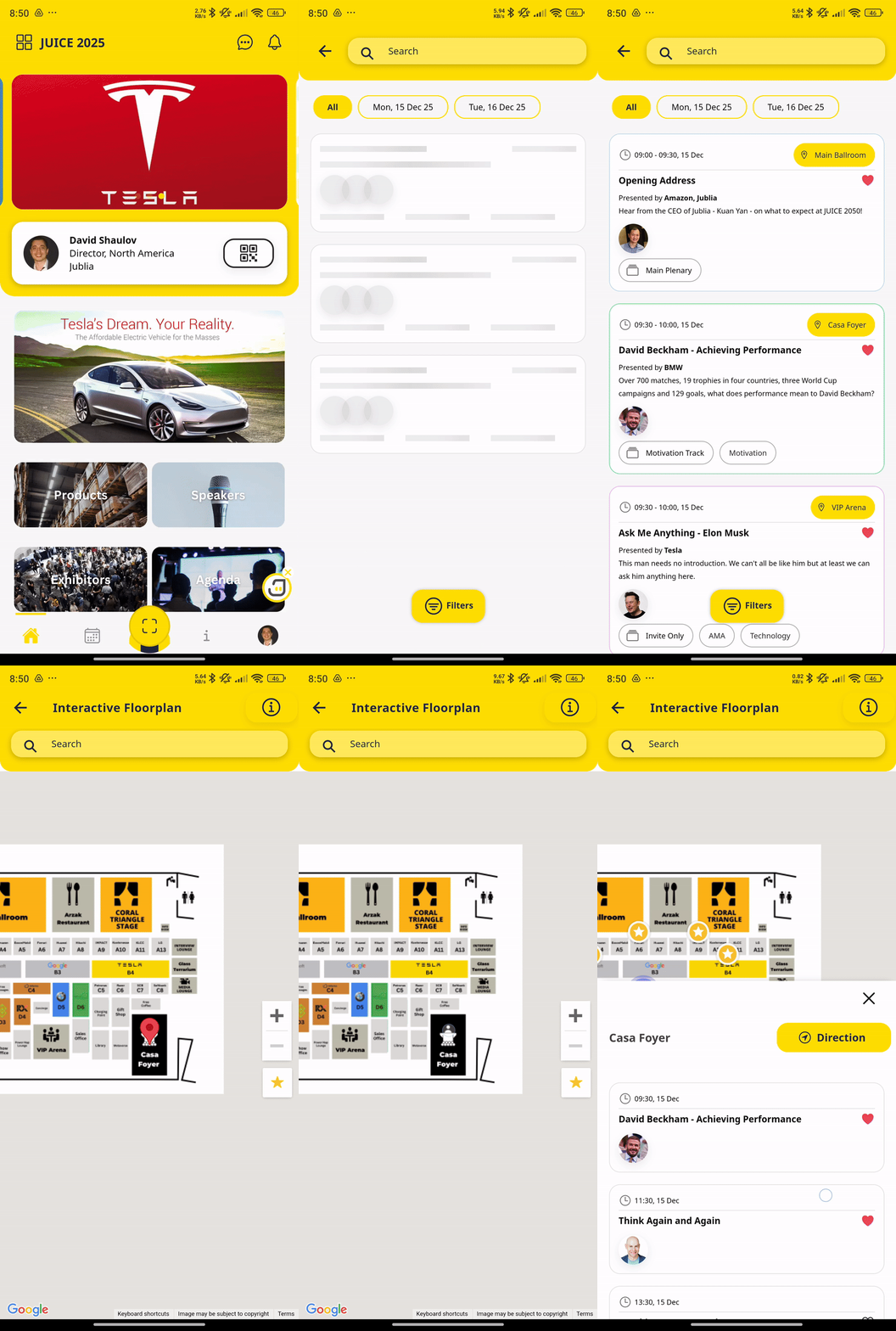
General Wayfinding
Step 1: Access Maps
On the Home page menu, scroll down to locate the Maps section.
Step 2: Get directions
Select your desired destination, then tap Direction and specify your starting point.
Step 3: Your route is ready!
After entering your starting point, the map will generate the route to guide you.
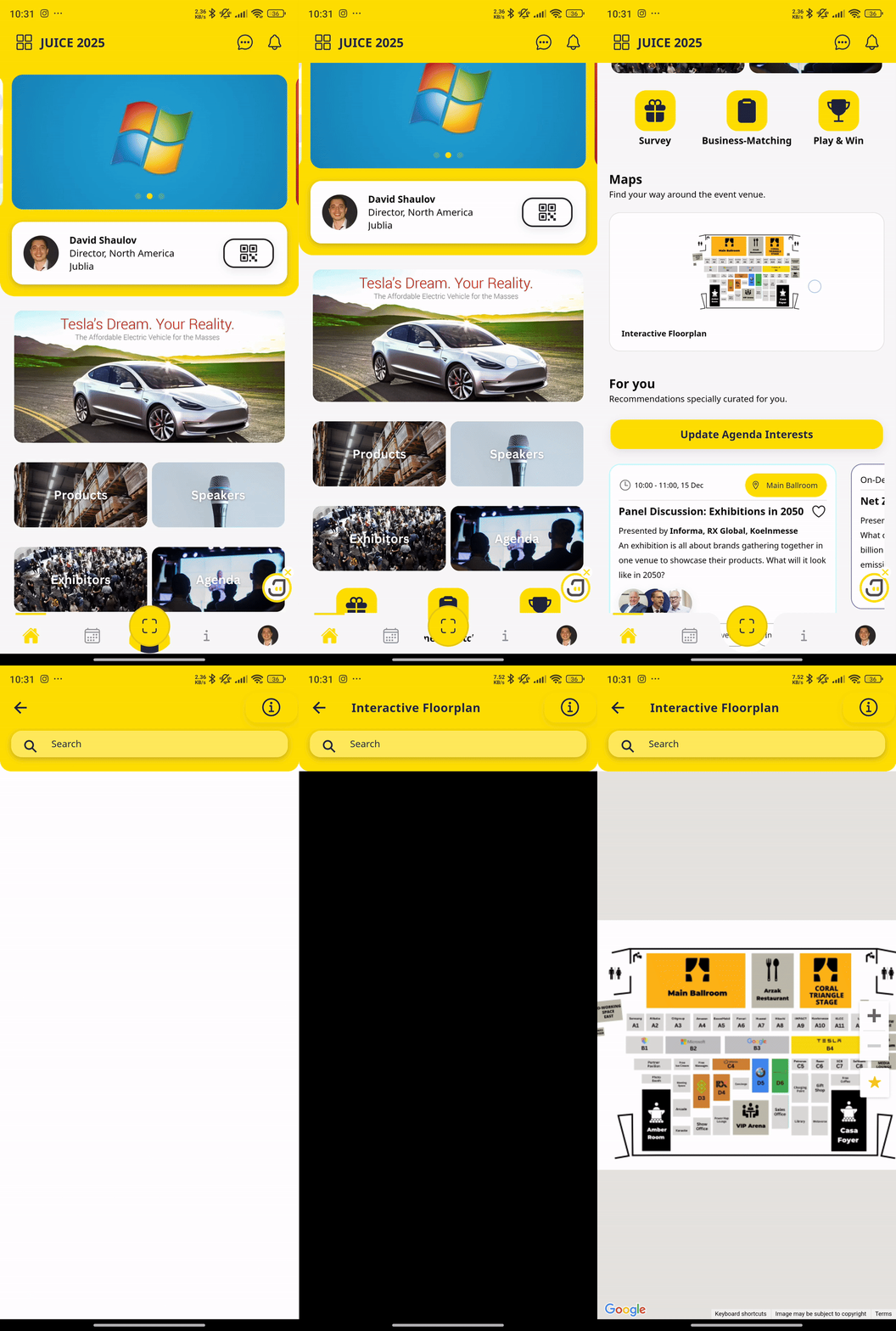
Bookmark Feature on Interactive Map
Step 1: Bookmarking Company
Select and bookmark a company from the Exhibitor list menu.
Step 2: Access the Maps
Tap the location pointer to view the company’s location on the map. Bookmarked companies will be indicated by a star icon on the map.