Read this guide in
| 中文 | ภาษาไทย | 한국어 | tiếng Việt | 繁體中文 | Bahasa Indonesia | 日本語 | Español | Portuguese |
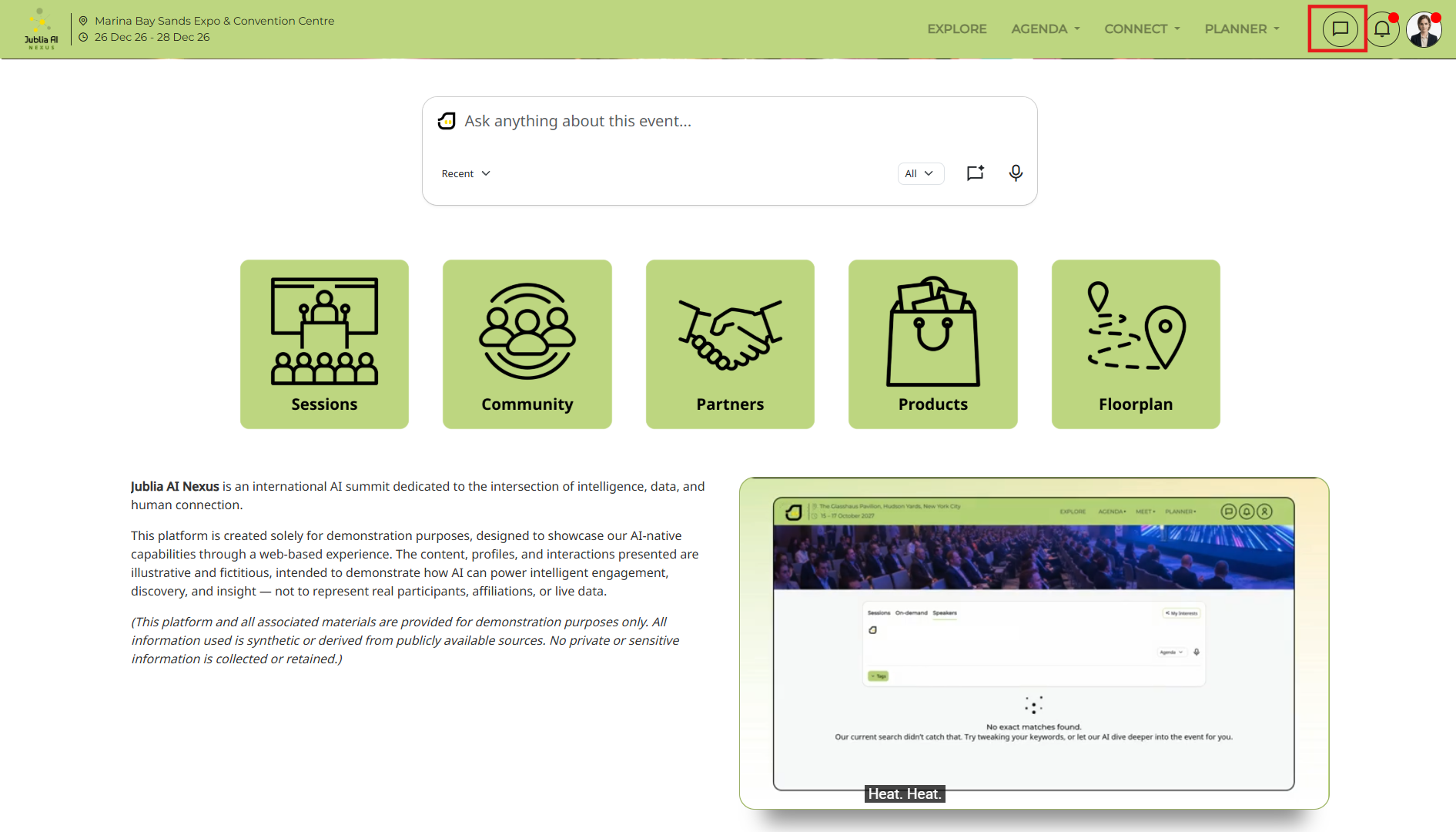
Click the Chat Bubble Icon located at the top right of the page next to your Profile Picture to open the Messages page.
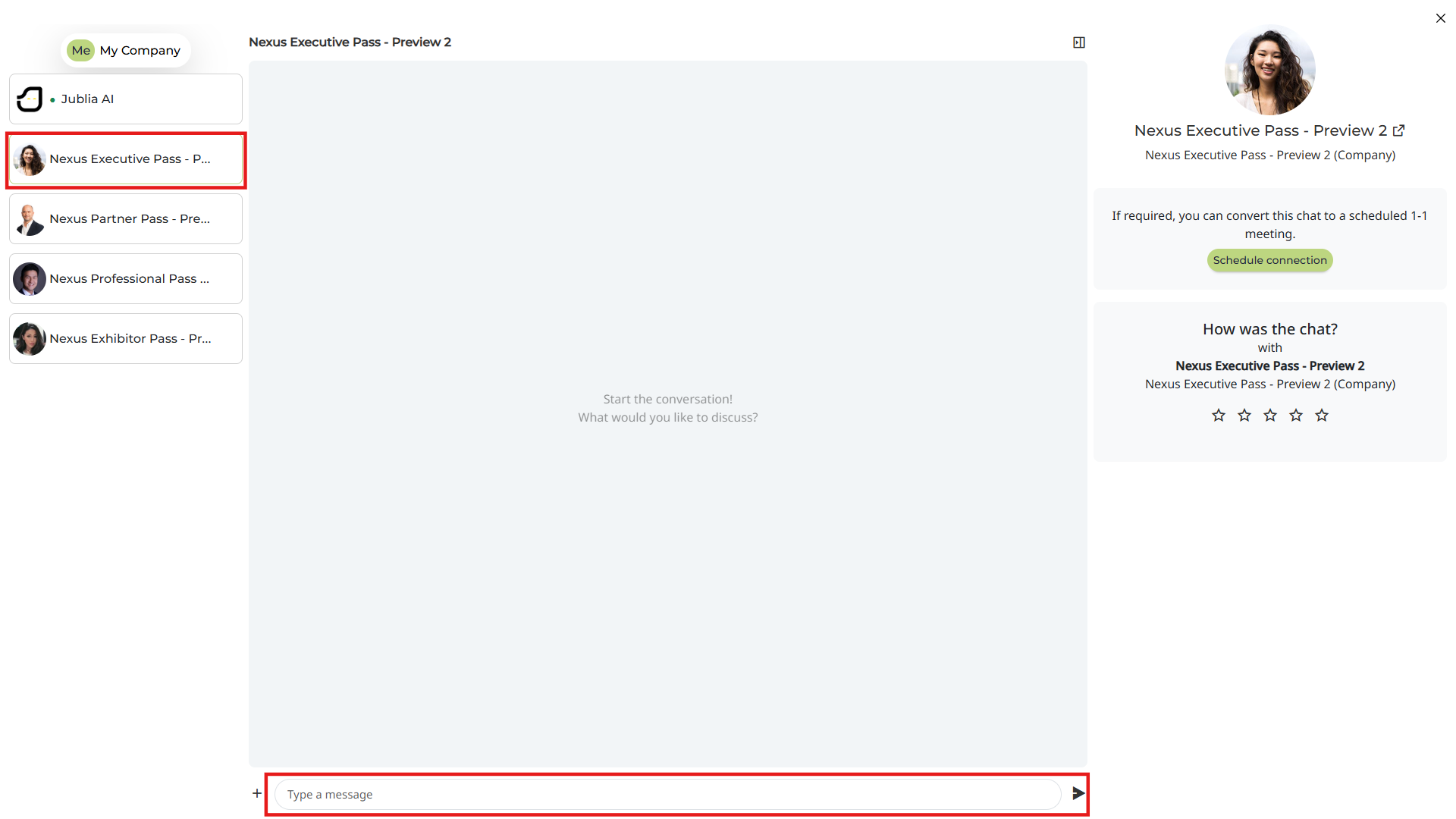
Select the Person's Name from the list of confirmed connections on the left to open the conversation window and begin typing.
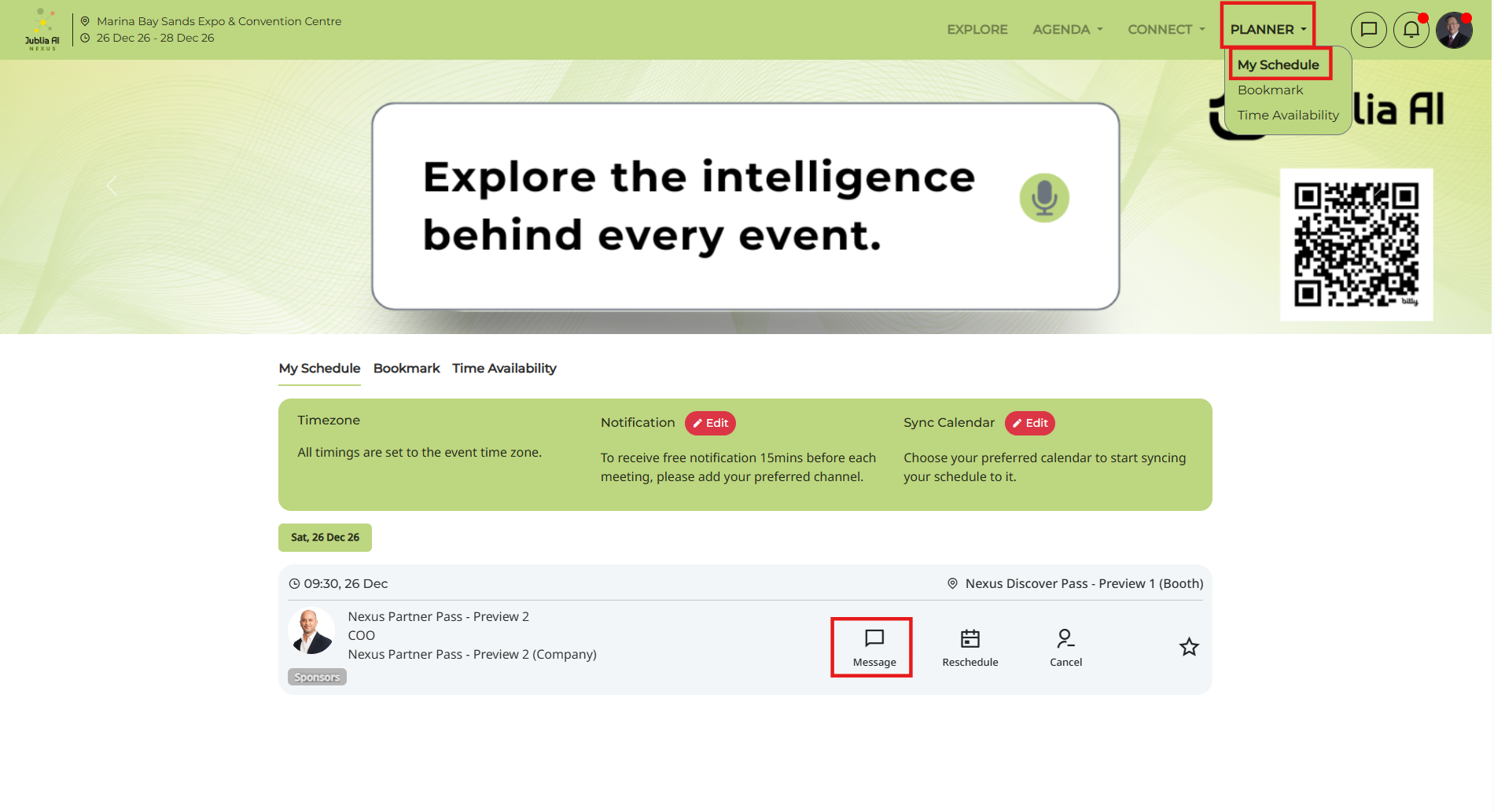
Navigate to the Planner > My Schedule tab and click the Chat Button on a specific user's card or profile to start a direct conversation immediately after a meeting is confirmed. Please note that this list only includes users who have arranged an onsite meeting, while those connecting via chat will not appear here.
Under “Connect” and “Planner”, the chat button will also appear on the people card and profile details once a meeting has been successfully confirmed.
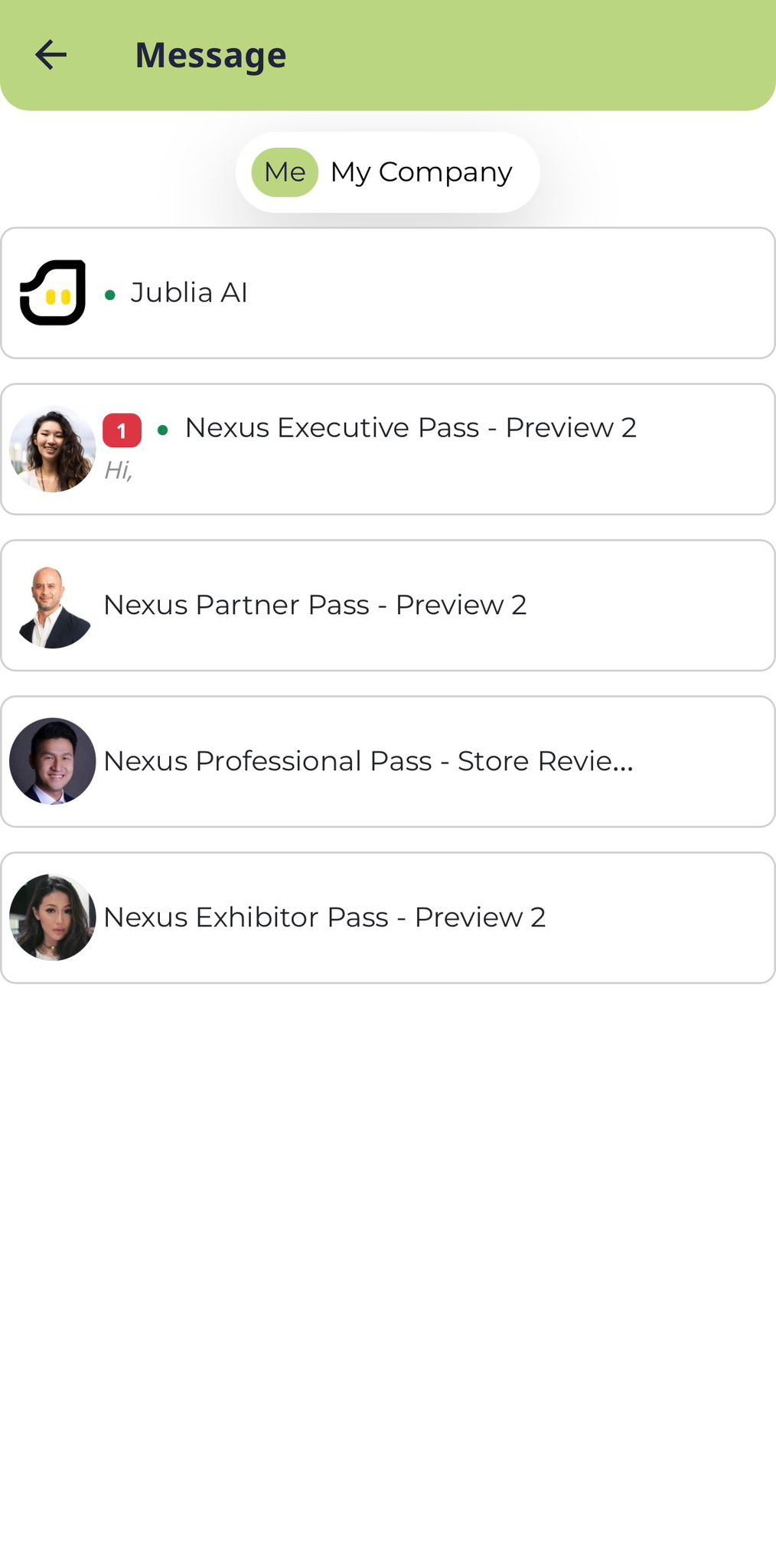
If you're connected with other parties, tap the chat button to access your chat list.
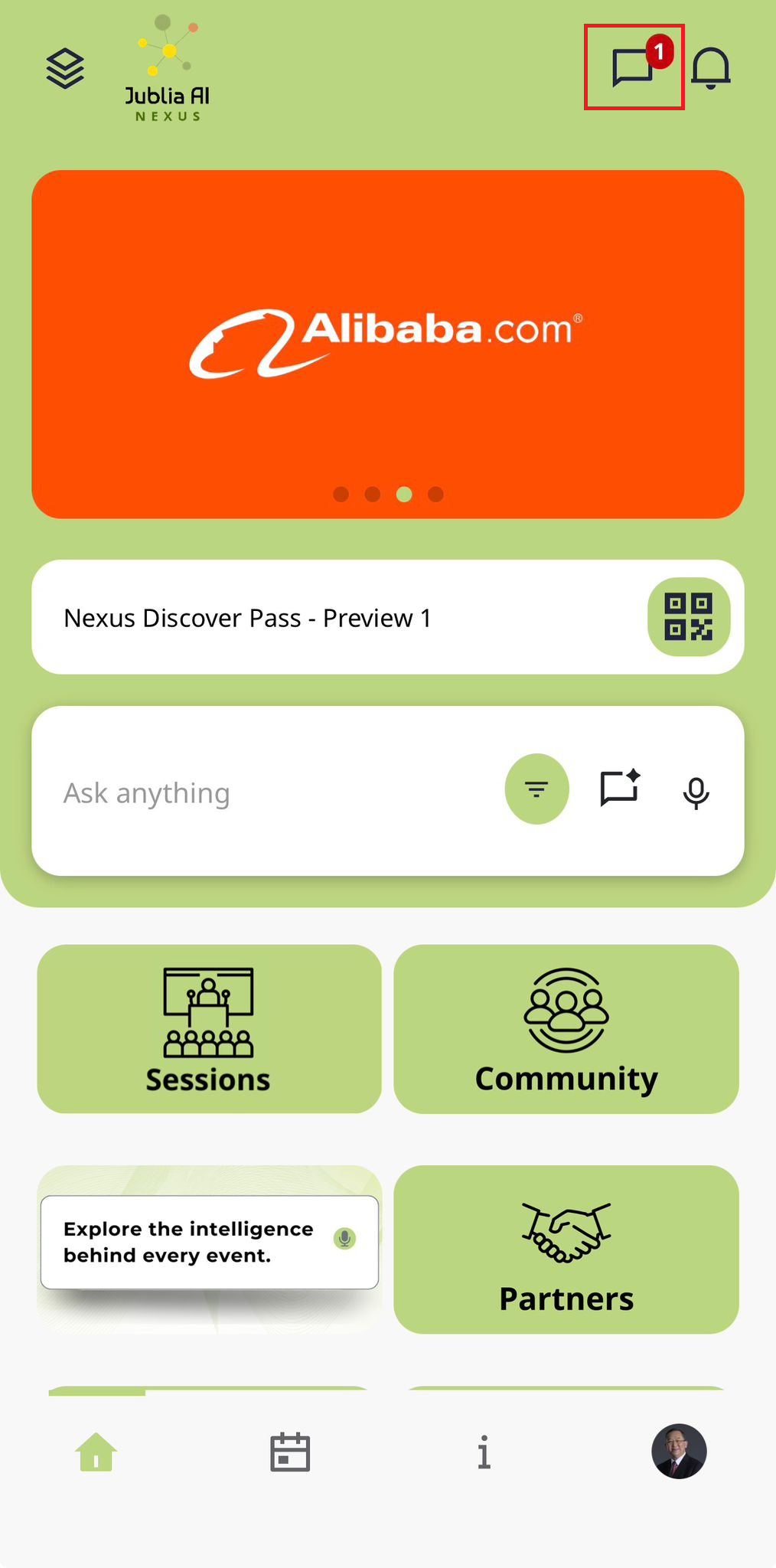
From the chat list, select the party you want to chat. When a message is sent, a push notification will appear on the other party's mobile device (if they have downloaded and logged in to our app). If the chat is not opened within 10 minutes, the other party will also receive an email notification about the new message.