How to Join the Virtual Meeting Room
In this article, we will guide you through accessing a virtual meeting room if you have a virtual meeting scheduled.
Read this guide in
| 中文 | ภาษาไทย | 한국어 | tiếng Việt | 繁體中文 | Bahasa Indonesia | 日本語 | Español | Portuguese |
Web App
Step 1: Access your schedule
Go to the Planner page on the menu bar.
Go to the My Schedule tab and click on the meeting you want to access.
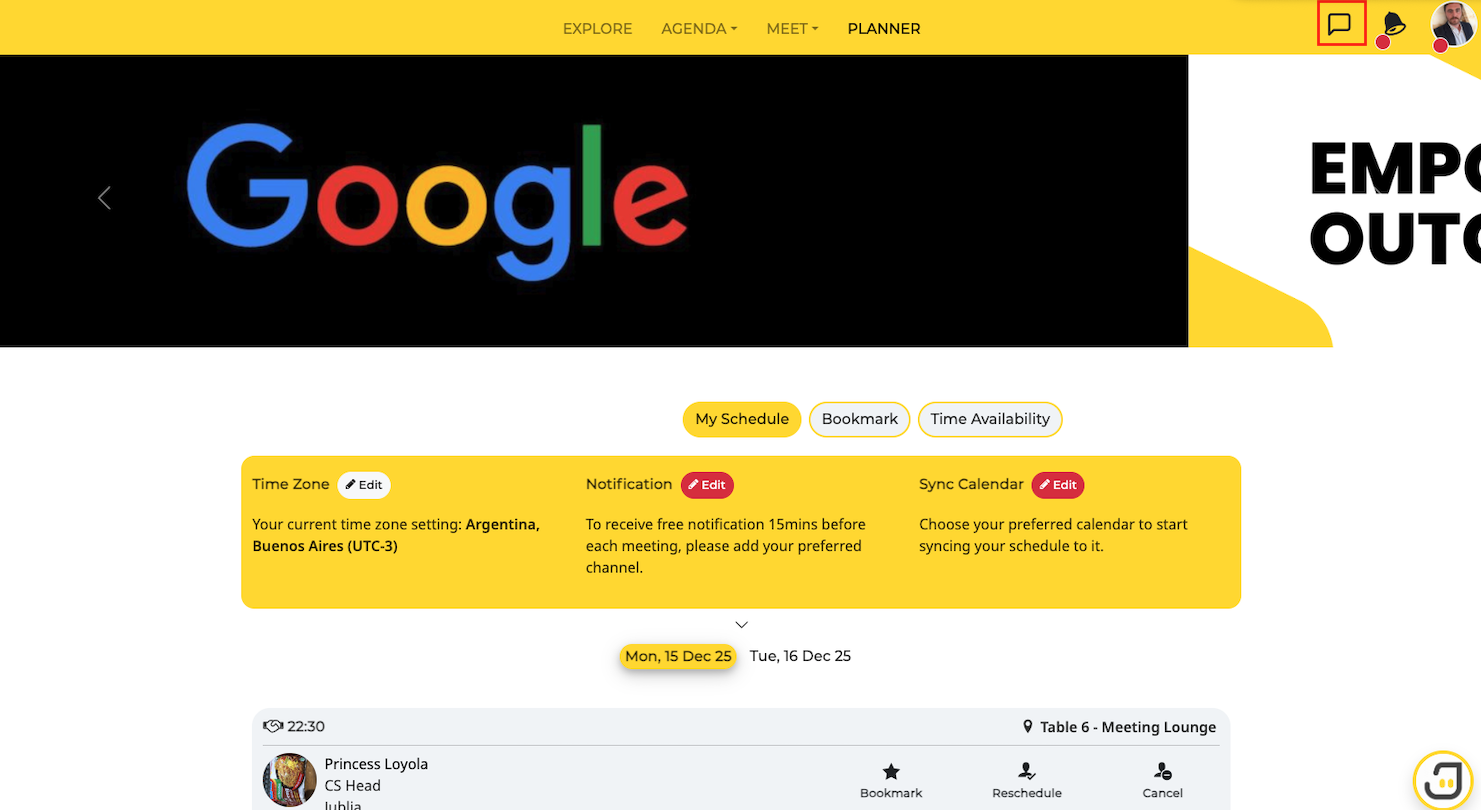
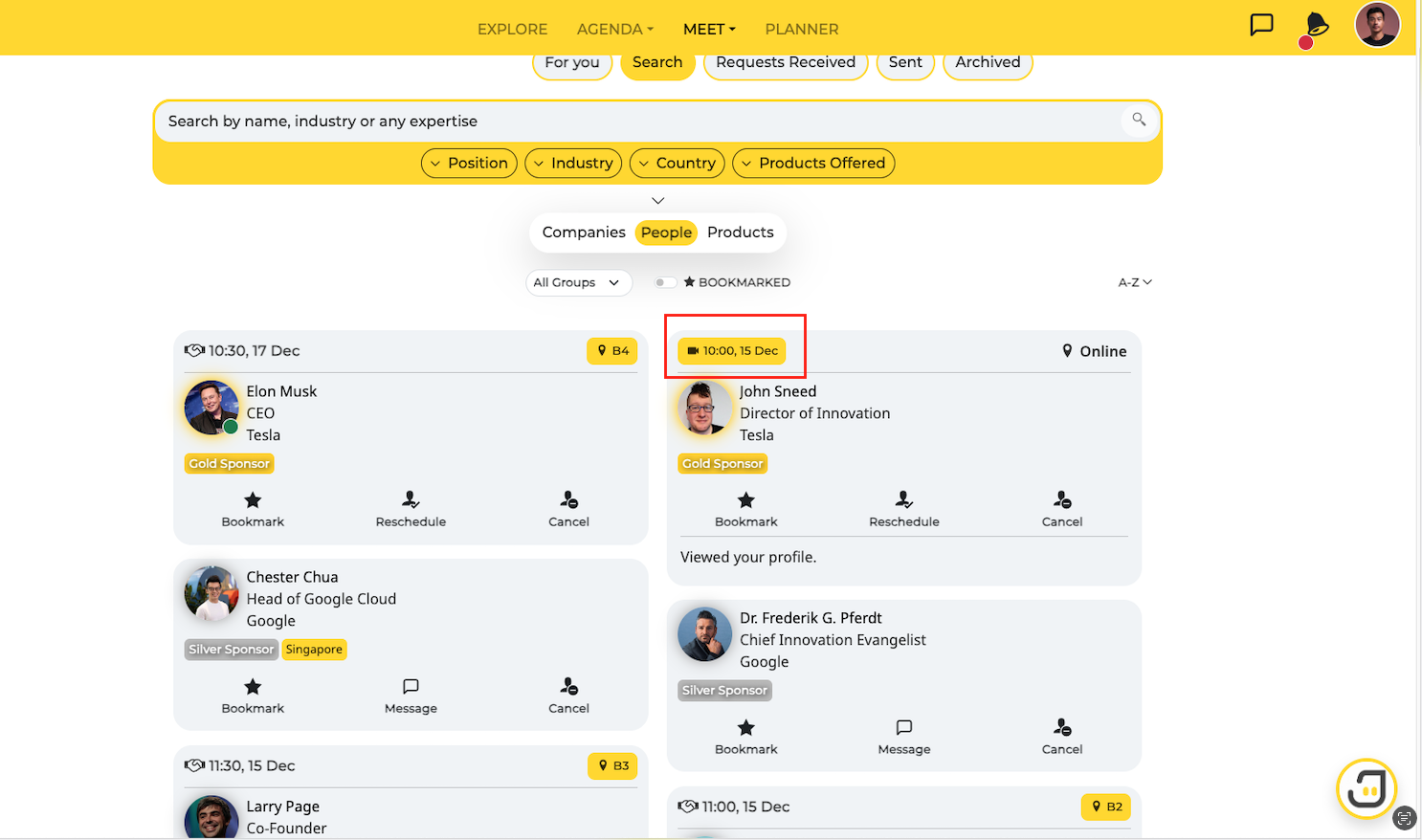
Step 2: Access the meeting
Click on the video icon with the date and time
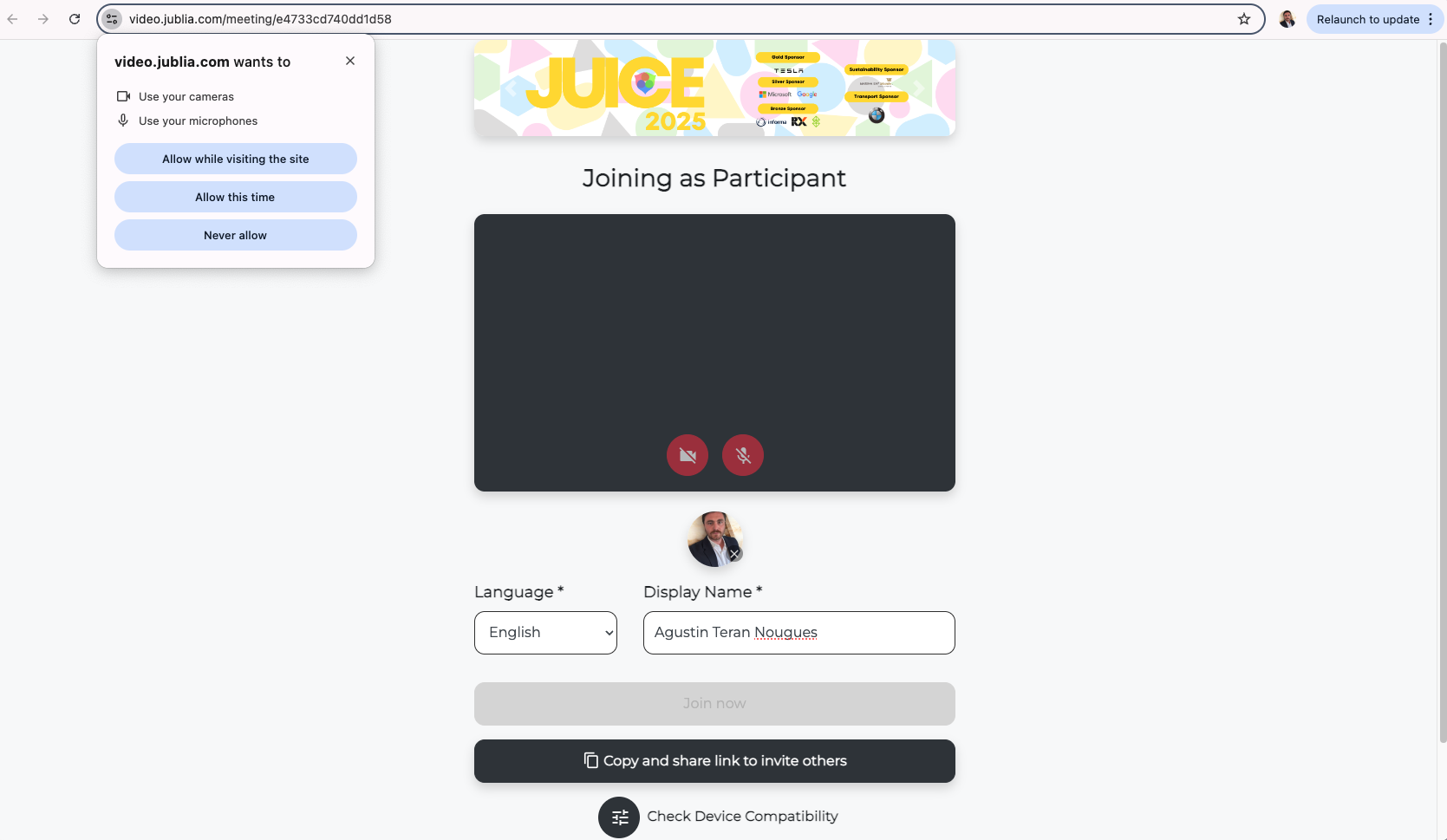
Step 3: Enter the virtual room:
Add your name and choose the preferred language
Click Join the meeting
Please note that you can only enter the virtual meeting room 15 minutes before the meeting time.
Step 4: Join the Virtual Meeting
For a better understanding of the functions of each feature on the virtual meeting application, refer to the details below:
Camera: To turn on and off the camera
Microphone: To mute or unmute your microphone
Share Screen : To share your device screen to others in the meeting
Switch View: To switch your view on the people in the meeting
Background Blur: To make your background blur
Message: To send message to
Participant: To view the participants in the virtual meeting
Native App
Step 1: Access Your Confirmed Meeting Schedule
Navigate to the Planner menu using the bottom navigation bar, go to the My Schedule tab, and filter by Meeting.
Step 2: Identify virtual meetings by the camera icon in the top right corner
Tap the location pointer, and it will direct you to the virtual meeting room.