Read this guide in
| 中文 | ภาษาไทย | 한국어 | tiếng Việt | 繁體中文 | Bahasa Indonesia | 日本語 | Español | Portuguese |
Incorrect Email : Using an unregistered email address will cause the authentication to fail.
Expired link : clicking an expired/incorrect link for your first-time login will cause the authentication to fail.
Blocked or Restricted Services: Some apps, networks, specific region or OS-level settings may block deeplink redirection mechanisms, especially if they rely on services like Google or Apple for validation.
Email Clients Limiting External Redirection: Certain email clients, like Microsoft Outlook, may block or fail to open external links properly. See more here: Outlook and Deep Linking Limitations – Microsoft Docs
Ensure you are typing the exact email address registered for the event. As a result, the system will recognize your account and allow you to proceed.
For your first-time login, ensure you are clicking the official access link sent by the system. As a result, your account will be authenticated properly.
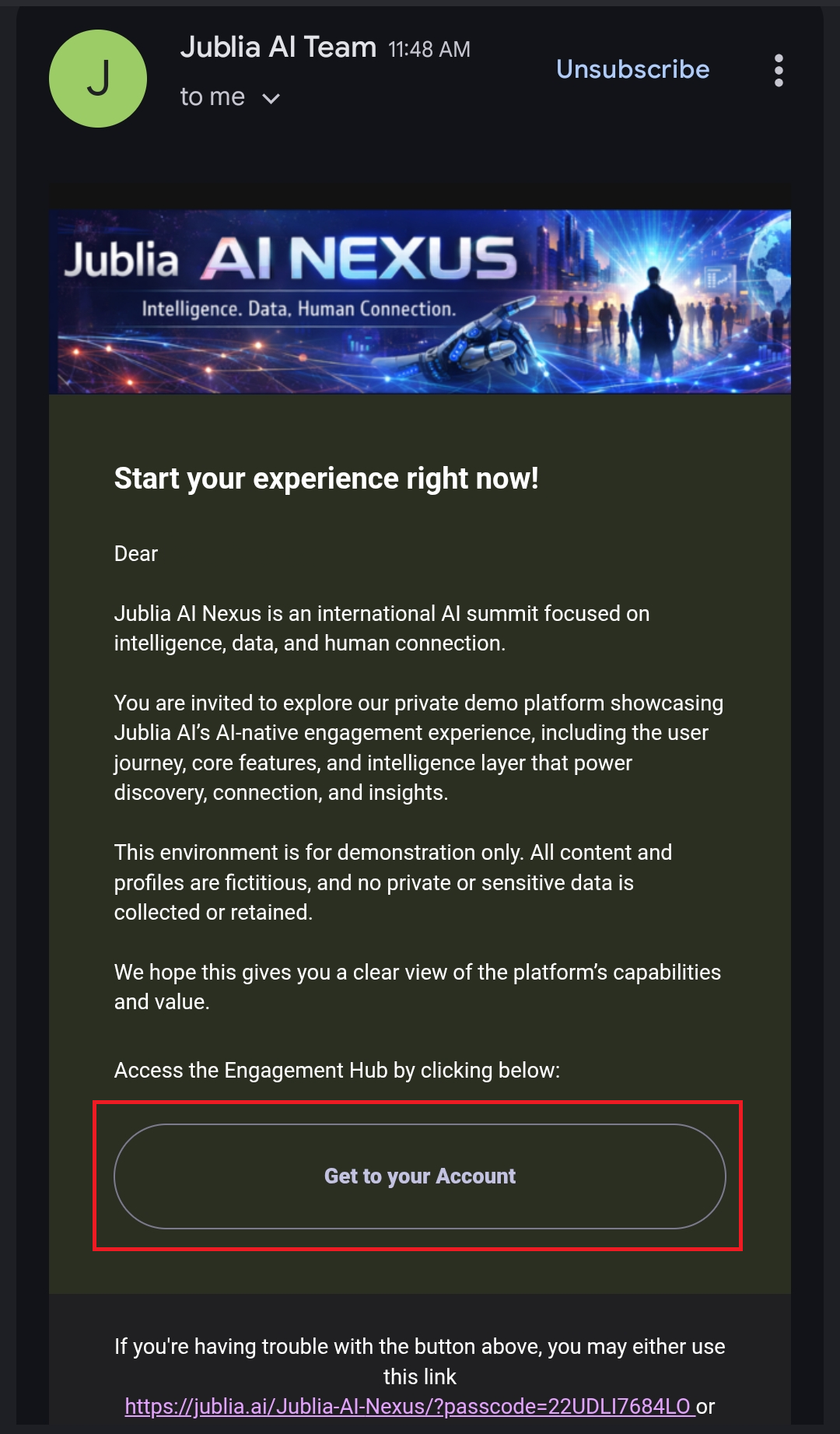
On the sign-in page, click the Log in with Email option.
Type your registered email address into the provided field and proceed.
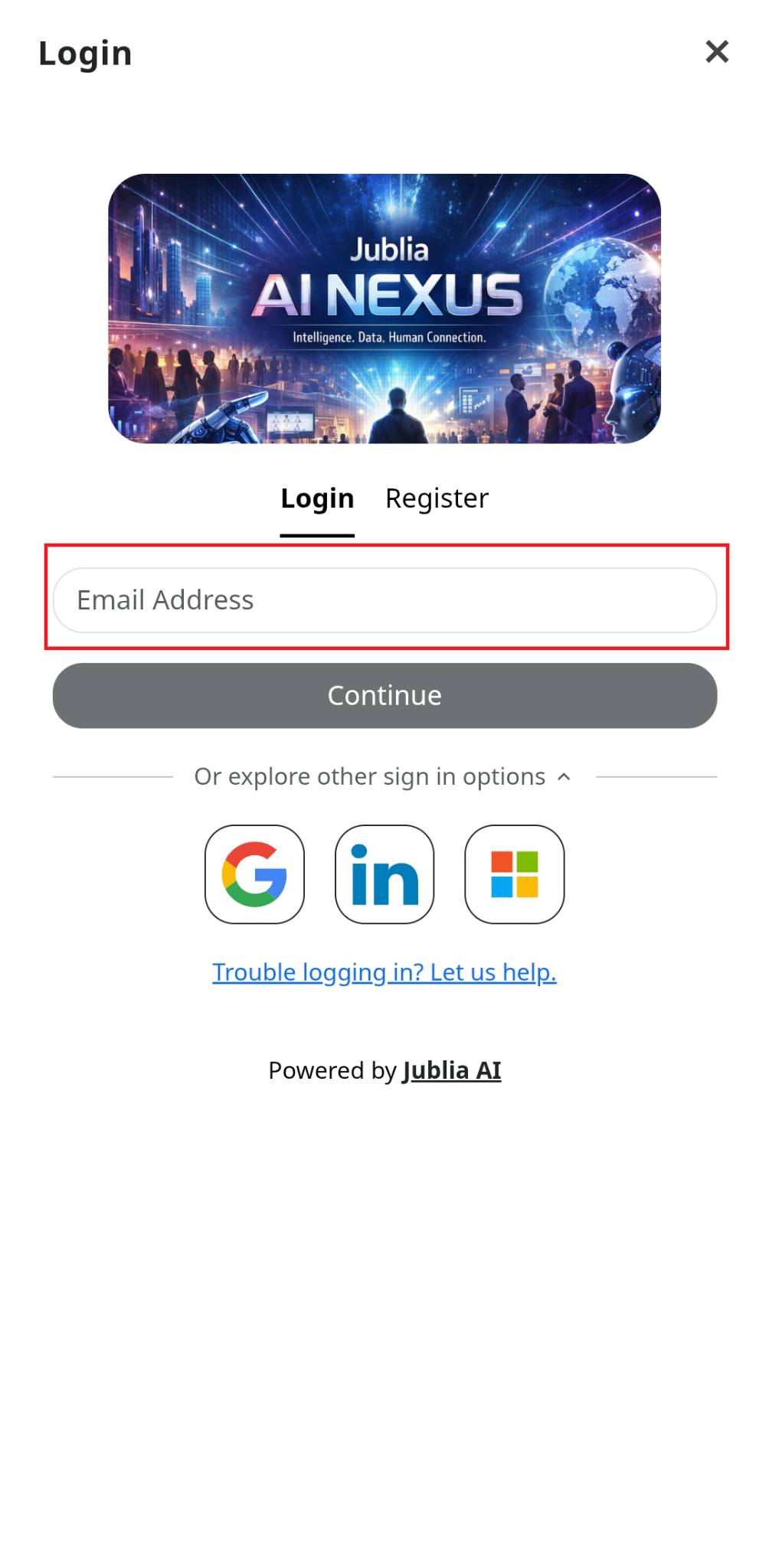
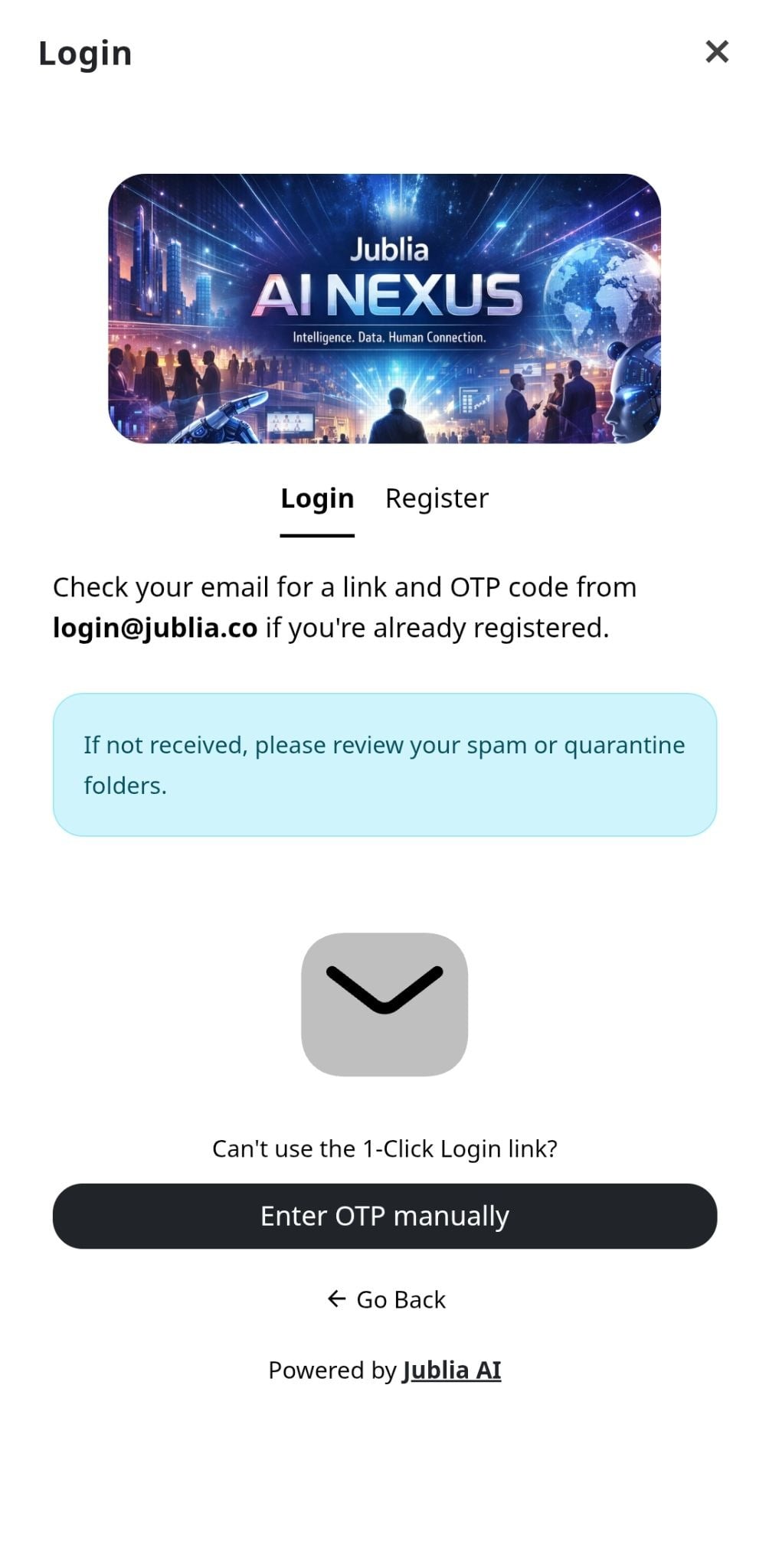
Check your inbox for the Platform Login email and enter the unique OTP code into the native app.
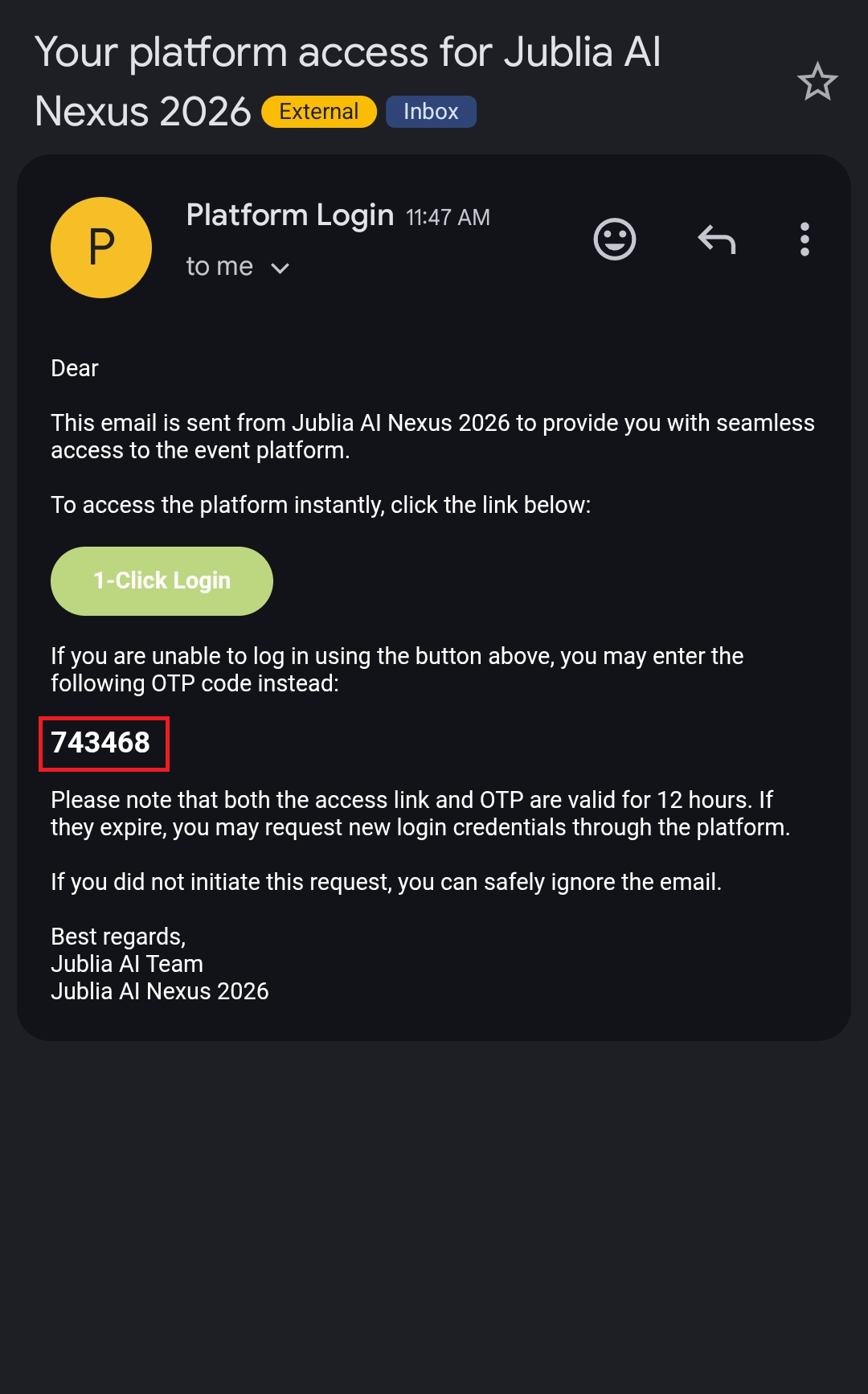
As a result, you will successfully bypass the blocked deeplink and complete your login.
Single-Use OTP: Each OTP (One-Time Password) is generated for one-time use only. Once an OTP has been successfully used to log in, or if it expires, it cannot be used again for subsequent login attempts.
For enhanced security and consistency, all OTPs have an expiration period of 12 hours from the moment they are generated. This duration aligns with the expiration policy for our 1-Click Login access.
You have a maximum of 5 attempts to correctly enter your One-Time Password (OTP). If you happen to type the code incorrectly five times in a row, the system will then require you to request a new OTP.
Additionally, to prevent brute-force attacks, your account will be subjected to a temporary block of 5 minutes from making further OTP requests after these 5 failed attempts.
The system maintains a rate limit of 60 seconds per request for all login email requests (e.g., requesting an OTP or a magic link). This means you must wait at least one minute between successive requests to prevent spamming or system overload.
You can find the 1-click login link in the email, If the 1-click login link doesn't open the app automatically:
Copy the login link directly from your email inbox.
Paste it into Safari's address bar, but don’t press the Go button yet.
Wait a moment. If iOS detects that the app can open the link, a prompt will appear: “Open in [App Name]”
Tap that prompt to proceed.
If issues persist, try restarting the device to reset app association caching. Reference: Fixing AASA File Issue – Branch.io
Go to Settings > Apps > Default Apps > Opening Links, and ensure that “Instant Apps” is enabled.
On Samsung devices, go to:
Samsung Internet Browser > Settings > Security and Privacy > Disable “Block Opening External Apps” Reference: Samsung Forum – Disabled Links in Emails