Read this guide in
| 中文 | ภาษาไทย | 한국어 | tiếng Việt | 繁體中文 | Bahasa Indonesia | 日本語 | Español | Portuguese |
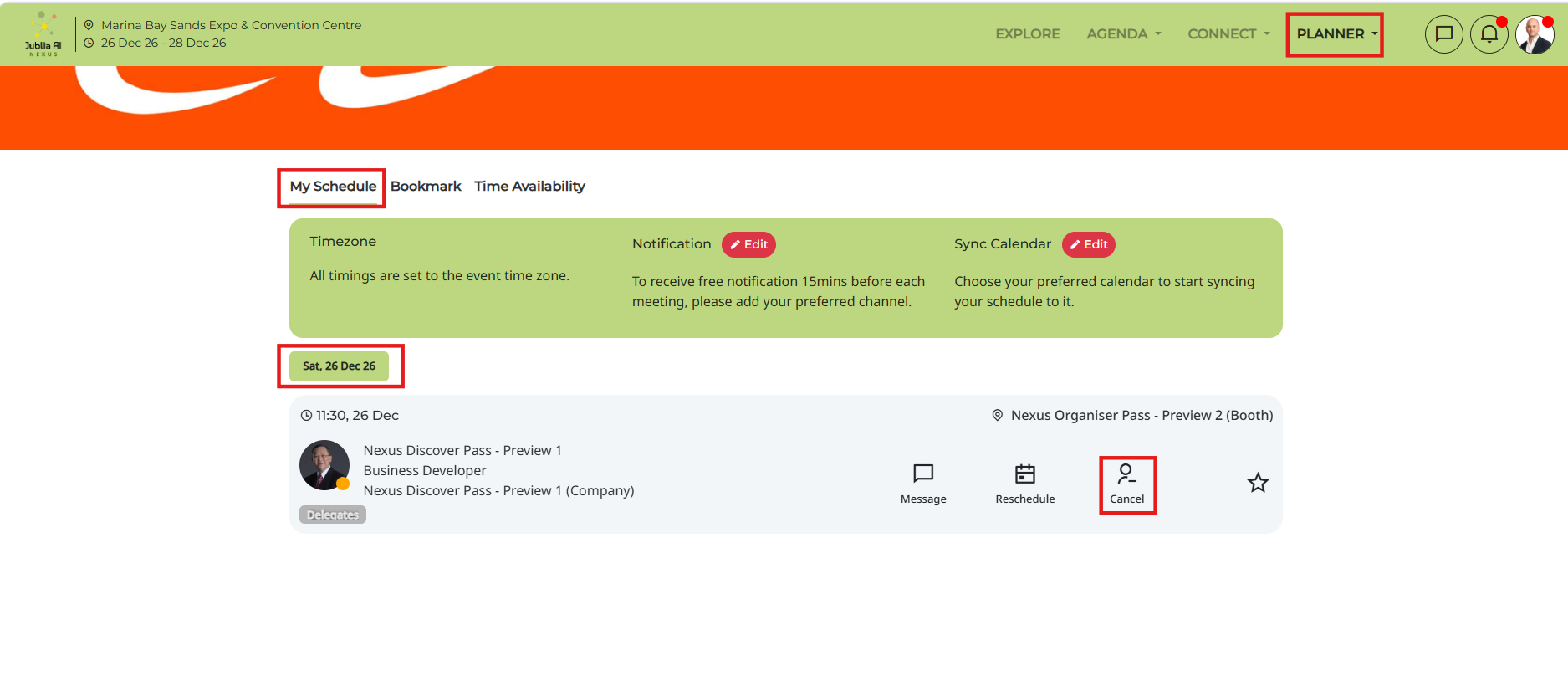
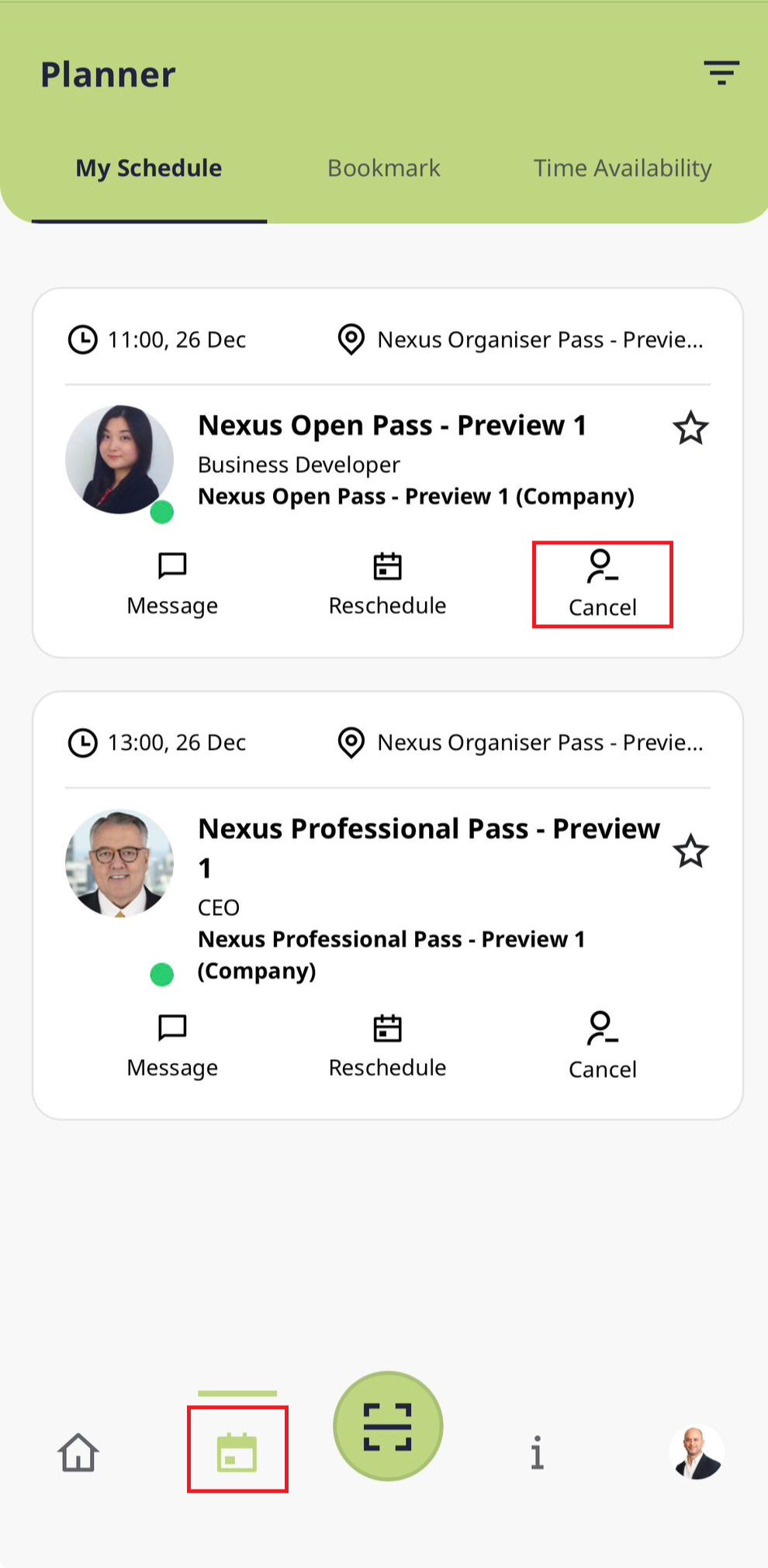
Navigate to your Planner on the top navigation bar and select the specific meeting you wish to modify.
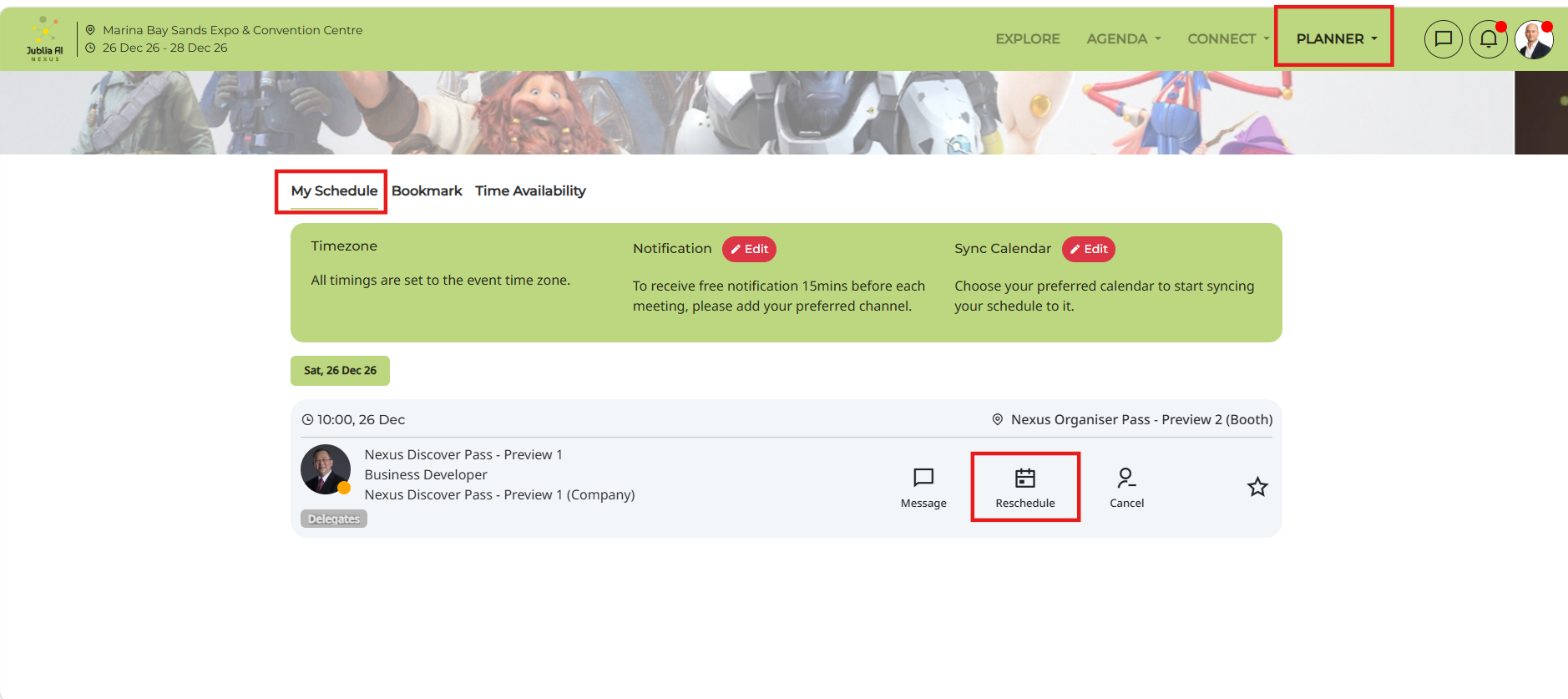
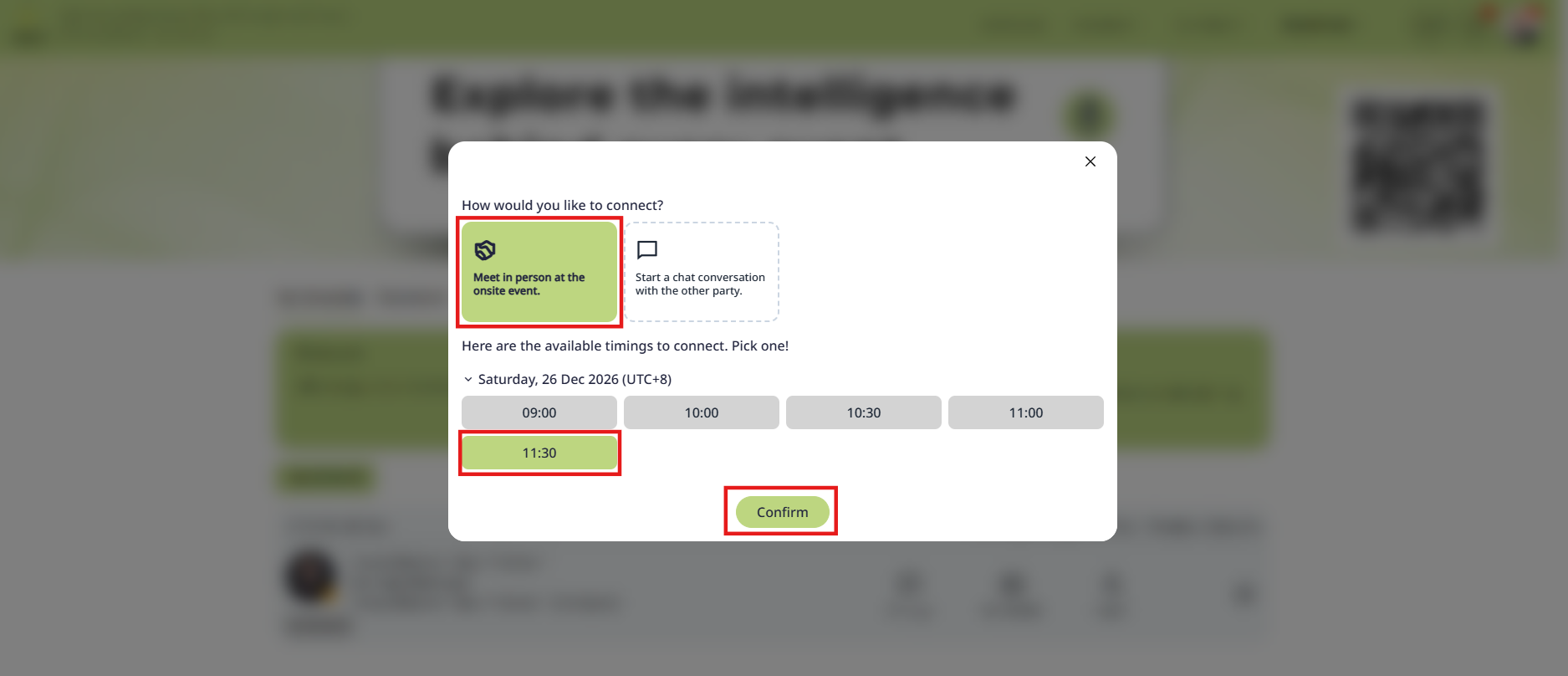
Click the Reschedule button on the meeting card, select your preferred meeting format (Onsite or Chat), pick a new time slot, and click Connect to send the update.
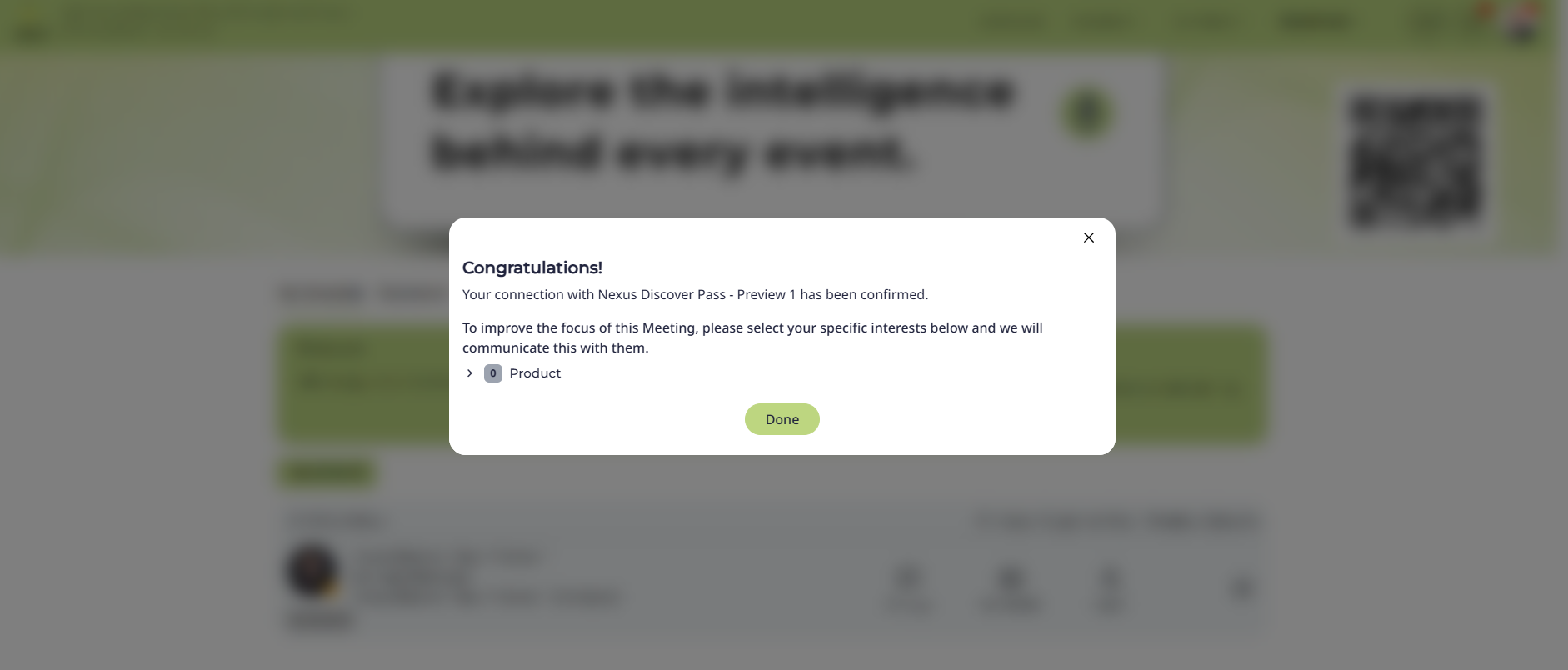
You will see a confirmation message once the meeting has been successfully rescheduled, and both parties will receive an email which includes details of the rescheduled meeting.
Click the Cancel button on the meeting card to initiate the removal of the meeting from your schedule.
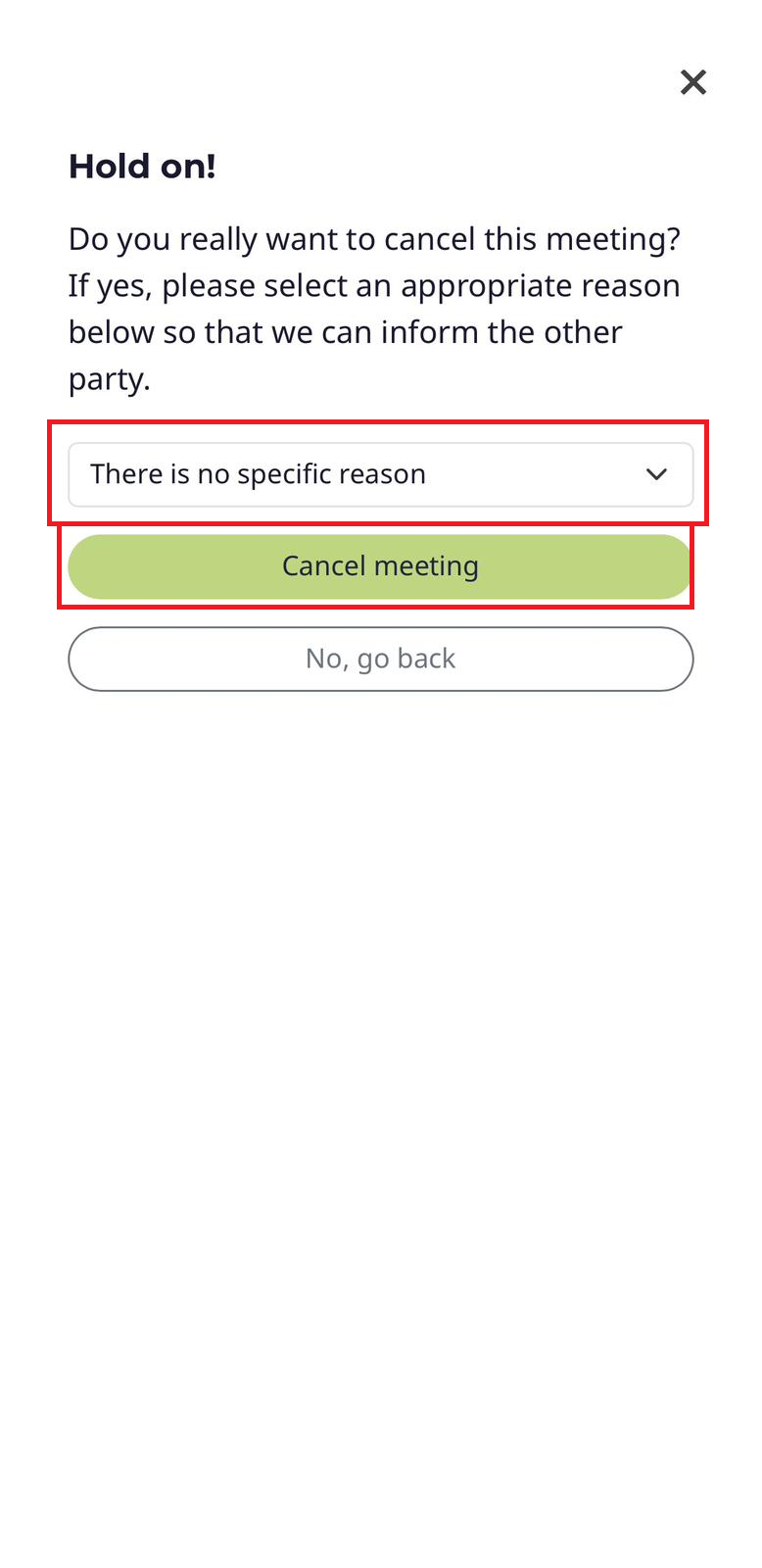
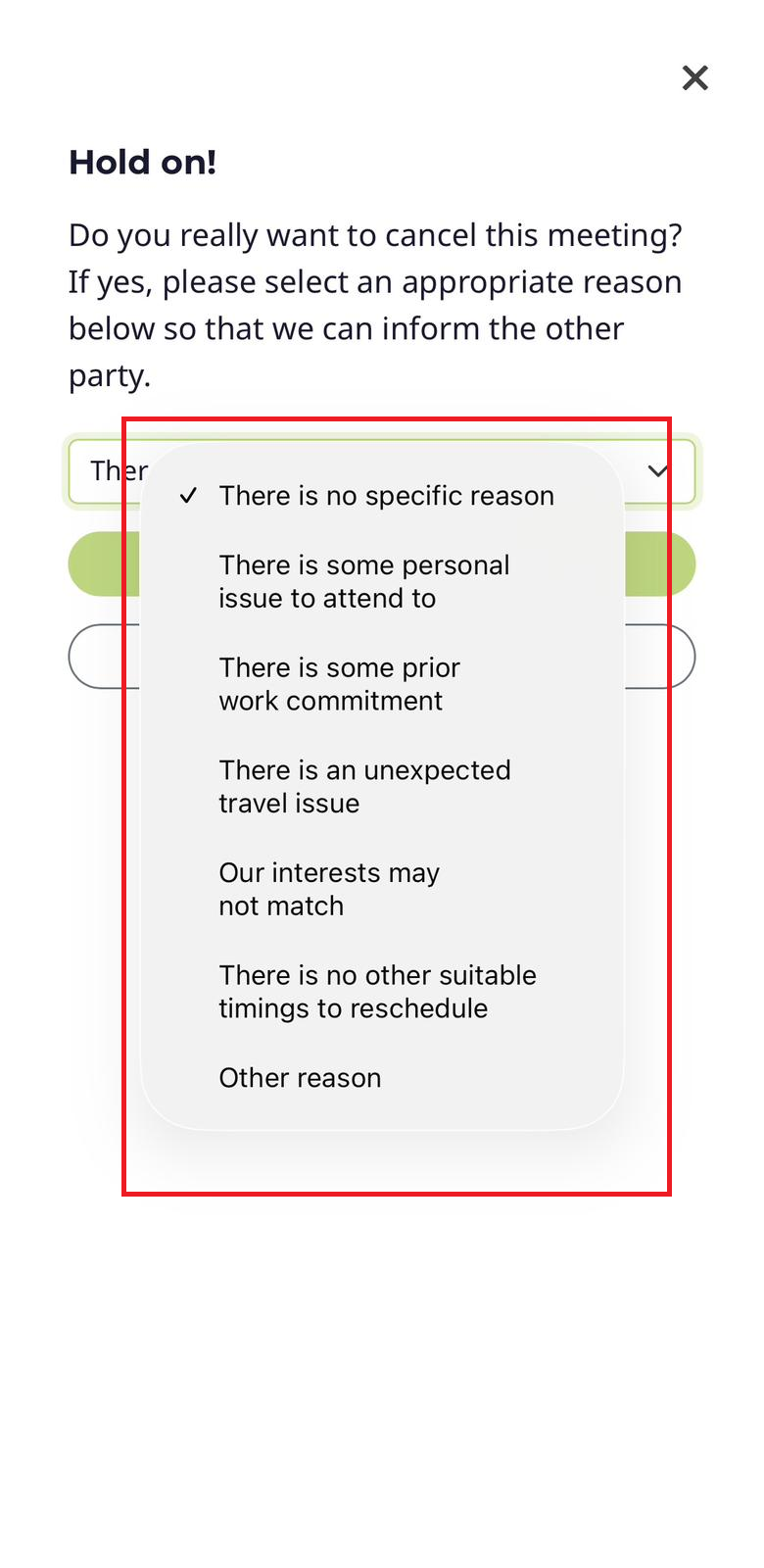
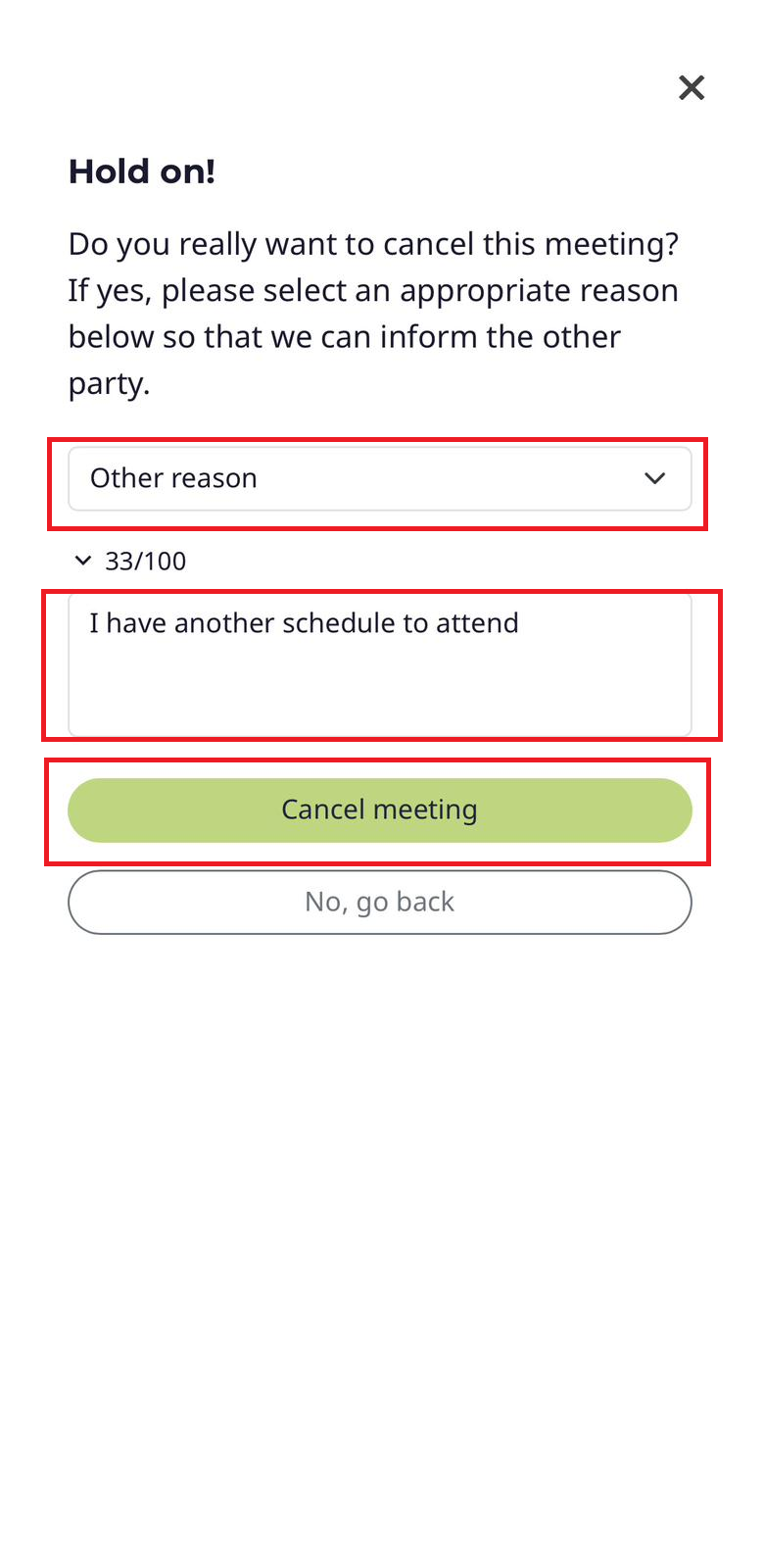
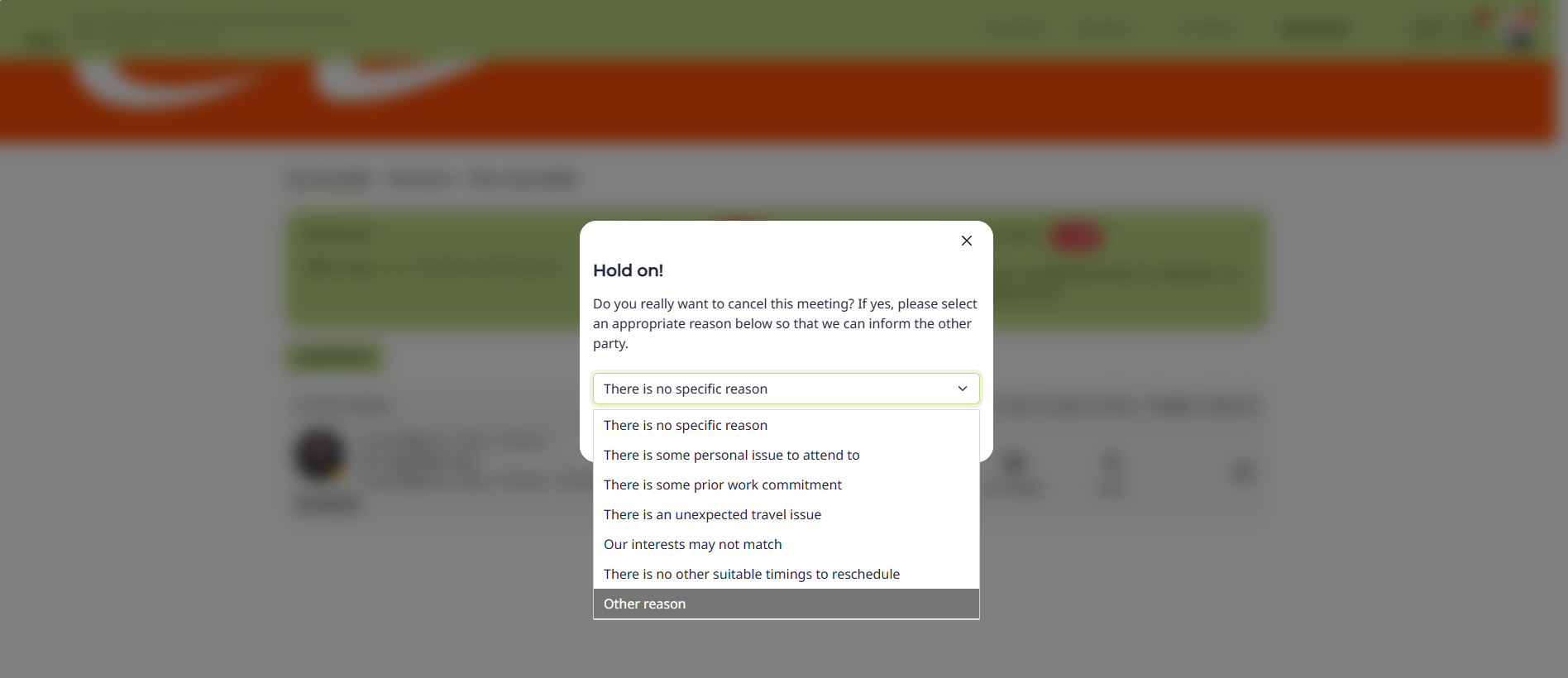
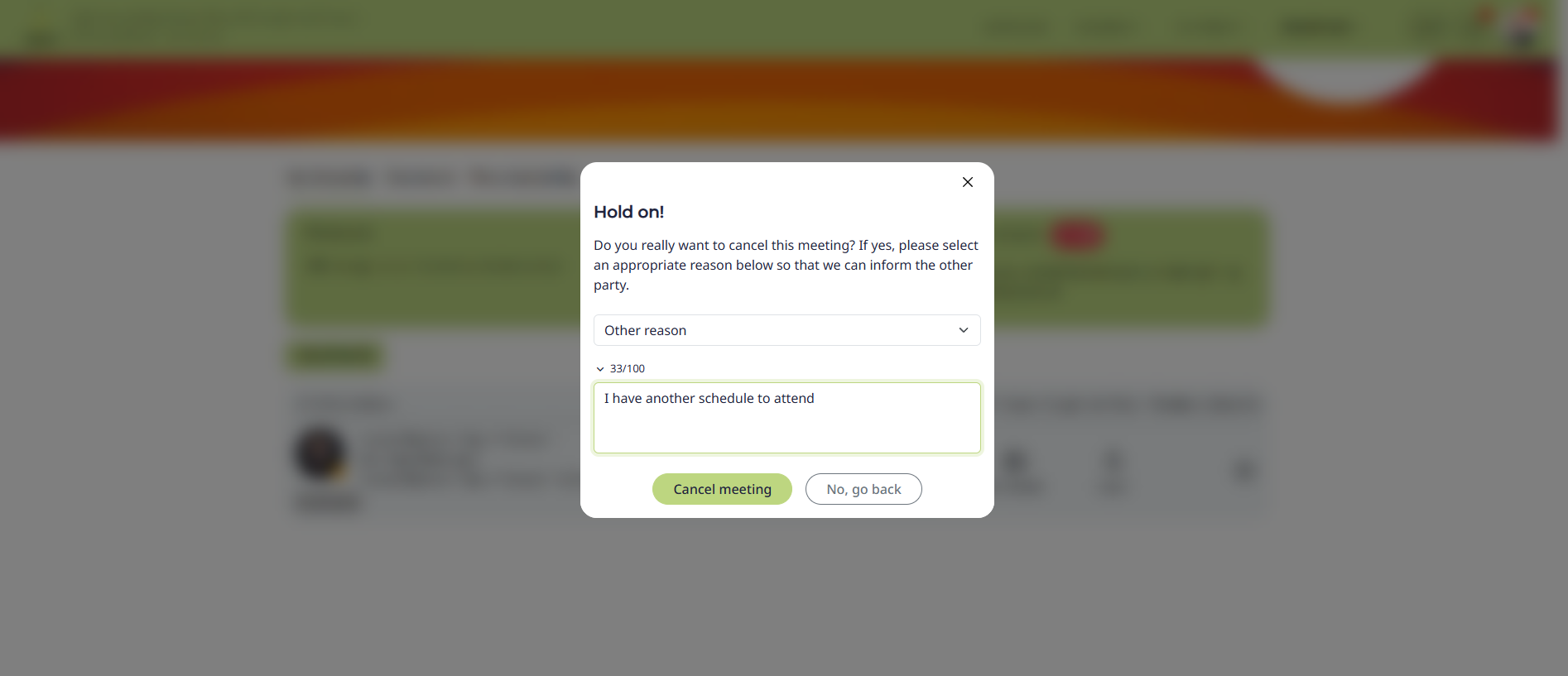
Choose a reason from the dropdown menu or select Other reason to type a custom message, then click Cancel meeting to notify the other party.
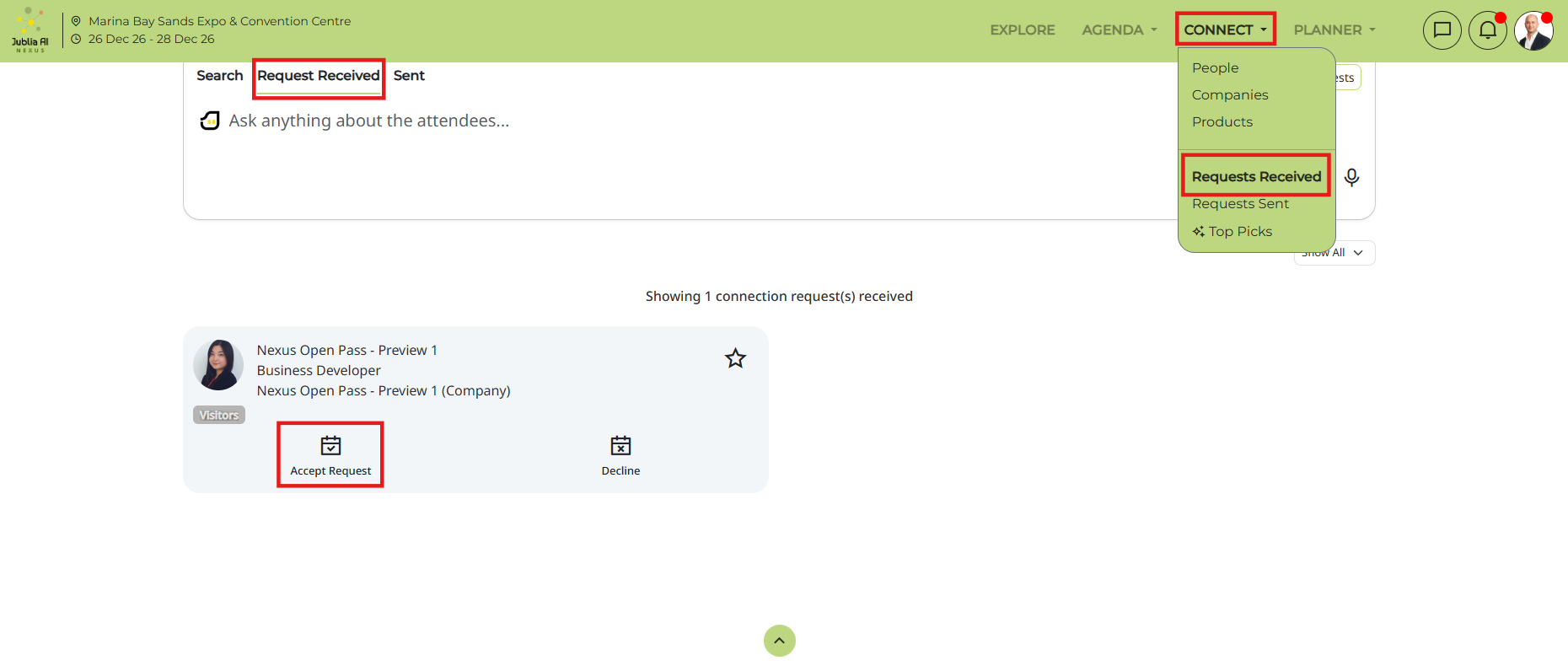
Should you change your mind and wish to accept the meeting request again, go back to your Requests received tab to locate the person that you canceled the meeting with, and simply click on Accept request
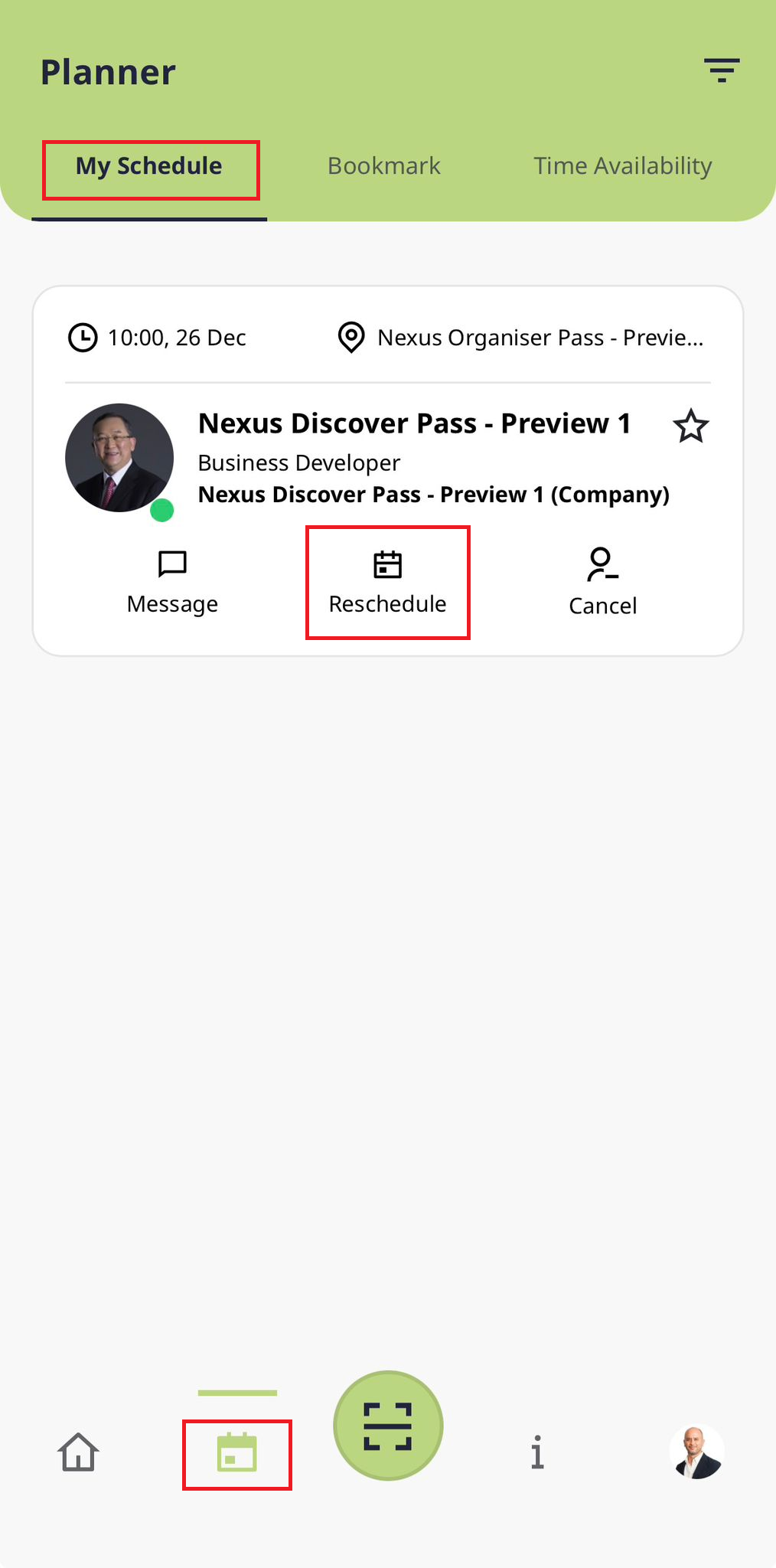
Go to the Planner menu, access the My Schedule tab, and filter by Meeting to view your confirmed meetings.
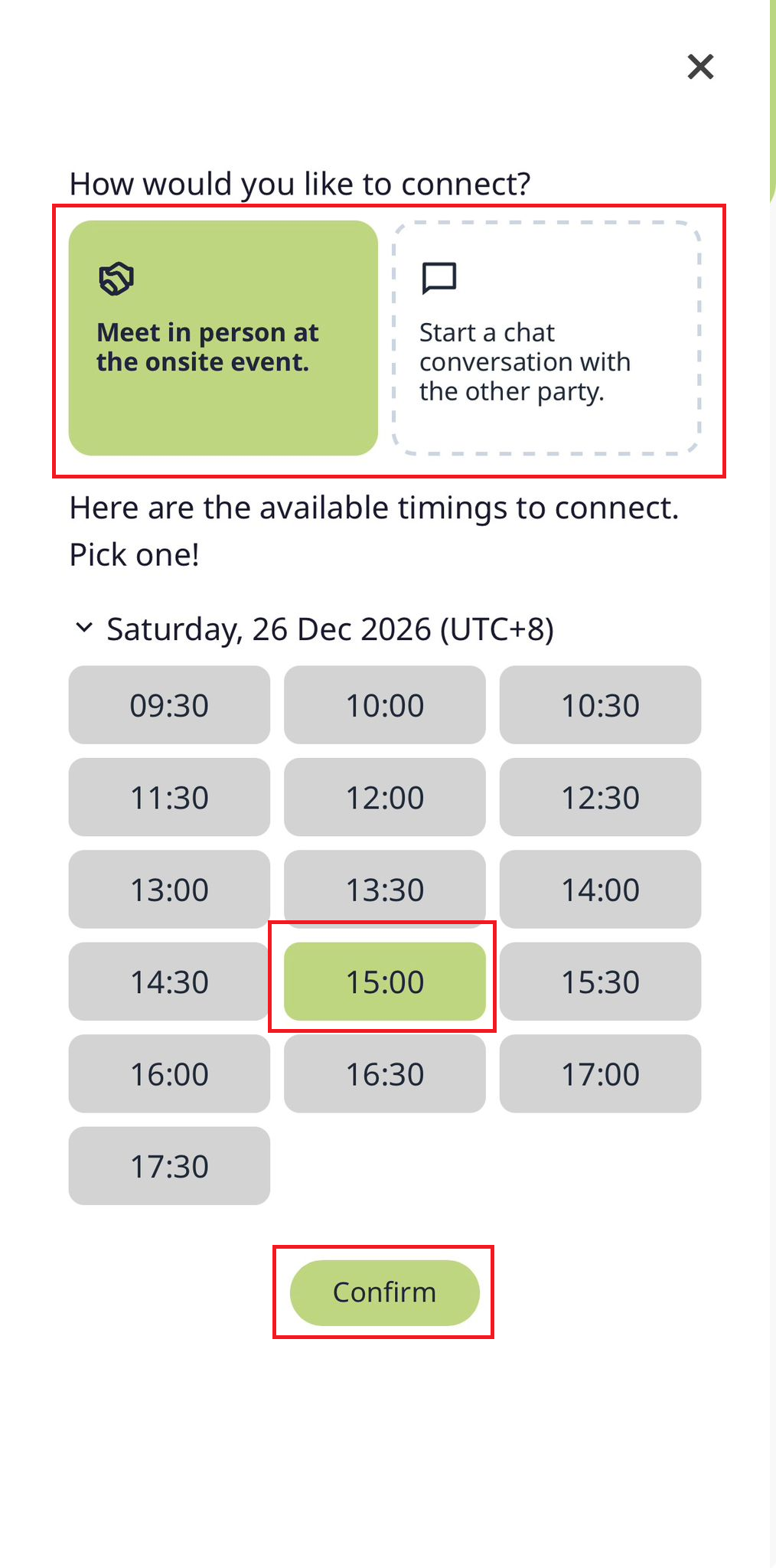
You may reschedule the onsite meeting to a chat meeting format if your event allows it. Otherwise, pick a different time slot to reschedule your onsite meeting to.
Select your preferred meeting format.
Select your preferred time slot to reschedule to and click on Connect
You will see a confirmation message once the meeting has been successfully rescheduled, and both parties will receive an email which includes details of the rescheduled meeting.
Go to your Planner menu, access My Schedule page, filter by Meeting to see your confirmed meetings.
Swipe from right to left at the meeting that you want to cancel
Select Cancel
Choose from the dropdown list the most suitable reason for canceling the meeting
If none of the reasons are suitable, select "Other reason" to include a message for the cancellation
Type your message in the text box and click on Cancel meeting
The meeting will be canceled and removed from your Planner, and the other party will be notified through their notifications and via email.