Read this guide in
| 中文 | ภาษาไทย | 한국어 | tiếng Việt | 繁體中文 | Bahasa Indonesia | 日本語 | Español | Portuguese |
Click your [Profile Icon] in the top right-hand corner of the screen.

Select [My Company] from the dropdown menu. The company profile editor will open.

Click on the respective fields to upload your details. Ensure your files meet the exact specifications to avoid upload errors:
Banner: recommended size: 1200px x 150px, max. image/photo file size: 1 MB and image formats: PNG or JPEG
Logo: recommended size: 250px x 250px, max. image/photo file size: 1 MB and image formats: PNG or JPEG
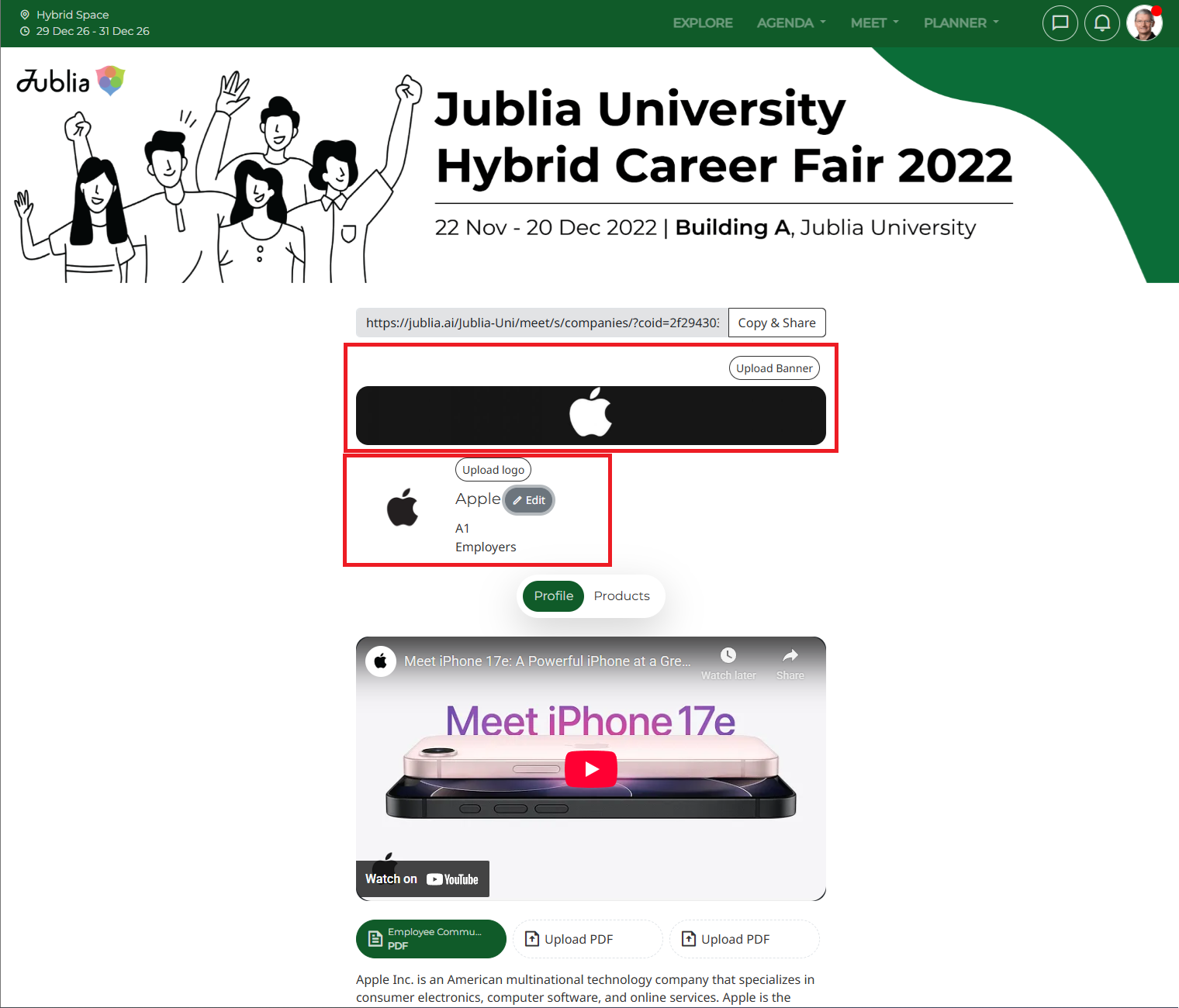
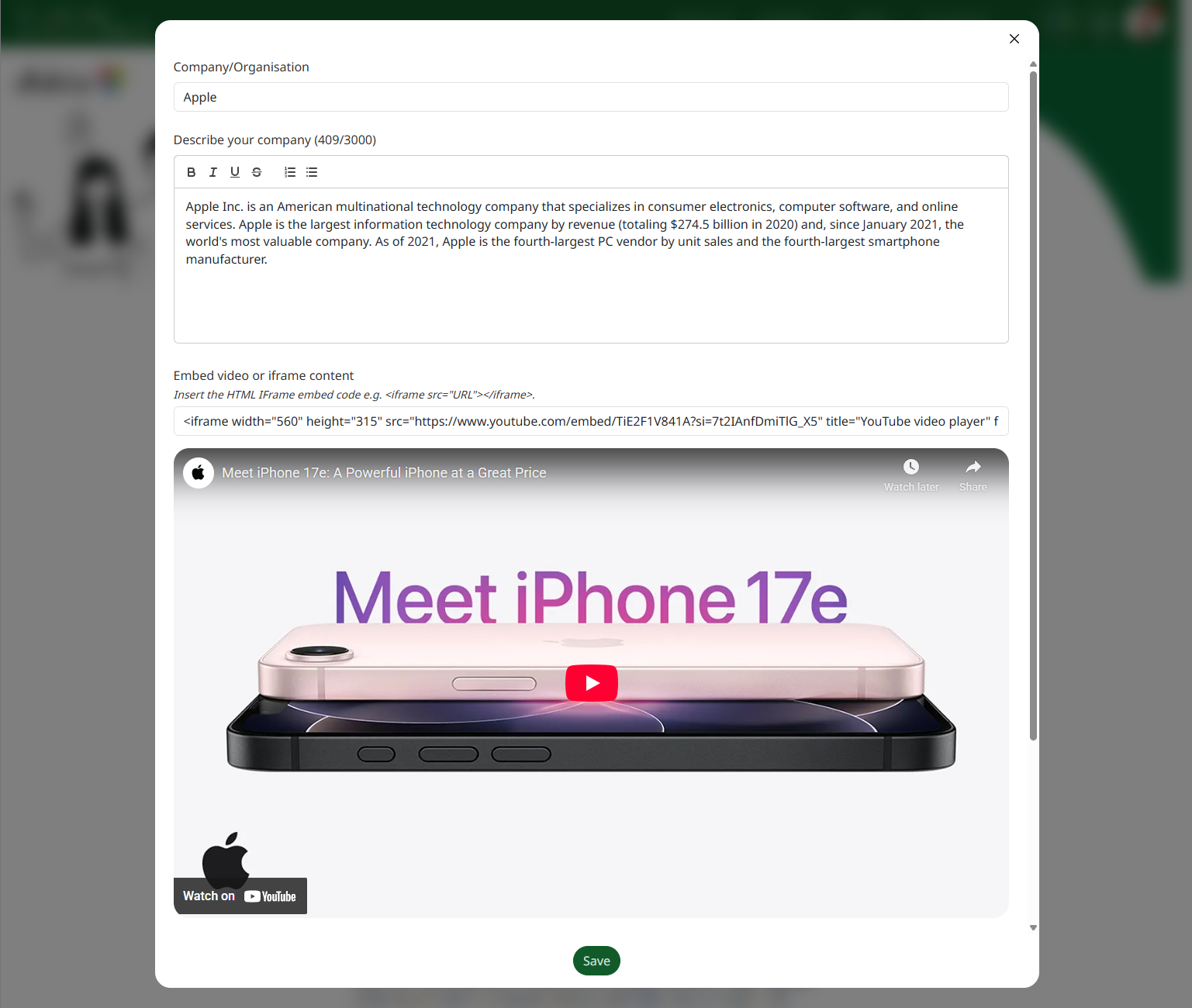
Name & Description: Update your Company/Organization/Faculty/School name and the description (description is limited to 1000 characters).
HTML Iframe & embedded content: Insert the HTML IFrame embed code (e.g Video on Youtube, go to the video page, click Share > Embed > copy the code and paste it
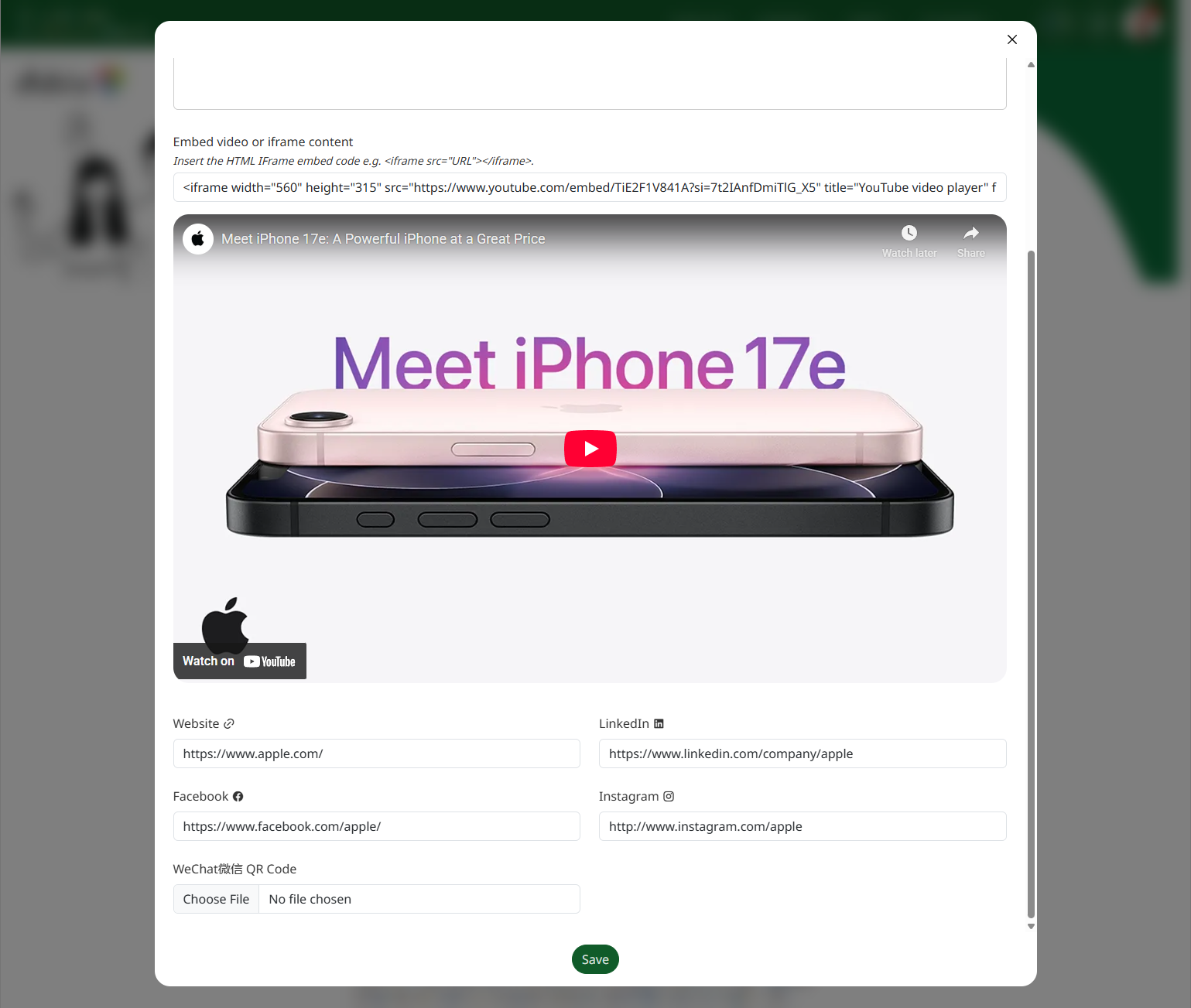
Website and social media accounts (LinkedIn, Facebook, WeChat & Instagram)
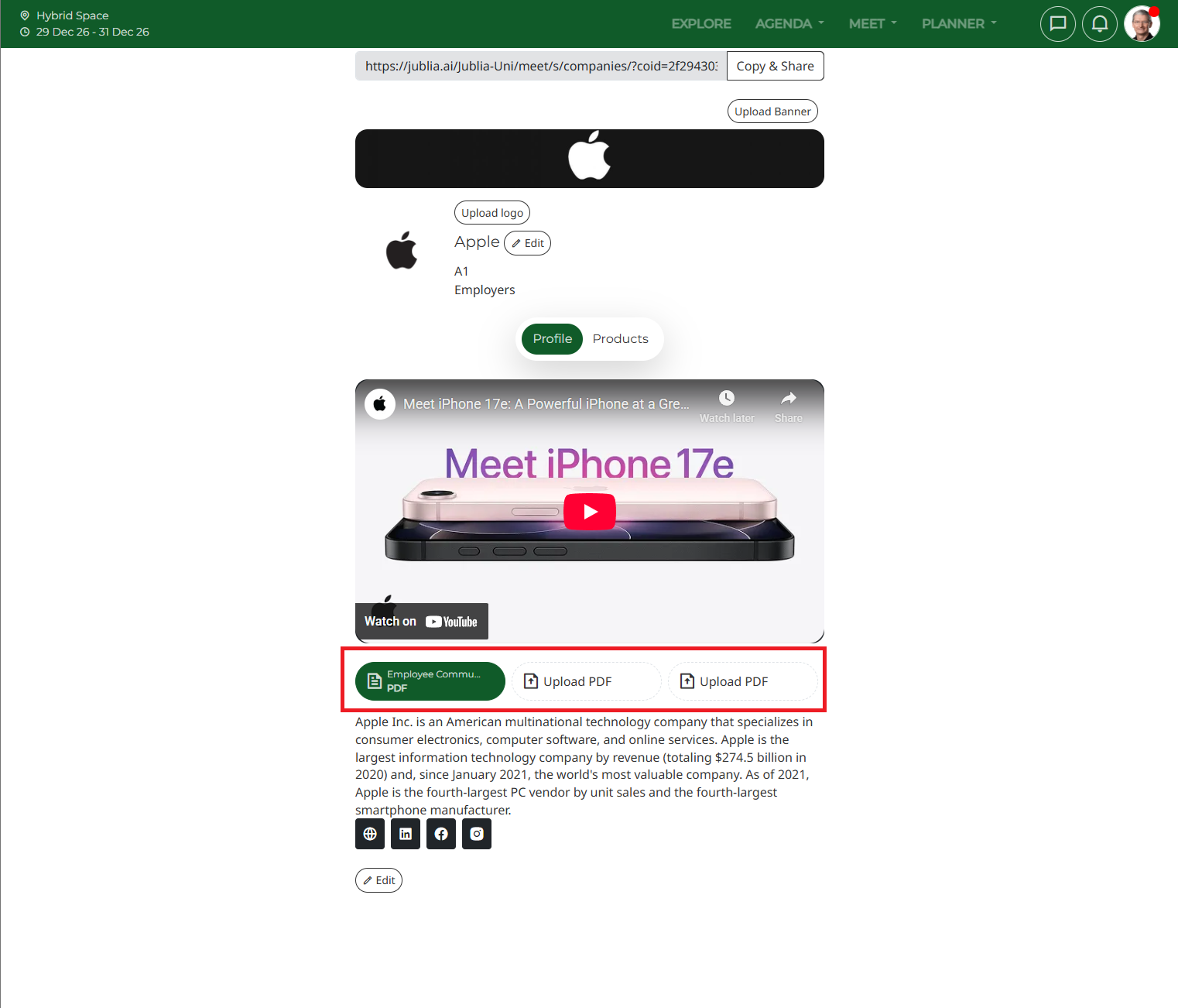
You can also add a company profile in PDF format (maximum 10 MB)
Remember to always click the [Save] button after making any changes to your My Company profile.
Your company profile will immediately reflect the latest updates and be published to the platform.
Ensure your embedded videos (like YouTube or Youku) are set to "Public" or "Unlisted" on their host platform so they can play correctly on your profile.
Keep your company description engaging and incorporate relevant industry keywords to improve your visibility.