Read this guide in
| 中文 | ภาษาไทย | 한국어 | tiếng Việt | 繁體中文 | Bahasa Indonesia | 日本語 | Español | Portuguese |
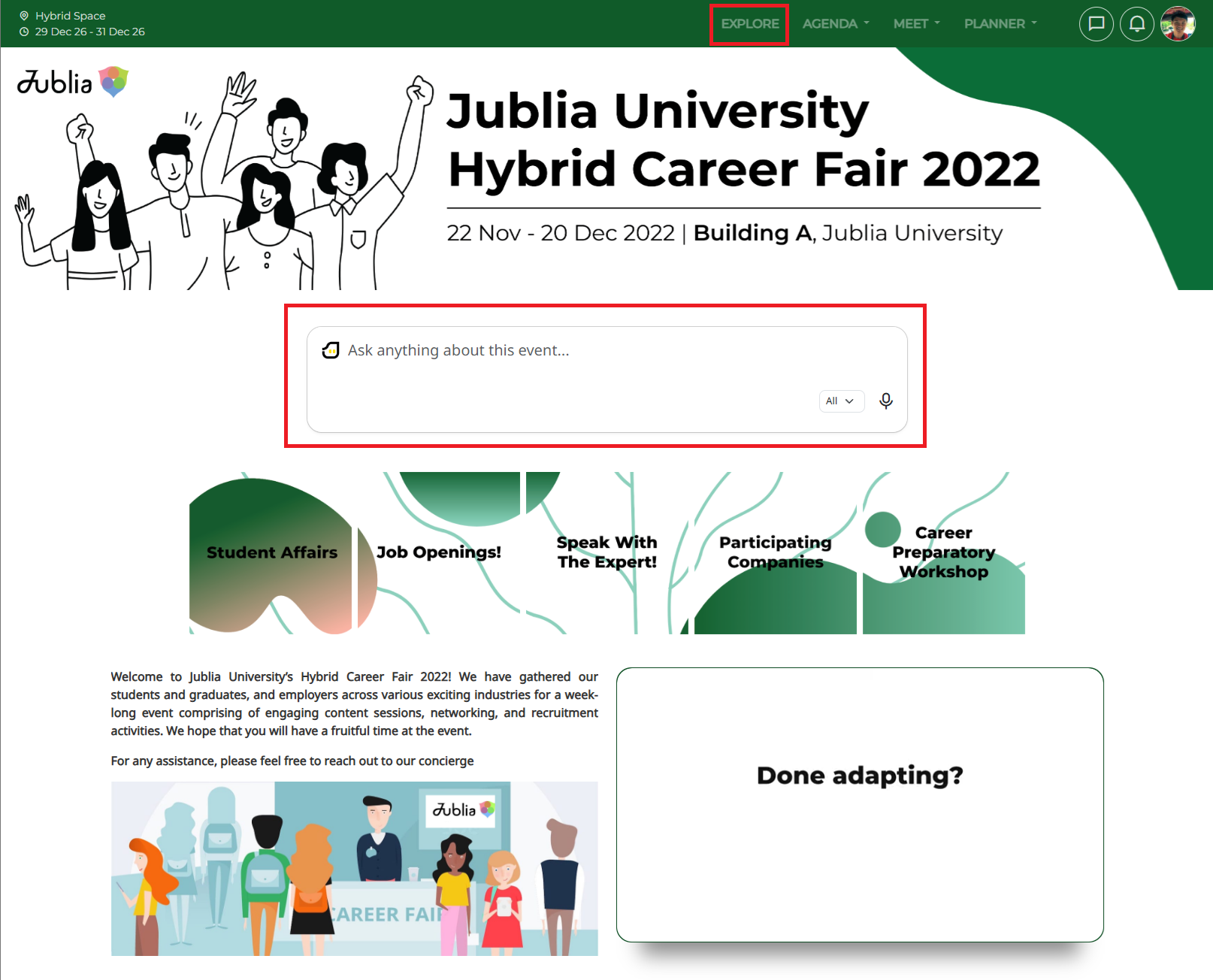
For the fastest results, start on the [Explore] page and use the [Ask Anything] prompt to let the AI directly recommend the best matches for you.
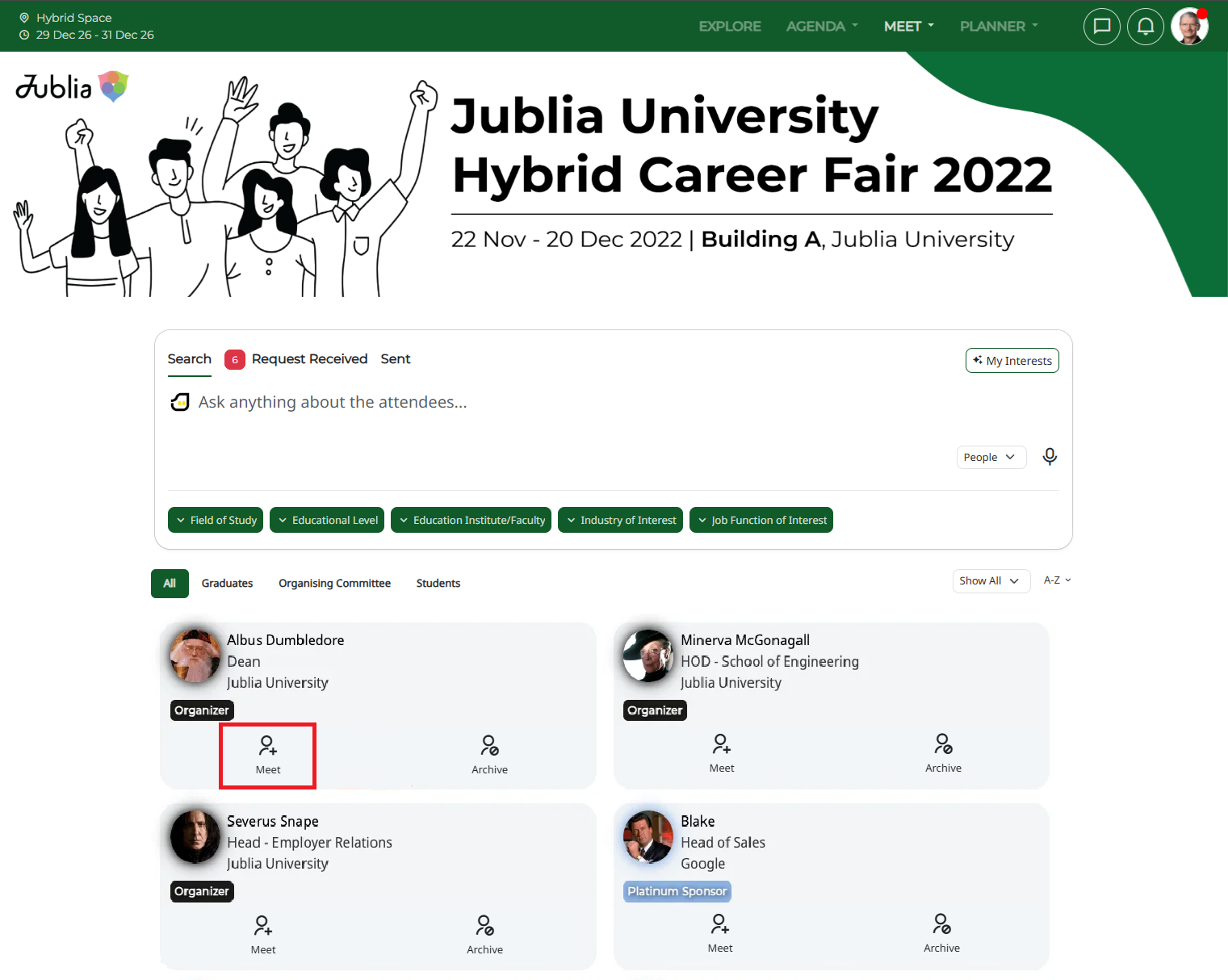
You can also manually search by clicking the [Meet] menu, selecting [Search], and using the filters under the [People] listing.
Under the [People] listing, search for attendees that you would like to connect with using the search bar or search filters.
Once you find someone of interest, click the [Meet] button on their profile card. The meeting request window will open.
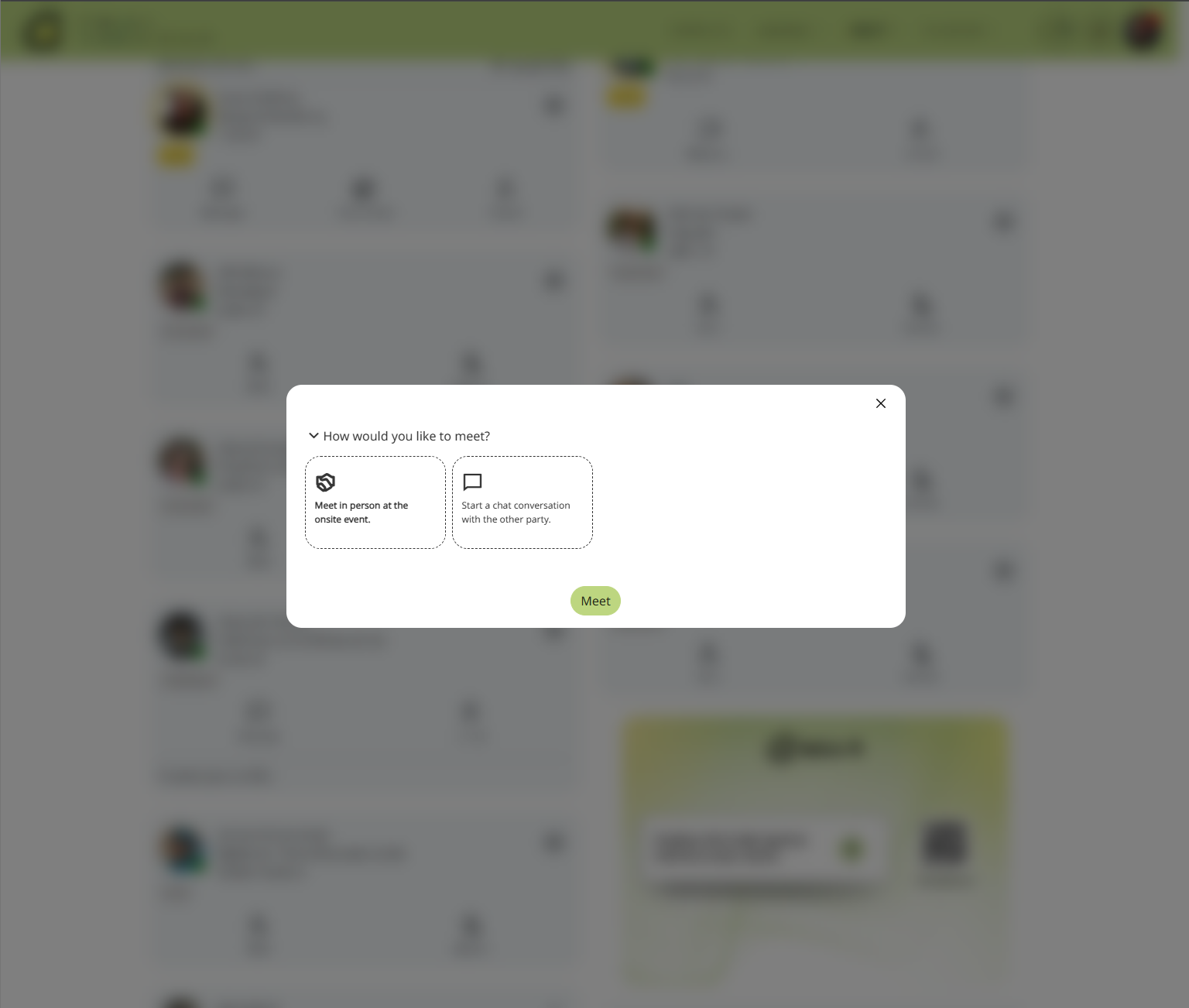
Select the format of your meeting (e.g., onsite or via chat), depending on the event settings.
Click the [Meet] button.
You will instantly receive a confirmation message, and your pending request will be reflected under the [Sent] tab.
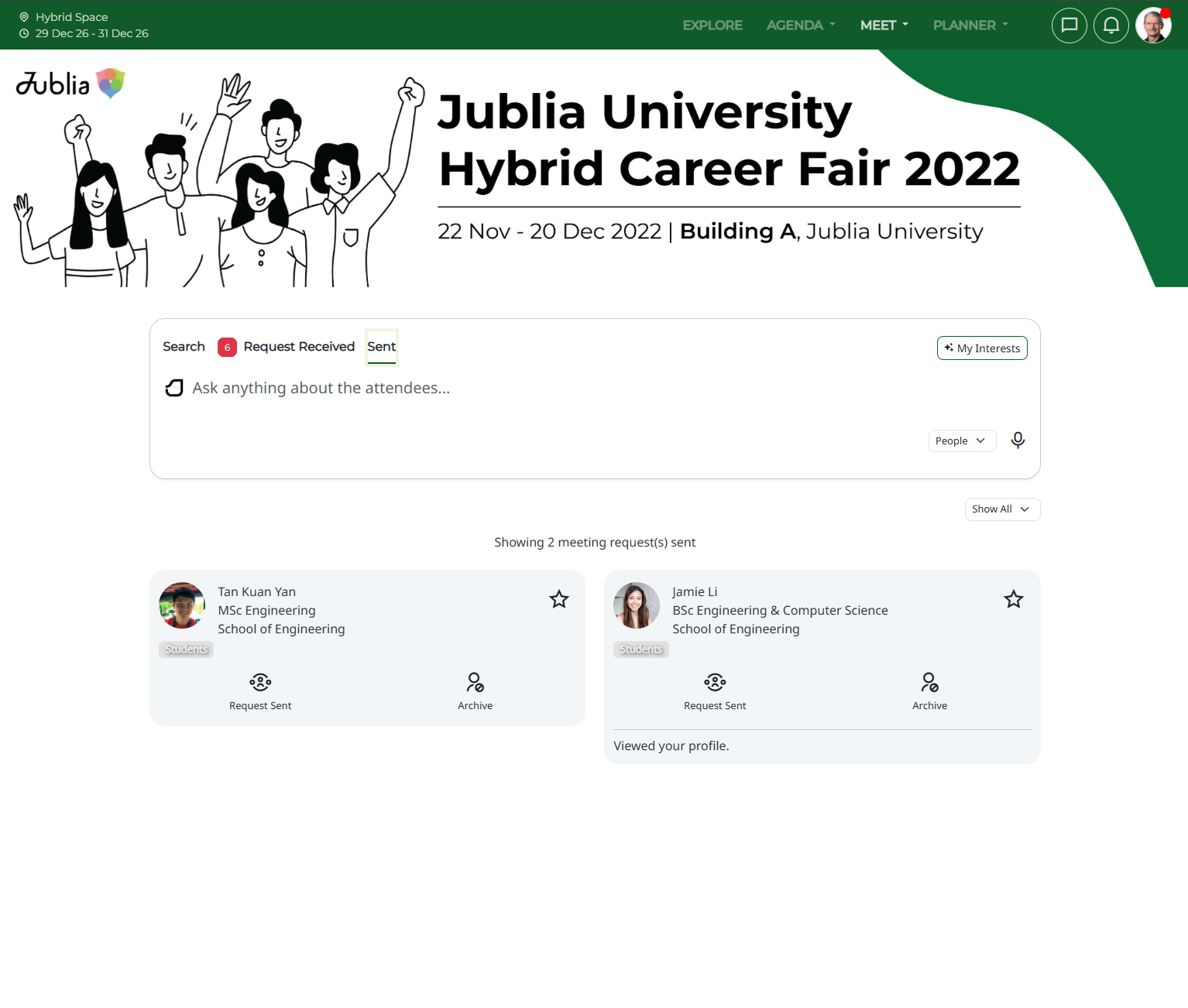
Note: If your colleague(s) has scheduled a meeting with the same person, you will be prompted with the message at the top: 1 colleague(s) engaged with the person.
Navigate to the Sent page.
Click on [Request Sent] on the attendee’s profile card.
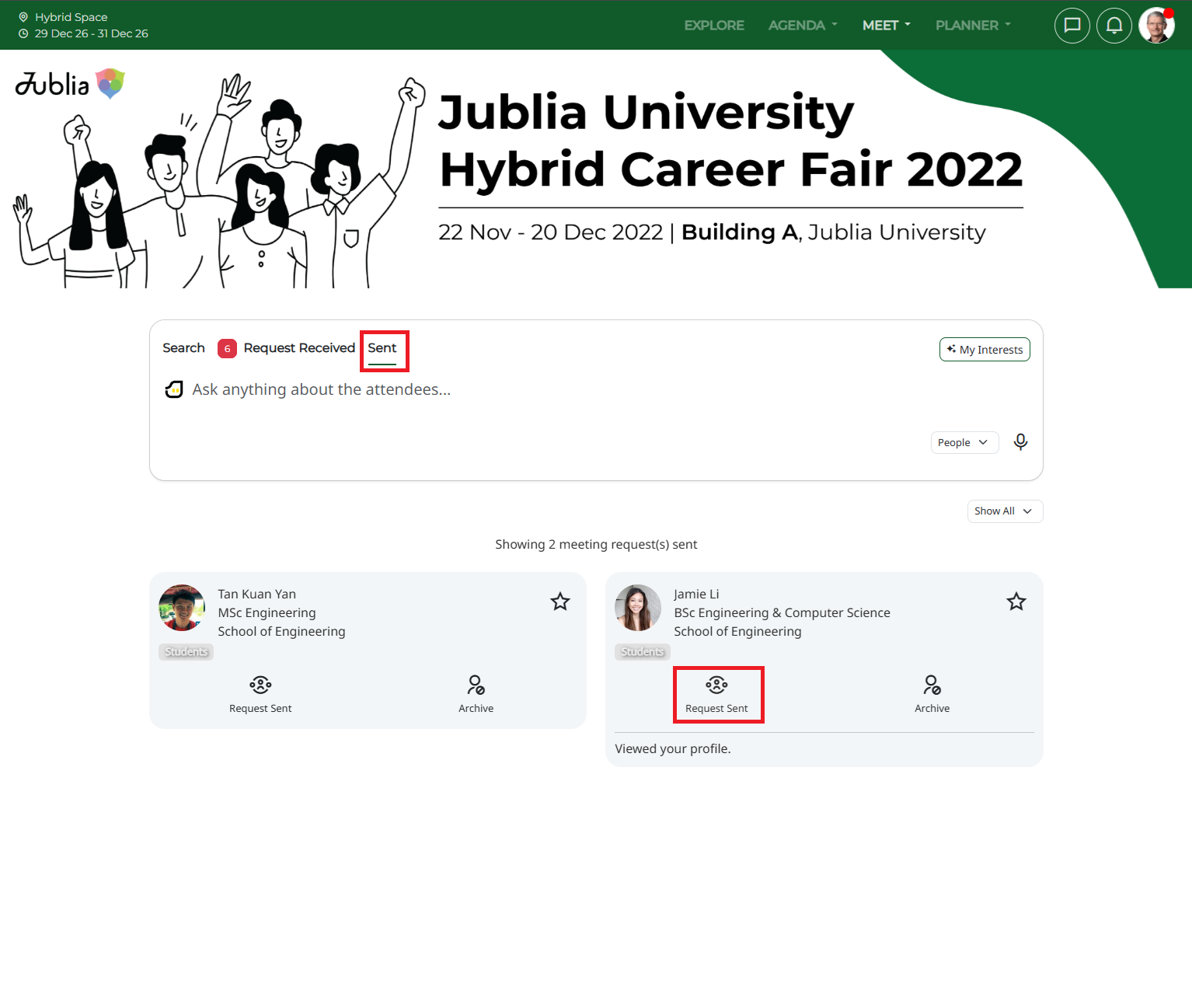
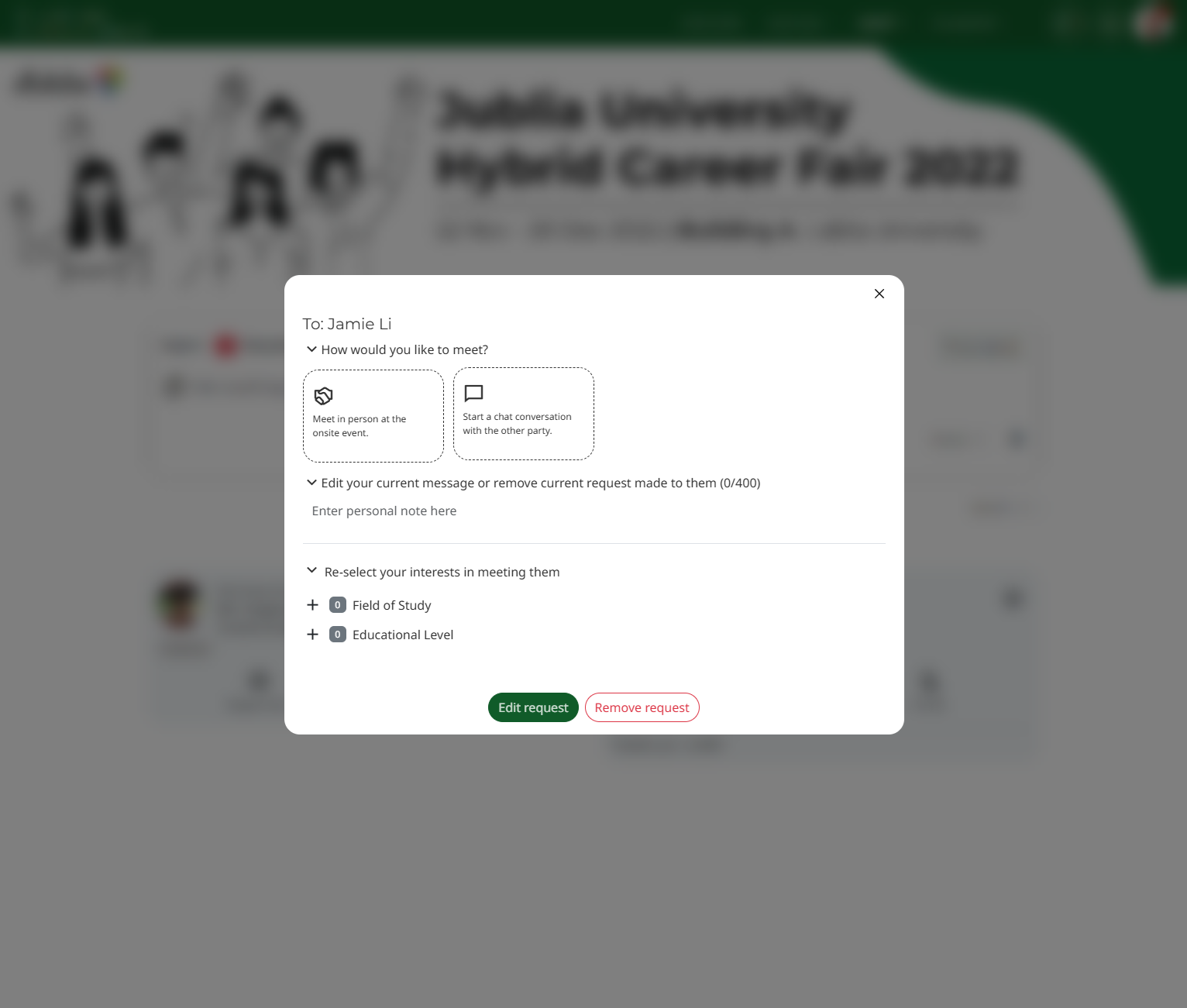
The request editor window will appear.
You may edit or remove your request that was previously sent to the employer/jobseekers. For example, if you initially sent an onsite meeting request but changed your mind to meet via chat instead:
Select your preferred meeting format
Click on Edit request
Once your request has been edited, you will receive another confirmation message as shown below:
If you would like to remove the request sent, simply click on Remove request. The profile cards will no longer show that a meeting request was sent to them. You have the option to send them a request again should you wish to.