How to Send Messages via Chat
Looking to connect with other attendees? You can use the chat feature on our platform to easily start conversations. Once your meeting is confirmed, or once someone messages you, you’ll be able to continue the conversation through chat.
Read this guide in
| 中文 | ภาษาไทย | 한국어 | tiếng Việt | 繁體中文 | Bahasa Indonesia | 日本語 | Español | Portuguese |
Web App
Sending a chat message
Step 1: Click on chat icon next to profile icon
At the top of the page, click on the chat bubble icon located next to your profile picture

You will be brought to your Messages page, and can start chatting with people who you have connected with after confirming a meeting
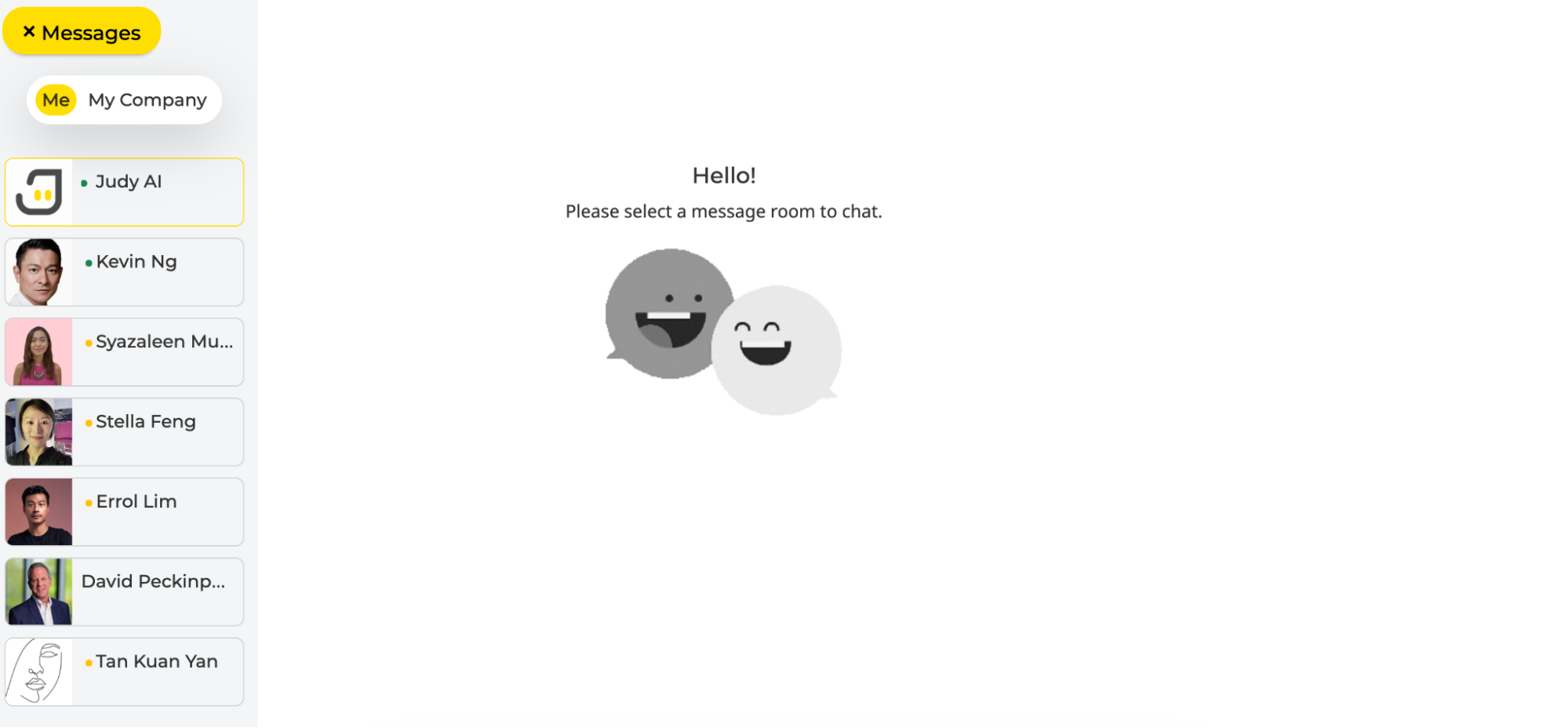
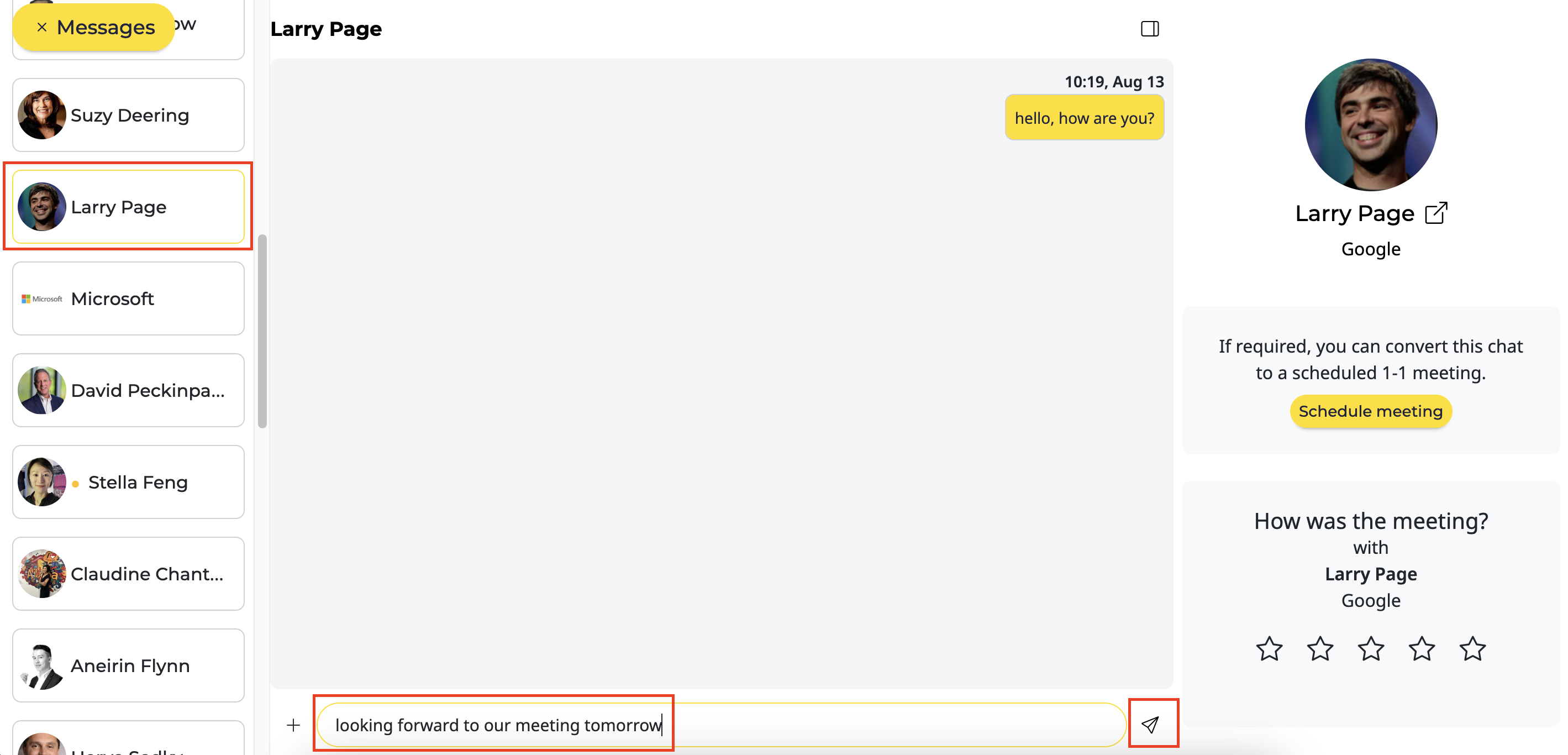
Select the person you want to send a message to and start chatting with them
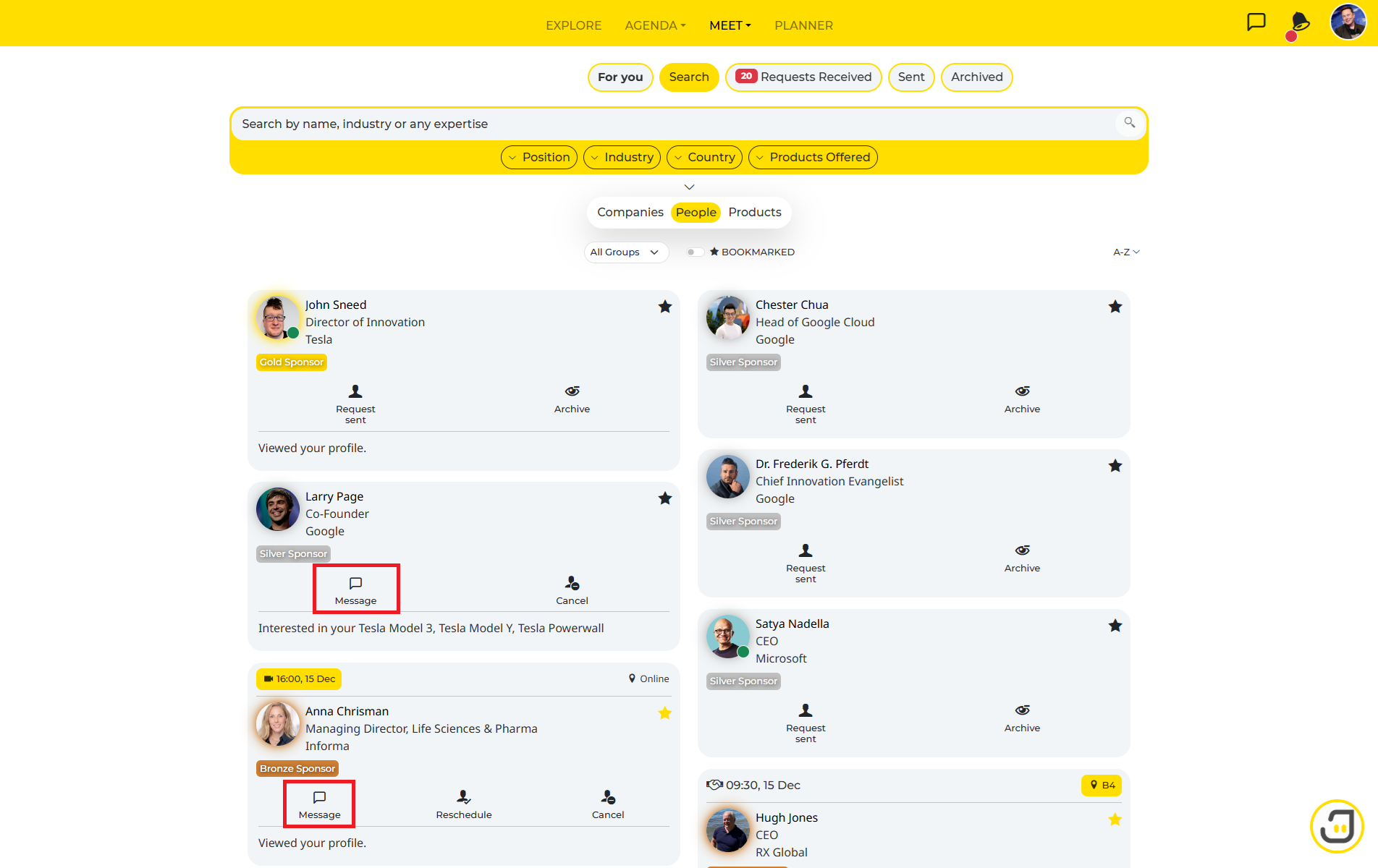
Under “Meet” and “Planner”, the chat button will also appear on the people card and profile details once a meeting has been successfully confirmed.
Native App
Step 1: Open the Chat List
If you're connected with other parties, tap the chat button to access your chat list.
Step 2: Start Chatting
From the chat list, select the party you want to chat with by tapping their name.
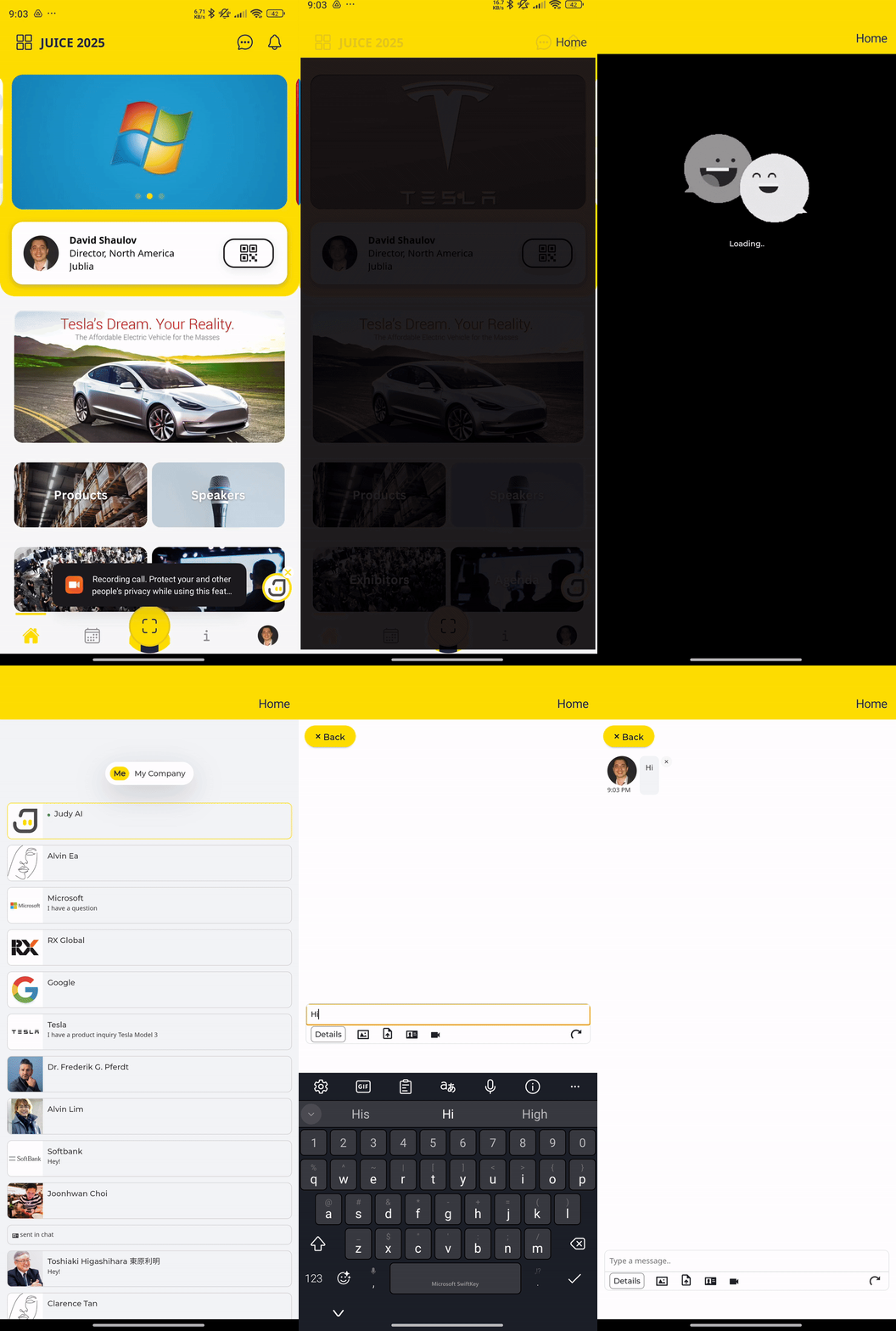
When a message is sent, a push notification will appear on the other party's mobile device (if they have downloaded and logged in to our app). If the chat is not opened within 10 minutes, the other party will also receive an email notification about the new message.