Read this guide in
| 中文 | ภาษาไทย | 한국어 | tiếng Việt | 繁體中文 | Bahasa Indonesia | 日本語 | Español | Portuguese |
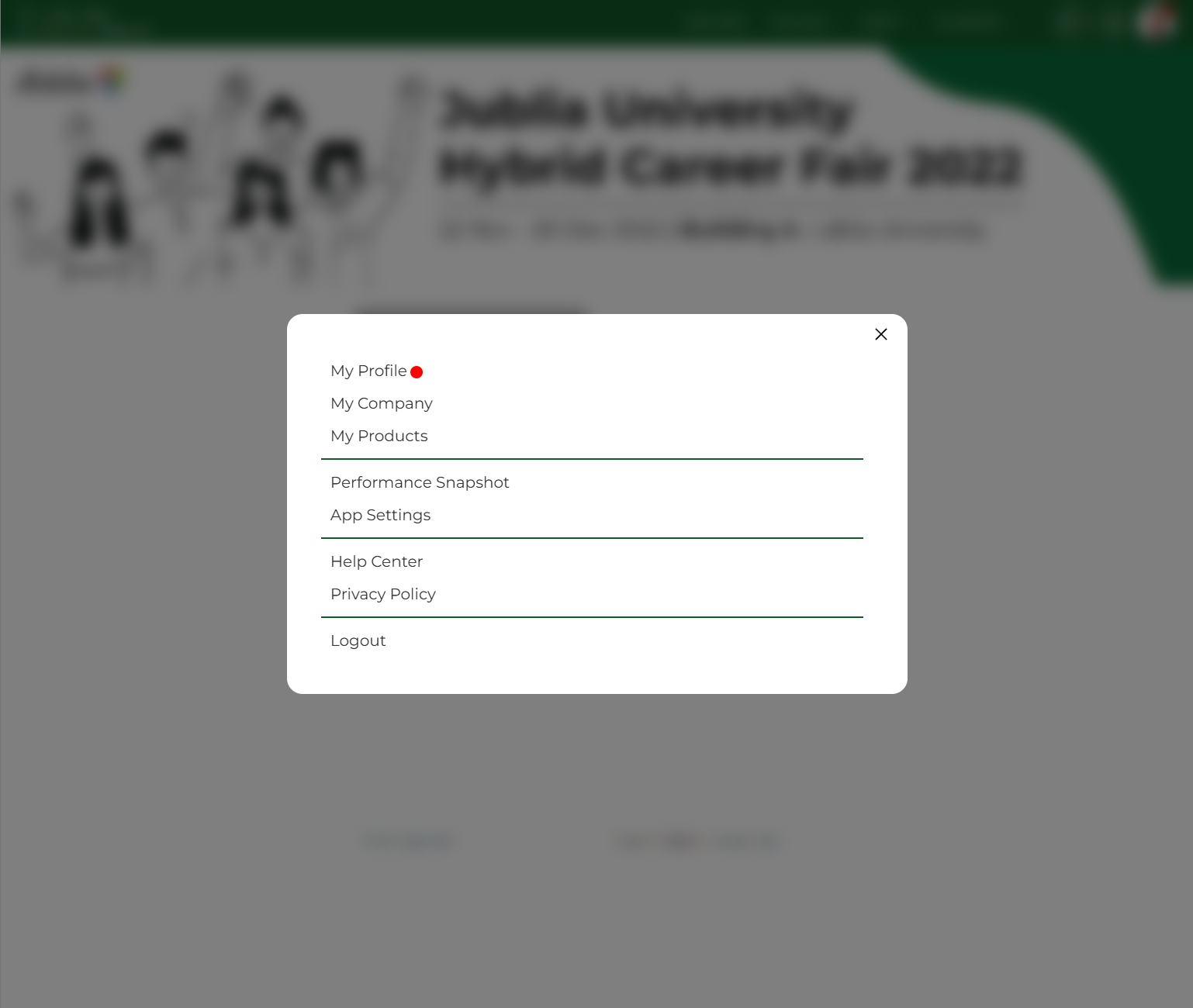
Click your [Profile Icon] in the top right-hand corner of the screen.
Select [My Job Openings] from the dropdown menu. The job management dashboard will open.
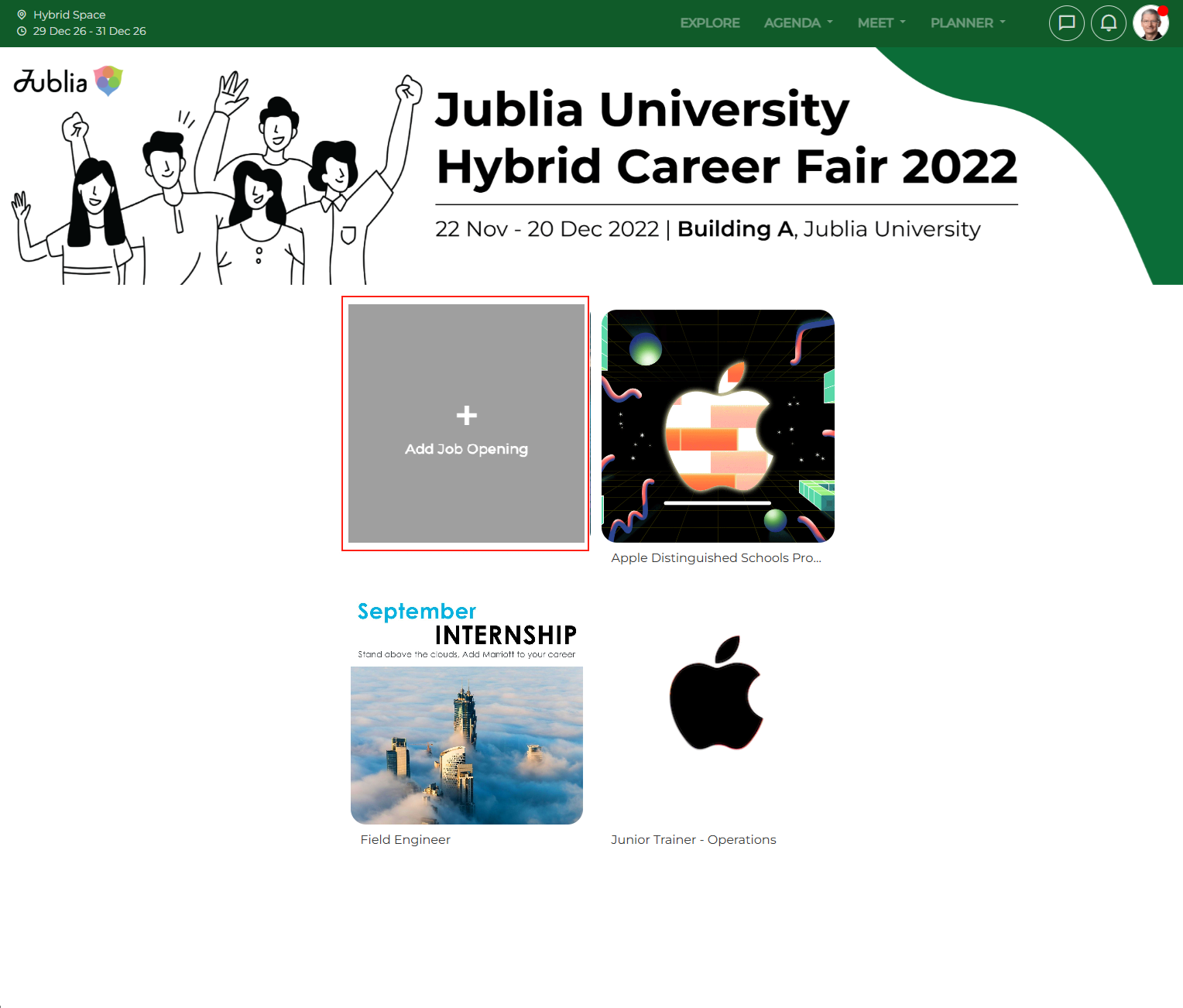
Click the [Add Job Opening] card.
A new job creation form will appear on your screen.
Click on the respective fields to enter your job information. Ensure your files meet the exact specifications:
Job Name & Description: Update your job title and write the job description in the text box (limited to 1000 characters).
Image: Upload a relevant cover image (maximum 1 MB).
Category/Tag: Select the relevant categories or tags from the dropdown menu to increase your job's search visibility (if applicable).
To display a video on your job posting, you must generate an HTML iframe code from your video host and paste it into the [HTML Iframe & embedded content] text box.
Embedding a YouTube video: Go to the YouTube video, click the [Share] button below the player, and select [Embed]. Copy the provided HTML code and paste it into the Jublia designated area.
Embedding a Youku video: Navigate to the Youku video, click the [Share] button, and select [Embed]. Copy the generated HTML code and paste it into the Jublia designated area.
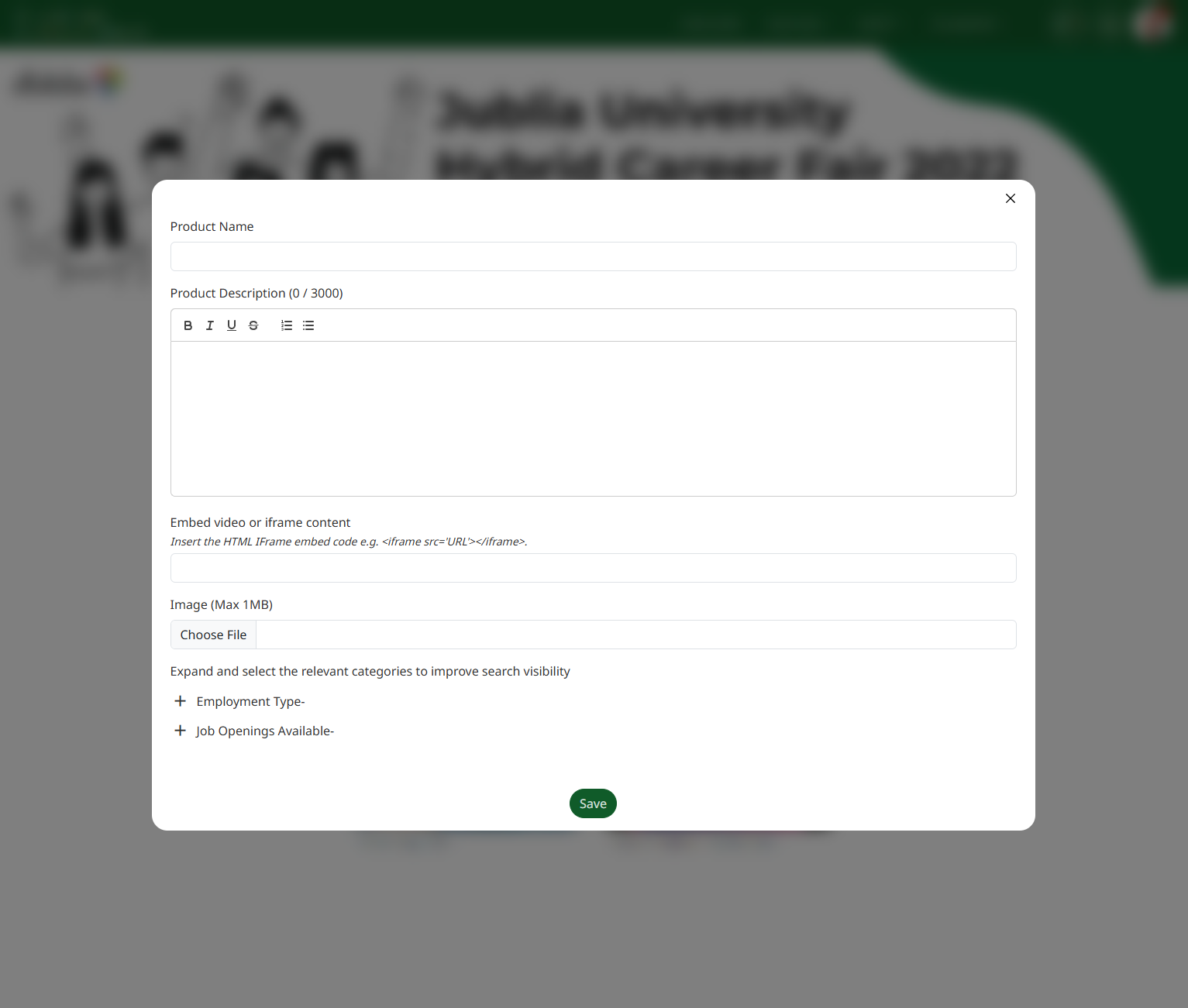
After filling in all the required details, click the [Save] button at the bottom of the form.
Your job opening will be successfully published and visible to potential candidates on the platform.
Ensure that the video is set to be "embeddable" by the content owner on the hosting platform (YouTube/Youku).
Double-check the dimensions (width and height) inside the HTML code to ensure it fits your profile layout appropriately.
Always test the embedded video on your live job posting to confirm that it plays smoothly.